How to migrate from Gmail to Outlook.com or Microsoft 365 without the Outlook app
TL;DR
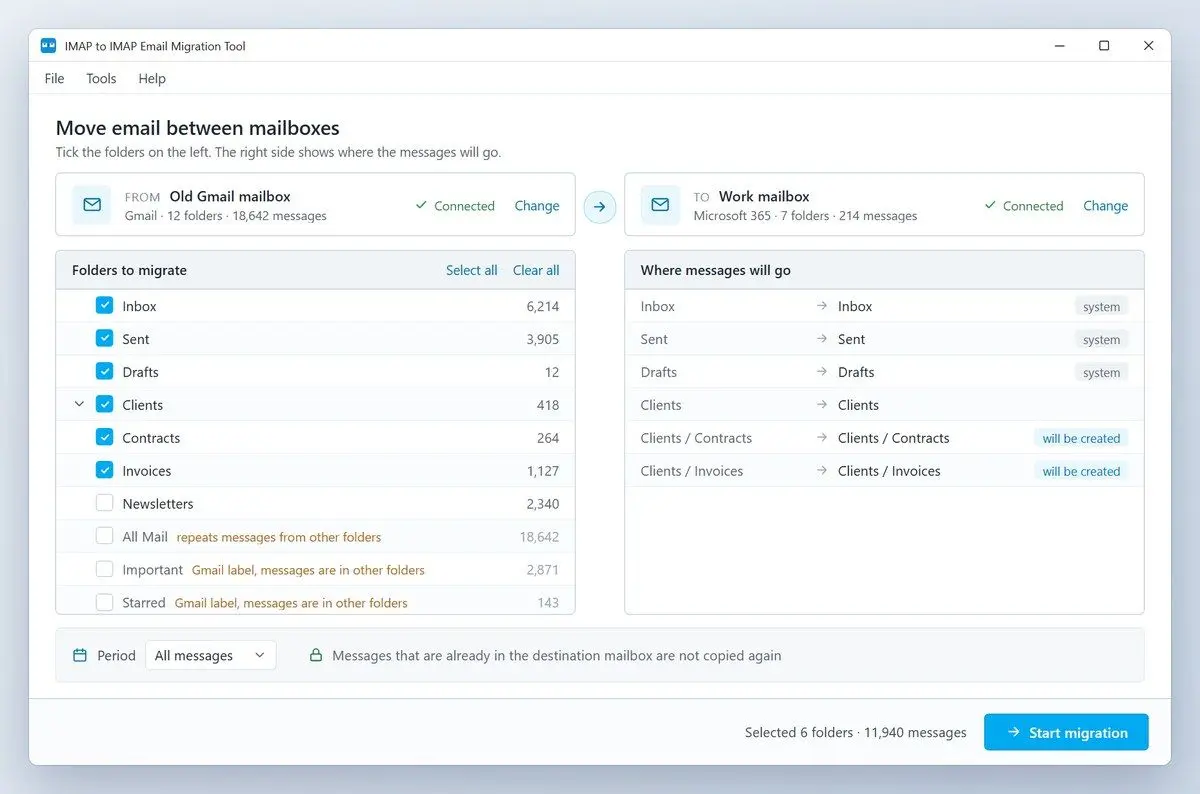
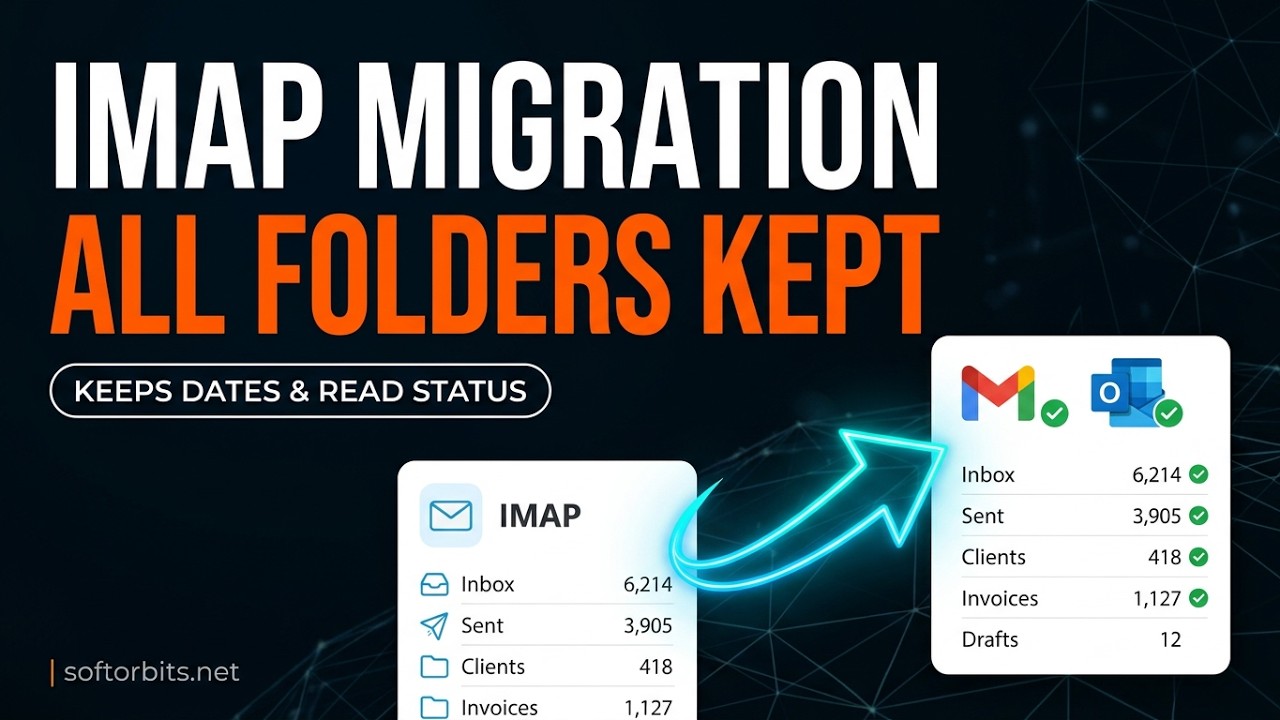
IMAP to IMAP Email Migration Tool connects to Gmail and to the Outlook.com or Microsoft 365 mailbox at the same time and copies messages straight between them, folder by folder. Original dates and read, flagged and answered status come along, and a second run skips everything already copied.
This route works for personal @gmail.com accounts on a PC without classic Outlook. IMAP to IMAP Email Migration Tool signs in to Gmail with an app password. The Microsoft side opens Microsoft's own sign-in page, so the program never sees that password.
Each message travels as the raw original with its attachments inside. The program maps Gmail's Sent, Drafts, Spam and Trash onto the matching Outlook folders and creates any folder the destination lacks. All Mail, Important and Starred start unticked because those labels repeat messages already in other folders. A date filter lets you copy one period at a time.
The run in four moves
Pick Gmail under From, paste the app password and click Connect
Pick Microsoft 365 under To and click Sign in with Microsoft
Tick folders on the left; the right side shows where each one will land
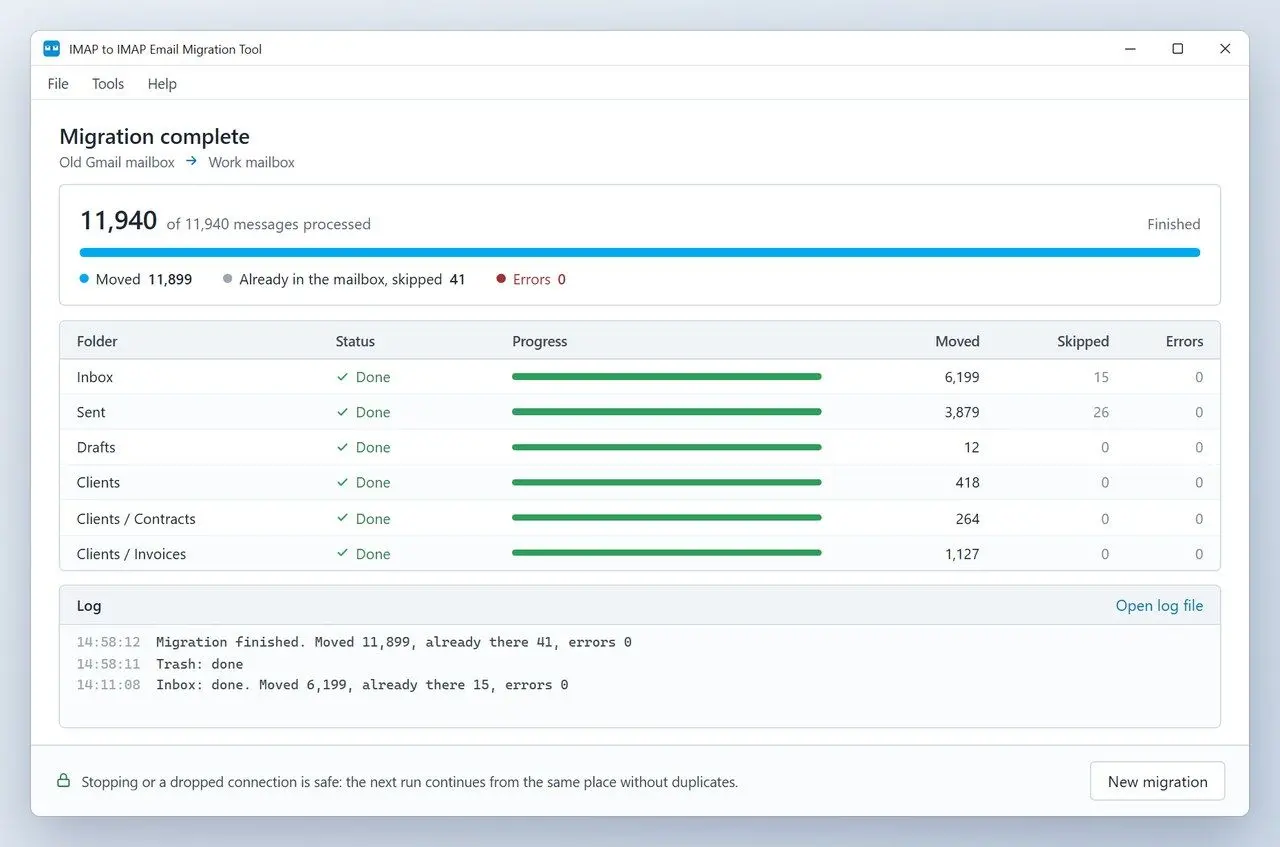
Click Start migration, and after a dropped connection click Resume migration
2,160 = 2,160
messages in source and destination after we killed a migration five times at random points on our own test mail server, with zero extra copies and zero missing
PST round trip in classic Outlook
Add Gmail and wait for the full sync
Export, add the new account, import
Needs classic Outlook and disk space
VS
Server to server with the migration tool
Connect both mailboxes and tick folders
Original dates kept on every message
A broken run resumes without duplicates
IMAP to IMAP Email Migration ToolCopy Gmail folders into Outlook.com or Microsoft 365 server to server, and pick up again after any dropout.
Can you import Gmail into Outlook with the new Outlook for Windows?
TL;DR
Partly. New Outlook adds a Gmail account and can import a PST under Settings > Data files > Import. To open PST files there, Microsoft requires classic Outlook installed with the same bitness and an account with a Microsoft 365 subscription, on a PC that is not ARM-based.
Classic Outlook has a File tab at the left of the ribbon; new Outlook does not. The import dialog in new Outlook lets you choose folders to bring in and the folder that receives them. Duplicates have option of their own. Getting Gmail into a PST still happens in classic Outlook or in a backup tool, so new Outlook alone rarely completes the migration. If one of the requirements rules you out, for example on a Snapdragon laptop, copy server to server with the tool above. To check what an exported PST holds before you import it, you can open a PST file without Outlook.
What changes for Google Workspace accounts when you transfer from Gmail to Outlook?
TL;DR
Work and school Google Workspace accounts often cannot create app passwords, so tools that sign in over plain IMAP may not connect at all. For a whole domain, the Microsoft 365 admin runs the migration from the admin center, and the Workspace method there can move calendars and contacts along with mail.
An @gmail.com address is a personal account. An address at your company's own domain that opens in Gmail is Workspace, and the mailbox belongs to the organization.
For one Workspace mailbox, the admin first allows IMAP in the Google Admin console. After that, classic Outlook signs in through Google's browser window and the PST route works the same way as for a personal account. A Gmail to O365 move for the whole company uses CSV lists and admin consent on both sides. Leave it to the tenant admin. A free @gmail.com address stays an @gmail.com address. Switching to Outlook moves the mail, and the address keeps living at Google. Our IMAP to IMAP Email Migration Tool targets these personal accounts.
Why can't Outlook add your Gmail account?
TL;DR
Starting with Current Channel Version 2412 (Build 18324.20168), classic Outlook ships Microsoft's Retry fix for the main sign-in bug. On a current build, most failures are the unticked Microsoft access box from the first section, or an app password typed where Outlook expected the browser flow.
The error text varies. People see "We couldn't log on to the incoming (POP/IMAP) server", "The server refused the connection", or a loop where Outlook never asks for a password. That loop is expected on recent builds: classic Outlook supports OAuth and sends you to Google's page instead of a password box.
"Allow less secure apps" is gone because Gmail no longer supports third-party apps that need your Google username and password. There is nothing to switch on in Gmail settings, because Google's IMAP help states that IMAP access is always turned on. After two failed sign-ins in a row, check the address and password before trying again. Many mail servers block the IP address for a while after a few bad attempts, and then even a correct password fails.
Is Gmail in Outlook IMAP or POP, and which settings work?
TL;DR
Use IMAP. It keeps labels as folders and leaves the mail on Google's servers, while POP pulls messages into one flat inbox. For manual setup, the incoming server is imap.gmail.com on port 993 with SSL/TLS, signed in with a Gmail app password.
Setting
Value for Gmail
Account type
IMAP
Incoming server
imap.gmail.com
Port
993
Encryption
SSL/TLS
Password
App password, or Google's sign-in window in current Outlook
Google suggests syncing only folders with 10,000 emails or fewer and connecting no more than 15 mail clients to one account. A ten-year inbox exceeds the first number, which can make Outlook slow before the migration starts. Manual settings matter mostly for older Outlook builds and migration tools.
Where do you get a Gmail app password, and why is the option missing?
TL;DR
Create it in your Google Account under Security once 2-Step Verification is on. If the App passwords option does not appear, Google points to 2-Step Verification set up with security keys only, a work or school account, or Advanced Protection.
The full list sits in Google's app password help. Google itself calls app passwords unnecessary in most cases. Tools that speak plain IMAP still need one. One forum thread is typical. Someone sets up Gmail and Outlook 365 on a new Windows 11 PC, spends three hours on "server refused the connection", and the fix turns out to be a generated app password. That password opens the whole mailbox. Revoke it on same page when the move is done.
What happens to Gmail labels in Outlook?
TL;DR
Each Gmail label becomes an Outlook folder, and a message with two labels lands in both folders as two separate copies. Gmail's All Mail folder holds every message once more, so copying it doubles the mailbox.
Outlook rules can rebuild label-style sorting for new mail. For the archive, decide which labels you use as folders and untick the rest. Nested labels such as Clients/Acme arrive as nested folders.
How do you avoid duplicate emails after the migration?
TL;DR
Duplicates come from Gmail labels that repeat a message and from a second import on top of the first. Untick All Mail before copying and choose Do not import duplicates in the PST wizard.
After an interrupted copy, resume into the same folders instead of starting over in a new location. Once everything has landed and you have spot-checked a few folders, back up Outlook emails to a PST before you delete anything in Gmail.
Do contacts and calendar move with Gmail mail?
TL;DR
No, not over IMAP. An IMAP copy carries mail only, and contacts and calendars need their own export from Google. The Microsoft 365 admin migration for Workspace is the path that moves them together with mail.
Microsoft's switch guide describes the PST route as moving email, calendar and contacts. A Gmail account added to Outlook over IMAP syncs mail folders, so the PST you export from it holds mail. The University of Colorado's Outlook guide says it plainly: only mail is moved. Google Contacts and Google Calendar each have an export of their own, and Outlook imports both files. Do them on the same day with the mail, so nothing new arrives in between.
How long does migrating from Gmail to Outlook take with a large mailbox, and what are the IMAP limits?
TL;DR
Google publishes an IMAP cap of 2,500 MB of downloads and 500 MB of uploads per account per day for Workspace, and hitting it pauses IMAP access. Plan around roughly 2.5 GB a day for a personal account too, so a 10 GB mailbox needs about four days of copying whichever method you pick.
2,500 MB
of IMAP downloads per Gmail account per day; after the limit, a suspension typically lasts 1 hour and can last up to 24 hours, per Google's Workspace admin help
The figures sit on Google's bandwidth page for Gmail. An Outlook user with a 30,000-message Gmail account saw every send and receive slow down, and the old fix was to limit Gmail's IMAP folders to the last 1,000, 5,000 or 10,000 messages. That speeds up sync but hides the rest of the archive from Outlook. Plan a big transfer from Gmail to Outlook in waves. Start with the last 12 months so daily work carries on, then let the archive run overnight. Close other mail apps on the same Gmail account while it runs because they draw on the same daily allowance. When the destination server asks to slow down, our migration tool pauses 30 to 120 seconds and retries the same message. After the daily cap, run it again next day, and the migration from Gmail to Outlook carries on without repeating what is already copied.
Which Gmail to Outlook transfer route fits your situation?
TL;DR
Pick by destination and account type. Mail inside the Outlook app needs only the account added, a new Outlook.com or Microsoft 365 mailbox needs a copy, and a Workspace domain goes to the admin.
Route
What moves
Watch for
Classic Outlook, PST export and import
Mail by folder
Labels duplicate messages; full sync needed first
Copy to Folder inside Outlook
Mail you select
Slow for big folders; drag and drop moves instead of copying
Server-to-server migration tool
Mail by folder with dates and read/flag status
Personal Gmail needs an app password
Microsoft 365 admin migration
Mail; the Workspace method adds calendar and contacts
Admin rights on both sides
Gmail forwarding
New mail only
Old mail stays in Gmail
Google Takeout
Mail as one MBOX file
Outlook does not open MBOX; read/unread status can be lost
Want Gmail in the Outlook app and plan to keep the address? Add the account and stop there, because that is sync and Gmail stays the home of your mail
Leaving Gmail for an Outlook.com or Microsoft 365 mailbox, with classic Outlook installed? Take the PST route
Same goal, but no classic Outlook or an ARM laptop? Copy server to server
Company domain on Google Workspace? Hand it to the Microsoft 365 admin
Only need new mail to reach Outlook for now? Forward Gmail to Outlook, knowing the old mail stays where it is
If you went the Takeout way and now sit on an MBOX file, you can still open the MBOX file on Windows to check what it captured.
IMAP to IMAP Email Migration Tool
Migrate Gmail to Outlook in classic Outlook, new Outlook or Microsoft 365: PST export steps, app passwords, labels, duplicates and Gmail IMAP limits.
Usually because Gmail stopped accepting your plain password. Google no longer lets third-party apps sign in with a username and password. Remove the account, add it again through Google's sign-in window, and tick the box that gives Microsoft apps access.
Gmail has no export-to-Outlook button, so the export runs inside classic Outlook. Add the account, let it sync, save it as an Outlook Data File (.pst), and import that file into the destination account.
Google Takeout exports the whole mailbox as one MBOX file, which Outlook cannot open without conversion. For a file Outlook opens directly, you can save Gmail to a PST file on your PC with our backup tool.
Sync when you keep Gmail as your main address and only want a desktop client. Migrate when the goal is to stop depending on Gmail, because a synced account still lives on Google's servers and goes away when you close it.
The message had more than one Gmail label, or All Mail was copied along with the label folders. Every label is a separate IMAP folder, so each one produces its own copy in Outlook.
Check the server name (imap.gmail.com), port 993 and SSL/TLS first, then the password. A personal account needs the Google sign-in window or an app password; a Workspace account also needs IMAP allowed by the admin.
Current classic Outlook builds sign in to Gmail through Google's browser window (OAuth), so there is no password field to paste into. App passwords are for tools that use plain IMAP sign-in.
An IMAP migration moves mail and its folders. Contacts and calendars travel separately, through Google's own export and Outlook's import, unless a Microsoft 365 admin runs the Workspace migration.
Yes. The trial copies the 25 newest messages from every folder, and the program does not expire. After you buy, the next run brings over the rest without duplicating what the trial already moved.

 IMAP to IMAP Email Migration Tool