1. 1️⃣ Check what the XnConvert free license covers and when a business must pay.
  2. 2️⃣ Run a first batch resize on Windows without unexpected file-size changes.
  3. 3️⃣ Compare XnConvert with three alternatives for your work.
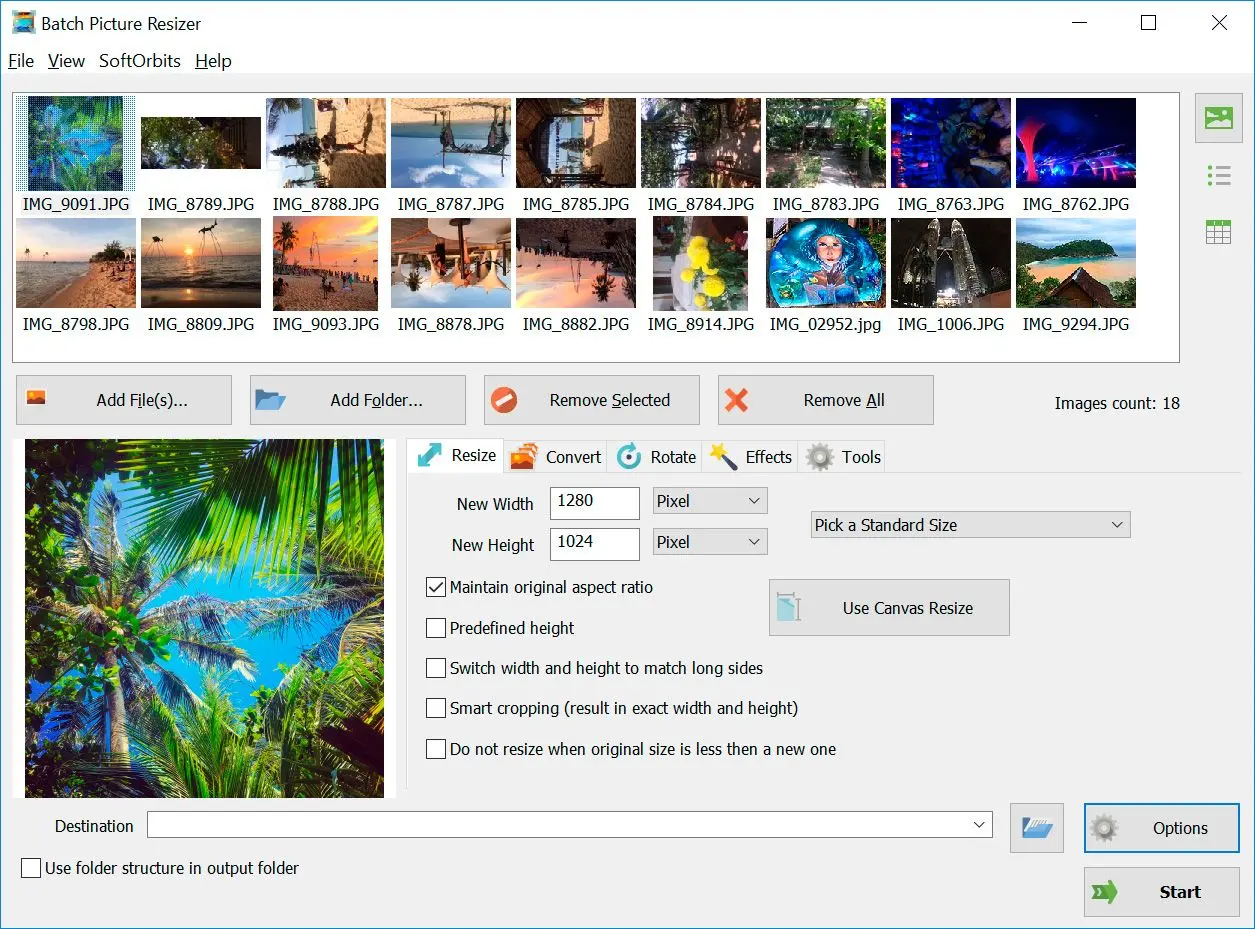
Batch Picture Resizer Screenshot.
️ Eugene - CEO at SoftOrbits, Candidate of Technical Sciences, has more than 16 years of expertise in software development, photo and multimedia applications, enhancing and transforming digital images and videos.
📅 Last updated on:  2026-11-19

XnConvert is XnSoft's batch image converter. You load a folder, stack actions such as resize and watermark, and save the results in a new format. This review compares it with simpler resizers on Windows 10 and 11.
We make Batch Picture Resizer and rank it first here for plain resizing and conversion. Keep that in mind when reading its card. XnConvert gets the longest review. We did not time these programs, so there are no speed rankings.

Windows 11 / 10Free trial, no sign-up

What you will learn
Apply in 10 min Saves 2 hBeginner

Is there a simpler XnConvert alternative for plain batch resizing?

TL;DR

For a resize plus a format change, Batch Picture Resizer works in one window: add a folder, set the size and press Start. You do not need to build an action chain.

One tutorial maker describes the audience for batch tools well. These are people who only need to shrink or convert photos, yet face hundreds of files at once and find big editors bloated with tools you'll never use. In XnConvert, you open Actions and add Resize with its mode; format and quality settings sit on Output.

Batch Picture Resizer puts each job on its own tab. Resize accepts pixels, percent or KB for file weight. Rotate, Effects and Watermark have separate tabs, and EXIF data carries over to new JPEGs.
Camera RAW and HEIC files open directly. WebP and PSD load too, as does multipage TIFF, and output covers six formats from JPEG to WebP. Batch Picture Resizer requires Windows 10 or 11 and is paid after the free trial; check the product page for pricing.

 Batch Picture Resizer showing the Finished! window after a batch run, with the resized photos saved to a new folder..

Our best photo resizer software roundup compares eight programs.

Batch Picture Resizer
Batch Picture ResizerResize and convert hundreds of photos in one pass, with a target size in KB when a site sets a weight limit.

Four batch converters at a glance

Rows follow the ranking below.
ToolBest forHow a batch is builtPlatformsCost
Batch Picture ResizerResizing and converting big photo folders with little setupOne tab per task, target file size in KBWindows 10, 11Free trial, then paid
XnConvertSeveral edits in one batchChain of 80+ actions, saved as presetsWindows, macOS, LinuxFree for personal use, paid for business
FastStone Photo ResizerFree convert-and-rename jobsShort option set, fewer menusWindowsFree for personal use, paid for commercial
IrfanViewPeople who already use it as a viewerFile menu, Batch Conversion/RenameWindowsFree for personal use

XnConvert review: how we tested it and the alternatives

TL;DR

We gave most weight to the depth of the action chain and the steps needed to finish a first batch. File-size control came next, followed by licensing and supported systems.

We judged each program against XnConvert's action list. A long chain helps when you resize, watermark and strip metadata in one pass. It adds setup when you just need 300 product shots at 1200 pixels by lunch.

  • Edits you can stack, from a resize to a chain with watermark and metadata
  • Steps from adding a folder to finishing a batch
  • File-weight control in KB versus pixels and quality settings
  • Business licensing costs and free-use terms
  • Supported operating systems

We know Batch Picture Resizer from its source code. For XnConvert, we used vendor listings, reviews from Scientific Frontline and FileHorse, a Clemson University library guide, two Make Tech Easier articles and video tutorials. The shorter FastStone and IrfanView cards draw on editorial reviews and forum mentions. Each "Our take" is our opinion.

Four batch converters, reviewed

1. Batch Picture Resizer: best for resizing and converting big photo folders in a few clicks

 Batch Picture Resizer Resize tab with a new size set for a selected photo..

In Batch Picture Resizer, add camera or phone photos individually or by folder, pick a size, choose the output format on Convert and press Start. This suits websites, email and upload forms with weight limits.

The only complaint in our Store reviews so far is that the program is paid, a fair point when its main rival is free for home use.

Pros:

Sets a target file size in KB and chooses matching JPEG quality

Gives each task its own tab

Opens RAW, HEIC, WebP and PSD directly

Preserves EXIF data in converted JPEGs

Cons:

Paid after the free trial; XnConvert is free for personal use

Windows 10 and 11 only

Far fewer edits per batch than XnConvert's 80+ actions

Our take: For resizing and format changes, a single window with a KB field takes fewer clicks than building an action chain.

2. XnConvert: best free choice when one batch needs a chain of edits

 XnConvert Actions tab with a chain of steps: clean metadata, crop, automatic levels, retro and color balance, with the preview on the right..

Forum threads often recommend XnConvert for free batch conversion because of its Actions tab. You stack edits in order, check the preview and save a preset. Reviews count 80+ actions and 500+ input formats. The three main tabs, Input, Actions and Output, look much the same across systems.

On the Mac App Store listing, one user reports rotating only the portrait shots in about 8,000 pictures with five minutes of setup and ten of processing. Another says they would have paid for it. A saved preset cuts down the grunt work on repeat batches.
A video tutor who closed his walkthrough with a verdict said the app might not look flashy, yet it covers a client batch or a set of blog images without trouble.

Pros:

Free for personal and educational use, with no watermark

Saves chains of 80+ actions as presets

Runs on Windows, macOS and Linux; includes a portable Windows build

Watches hot folders and exports chains to NConvert

Keeps, strips or edits EXIF, IPTC and XMP metadata

Cons:

Dated interface; some effects lack a live preview

Uses one CPU core until you switch on multi-core processing

Re-encodes JPEGs at your chosen quality, changing file sizes

Business use requires a paid license

Our take: It has the most editing options here, with more setup than a plain resize needs. We would choose it for a pass that pairs a resize and watermark with metadata removal.
Verdict: Choose XnConvert for batches with several edits or work across Mac or Linux.

3. FastStone Photo Resizer: best simple freeware for convert-and-rename jobs

Forum discussions alongside XnConvert recommend FastStone Photo Resizer as a Windows-only choice without personal-use restrictions. Make Tech Easier's roundup of batch image editors calls it very easy to use, with fewer menus than heavier programs and conversion and renaming in one run. Check the vendor's current commercial license price.

Pros:

Free for personal use

Converts and renames in one batch

Fewer menus than XnConvert

Cons:

Windows only

Commercial use requires a paid license

Fewer actions than XnConvert for multi-step batches

Our take: The closest free match to a simple resizer if you use Windows and want quick batches with renaming.

4. IrfanView: best for people who already use it as their image viewer

IrfanView has been around since 1996 and is already the default viewer for many Windows users. Open its batch mode through File > Batch Conversion/Rename.

Pros:

Free for personal use

About 8 MB of disk space for the 64-bit build

Conversion and renaming in one dialog

Works as an everyday image viewer

Cons:

Windows only

Batch mode is easy to miss in the viewer's menu

Commercial use requires paid registration

Our take: Try it if you already have it installed and need conversion or renaming. Finding the menu is the hard part.

Basic information: what is XnConvert, and is it really free?

TL;DR

XnConvert is XnSoft's batch image converter for Windows, macOS and Linux. Personal, educational and non-profit use is free; business use requires a paid license.

PortableApps lists the license as freeware. Scientific Frontline's 2025 review includes non-profits under the free terms and lists single business licenses from 15 euros, with discounts for more seats. Confirm current prices with the vendor before buying. One video tutor calls the paid tier low cost, no hidden fees, no nonsense.

The free edition has no watermark or batch file-count cap. The Mac App Store listing promises no subscription or in-app purchases. Another reviewer calls the program pretty lightweight for its format range.

80+
actions you can chain in one XnConvert batch, from resize and crop to color filters and watermarks
Source

Most reviews count 500+ input formats; one says more than 400. Output supports fewer, so check for your target format on the Output tab before planning a workflow.

Is XnConvert safe, and where do you download it for Windows?

TL;DR

The official XnConvert page on xnview.com and PortableApps provide normal freeware installs. Watch the Delete Original and overwrite settings: they can remove your source files.

XnSoft provides an installer and portable ZIP for Windows 7 to 11. The current PortableApps build is 64-bit only, about 24 MB to download and 90 MB installed. Softonic and CNET also list XnConvert; the vendor page provides the current build directly. Run the installer, accept the defaults and you're ready to roll.

Leave Delete Original unticked for your first batches. Clemson University's digitization guide enables it in one TIFF workflow and leaves it off in another. Without a backup, a wrong tick can leave you without originals.

When output files already exist, XnConvert can ask about each one. Use a new, empty output folder to avoid clicking through prompts for a large batch.

How do you batch resize and convert photos in XnConvert on Windows?

TL;DR

Load a folder on Input, add Resize on Actions with Reduce only enabled, choose the format and quality on Output, and click Convert. Save a preset for repeat batches.

Actions is where all the action happens; the tabs follow the job's order.

  • On the Input tab, drag in photos or click Add Folder; subfolders are included.
  • Open Actions, click Add action and choose Image > Resize.
  • Pick a Mode such as Longest Side or Width and enter the size in pixels.
  • Set Enlarge/Reduce to Reduce only to avoid enlarging small images.
  • On Output, choose a new folder and keep {Filename} as the name template.
  • Pick JPG or As original, click Settings under the format list and set JPEG quality.
  • Click Convert and save the settings with the floppy-disk button.
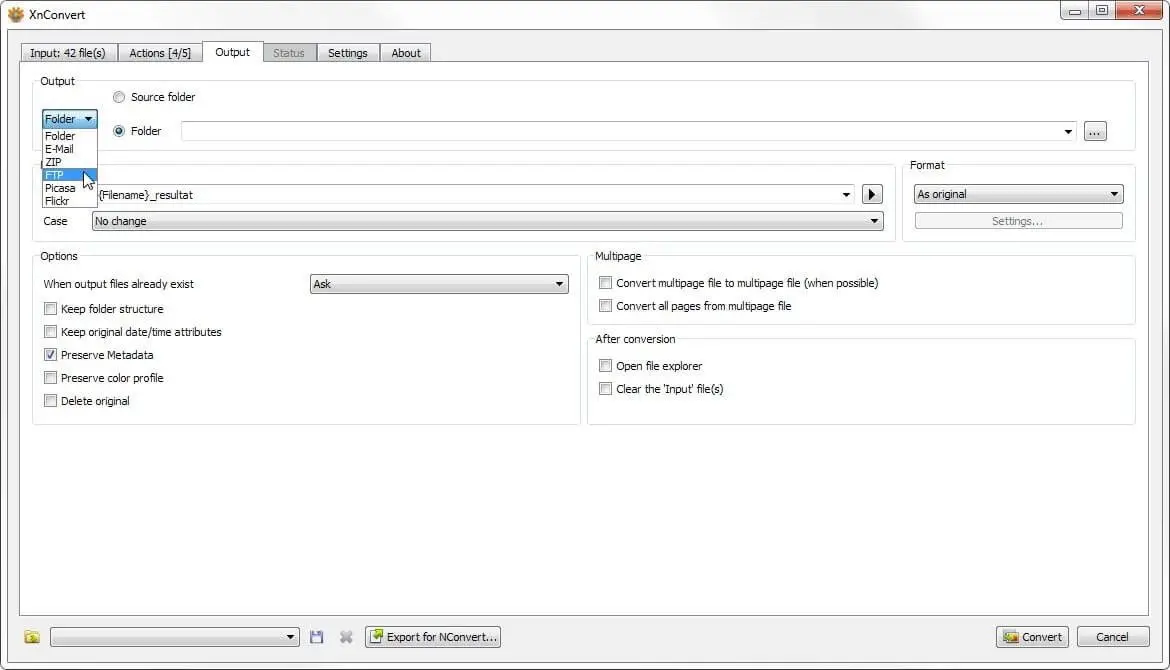
 XnConvert Output tab with the output folder, file naming and Format set to As original, with the Settings button below it..

Clemson University's batch-converting instructions recommend Longest Side at 4000 px with Reduce Only, Preserve Metadata and Keep Folder Structure for archive masters.
One tutorial author went the other way. He unticked the aspect-ratio lock and pushed every photo into the same fixed widescreen frame, ready to stretch the image if needed. That suits slide backgrounds; keep the lock on for family photos.

One reviewer calls the wait after Convert letting the program "let the magic happen". The Status tab then counts down the files still waiting and shows the time left.

A tutor who chained a resize, a logo and a line of text stresses following the sequence properly: resize first, then add watermarks. Resizing afterward distorts the logo and text.

For old BMP scans, follow the BMP to JPG converter steps.

Why do converted files come out bigger or smaller than the originals?

TL;DR

XnConvert re-encodes JPEGs at the quality set under Settings on Output. A high value can make a resized photo heavier than its source; a low one can make it much smaller than expected.

Listings promise a simple converter with no caps. Output's As original option sounds like it preserves everything, but it keeps the format: JPEGs are written again at the Settings quality value.

Before processing a folder, set the quality and convert one file. Then compare its size with the original in File Explorer.
For upload limits by weight, Batch Picture Resizer searches for a JPEG quality that fits your KB target, shrinking the image only if quality alone cannot reach it. The image resizer in cm guide covers this mode and print sizes.

XnConvert, quality by hand
  • Set a JPEG quality number under Settings
  • Run the batch, then check file sizes
  • Adjust and run again if a file is over the limit
VS
Batch Picture Resizer, size in KB
  • Choose KB as the unit and type the limit
  • Quality is picked per file to land under it

Where does the free converter fall short?

TL;DR

Users report four limits: a dated interface, missing live previews for some effects, single-core processing by default and memory crashes with very large TIFF folders. Each has a workaround.

FileHorse's pros-and-cons list notes the dated interface and missing real-time previews for certain effects. One reviewer tried the other themes in Settings and returned to the default.

1 core
is all XnConvert uses by default; multi-core processing has to be switched on with Use CPU Cores at the bottom left of the window
Source

The same guide says multi-core mode cannot work with multipage files or the Ask option for existing files. Keeping overwrite prompts means staying on one core.
Clemson's library guide says a crash on a large TIFF folder is probably a memory error and recommends closing other programs and restarting. You can also split the folder into smaller batches.

A Mac App Store user reports that saved presets with several actions sometimes lose their watermark; re-selecting the image does not reliably fix it. Check the first few outputs from watermark presets.

What can it automate: presets, hot folders and NConvert?

TL;DR

Presets repeat a chain in two clicks. Hot folders process new files as they arrive. You can also export a chain to NConvert, XnSoft's command-line program, for scripts.

One video creator demonstrated a hot folder. He made two folders, raw and final, pointed a saved grayscale-plus-resize preset at the raw one, and every file dropped there later came out finished in the other. Adding files by hand each time, he said, is quite a tedious process.

The same creator added a "modified" tail to every output name, so processed copies never sit beside originals with the same name.
Scientific Frontline lists watch folders and NConvert export as XnConvert features. The resize tutorial says output can go to a folder, ZIP archive or email. Batch Picture Resizer also includes a command-line mode for scripts.

Which batch converter fits your work?

TL;DR

For plain resizing of big folders, choose Batch Picture Resizer. For multi-step edits or a Mac, choose XnConvert. FastStone suits free Windows-only conversion and renaming.

For three or four editing steps and occasional Mac work, XnConvert gives you one chain, free for personal use.
The shop owner. You publish product photos, and the store or marketplace rejects anything over a set weight. A target size in KB saves you a round of trial and error, so Batch Picture Resizer is the shorter path.

For a messy photo archive, smaller copies to share and a zero budget, start with FastStone if renaming matters or XnConvert if you expect to need more edits.
If you already use IrfanView, try its batch dialog before installing another program.
For a cutting machine that needs vector paths, use a JPG to DXF converter. Raster converters produce pixels.
One tutor's point holds for anyone who juggles image files regularly: whichever tool you pick soon becomes a fixed part of the workflow.

Also considered: tools that did not make the list

TL;DR

We considered five more programs. Each missed the ranking for the reason listed below.

  • XnView MP, XnSoft's viewer and organizer, offers more than you need for batch conversion alone
  • NConvert, XnConvert's command-line sibling, suits scripts but is awkward if you prefer clicking
  • ImageMagick is free and capable from the command line, but too technical for most readers here
  • Converseen is a free graphical front end for ImageMagick mentioned on alternative lists; we found too little Windows feedback to rank it
  • Adobe Photoshop supports batch actions, but a subscription editor is excessive for resizing alone

Sources

Batch Picture Resizer Batch Picture Resizer
XnConvert review for Windows: what is free, whether it is safe, how to run a first batch, why file sizes change, and 3 alternatives compared.
Batch Picture Resizer Screenshot.


🙋Frequently Asked Questions

Yes, for personal use as well as educational and non-profit work, without watermarks or file caps. Business use needs a purchased license.

The xnview.com installer and PortableApps build are standard freeware packages. Protect your files by leaving Delete Original off and using a new output folder.

No. PortableApps lists freeware terms for personal and educational use and paid business licenses. For open source, consider ImageMagick or its Converseen front end.

Yes, with a paid license. Scientific Frontline's 2025 review lists single licenses from 15 euros with volume discounts. Check xnview.com before buying.

Yes. XnConvert runs on macOS 10.13 and later and ships Linux DEB and TGZ packages. A portable Windows ZIP or PortableApps package is also available.

JPEGs are re-encoded at the Settings quality on Output. Test one file before processing the folder; use a target-size program for upload limits in KB.

Enable Use CPU Cores at the main window's bottom left and choose the number with the adjacent slider. It is off by default and incompatible with multipage files or the Ask overwrite prompt.

For resizing plus conversion or a file-size limit in KB. Batch Picture Resizer handles these in one window; XnConvert suits longer action chains and macOS or Linux.