2. IrfanView - best free tool for very large batches
IrfanView is the answer forums give when someone needs to resize thousands of photos on no budget. At heart it is a fast image viewer with a batch conversion and rename dialog bolted on, and that dialog is far more capable than it looks. It is free for personal use, portable, and reads almost every raster format. The developer site is
irfanview.com .
Free for personal use, tiny install, portable build
Batch dialog clears very large folders where heavier apps run out of memory
Extremely fast, with wide format support
Batch dialog is dated and not beginner-friendly
It is a viewer first, so resize is a feature rather than a guided flow
No target-KB mode and no modern crop preview
Verdict: The default free pick for a Windows power user who does not mind a utilitarian dialog. Best for: budget batches of thousands where reliability beats polish.
My take: I expected the old batch dialog to choke on a big folder and it just did not. I fed it a few hundred camera JPEGs and it cleared them faster than anything with a prettier interface here, memory flat the whole time. The wall is the dialog itself. There is no target-KB field and no crop preview, so hitting an exact weight means guessing a quality number and checking afterward.
3. FastStone Photo Resizer - best free all-in-one resize, rename, and convert
FastStone Photo Resizer handles resizing and renaming in a single batch pass, and it converts formats and adds a watermark on the way. It is free for personal and educational use, and reviewers repeatedly call it a time-saver for whole-folder jobs. The details sit on
faststone.org .
Resizes, renames, and converts formats in one batch pass
Free for personal and educational use
Handles HEIC, WebP, and TIFF among 10+ input formats
Key options are buried in a secondary Advanced window
No dedicated target-KB size mode
Verdict: A strong free all-rounder when you want rename and convert alongside resize. Best for: a mixed folder that needs a new name, a new format, and a new size at once.
My take: Capable and quick once you find where the settings hide. I ran a folder that needed both a resize and a JPG-to-WebP convert, and FastStone did both in one pass, which saved a second tool. The friction is the layout: the useful controls live behind an Advanced button, and I hunted for the resize options the first time. No exact-KB target, so a weight limit is still a manual check.
4. XnConvert - best cross-platform batch toolkit
XnConvert, from the XnView family, is the pick when you work across several operating systems and want the deepest batch toolbox. It chains many actions, reads over 500 input formats, and exports to around 70, with reusable presets and multithreading. The vendor page is
xnview.com .
Free, and runs on Windows, Mac, and Linux
Chainable batch actions across 500+ input formats
Reusable presets with multithreaded processing
Action-chain setup is overkill for a quick one-off resize
Steeper first-run learning curve than dedicated resizers
No native exact-KB target
Verdict: Best for cross-platform users who batch often and want one toolkit for everything. Best for: a Mac-and-Windows shop that wants the same resize recipe on both.
My take: Enormous range, real setup cost. Where IrfanView is a plain dialog, XnConvert is an action pipeline, so I built a resize-plus-convert chain, saved it as a preset, and then it repeated perfectly on the next folder. The contrast is the first run: it is more app than a quick resize needs, and I spent a session learning the chain before it paid off.
5. Microsoft PowerToys Image Resizer - best quick right-click resize
PowerToys Image Resizer is the free, official Windows add-on that puts a resize option right in the Explorer right-click menu. Select some files, pick a preset or a custom size, and it writes the resized copies in place. Per the
Microsoft PowerToys docs it is built for exactly this: a fast, no-app resize from the shell. It is deliberately basic, though, and stops short of camera RAW, exact-KB targeting, and format conversion.
Free and official, resizes straight from the right-click menu
No app to open, good for a quick handful of files
Simple size presets plus a custom option
No camera RAW support and no HEIC
No exact-KB target and no format conversion
Not built for very large folders or scripted runs
Verdict: The right pick for a fast, casual resize with nothing to install beyond PowerToys. Best for: a quick right-click resize of a few screenshots or photos.
My take: I use this one for the small stuff. I right-clicked five screenshots, picked a size, and had the copies in the same folder in seconds with no app to launch. Then I tried to point it at a folder of camera RAW files and it simply would not touch them, and there is no way to say "get these under 100 KB." A convenience tool, not a batch workhorse.
6. Icecream Image Resizer - best social presets for beginners
Icecream Image Resizer is the friendly, drag-and-drop option for casual resizing. It ships ready-made presets for social platforms, detects portrait against landscape automatically, and adds watermarks, so it is painless for someone resizing a handful of photos for Instagram or email. The catch is a thin feature set: it supports only a few common formats, skips camera RAW and HEIC, and the free tier caps batch size.
Drag-and-drop simplicity with social-media size presets
Detects orientation and supports watermarking
Clean, beginner-friendly interface
Few formats, with no camera RAW or HEIC
Free tier caps batch size, PRO removes the cap
No advanced editing or target-KB mode
Verdict: A gentle choice for social and email resizing in small batches. Best for: a non-technical user who just wants an Instagram-ready size.
My take: Would you hand a resizer to someone who has never batched a photo? This is the one. I dropped a few holiday photos in, picked the Instagram preset, and it just worked, orientation sorted automatically. The ceiling came fast: it ignored my RAW files entirely, and the free tier stopped me partway through a larger set until I would upgrade.
7. Adobe Lightroom and Photoshop - best if you already edit in Adobe
If you already pay for Creative Cloud, resizing is an export step that sits inside the rest of your RAW edit. Lightroom Classic exports with size presets, and Photoshop has an Image Processor script for batch resize and convert. Per the
Adobe Image Processor docs , you can run a whole folder to a target pixel size and format in one go. The real downsides are cost and scope: a Creative Cloud subscription is a lot to pay for resize-only work, and users have long reported batch export slowing on very large sets.
Resize as one step inside a full RAW edit pipeline
Image Processor script and export presets for batch jobs
Deep editing power behind the resize
Subscription cost is overkill for resize-only jobs
Batch export has historically been slow on very large sets
No exact-KB target; you set dimensions and a quality value
Verdict: Sensible only when you are already an Adobe subscriber. Best for: a photographer who already edits every shot in Lightroom.
My take: I did not buy Creative Cloud just to resize, so this card rests on the docs and years of user reports rather than a fresh hands-on run, and I am saying so plainly. What the Image Processor does is real and well documented: a folder to a fixed pixel size and format in one pass. The two knocks are consistent across user threads: the monthly bill is wasteful for resize-only work, and there is still no "hit exactly 100 KB" control, only a quality slider.
8. iLoveIMG - best online option for a quick, no-install resize
iLoveIMG is the browser tool for when you need to resize a few images on any device and cannot install anything. It resizes by pixel or percentage over an encrypted upload, and it states files are deleted from its servers after use. The unavoidable trade-offs are privacy and scale: your photos leave your PC for someone else's cloud, and it is not built for camera RAW or very large batches. The tool lives at iloveimg.com .
No install, works on any operating system or device
Encrypted upload, with batch resize by pixel or percentage
Genuinely convenient for a one-off job
Files must upload to a third-party server
Not viable for camera RAW, HEIC, or very large batches
Free tier carries usage limits
Verdict: Fine for an occasional resize on a device where you cannot install software. Best for: a quick resize on a borrowed or locked-down computer.
My take: I ran a handful of photos through it from a browser and had the results in under a minute, no signup, which is the whole appeal. Then I tried a bigger set and hit the free-tier limit, and the reason it is a convenience tool and not a workhorse is simple: every photo left my machine for their server, which is a non-starter for anything private.
How do you resize a photo to an exact file size in KB?
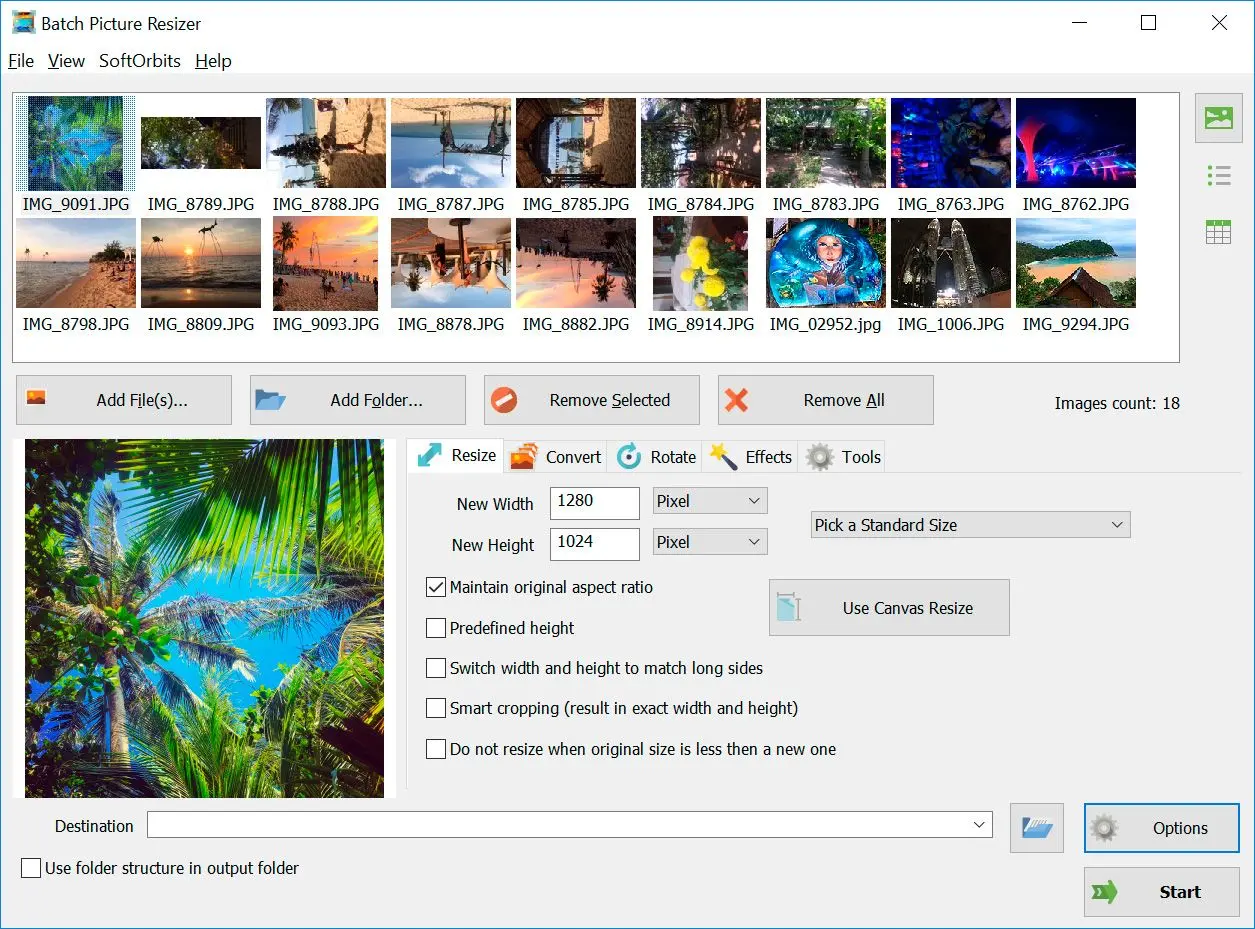
TL;DR Most tools only let you set dimensions or a quality percentage, so you resize, check the KB, and try again. A target-size mode does the math. You enter 100 KB and the app auto-tunes JPEG quality per image, downscaling if it must, until the file lands at or just below that number in one pass. Batch Picture Resizer is the pick here; most others make it a manual loop.
This request has no clean answer in most resizers, and it comes up constantly. Upload forms, email limits, and government portals reject anything over a fixed weight. The trap is that a single quality setting produces wildly different file sizes across images, so a quality slider is pure guesswork. A dedicated target-size mode removes it. Batch Picture Resizer adds a KB unit next to the size fields, offers presets from 20 KB up to 5 MB, and tries quality values in memory until each JPEG hits your target, writing to disk only once. That last detail matters at scale: everything else here that gets you to an exact size makes you export, check, and redo. When you simply want a smaller JPEG for the web rather than an exact number, our JPG image resizer walkthrough shows the quicker route.
20 KB to 5 MB
target file-size presets in Batch Picture Resizer , with JPEG quality auto-tuned in memory so the file is written to disk once Source
Which resizer handles very large batches without crashing?
TL;DR For folders in the tens or hundreds of thousands, lean, memory-efficient tools win. IrfanView's batch dialog and a multithreaded desktop resizer both hold up at scale. Browser tools and heavy editors are the ones that choke, because they upload each file or load everything into memory.
Scale is where free GUI tools quietly fail, and it is the core of the batch-throughput criterion. One user trying to resize a 600,000-image website archive reported that anything with a graphical interface bombed out after a while with memory and CPU problems, until a lean batch tool finished the job. The lesson is architectural. Tools that stream files and use every CPU core hold up. Apps that load everything into memory, or ship each file to a server, do not. On Windows, IrfanView's batch dialog and a native multithreaded resizer such as our own are the reliable answers at that scale, while the web tools and the heavy editors are the ones that stall. The step-by-step lives in our guide to resizing multiple images in Windows 11 .
600,000+
photos one user needed to resize in a single batch, after most graphical tools ran out of memory before a lean batch tool finished the job Source
Does Windows have a built-in bulk image resizer?
TL;DR Not really. Windows has no native bulk resizer. The closest is the free Microsoft PowerToys Image Resizer add-on, which handles a quick right-click resize but stops short of camera RAW, exact-KB sizing, and format conversion. For anything past simple pixel resizing you still need dedicated software.
People are often surprised that Windows itself cannot batch-resize a folder. A Microsoft community thread spells it out: the operating system has no bulk resizing feature, which pushes users toward PowerToys or third-party tools. PowerToys Image Resizer is a decent free add-on for a quick right-click resize, but it is deliberately basic. It skips camera RAW, has no exact-KB target, and cannot convert formats. Once your job involves camera files, precise sizes, or format changes, dedicated software is the real answer. The full discussion sits on Microsoft's community forum . For a native right-click resize of a few files, PowerToys is enough; for a folder of camera files, reach for one of the desktop batch tools above.
Online or desktop: where should you resize?
TL;DR Online tools are great for a one-off resize on any device. Desktop software wins whenever privacy or batch size matters, or when you need camera-format input and a repeatable preset, because nothing leaves your PC and 500 files run as fast as 5. Sensitive or client photos should stay offline.
The online-versus-desktop split is really about who touches your files. Browser resizers are convenient and need no install, but every photo travels to a third-party server. That is a non-starter for client work, ID scans, or anything private, and it is exactly why the contrarian point at the top holds: for the jobs that matter most, the desktop app you almost skipped is the one that finishes. Desktop software also wins on repeatability, since a saved preset resizes tomorrow's shoot the same way it did today.
Resizing online
Upload every photo to a third-party server, wait in the queue, then download the results. Your originals, private and client shots included, leave your PC. Large or camera-format files may not be supported at all.
Resizing on your PC
Point a desktop resizer at the folder, pick a size or a KB target, and click Start. Nothing is uploaded, a saved preset repeats the job next time, and 500 files run as fast as 5.
Also considered: resizers that did not make the cut
TL;DR We looked past the top eight too. ON1 Resize AI, GIMP with BIMP, Bulk Resize Photos and BIRME, and Paint.NET each fell short for offline batch resizing on Windows, and here is the honest reason for each.
Eight picks is a shortlist, not the whole market. These are the tools we tried or read up on and left off, with the reason each one dropped for batch resizing:
ON1 Resize AI. A capable tool, but it does the opposite job, enlarging photos for print with AI up to 10x rather than shrinking a folder for the web. When your goal is upscaling, it belongs in our photo enlargement guide , not here. GIMP with the BIMP plugin. Free and open source, and for years BIMP gave non-coders point-and-click batch resizing. But BIMP has not been updated since 2021 and does not run on GIMP 3.x, so batch resizing now means Script-Fu scripting. A real barrier for anyone who is not comfortable with scripts. Bulk Resize Photos and BIRME. Both are browser bulk resizers. Bulk Resize Photos even processes in your browser without uploading, which is a genuine plus, but neither reads camera RAW or scales to the tens of thousands, so they stay convenience tools rather than workhorses. Paint.NET. A great free editor, but it has no native batch resize without third-party plugins, which rules it out for folder-scale jobs.
Which photo resizer is right for you?
TL;DR Match the tool to the job. For bulk work and exact sizes, use an offline batch resizer. For a quick right-click resize, use PowerToys. For social crops, use Icecream. If you already edit in Adobe, resize on export. If you cannot install anything, an online tool will do for non-private images.
Work backward from what you actually resize, because the right pick depends far more on the job than on any single feature. Here is how the real jobs map to the tools:
The marketplace seller. You list on eBay, Etsy, or a portal that rejects any photo over a set weight, so every image has to come in under, say, 200 KB. This is the exact-size job, and a quality slider will have you resize-check-retry all afternoon. A target-KB tool like Batch Picture Resizer hits the number across the whole batch in one pass, so all your listing photos land under the limit at once. The person emailing a folder of photos. You need a set of images small enough to attach without bouncing off a mailbox size cap. A desktop batch resizer with a KB target or a percentage shrink does the whole folder offline in seconds. For a quick one from a borrowed computer, iLoveIMG in the browser is fine as long as the photos are not sensitive. The webmaster or blogger. You publish images and page speed matters, so you want a repeatable recipe that shrinks and re-formats every upload the same way. A saved preset in a desktop batch tool, or an XnConvert action chain, resizes and converts to WebP consistently, and you can even script it. Our image size converter guide covers matching dimensions to your layout. The photographer with a folder of RAW. You come back from a shoot with hundreds of CR2, NEF, or ARW files and need web-size JPEGs without converting first. You need a tool that reads camera formats directly and runs on all cores. Batch Picture Resizer and XnConvert both read RAW straight off the card; if you already edit every frame in Lightroom, resize on export instead. You can also convert HEIC to JPEG in the same pass when your phone shoots HEIC. Two questions settle most of it. Do these photos need to stay off the cloud, and is this a one-off or a job you repeat? Private or repeated work points to an offline desktop tool every time.
 Batch Picture Resizer