Quick answer:

  1. 1️⃣ Still in Deleted Items: right-click the email and choose Move > Inbox.
  2. 2️⃣ Emptied on Exchange, Microsoft 365 or Outlook.com: Deleted Items > Recover Deleted Items From Server, within 14-30 days.
  3. 3️⃣ POP, IMAP or a local .pst file: PST Repair Tool runs a Deep scan for deleted messages in the file.
  4. 4️⃣ Older loss with a backup .pst: File > Open & Export > Import/Export brings the copy back.
PST Repair Tool for Outlook Screenshot.
️ Eugene - CEO at SoftOrbits, Candidate of Technical Sciences, has more than 16 years of expertise in software development, photo and multimedia applications, enhancing and transforming digital images and videos.
📅 Last updated on:  2026-11-03

You emptied Deleted Items on Friday to free up space. On Monday a client asks for the quote you sent three weeks ago. How to recover deleted emails in Outlook depends on your account type. Find your account in the quick answer above, then open that section. The second section shows where Outlook lists the account type.

What you will learn
Apply in 10 min Saves 2 hBeginner

What you'll need
  • Classic Outlook for Windows, new Outlook or Outlook on the web
  • Your account type (POP, IMAP, Exchange, Microsoft 365 or Outlook.com)
  • For a local data file: PST Repair Tool and free disk space about three times the file size
  • A spare copy of the .pst or .ost before you try any fix

Still in Deleted Items? Move the email back to Inbox

TL;DR

A plain Delete only moves the email to Deleted Items, where it waits until the folder is emptied or a retention policy clears it. Open Deleted Items, right-click the message, choose Move and pick Inbox or any other folder. On Outlook.com the folder empties itself after 30 days.

This is Outlook Deleted Items recovery at its simplest, with no server step and no extra software. Some accounts show this folder as Trash instead of Deleted Items. Note which name yours uses. It matters in the section on a missing button.

To find deleted items in Outlook when the folder holds hundreds of messages, type the sender's name or a word from the subject into search box while Deleted Items is selected. You can also drag the message straight onto Inbox in the folder pane. In new Outlook, tick the box next to the email and click Move on the Home tab, or right-click it and choose Restore. Check Junk Email too if a message never showed up at all.
A whole folder you deleted by mistake usually lands inside Deleted Items as a subfolder. Expand Deleted Items and drag it back into your folder list. Every message inside comes back with it.

Undo it with Ctrl+Z if you deleted it a moment ago:

The fastest Outlook undelete email shortcut is Ctrl+Z. Press it right after the delete and the email returns to the folder it came from. This only works within the same Outlook session. Close Outlook and the undo history is gone.

Which Outlook account do you have: POP, IMAP or Exchange?

TL;DR

The account type decides how to recover Outlook deleted items once Deleted Items is empty. Exchange, Microsoft 365 and Outlook.com keep deleted mail on the server for a while, so you can pull it back from there. POP accounts, and most IMAP accounts, have no Recoverable Items folder, which means an empty Deleted Items leaves only the local data file or a backup.

Check the account type in classic Outlook:

Go to File > Account Settings > Account Settings and open the Email tab. The Type column shows POP/SMTP, IMAP/SMTP or Microsoft Exchange for each mailbox. A work or school address on Microsoft 365 shows as Exchange. An @outlook.com or @hotmail.com address also uses the server route.
 Account Settings window in classic Outlook with the Type column showing IMAP and Microsoft Exchange accounts..

What the type means for you:

  • Exchange or Microsoft 365: deleted mail moves to the Recoverable Items folder on the server, and Recover Deleted Items From Server brings it back.
  • Outlook.com: the same server folder, opened from the web or new Outlook.
  • IMAP (Gmail, Yahoo, many hosting plans): Outlook mirrors the server, so emptying Deleted Items usually deletes the server copy as well.
  • POP: mail was downloaded into a .pst on your PC. The server copy may be long gone, and the .pst is where the deleted records still sit.

Once Deleted Items is emptied, Outlook cannot get the mail back from a POP account. The .pst file on disk may still contain it.

How to recover permanently deleted emails with Recover Deleted Items From Server

Open the Deleted Items folder in classic Outlook

Make sure Outlook is online and connected to the mail server, then click Deleted Items in the folder pane.

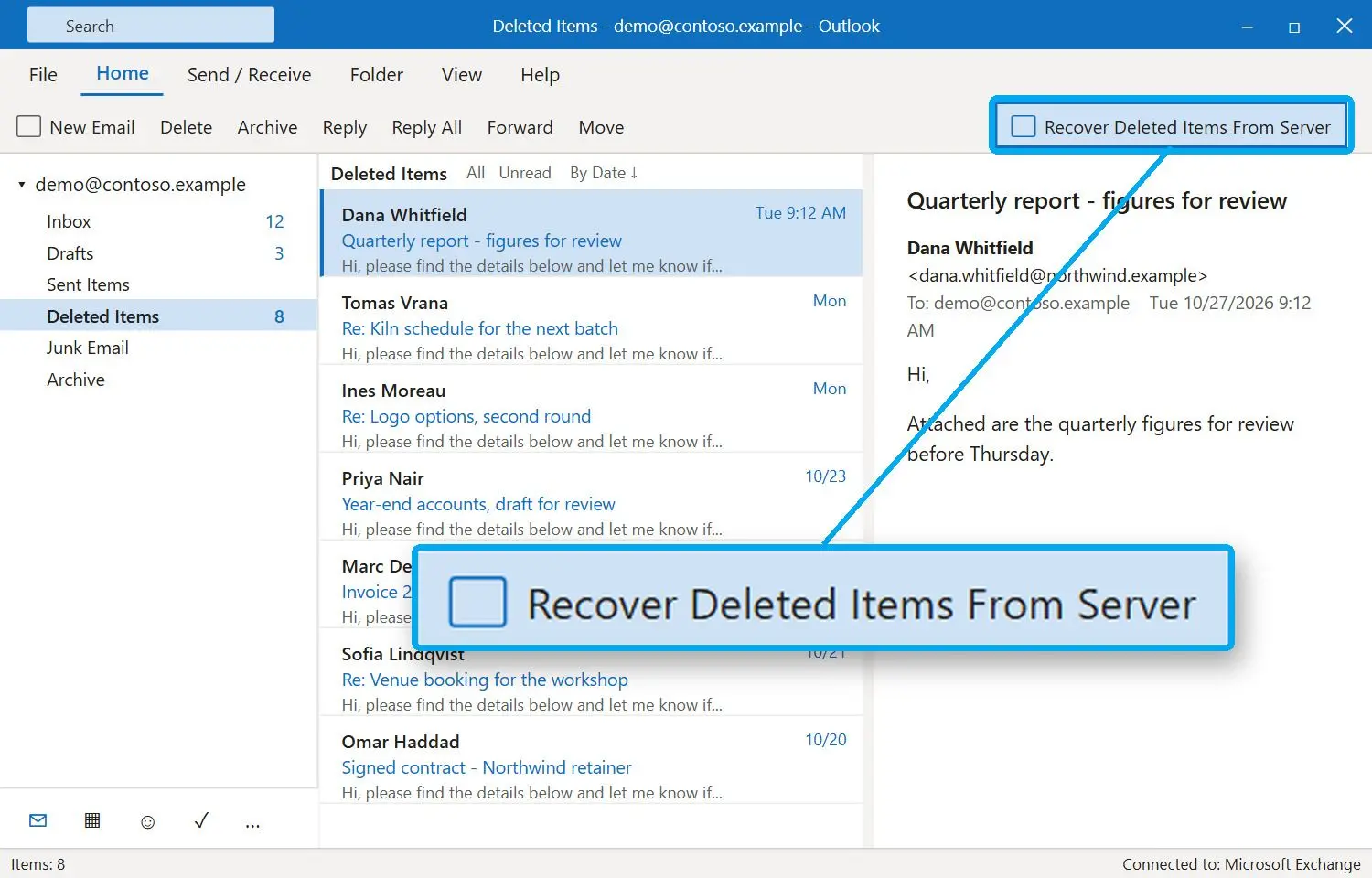
Click Recover Deleted Items From Server on the Home tab

The button sits on the Home ribbon while Deleted Items is selected. No button, or a Trash folder in its place? Skip to the section on a missing button below.

 Home tab in classic Outlook with Recover Deleted Items From Server selected..

Select the emails and choose Restore Selected Items

Click the From or Subject header to sort the list, hold Ctrl to pick several messages, select Restore Selected Items and click OK.

 Recover Deleted Items dialog with several emails selected and Restore Selected Items checked..

Move the restored emails out of Deleted Items

Restored items land in Deleted Items first. Move them to Inbox or a project folder right away, or the next cleanup sends them back where they were.

PST Repair Tool for Outlook PST Repair Tool for Outlook

Microsoft's own walkthrough for recovering deleted items in Outlook for Windows covers the same dialog. The same window also lets you purge items for good, so read the option name twice before you click OK.

How to restore deleted emails in Outlook on the web and in new Outlook

TL;DR

In new Outlook, Outlook.com and Outlook on the web, select Deleted Items and click Recover next to "Recover items deleted from this folder". Tick the messages you need and choose Restore.

In Outlook on the web, look for the link at the top of the Deleted Items list, above the messages. In the new Outlook app, after you tick the emails, select Restore on the Home ribbon and then Go back to deleted items to see them in the folder again. From there, move them to Inbox.

 New Outlook Deleted Items folder with the Recover items deleted from this folder link..

Microsoft notes that mobile browsers cannot open the Recoverable Items folder, so do this step from a PC or Mac. On Outlook.com, under Settings > Message handling, the option "Empty my deleted items folder" clears Deleted Items every time you sign out. Turn it off if you want a few days of grace before mail moves to the server folder.

How long can you recover permanently deleted emails?

TL;DR

On Exchange Online and Microsoft 365, a permanently deleted email stays in the Recoverable Items folder for 14 days by default, and an admin can raise that to 30. Outlook.com keeps items for 30 days after they leave Deleted Items. When the window closes, the server removes the message.

14 days
how long Exchange Online keeps permanently deleted email in Recoverable Items by default; admins can extend it to 30 days
Source

"Permanently deleted" means you emptied Deleted Items or pressed Shift+Delete on a message anywhere in the mailbox. Both send the email to the Deletions part of the Recoverable Items folder in Exchange Online, and the clock starts then, not when you first deleted it.

AccountWhere deleted mail goesHow long you haveHow to get it back
Exchange Online, Microsoft 365 work or schoolRecoverable Items on the server14 days by default, up to 30 if your admin set itRecover Deleted Items From Server
Outlook.com, HotmailRecoverable Items on the server30 days after it leaves Deleted ItemsRecover items deleted from this folder
IMAP (Gmail, Yahoo, hosting)Deleted on the server when Outlook syncsSet by the provider's web mail trashProvider web mail, then the local data file
POPStays in the local .pst until overwrittenNo server windowBackup .pst or a Deep scan of the file

Many guides promise "30 days" for every Outlook account. Microsoft's documentation puts the default at 14 days for work and school mailboxes, with 30 as the ceiling an admin has to set. Plan for 14 unless your IT team confirms otherwise.

A frequent complaint is that the Recoverable Items folder in Outlook opens but shows only recent messages and nothing older. That is the retention window at work. Anything deleted before it has already been purged from the server. Past that point, a Microsoft 365 admin may still reach some items with eDiscovery tools if a hold or a retention policy was on for your mailbox, so ask before you give up.

Why is Recover Deleted Items From Server greyed out or missing?

TL;DR

The button appears only when the account and the server support it. Microsoft states that if you see a Trash folder instead of Deleted Items, or no Recover Deleted Items From Server command, your account cannot recover items that have left Deleted Items. POP and most IMAP accounts fall into that group.

Work through the likely causes:

  • The account is POP or IMAP. Most IMAP accounts have no Recoverable Items folder unless the mailbox is hosted on Exchange or Microsoft 365. A Gmail account added to Outlook 2021 through IMAP is the typical case, and the ribbon has no such button at all.
  • Outlook is offline. The command needs a live connection to the mail server. Check the status bar for "Working Offline" or "Disconnected" and reconnect.
  • Another folder is selected. Click Deleted Items itself before you look at the Home tab.
  • You are on a Mac. Classic Outlook for Mac has no such command. If new Outlook for Mac does not show "Recover items deleted from this folder" either, open Outlook on the web in a browser on the same Mac and use "Recover items deleted from this folder" there.

If the cause is the account type, the email may still exist in an older backup .pst or in the local data file on your PC. The next two sections show how to recover deleted emails in Outlook from each.

Emptied Deleted Items on a POP or IMAP account? What still works

TL;DR

Without a server copy, deleted messages can survive only in the local Outlook data file. That is a .pst for POP accounts, and an .ost cache for IMAP and Exchange accounts in recent Outlook versions. Outlook marks their space as free and reuses it later, so stop using that profile and copy the file before you try anything else.

To find the file, go to File > Account Settings > Account Settings > Data Files, select the account and click Open File Location. Close Outlook, then copy the .pst or .ost to another folder or a USB drive. Work only on that copy. Every new message Outlook downloads, and every cleanup it runs, can land on the blocks where your deleted email still sits.

Do not compact the data file until you have tried to get the email back. Slipstick Systems puts it directly: compacting after emptying Deleted Items eliminates the ability to recover deleted items. The Compact Now button people use to reduce PST file size rewrites exactly that free space.

ScanPST, the Inbox Repair Tool that ships with Outlook, fixes structure errors in a damaged file and works on the original in place. It does not bring deleted mail back, so keep it for the case where Outlook refuses to open the file and you need to repair a PST file first.

For IMAP, log in to the provider's web mail and open its own trash folder. If the message is there, restore it on server and Outlook will sync it back down.

How to recover deleted messages in Outlook from a PST or OST file with PST Repair Tool

TL;DR

PST Repair Tool reads a .pst or .ost from start to end in Deep scan mode and recovers records of deleted messages from blocks Outlook has not reused yet. It opens the original read-only and writes what it finds to a new file. Expect sender, subject and date on most finds, with a [partial] tag where the body was already overwritten.

This route to deleted email recovery in Outlook fits the POP and IMAP cases where the server has nothing left and you still have the data file. Deep scan has to be chosen by hand. The default Automatic mode opens a healthy file the way Outlook does and leaves deleted mail hidden, because it only goes deeper when it sees damage.

Automatic mode on a healthy file
  • Opens the mailbox the way Outlook sees it
  • Deleted messages stay hidden
VS
Deep scan, picked by hand
  • Reads every block of the .pst or .ost
  • Lists the deleted messages it can still read

11 of 11
deleted messages surfaced by Deep scan on our test PST, where all 11 had been deleted for good through Outlook; a normal open of the same file showed 0

That result comes from a test file with little written after the deletion. A mailbox that kept receiving mail for weeks gives back less, and bodies go first. Outlook reuses body blocks early, so many recovered emails arrive with headers and a [partial] tag. For a client asking "who sent what, and when", that can be enough to find the thread again.

Run Deep scan on a copy of the file:

Open the copy of your .pst or .ost in PST Repair Tool. Outlook does not need to be installed on the PC. In the scan depth list, pick Deep scan instead of Automatic or Quick only, and start the scan. Before it begins, the tool checks that the target drive has room for about three times the file size.
 PST Repair Tool with Deep scan selected in the scan depth list for a copy of an Outlook PST..

When the scan ends, browse the folders in the preview and open the messages you were after. Save them as a new PST, or as MSG, EML, MBOX, PDF or HTML files. The report counts messages found and written, and the ones tagged [partial]. What could not be recovered is listed too. The trial shows every recovered message in the preview, so you can see what survived before you buy. Saving the results needs a license.

 PST Repair Tool preview listing recovered deleted emails from an Outlook PST, some marked partial..

PST Repair Tool for Outlook
PST Repair Tool for OutlookDeleted mail in a local .pst or .ost? Deep scan a copy on Windows and preview what survived before you save.

Restore deleted emails from a backup PST

TL;DR

A backup brings mail back only if it was made before the deletion. When it was, deleted email recovery in Outlook is a plain import. In classic Outlook, go to File > Open & Export > Import/Export > Import from another program or file > Outlook Data File (.pst). New Outlook imports through Settings > Data files > Import.

The wizard asks how to handle duplicates and where to put the items. Pick a separate folder rather than Import items into the current folder, so a three-month-old backup does not mix with today's Inbox. Microsoft's guide to importing email from an Outlook .pst file lists every screen of the wizard.
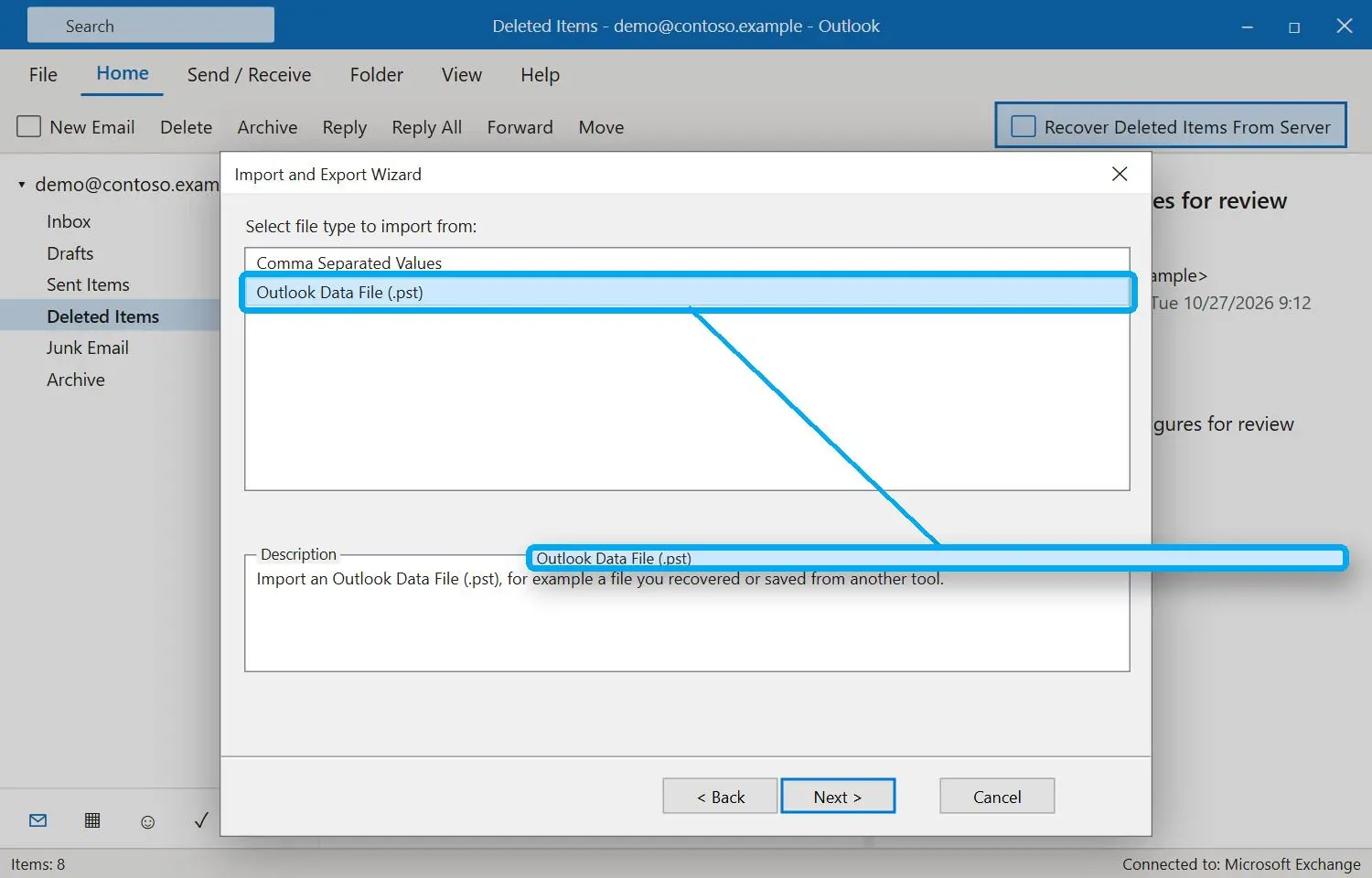
 Outlook Import and Export wizard with Outlook Data File (.pst) selected..

If you need only a few emails, open the backup as a second data file. Classic Outlook does it through File > Open & Export > Open Outlook Data File, and new Outlook through the Add file button in its data file settings, which works only with classic Outlook installed and a Microsoft 365 subscription. The backup shows up as its own folder tree, and you drag back only what you lost. No Outlook on the machine? You can still open a PST file without Outlook and read it with a free PST viewer.

If File History or a similar tool covers the folder where the .pst lives, right-click the file in File Explorer and check Properties > Previous Versions for an older copy. Restore it to a different folder, never over the live file.

How to recover sent emails in Outlook when they go missing

TL;DR

Sent mail follows the same rules as received mail. Look in Deleted Items first, then use Recover Deleted Items From Server on Exchange or Microsoft 365. On IMAP, log in to web mail and open its Sent folder before anything else.

Before you assume a delete, confirm Outlook saves sent mail at all. In classic Outlook, go to File > Options > Mail and check that "Save copies of messages in the Sent Items folder" is ticked. Then search with the scope set to all mailboxes, since IMAP profiles sometimes file sent mail under a second folder with similar name.

A bulk delete on IMAP can remove the server copy after Deleted Items is emptied. On Microsoft's Q&A forum, the answer to exactly this case was short. The messages were deleted from the IMAP server and will not be recoverable there. What remains is the local cache file on the PC, if Outlook has not overwritten it yet, or a backup.

How to stop losing Outlook emails next time

TL;DR

Keep a dated .pst backup and know your retention window. A monthly export turns a lost email into a five-minute import, and it covers POP and IMAP accounts that have no server copy at all.

Schedule a reminder to back up Outlook emails to a .pst and keep the last few copies on a different drive. Ask your IT team how long your mailbox keeps deleted items, and get the number in writing. Stop emptying Deleted Items on autopilot and let it hold a few weeks of mail.

If you are on POP, treat your .pst as the only copy of your mail. A failing drive takes the deleted emails and everything else with it.

Sources

PST Repair Tool for Outlook PST Repair Tool for Outlook
How to recover deleted emails in Outlook: Deleted Items, the server's 14-30 day Recoverable Items folder, a backup PST or a local PST/OST file.
PST Repair Tool for Outlook Screenshot.


🙋Frequently Asked Questions

Not right away. A deleted email sits in Deleted Items, then in Recoverable Items for 14 to 30 days on Exchange and Microsoft 365, or 30 days on Outlook.com. After that the server purges it, and only a backup or the local data file may still hold a copy.

On the server, yes, once the retention window ends. In a local .pst or .ost, Outlook only marks the space as free, so the record can stay readable until new mail or compaction writes over it.

Not through Outlook itself. Ask your Microsoft 365 admin first, who may still reach items with eDiscovery if holds or retention policies covered the mailbox. Otherwise use a backup .pst from before you deleted it, or scan the local data file.

Yes, in most setups. IMAP keeps Outlook and the server in sync, so deleting a message and emptying Deleted Items removes it on the server as well. Check the trash in web mail quickly, since that is the last server-side copy.

Yes, inside the retention window. Shift+Delete and emptying Deleted Items both move mail to Recoverable Items, so Recover Deleted Items From Server in classic Outlook, or the Recover link on the web, brings it back. POP accounts have no such folder.

If the message is still in Junk Email, move it to Inbox or mark it as Not junk. If you removed it from Junk with Shift+Delete on Exchange or Outlook.com, use the server recovery route while the window is open. Outlook.com clears Junk on its own after 30 days.

In the Outlook app, open Deleted Items and move the message back. Microsoft says mobile browsers cannot open the Recoverable Items folder, so use a PC or Mac for anything already emptied.

If the folder is still inside Deleted Items, expand it and drag the folder back to the list. A folder removed with Shift+Delete, or deleted from inside Deleted Items, cannot come back as a folder on Exchange Online, though its emails stay in Recoverable Items for 14 days by default.

Sometimes, and it depends on what was written since. PST Repair Tool's Deep scan reads deleted records from unused blocks of a .pst or .ost; many come back without a body and carry a [partial] tag. Run it on a copy and check the preview first.