Quick answer:

  1. 1️⃣ A whole folder of photos: the app resizes every file in one pass.
  2. 2️⃣ One image in Photoshop: Image > Image Size, type the width in pixels, click OK.
  3. 3️⃣ Many images in Photoshop: Image Processor with Resize to Fit.
  4. 4️⃣ No Photoshop on Windows 11: PowerToys in the right-click menu.
Batch Picture Resizer Screenshot.
️ Eugene - CEO at SoftOrbits, Candidate of Technical Sciences, has more than 16 years of expertise in software development, photo and multimedia applications, enhancing and transforming digital images and videos.
📅 Last updated on:  2026-11-25

Photoshop's Image Size dialog is the image resizer Photoshop users open for a single file; it takes under a minute. For folders with RAW and HEIC files, Batch Picture Resizer handles the batch.

What you will learn
Apply in 10 min Saves 2 hBeginner

How to resize a whole folder of images with Batch Picture Resizer

TL;DR

The app resizes a full folder in one pass, with no Photoshop action to record. Set the width, height and size rules once; they apply to every image in the list.

  • Click Add Files or drop a folder into the list. PSD files, iPhone HEIC photos and camera RAW files such as .NEF open directly.
  • Enter the new size in pixels or percent and keep Maintain original aspect ratio on. Pick Smart cropping when every file needs the same exact width and height.
  • Turn on the option to skip images already smaller than the target.
  • For JPEG output, set a target file size in KB.
  • Click Start. The work is spread across several CPU cores.

The same pass can add a watermark or rotate photos by their EXIF tag. It can also output formats you would use a BMP to JPG converter for, and run from the command line.

Photoshop Batch with an action
  • Record an action with an Open step and a Save step
  • Set save options and a destination folder
  • Open the output to catch skipped files
VS
Batch Picture Resizer
  • Add the folder
  • Set the size and rules once
  • Click Start

 Batch Picture Resizer showing the Finished! dialog after the whole folder was resized..

Batch Picture Resizer
Batch Picture ResizerResize a whole folder of JPG and RAW photos in one pass, with the size rules set once.

How to resize an image in Photoshop with Image Size

Open the photo in Photoshop

Use File > Open. Save a copy if you will need the full-size original later.

Open the Image Size dialog

Go to Image > Image Size or press Alt+Ctrl+I on Windows (Option+Cmd+I on a Mac), the shortcut also given in the Tom's Guide walkthrough.

Set the units to pixels and type the width

Choose Pixels next to Width. With the link icon on, Height updates automatically and the proportions hold.

Unlink width and height for an exact size

Click the link icon to type both values. If the new ratio differs from the original, the photo will stretch.

Pick a resample method and click OK

Resample is checked by default. Bicubic Sharper suits most reductions; press OK.

Save the resized copy

Use File > Export > Export As for a JPEG or PNG, or File > Save As to keep a layered PSD.

Batch Picture Resizer Batch Picture Resizer

Batch Image Resizer is an easy, user-friendly tool that helps you resize multiple photos in batch mode. It also converts them to other formats and can flip, mirror, or rotate them.

Why won't Photoshop let me scale an image?

TL;DR

If Resample is unchecked, Photoshop locks the pixel count. Changing the width then changes print size against resolution, not the pixels. Check Resample to change pixels, or switch off the width-height link if the height keeps jumping back.

Image Size changes the whole document. To scale a single layer, select it, press Ctrl+T for Free Transform and drag a corner handle.

Resample methodUse it when
AutomaticYou want Photoshop to choose based on the resize direction
Preserve DetailsYou enlarge a photo and want edges kept crisp
Bicubic SmootherYou enlarge and prefer smooth gradients
Bicubic SharperYou shrink a photo for the web or email
BicubicBicubic Sharper oversharpens and you want smoother gradients

5
of the 7 resample methods in the Image Size list are in the table above, and Adorama's Photoshop resizing guide names Bicubic Sharper as the usual pick for downsizing

How do you batch resize images in Photoshop?

TL;DR

Photoshop has two built-in batch paths. File > Scripts > Image Processor resizes copies of a folder without an action; File > Automate > Batch plays a recorded action on every file.

In Image Processor, choose a source folder and destination. Under the file type, tick Resize to Fit and enter the width and height in pixels. It saves JPEG copies with a quality setting, or PSD and TIFF copies.

Batch suits multi-step jobs such as resizing and sharpening. Record an action on an open file. On Adobe's community forum, people who tried both call Image Processor the simpler choice for export copies; one user had to confirm save options in a pop-up for each file under Batch.

Why does a Photoshop batch give the wrong size?

TL;DR

Image Processor fits each photo inside the width and height you enter while keeping its proportions. With a target of 1334 x 1970 and photos shot at 800 x 1070, each file comes back at 1334 x 1784.

Adobe forum threads report four recurring problems:

✔️ Small images get enlarged.

Image Processor scales everything up to the box, including thumbnails. Record File > Automate > Fit Image with Don't Enlarge checked into an action, then run it through Batch.

✔️ An unlinked action still keeps proportions.

Width and height recorded separately can replay with the ratio locked on every file. Crop to the target ratio first when all files need one exact size.

✔️ Only the first file changes.

In one run on 58 photos, the first was resized and the rest stayed at full size. Check two or three outputs before trusting a batch.

  • "Image size is not available." Batch shows this when the action has no open file to work on. Re-record it from an open document, or let Batch open the source folder.

Test any new batch on copies of five files in a separate folder. A broken action that overwrites an archive leaves no originals.

How do you resize images to a target file size in KB?

TL;DR

Image Size changes pixel dimensions, not kilobytes. To reduce file weight in Photoshop, lower the pixel dimensions and JPEG quality in Export As, checking the size after each try.

For upload forms with a 100 KB cap, that loop takes time across a folder. An expert on Adobe's forum said Photoshop alone would need a script or recorded action for a batch that must land between 800 KB and 1.2 MB. The app sets the target in one field for the whole folder. For one JPEG at a time, see our JPG resizer guide.

See our guide to increase image size in MB for the opposite job.

How do you batch resize photos on Windows 11 without Photoshop?

TL;DR

Install PowerToys, a Microsoft add-on that adds a bulk resize command to the File Explorer right-click menu. Windows 11 has no built-in bulk resize.

Photoshop requires a Creative Cloud subscription. With PowerToys installed, right-click selected photos and choose Resize with Image Resizer, then pick a preset or custom size.

3
resize modes in PowerToys Image Resizer, from Fill to Stretch, per Microsoft's PowerToys documentation

The built-in apps are slower for volume. MakeUseOf's Windows 11 resizing guide walks through Photos and Paint one picture at a time and turns to third-party apps for batches. More desktop options are compared in our photo resizer software roundup.

Our review of the XnConvert batch converter covers another batch tool.

Which image resizer Photoshop users should pick for each job

TL;DR

For a mixed folder, the batch app is the shortest path. Photoshop's Image Size suits a single image, with its Resample list.

MethodBest forWhole folderLeaves small images aloneTarget size in KB
Batch Picture ResizerMixed folders, RAW and HEIC includedYes, one passYes, skip-smaller optionYes, for JPEG
Photoshop Image SizeOne image with full resample controlNoManualNo KB field
Photoshop Image ProcessorQuick resized copies of a folderYesNo, enlarges themNo
Photoshop Batch with an actionMulti-step jobsYes, after recordingYes, with Fit ImageNeeds a script
PowerToysA few files from File ExplorerYesNot checkedNot in the docs
Windows PhotosOne photoNoManualNot checked

Batch Picture Resizer Batch Picture Resizer
Image resizer Photoshop: resize an image with Image Size (Alt+Ctrl+I), batch it with Image Processor, or resize a whole folder in one pass.
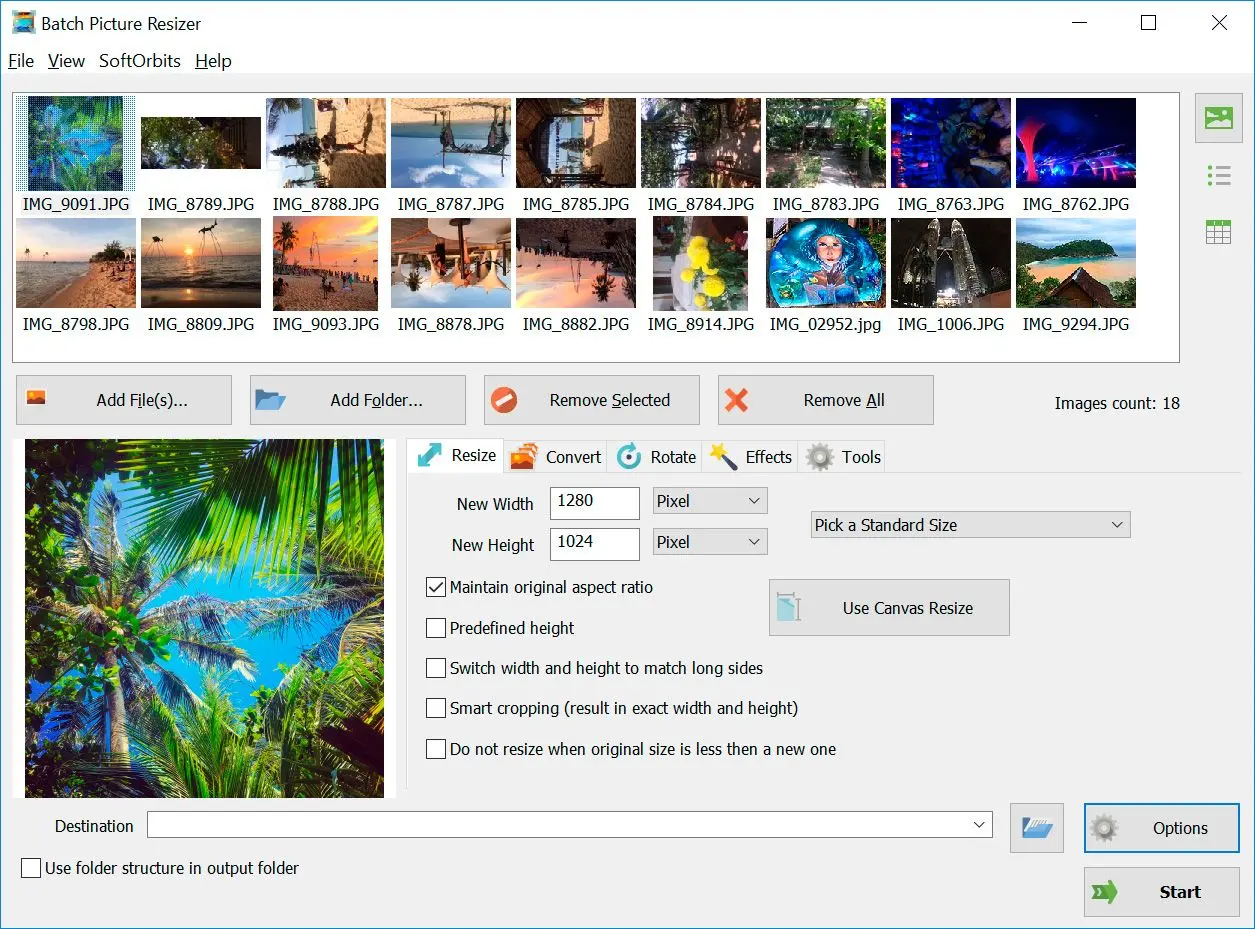
Batch Picture Resizer Screenshot.


🙋Frequently Asked Questions

Open Image > Image Size, unlink width and height with the chain icon, then type both values in pixels. Crop to the same aspect ratio first, or the photo will stretch.

Use File > Automate > Fit Image and enter a maximum width and height. Photoshop scales the image inside that box and keeps its proportions; tick Don't Enlarge for small files.

Photoshop is a paid app that comes with a Creative Cloud plan. Adobe also runs a browser resizer in Adobe Express; check its plan page for current limits before a large job.

Use File > Scripts > Image Processor. Pick the folder, tick Resize to Fit, enter width and height, then click Run. It writes resized copies to a new subfolder.

Yes. Record your edits as an action, then run File > Automate > Batch on a folder. Test it on a few copies first: an action with no open file makes the batch fail.

Alt+Ctrl+I opens Image Size on Windows, and Option+Cmd+I does it on a Mac. For a single layer, Ctrl+T (Cmd+T on a Mac) starts Free Transform.

Select the layer, press Ctrl+T for Free Transform and drag a corner handle. Press Enter to apply the new size, or Esc to cancel it.

It opens common formats from JPG to AVIF along with PSD files. iPhone HEIC photos and camera RAW files such as .NEF and .DNG open as well.

Sources