The five tools below are ranked by how safely they repair a damaged scan. Canva sits third: good for light work, outclassed on heavy damage.
1. Photo Retoucher - best for damaged scans and whole folders on Windows
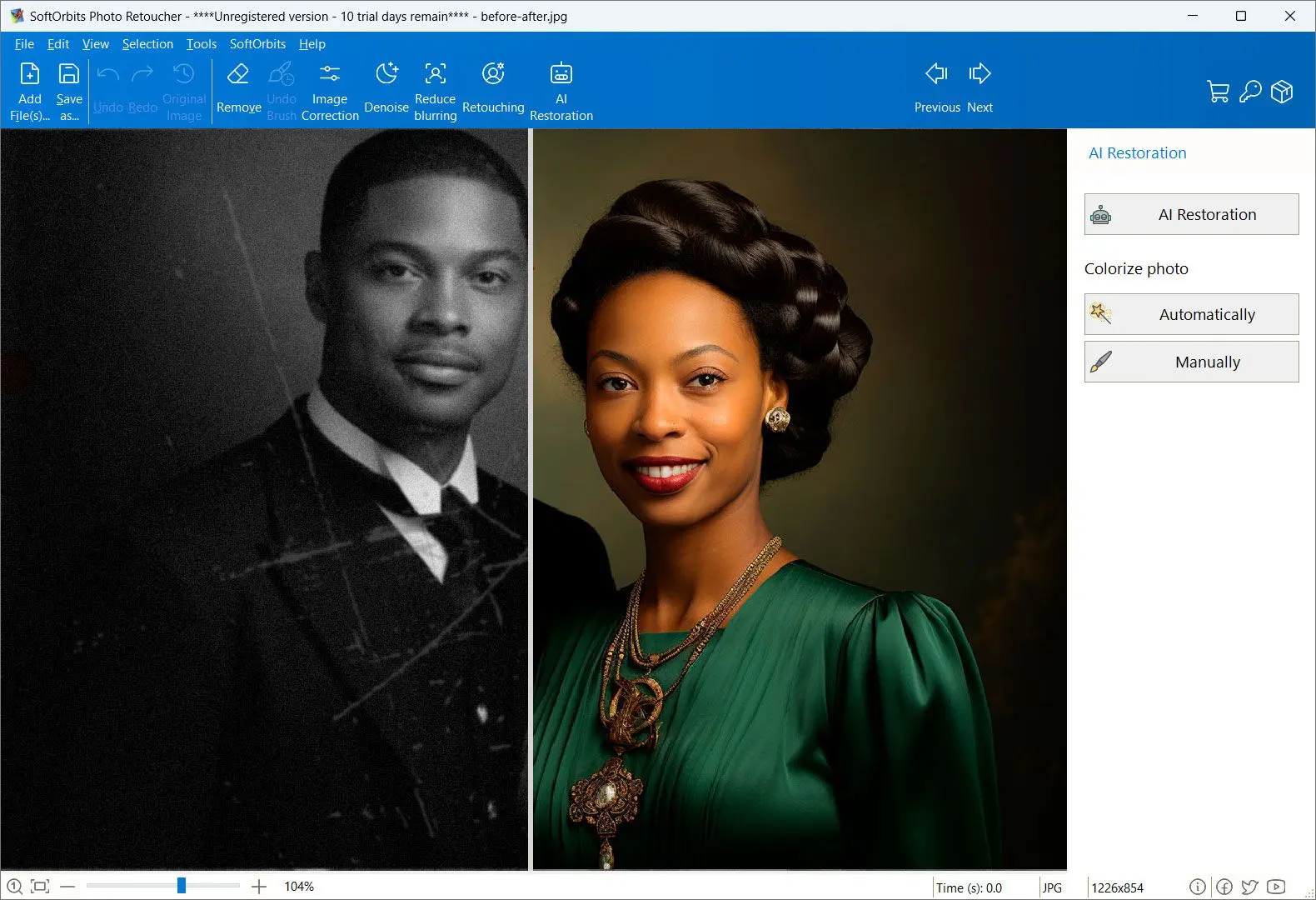
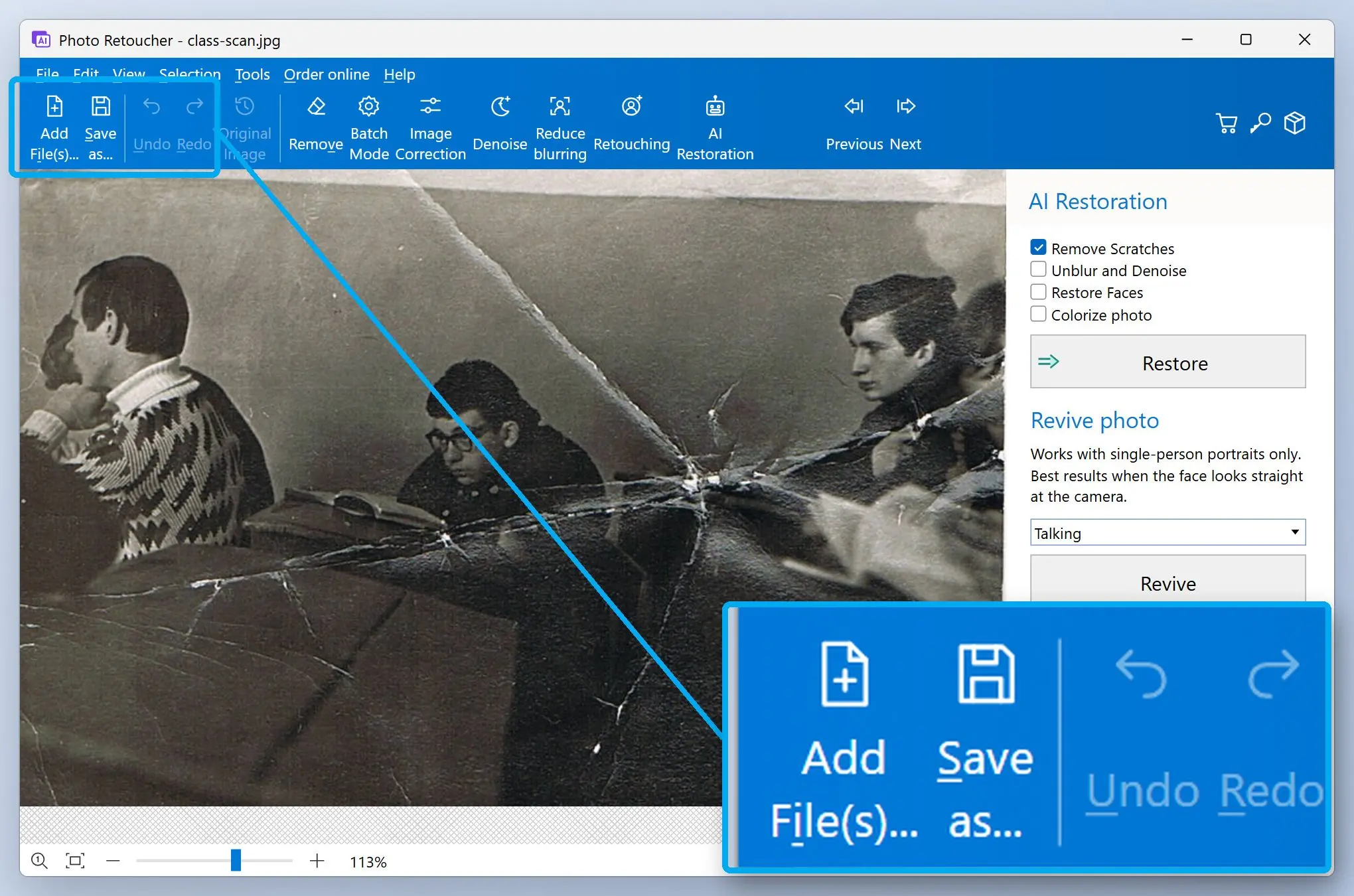
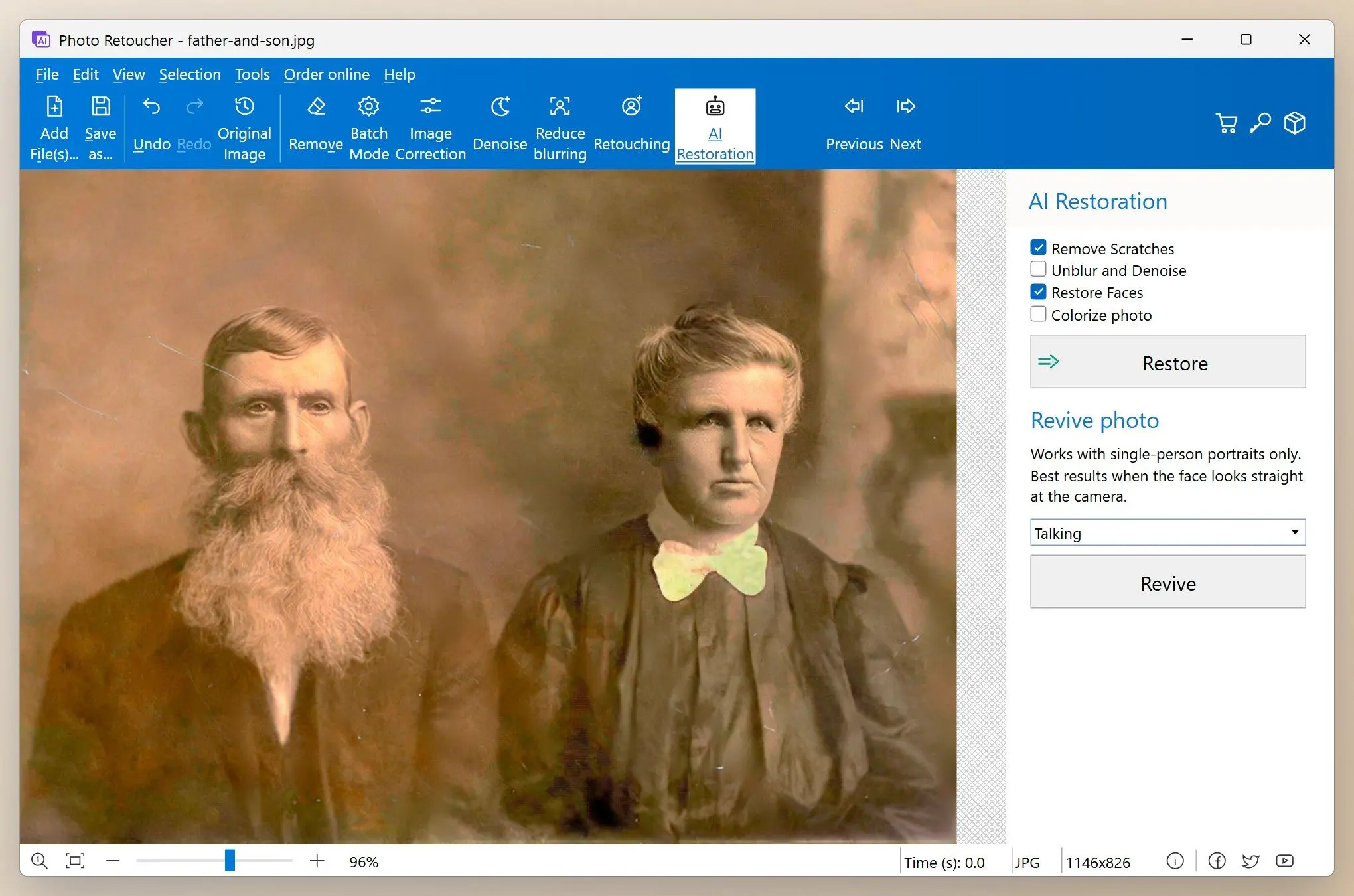
People who reach for Photo Retoucher usually have a box of scanned prints with real damage. Think scratches and mold spots on faded prints, with faces that were tiny to begin with. It runs on Windows and processes photos on your PC, so family scans stay off other people's servers. AI restores faces, removes scratches and dust by filling only the damaged pixels, reduces noise, colorizes monochrome prints and removes unwanted objects. Batch mode runs a whole folder, and retouching brushes handle the spots you want to finish by hand.
If the job is only making a folder of small images bigger, our batch image upscaler covers that on its own.
Pros:
Repairs scratches and dust on scans, and restores faces
Fills only the damaged pixels when it removes a scratch
Runs a whole folder of scans in batch mode
Colorizes black and white prints and upscales small scans up to 8x
Lets you finish tricky spots by hand with retouching brushes
Cons:
Saves nothing in the trial; you can process and preview, saving needs a license
Runs on Windows only, so Mac users need another route
Downloads a large installer, about 153 MB, plus AI models on first use
Colorizing heavily damaged areas sometimes gives wrong colors
Verdict: Choose Photo Retoucher if your scans have real damage or arrive by the folder, and you work on Windows.
Our take comes with a disclosure, since we make this one. For this job its strength is the scratch fill that leaves undamaged pixels alone, and that reliability point decided the ranking.

2. Adobe Photoshop - best for full manual control
Photoshop is what professional retouchers open first. It pairs healing and clone tools with a Photo Restoration filter among its Neural Filters, so you can run the AI pass and then fix what it missed by hand. The trade-off is time and skill. People who try to restore a photo in Photoshop without training often describe it as neither intuitive nor easy, and the experts who answer them agree that restoration takes practice. Speed is the other cost: Shotkit's comparison of AI photo restorers found that Photoshop's Photo Restoration "works slower than most other software" the reviewer tried.Pros:
Combines an AI Photo Restoration filter with healing and clone tools
Gives pixel-level control over every repair
Shows a before and after view while you adjust the filter
Cons:
Requires a Creative Cloud subscription
Takes real training before restoration work feels natural
Runs its restoration filter slower than most rivals in one photographer's test
Our take: we would skip it for a single shoebox of family prints. It pays off the day a torn portrait needs two hours of careful cloning.
3. Canva - best for light touch-ups inside a design
Canva fits faded prints that are on their way into a birthday card, a memorial slideshow or a social post. The sliders fix color and contrast in a minute, Retouch and Erase take care of small marks, and the restoration app is there when you want more than sliders. A photo digitization service that writes about it says Canva "can remove many minor imperfections", which is a fair summary of where it sits.Pros:
Runs in the browser with nothing to install
Fixes fading and small marks with sliders, Retouch and Erase
Drops the restored photo straight into cards, collages and slideshows
Offers a free plan for basic adjustments
Cons:
Struggles with heavily damaged, blurry or very low-resolution scans
Keeps advanced AI editing tools behind Canva Pro
Has almost no independent reviews of its restoration app yet
Verdict: Choose Canva if the photos are lightly worn and you are making a card or slideshow from them anyway.
Could Canva handle a crease running through a face? Nothing published shows it doing that well, which is why we would test that exact print before trusting it with the rest of the album.
4. GIMP - best free alternative for manual repair
GIMP is a free, open-source editor for Windows, macOS and Linux. For scanned prints the Heal tool samples texture from a nearby area and blends it over a scratch or a speck. Everything happens on your computer. Standard install has no AI face repair, so a blurry face stays as blurry as the scan.Pros:
Costs nothing and needs no subscription
Heals scratches and dust with sampled texture
Runs on Windows, macOS and Linux alike
Cons:
Makes you repair every scratch by hand
Has a steep learning curve for new users
Leaves blurry faces untouched, with no AI face repair built in
Our take: a good fit for a handful of special prints. For a whole album we would budget several weekends.
5. Remini - best for blurry faces on a phone
Remini is a mobile AI enhancer built around faces. Lex AI summed it up in their review, saying "It doesn't just smooth things over, you know, it reconstructs what should be there based on millions of image patterns." That reconstruction is both the selling point and the risk. A review summary on Tools for Humans counts subscriptions you can't easily avoid and paywalls that show up late among the complaints, and notes that the automatic results often look unnatural. Buyers also report results where the face got sharper while the rest of the picture stayed behind.Pros:
Reconstructs facial detail from learned image patterns
Sharpens soft faces in one tap
Works from a phone, handy when you photograph prints instead of scanning them
Cons:
Pushes subscriptions and paywalls, according to review summaries
Can make skin and eyes look unnatural
Often enhances the face and leaves the rest of the photo soft
Puts little focus on scratches and tears, since faces are its main job
The faces come out sharper than the scan allows. Fine for a quick share. For a family record it is a problem.
 Photo Retoucher