Online converter or desktop batch: which one fits?
One photo for one design, use a browser converter. A camera-roll export for a client deck, convert the folder yourself. The dividing line is not quality. It is the number of files, and whether the photos should leave your machine at all.
Both routes produce a JPG that Canva accepts. The output is not the difference. What differs is the shape of the work. Browser converter is a per-file transaction. Drop, wait, download, repeat. That is a fine trade for one photo and a bad one for two hundred.
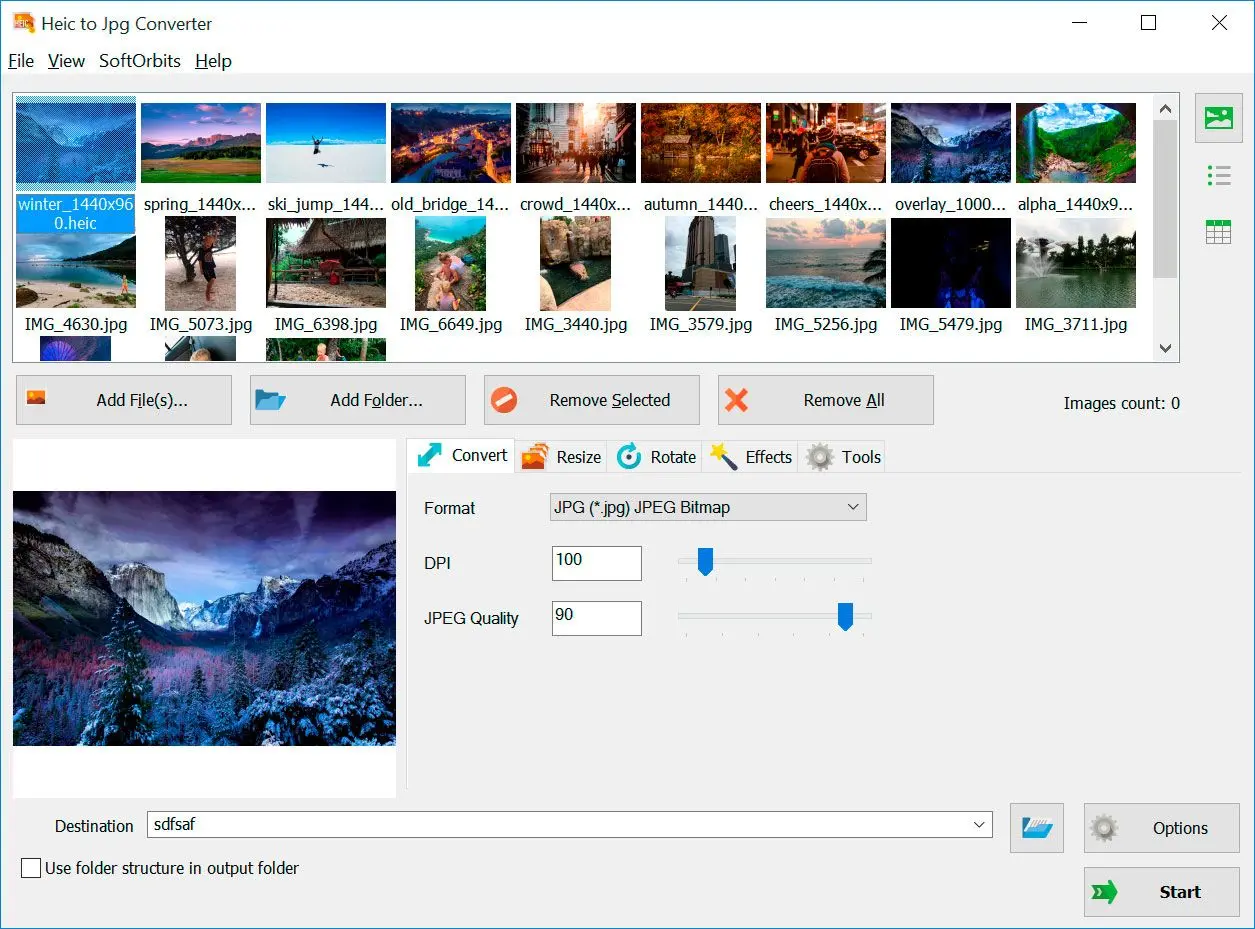
If the answer to "how many?" is "a lot of them", a desktop HEIC to JPG converter for Windows allows you convert the whole pile in one job you start once and walk away from.
Drop a file, wait, download, repeat. For 300 photos off an iPhone that is 300 rounds of the same three clicks, and one misclick means starting that file over.
Point the converter at the folder, pick JPEG, click Start. It runs as a single job across every core you have.
| What you have | Best route | Why |
|---|---|---|
| One photo for one design | Browser converter, Canva's own if you like | No install, done in a few clicks |
| A folder off the iPhone | convert HEIC to JPG in bulk on the desktop | One pass over the whole folder instead of one tab per file |
| Client or family photos | Desktop, offline | The file never reaches anyone else's server |
| You need transparency in Canva | HEIC to PNG converter | PNG keeps the alpha channel that JPG drops |
| Animated or tiled HEIC | Desktop with a real decoder | These are not one plain image inside, and simple tools fail on them |
How do I stop my iPhone from making HEIC files?
Open Settings, tap Camera and then Formats, then pick Most Compatible. The iPhone shoots JPEG from that moment on. It changes nothing about the photos already in your library, so treat it as prevention rather than a fix.
Apple documents the two options plainly enough. High Efficiency captures photos as HEIF and video as HEVC, which is the space-saving default. Most Compatible captures photos as JPEG and video as H.264, the formats everything on earth can read. The setting appears only on iPhones which are capable to shoot HEIF in the first place.
There is a real cost to switching. JPEG files are bigger for the same picture, so your storage fills faster. Apple did not pick HEIF to annoy you, it genuinely saves room. The trade is space against never thinking about this again, and if you are regularly moving photos into Canva, Windows or anything else outside Apple's world, the trade is usually worth taking.
The important part is what it does not do. Every photo already sitting in your library stays HEIC, and every one of them still needs converting before Canva will take it. Change the setting for the future, then deal with the backlog as its own job.
Why does Windows say it does not support HEIC either?
Because Windows does not decode HEIC out of the box. It needs the HEIF Image Extensions plus the HEVC Video Extensions underneath, and people report the pair failing even with both in place. If Windows cannot preview the photo, that is the same missing decoder your browser is missing.
Before you even reach Canva, there is usually a smaller humiliation. You double-click the photo in Windows and it will not open. The message is blunt about it: "It looks like we don't support this file format." One report of that error on Microsoft's own Q&A site, filed from an iPhone 14 Pro to a Windows 11 machine, turned into a queue of people saying they had hit exactly the same thing. If you cannot even look at the file, our guide on why Windows Photos won't open HEIC walks through that side of it.
The codec chain is fussier than it looks. There are two pieces and they depend on each other. The HEIF Image Extensions handle the container, while the HEVC Video Extensions handle the compression inside it. Installing the first without the second, or in the wrong order, leaves you with a decoder that is missing its own foundation. Users on the Microsoft Tech Community report "Unable to open this file." coming back even after a reinstall.
Here is the part that trips people up, though. None of this helps Canva. Fixing Windows means you can finally see your photos, and that is a separate job. Chrome does not consult Windows about image formats. It ships its own decoders, and HEIC is not among them. A working HEIC preview in Explorer changes nothing about the Canva upload box.
Why convert to JPG instead of waiting for HEIC support?
Because there is no date to wait for. HEIC is not a web delivery format, MDN does not list it among the image types browsers use, and the Chromium request has been open for years over licensing rather than effort. JPEG already works everywhere, today.
Plenty of people treat this as a temporary annoyance, something that gets patched next quarter. It is not. The blocker is HEVC licensing, and licensing does not get fixed by an open bug report. Apple can ship HEIC support in Safari because Apple already pays into that world. Every other browser would have to solve the same cost problem, and years of an open request suggest none of them intends to.
Meanwhile JPEG is thirty-odd years old, patent-free, and read by everything. Every browser, every editor, every phone, every printer. Converting is not a downgrade. JPEG is what the format was built for, and it is what Canva can read.
The practical upshot. Convert once, upload forever. A folder of JPGs works in Canva today and will still work in whatever you use next.
Why HEIC to JPG Converter fits a whole camera roll
It fits one specific job. A folder of iPhone photos that has to become JPG before Canva will look at it. For a single picture it is overkill.
Converts an entire folder in one pass, using all CPU cores
Keeps HDR and wide-gamut color instead of flattening it
Includes a HEIC viewer, so you can check files Windows refuses to open
Handles animated and tiled HEIC, which most converters do not
Renames output by the date the photo was taken, which helps with a mixed camera roll
Windows 10 and 11 only, so a Mac user is better served by Preview
Paid after the trial, and one photo does not justify an install
It solves the convertion, not the upload. You still drag the JPGs into Canva yourself
Where it earns its place is the repetitive part of the job. Right-click integration in Explorer means you can convert without opening the app, and there is command line if you want the whole thing scripted. Download HEIC to JPG Converter and point it at the folder you pulled off the phone.
Pitfalls when Canva HEIC is not uploading
Most of the time lost here goes into fixes that cannot possibly work. Renaming the extension does nothing to the data underneath, and a Windows codec does not change what Chrome can read. The iPhone setting everyone recommends only affects photos you have not taken yet.
The name is not the format. Renaming changes four characters and leaves the HEVC-compressed data underneath untouched, which means Canva still cannot decode it. Neither can Windows Photos. You now also own a file that lies about itself.
It changes what the camera writes from that point forward, and nothing else. Everything already in your library stays HEIC.
The HEIF Image Extensions need the HEVC Video Extensions underneath them, and even with both installed people still hit the wall. A Microsoft Q&A thread has more than fifty people reporting the same rejection, and the person who opened it could not find the HEIF extension in the app list at all, though the Store insisted it was installed.
In another thread on Microsoft Q&A from March 2025, an iPhone 16 Pro owner had the free HEIF extension and the paid HEVC extension on Windows 11, neither worked, and the app could not even be found to reinstall it.
Someone on Microsoft's Q&A forum laid out the scenario exactly. A pile of iPhone HEICs, a project deadline closing in, and browser conversion too slow to get through them one by one. Batch the folder once, then open Canva. The tool matters less than doing it as one job.
The moment to check what happens to the file is before you drop it in, not after you close the tab. If the site does not say, you do not know.
Sources