Quick answer:

  1. 1️⃣ Copies scattered over several drives: Duplicate Photo Finder clears exact and similar copies before you catalog.
  2. 2️⃣ Family archive with faces and relatives: Tonfotos links recognized faces to a family tree.
  3. 3️⃣ Free tagging for a large collection: digiKam is open source, with face recognition built in.
  4. 4️⃣ Quick browsing at no cost: Microsoft Photos comes built into Windows 11.
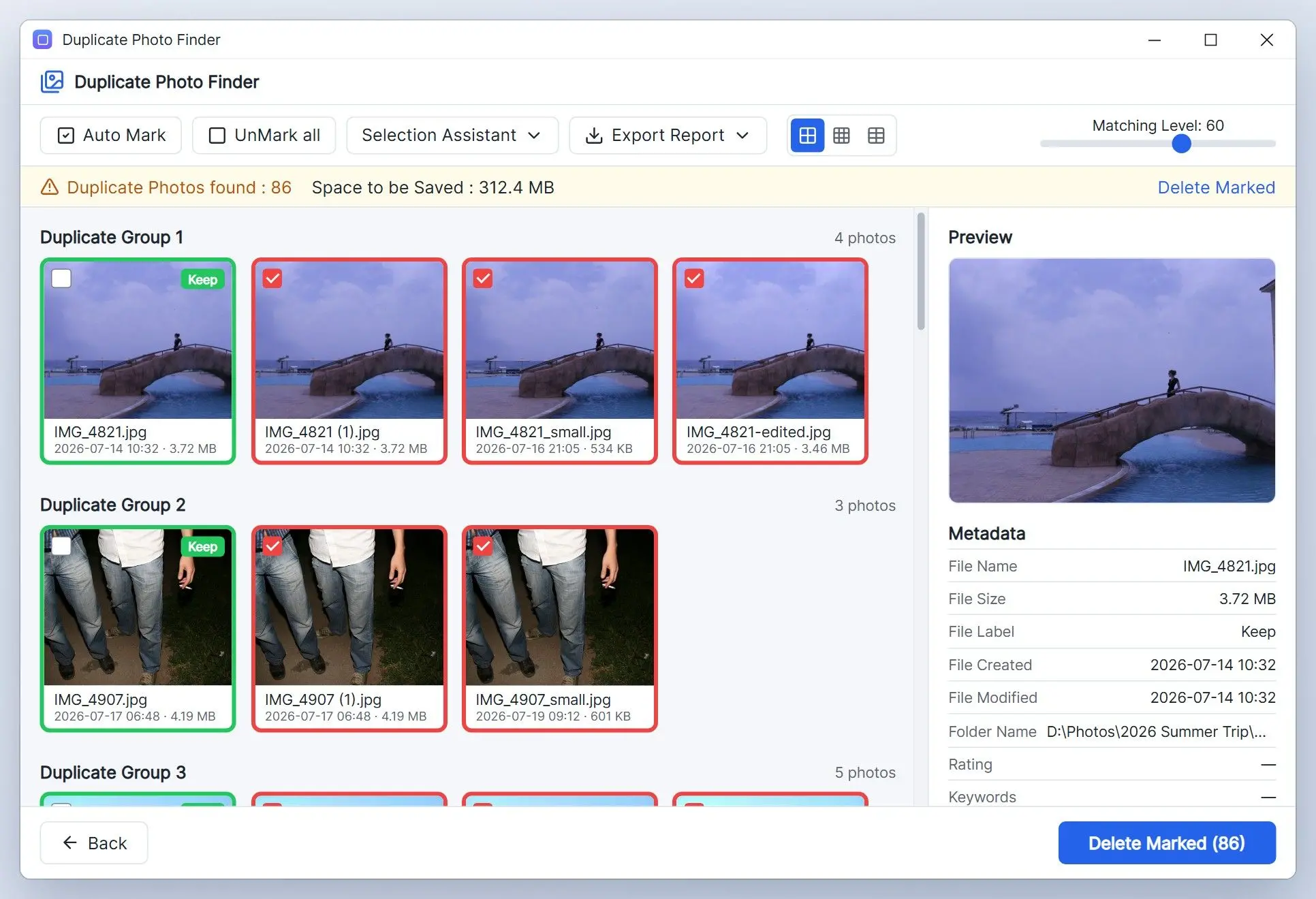
Duplicate Photo Finder Screenshot.
️ Eugene - CEO at SoftOrbits, Candidate of Technical Sciences, has more than 16 years of expertise in software development, photo and multimedia applications, enhancing and transforming digital images and videos.
📅 Last updated on:  2026-11-18

An archive spread over old drives can hold the same holiday in four folders, with more copies from repeated phone imports. Our ranking of the best photo organizer software starts with cleanup, followed by cataloging. Find your situation in the list above, then read that card or jump to the decision tree near the end.
We make Duplicate Photo Finder; it is listed first because cleanup comes before any organizer, not as a replacement for one.

What you will learn
Apply in 15 min Saves 5 hBeginner

Why clear out duplicate photos before you pick an organizer?

TL;DR

An organizer catalogs your copies too. Run Duplicate Photo Finder over your drives first. It groups exact copies and similar shots, marks the sharpest full-size photo in each group to keep and sends the rest to the Recycle Bin.

Every program on this list builds a photo database. Import five copies of a wedding album and you get five sets of thumbnails and face tags, with repeats in search results. As Clutter Free Formula puts it, "Pick the one app that solves your biggest problem (usually duplicates), then move on to the full system."

In one family's case, a parent had copied whole folder trees again and again as a backup. After de-duplication, more than 200,000 recovered files came down to roughly 1,500 individual unique pictures and files.
Duplicate Photo Finder runs on Windows 10 and 11. For similar shots, it compares perceptual fingerprints to catch bursts, resized exports and lightly edited versions. It compares HEIC and RAW files alongside JPEGs. You can narrow similar groups by time interval or GPS location. Within each group, it ranks copies by resolution, sharpness, file size and date, in that order, and flags the top one to keep.

Another person in the same discussion admitted to having a hard time with that delete button when the copies were edits or filtered versions made on purpose. Those copies deserve a check.

An exact copy on a second drive may be your only backup. Some people argue that duplicates are a good thing for that reason. Check each copy's folder path before deleting it, and keep one full backup until cleanup is finished.

Follow the scan steps to find and delete duplicate photos on Windows.

 Duplicate Photo Finder on Windows showing a group of similar photos with the sharpest full-size copy marked to keep..

Duplicate Photo Finder
Duplicate Photo FinderClear exact and similar copies out of your photo archive before you catalog it.

Best photo organizing software free and paid, compared at a glance

ToolBest forMain strengthDuplicate handlingPrice model
Duplicate Photo FinderCleaning a big archive before catalogingPicks the best shot in each group of copiesExact and similar photos, rotated and mirrored copiesFree version, paid license
TonfotosFamily archives with faces and relativesFace recognition, family tree, map by geotagsBuilt-in duplicate searchFree tier; $59 / $159 one-time (Nov 2026)
digiKamFree tagging for large collectionsAlbums, tags, faces, batch toolsSimilarity searchFree, open source
ACDSee Photo StudioBrowsing folders without an import stepCatalog that skips the slow importBatch tools to clear duplicates (vendor)Paid, see vendor
Adobe Lightroom ClassicPhotographers who catalog and editCollections, keywords, full editorCan skip suspected duplicates on importSubscription
Excire FotoAI keywords and search by descriptionAuto keywording, prompt search, facesDuplicate search (vendor)Paid, see vendor
Photoshop Elements OrganizerHobbyists who already use ElementsSmart tags you can correctiCloud backups can show as duplicates (user reports)Paid, see Adobe
Microsoft PhotosQuick browsing at no costBuilt into Windows 11Can show one file several times (user reports)Free with Windows

How we picked the best program to organize photos

TL;DR

We ranked for big, messy archives first: how each program handles a huge library split across old disks and what it does with copies. Faces and tags came next, price last.

We did not install and time every program. Our information about our own program comes from its code and product page. For the others, we used vendor feature pages, editorial reviews including Digital Camera World's buying guide, vendor and Microsoft forum threads, and YouTube reviews showing the program on screen. The takes below are our judgments from that material.

The five criteria, in order of weight:

  • Usability with tens of thousands of photos from several drives
  • Duplicate detection or prevention during import
  • Sorting through faces, tags and search, the core job of any photo sorting software
  • Cost over time: free tier, one-time license or subscription
  • Supported systems, with Windows first
Tonfotos comes second for its combination of duplicate search, faces and one-time licenses. The remaining order reflects how well each program fits a large family or hobby archive on Windows.

The 8 best photo organizer software options for Windows, reviewed

1. Duplicate Photo Finder: best for clearing copies out of a large archive before you organize it

 Duplicate Photo Finder listing exact copies found across three folders, one copy per group ticked as the keeper..

Add your drive folders to Duplicate Photo Finder and choose whether to scan photos alone or include videos and other files. It skips system folders such as Windows and Program Files. Every result group keeps at least one file, so a misclick cannot remove the last copy. You can export results to JSON or CSV before deleting anything.

Pros:

Finds renamed exact copies by file size and SHA-256 hash

Groups similar shots, including rotated and mirrored versions

Picks a keeper in each group

Lists blurry photos in a separate mode

Sends deleted files to the Recycle Bin

Cons:

New app, with few independent user reviews

Burst-shot groups need checking before you confirm

Our take: We would run it before any organizer here. The best-shot pick saves clicks.
Free version finds every duplicateWindows 11 / 10, 64-bitJPG, HEIC and 25 RAW formats

2. Tonfotos: best for family archives where faces and relatives matter

 Illustration: Tonfotos People view grouping family photos by recognized faces..

Tonfotos reads folders on internal disks, a NAS and removable drives without requiring a cloud account. The vendor says it helps you "remove duplicates, find the faces of your loved ones and preserve your family story for years to come." You get AI face recognition, a family tree built from tagged relatives and a geotag map. Search filters by people, events, date and place. It handles RAW, HEIC and video.

The Free version sends anonymous usage statistics. According to the vendor's site in November 2026, Personal costs $59 and Family costs $159 for up to five users.

Pros:

Combines duplicate search, faces and a family tree

Offers one-time licenses

Free version has no time limit

Runs on Windows, Mac and Linux

Transfers iOS and Android photos through TonfotosSync

Cons:

Free version caps how many people you can tag

Family tree needs you to tag relatives

We found few independent user reviews

My take: The family tree stood out to me. Few organizers here link faces to relatives. For a whole-family scanning project, that is the screen I would expect grandparents to open.

3. digiKam: best free organizer for tagging a large collection

 Illustration: digiKam album view with the tags panel open next to a grid of photos..

digiKam is open source. Its feature list includes albums, tags, face recognition and batch processing, with similarity search for near-duplicates. When someone asked for an organizer with tags and face recognition plus export plugins, the reply was to look at Digikam.

A user sorting about 60,000 images from old stock, phone copies and friends described the collection as what a mess and asked how to learn digiKam quickly. One competing vendor's roundup says you need a decent technical background to use it.

Pros:

Free, with no paid tier

Includes face recognition and batch tools

Finds near-duplicates through similarity search

Runs on Windows, macOS and Linux

Cons:

Takes time to learn

Menus and settings suit technical users

Help comes mainly from documentation and mailing lists

My take: I would not hand digiKam to a parent with a box of scans on day one. If you can spend a weekend on settings, I think it is the strongest free option here.

4. ACDSee Photo Studio: best for browsing folders without a long import

The vendor says ACDSee skips the slow import and lets you "clear out duplicates with batch tools." Digital Camera World's buying guide says it feels familiar to Lightroom users without forcing you to import images. You also get faces and batch operations. If a growing database slows the program, ACDSee's help article points to Tools | Database | Optimize Database.

Pros:

Browses your existing folders

Includes duplicate cleanup through batch tools, per the vendor

Feels familiar to Lightroom users

Cons:

Slow databases need maintenance

We found no independent user reviews

Several editions offer subscriptions or perpetual licenses; check the vendor page

My take: My pick if imports made you quit Lightroom.

5. Adobe Lightroom Classic: best for photographers who catalog and edit in one place

 Illustration: Lightroom Classic import dialog with the option to skip suspected duplicates turned on..

Digital Camera World ranks Adobe's Lightroom as the leader for desktop photo organization. As Aftershoot put it in their review, "Lightroom classic is perfect for in studio high volume shoots especially when you need direct access to your files."

One user with about 540,000 images reported unusable performance and choppy library scrolling. In a thread about a 30,000-photo catalog, a community helper argued that catalog size is rarely the cause and pointed to the graphics driver instead.

Pros:

Combines collections, keywords and a full editor

Can skip suspected duplicates during import

Has years of tutorials and reviews

Cons:

Every photo must be imported into the catalog

Subscription-only

Users report slow scrolling in very large catalogs

My take: The deepest catalog here, and the most expensive habit if you only sort family photos. I would choose it if you shoot RAW and edit most of what you keep.

6. Excire Foto: best for AI keywords and searching photos by description

According to Excire's site, Excire Foto adds keywords automatically, recognizes faces, searches by a typed description and finds duplicates. The vendor's blog ranks it first in its own roundup; try it on your photos before accepting those claims. Excire calls keywording, collections and deleting duplicates "frustratingly tedious" work.

Pros:

Adds keywords to untagged photos

Searches by what you type about a picture

Combines face recognition and duplicate search

Cons:

Feature claims come from the vendor's pages

We found no independent user reviews

Pages we read listed no price; check the vendor

My take: It suits you if you will never type keywords by hand. I would wait for independent reviews before paying.
Verdict: Choose Excire Foto if search by description matters more than manual albums.

7. Adobe Photoshop Elements Organizer: best for hobbyists who already use Elements

Elements Organizer comes with Photoshop Elements and adds smart tags to your albums. "I think you'll love the smart tags feature. And another handy thing is that you can actually remove any smart tags that are incorrectly applied," says Digital Scrapbooking HQ in a hands-on review of an older version. iCloud users report doubled photos; the cloud section below covers the fix.

Pros:

Lets you correct smart tags

Keeps the Elements editor beside the catalog

Runs on Windows and Mac

Cons:

Makes most sense if you want the editor too

Can show iCloud backups as duplicates

Most reviews we found cover older versions

My take: Fine if you already have Elements. I would not buy it for the organizer alone.

8. Microsoft Photos: best for quick browsing at no cost

Microsoft Photos handles recent phone imports well enough for browsing. Users report photos disappearing from albums and unreliable tag searches on large archives. In File Explorer, a user on a new laptop saw folder thumbnails repeated outside the folders; clearing the icon cache did not help.

Pros:

Comes preinstalled on Windows 11

Free

Browses recent imports

Cons:

Users report repeated photos

Users report photos missing from albums

Tag searches can be unreliable on large libraries

My take: I would use it for quick looks and sort elsewhere.
Verdict: Choose Microsoft Photos for a few thousand recent photos if you want nothing extra installed.

Does Windows 11 include photo management software, and is it enough?

TL;DR

Yes. The built-in Photos app is free and handles a few thousand recent photos. For decades of pictures, users report repeats and unreliable albums, so most people add a dedicated organizer.

One Photos app user saw some photos appear several times in the collection, even though there was only one file saved on the drive. Deleting files will not fix repeats in the program's view. Check the folder to confirm how many copies exist.

Most picks here are photo organizing software for Windows 10 as well as 11.

Check Lightroom Classic's import mode. The Copy option writes photos to a second location. Windows Photos shows both sets, which looks like duplication.

What is the best free photo management software?

TL;DR

digiKam is the best free photo management software if you can handle the learning curve. Tonfotos Free is easier to start with and free to keep, with a cap on how many people you can tag.

As free photo organizing software, digiKam includes every feature. Tonfotos Free gets you to tagged faces faster.

One Windows 11 laptop owner watched free space drop to 5 GB, with many duplicates among the photos imported from an Android phone. The free version of Duplicate Photo Finder finds and shows every group.

$59
one-time price of a Tonfotos Personal license on the vendor's site in November 2026
Source

Is there an AI photo organizer that sorts faces and tags?

TL;DR

Excire Foto offers automatic keywords and search by description. Tonfotos and digiKam recognize faces, and Elements adds smart tags you can correct.

digiKam's documentation says its AI models work with no cloud data.

We did not compare recognition accuracy. Vendor claims are not a benchmark, and you should expect to confirm names by hand for the first few hundred faces.

How do you organize 30 years of photos spread over several drives?

TL;DR

Collect everything in one place, remove copies and let the organizer catalog what remains. Tag after the library stops changing.

One person pulling years and years worth of pictures off several old drives and computers knew the pile held copies and worse, and asked what could clean it up before anything else. That is the right order.

  • Copy every drive, memory card and phone backup into one folder tree on a single large drive, with a subfolder per source.
  • Scan the whole tree for duplicates and keep the best copy in each group.
  • Check the EXIF date taken on a few files from each camera before sorting by date.
  • Import the cleaned tree into your organizer and let it build the database.
  • Tag faces and events, starting with the years that matter most to you.
  • Back up the finished library before wiping the old drives.

Organize first, clean later
  • Import every drive into the catalog.
  • Tag the same face in five copies of one photo.
  • Delete copies one by one, months later.
VS
Clean first, organize second
  • Merge the drives into one folder tree.
  • Remove exact and similar copies in one pass.
  • Import only the keepers and tag them once.

Count the keepers before choosing the best photo organizer software for your archive. Five thousand photos and a six-figure library need different programs.

Should your photo library live in the cloud?

TL;DR

Keep the master copy on your own drives and use the cloud as one backup. An organizer can show two copies of a photo when it reads both the original and the synced version.

An Elements user who kept iCloud as a backup would keep getting duplicates showing in the organizer, and the fix was to show only the files on the drive. Other sync folders can cause the same problem when your organizer watches both copies.

Tonfotos, digiKam and ACDSee work with folders you control.

3-2-1
backup rule for a photo library: three copies of your photos, on two kinds of storage, with one kept off-site

Point your organizer at the master folder. Exclude the backup drive and cloud copy from the catalog to avoid showing every photo two or three times.

Is there a photo organizer that also runs on Mac?

TL;DR

Yes. Tonfotos and digiKam have Mac builds, as do Lightroom Classic and Elements Organizer.

If your household uses Windows laptops and a Mac, choose one of those four to keep the same working habits. Share the photo folders from one drive and let each machine read them. Separate libraries can drift apart.

Which photo organizer should you choose?

TL;DR

Start with your archive's size and how many copies it holds. Consider who will use the program every day.

One reader who managed phone photos through Windows ended up with an overwhelming amount of duplicate photos in a single Gallery folder.

  • Archive scattered across drives and full of copies? Start with Duplicate Photo Finder, then continue down the list.
  • Family photos and relatives matter most? Tonfotos.
  • No budget, and you like tinkering? digiKam.
  • Want to browse existing folders without imports? ACDSee.
  • Edit RAW files as much as you sort them? Lightroom Classic. For choosing keepers from a shoot, see the best photo culling software.
  • Never going to type a keyword? Excire Foto.
  • Already own Photoshop Elements? Its Organizer.
  • Lots of phone videos too? Run a duplicate video finder before importing.
  • Only this year's phone shots? Microsoft Photos.

Also considered: photo organizers that did not make the list

  • Google Photos centers on a cloud library; this list covers desktop programs that read Windows folders.
  • Adobe Bridge is a file browser for Adobe users and overlaps with Lightroom Classic for most readers here.
  • Magix Photo Manager appears in several roundups. We could not confirm its current features.
  • Photographer roundups list Movavi Photo Manager with duplicate removal. We could not verify enough to rank it.
  • VisiPics is an old free duplicate finder. Our VisiPics review explains our preference for a maintained program.
  • Awesome Duplicate Photo Finder is another free duplicate finder; see our Awesome Duplicate Photo Finder review.

Sources

Duplicate Photo Finder Duplicate Photo Finder
Best photo organizer software for Windows, free and paid: 8 programs from Tonfotos to Lightroom Classic, plus how to clear duplicate photos first.
Duplicate Photo Finder Screenshot.


🙋Frequently Asked Questions

For a Windows family archive, the best photo organizing software free of charge is digiKam or Tonfotos Free; Lightroom Classic is the pick if you edit. Scan for duplicates before importing years of copies.

Keep originals in folders on your own drive, catalog them with Tonfotos or digiKam, and use the cloud as one backup.

For large libraries, Tonfotos and digiKam offer faces and tags, ACDSee browses existing folders, and Lightroom Classic includes a full editor.

Gather your files and remove duplicates first. Then check EXIF dates before you import and tag. Back up before clearing old drives.

Duplicate Photo Finder groups exact and similar pictures and marks the best copy to keep. Deleted copies go to the Recycle Bin, where you can restore mistakes.

Microsoft Photos focuses on browsing; users report it can show one file twice. A dedicated duplicate finder compares images and groups copies.

Users report repeated views of one file and actual extra copies from imports such as Lightroom Classic's Copy option. Check the files on the drive.