Quick answer:

  1. 1️⃣ A few folders, nothing to install: sort by size in File Explorer, then confirm matches with Get-FileHash in PowerShell.
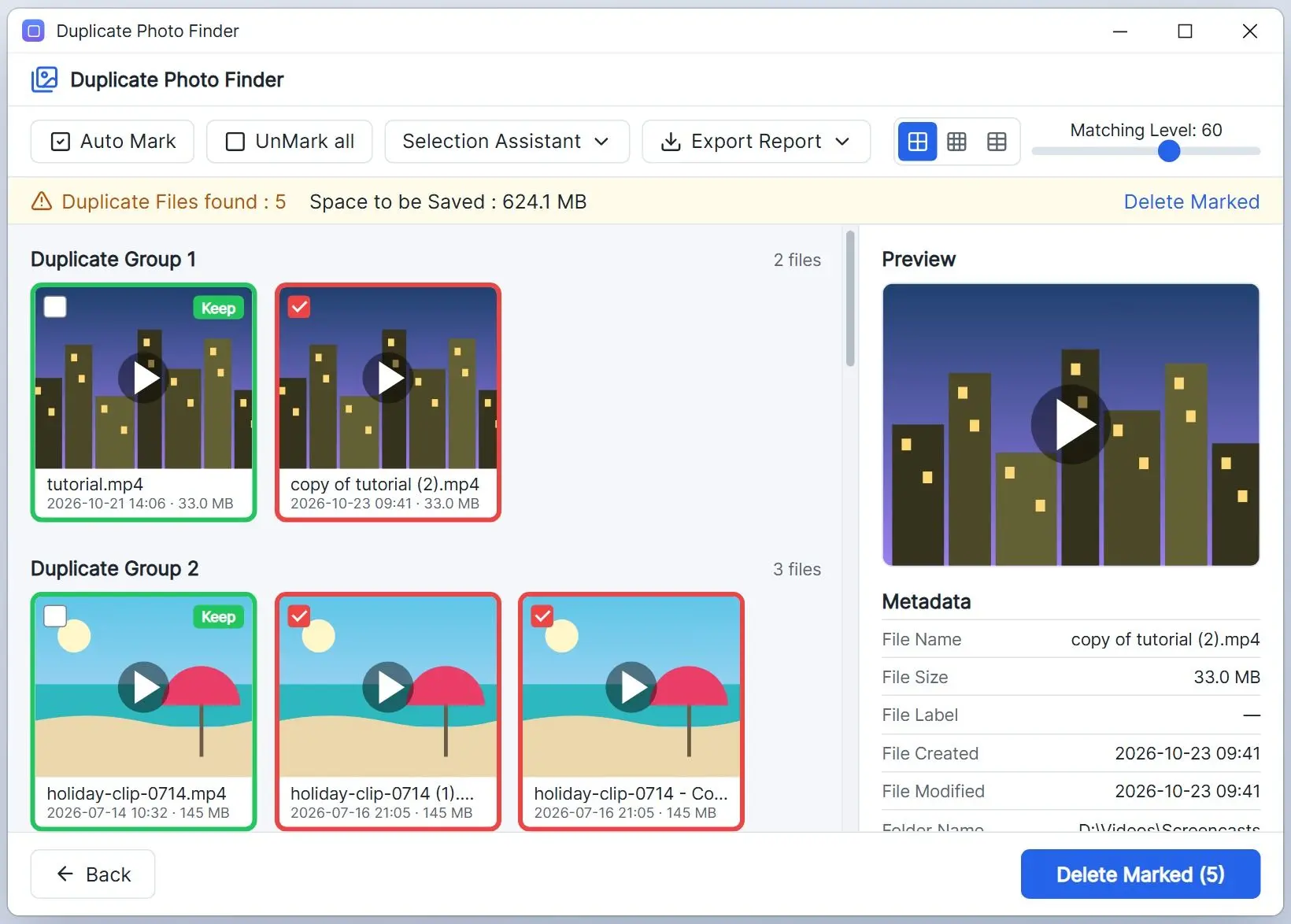
  2. 2️⃣ Many folders or drives with preview: use Duplicate Photo Finder as a duplicate video finder in Photos + Video mode, which groups byte-identical clips.
  3. 3️⃣ Same clip in another resolution or codec: Video Duplicate Finder compares frames.
Duplicate Photo Finder Screenshot.
️ Eugene - CEO at SoftOrbits, Candidate of Technical Sciences, has more than 16 years of expertise in software development, photo and multimedia applications, enhancing and transforming digital images and videos.
📅 Last updated on:  2026-11-03

Your copies may be identical files or footage saved at 720p, trimmed, or exported from a phone app. The method you need depends on which kind you have.

What you will learn
Apply in 15 min Saves 2 hBeginner

What you'll need
  • A Windows 10 or Windows 11 PC
  • PowerShell (built into Windows)
  • Duplicate Photo Finder for scans across many folders and drives
  • 10 to 20 minutes for the first library

How to find duplicate videos on Windows without extra software

TL;DR

Use File Explorer to sort clips by size and put likely pairs together. In PowerShell, Get-FileHash compares their SHA-256 hashes to confirm exact matches. Both tools are built into Windows.

Start with File Explorer: it costs nothing and shows the scale of the problem in a minute. Open your video folder, type kind:video in the search box, and switch to Details. Click the Size column. Files with exactly the same size in bytes are candidates; files with the same name but different sizes are not.

 File Explorer search kind:video with results sorted by the Size column..

Open PowerShell and run this command. It hashes the videos under the folder, groups matching hashes, and prints groups with two or more files. Get-FileHash uses SHA256 by default. Microsoft's documentation confirms that matching hashes mean matching contents.

Get-ChildItem "D:\Videos" -Recurse -Include *.mp4,*.mov,*.mkv,*.avi | Get-FileHash | Group-Object Hash | Where-Object Count -gt 1 | ForEach-Object { $_.Group.Path; "" }

 PowerShell window listing groups of video files with the same SHA-256 hash..

Change D:\Videos to your folder and add extensions you use, such as *.m4v or *.3gp. Group-Object groups the matches, with an empty line separating each group in the output. The command lists files without deleting them.

Where the built-in method gets slow

PowerShell works well for one folder of 200 clips. Across several drives, you run it once per drive, copy paths by hand, and open each file in a player to choose which copy stays. That review takes hours.

Is there a built-in duplicate video finder in Windows 10 and 11?

TL;DR

Windows 10 and Windows 11 have no feature that finds duplicate videos and offers to remove them. File Explorer can search and sort, and PowerShell can hash files. You handle the rest manually or use a separate program.

Storage Sense and Disk Cleanup clear temporary files, old updates, and the Downloads folder without comparing videos. In the Photos app's timeline, a clip imported twice appears twice.

Searching for *.mp4 only lists files. A name-based search misses the most common duplicate: the same clip saved under a different name.

Exact duplicate or the same video in another quality?

TL;DR

An exact duplicate matches the original byte for byte and has the same SHA-256 hash. A re-encoded copy shows the same picture with different bytes, so hash-based finders treat it as a separate file. You need visual comparison to find it.

We tested our own 1:31 tutorial video (1920x1080, 30 fps, 34,626,596 bytes). We made three versions in a second folder and ran the Get-FileHash command above on all four files.

FileWhat we changedSizeSHA-256 match with original
tutorial.mp4Original34.6 MB-
copy of tutorial (2).mp4Copied and renamed34.6 MBYes
tutorial-remux.mp4Same frames, metadata stripped (remux)34.6 MB (7 bytes larger)No
tutorial-720p.mp4Re-encoded to 720p H.26410.6 MBNo

The remux surprised us: changing metadata alone broke the match. The 720p version was about a third of the original's size. Hashing all four files, about 114 MB, took 197 ms on our PC.

2 of 4
versions matched by SHA-256 in our test: the original and its renamed copy. The remux and the 720p re-encode did not match.

Use hashes for duplicates made by copying folders. For exports or clips recompressed by a messenger, use the similarity method below.

Why can't you find duplicate videos by file name or size alone?

TL;DR

Copies get names such as "clip (2).mp4" and "IMG_0412-1.mov", while different videos can share a name like VID_0001.mp4. Equal size suggests an exact copy but proves nothing. A re-encoded copy has a different size.

Phones and cameras restart their counters: a 2019 VID_0001.mp4 and a 2024 VID_0001.mp4 are different videos. Screen recordings of a fixed length can come out within a few kilobytes of each other.

A content hash ignores filenames. The Secure Hash Standard (FIPS 180-4) defines SHA-256, which PowerShell and Duplicate Photo Finder both use. Any byte change produces a completely different 64-character hash.

When is a dedicated finder worth it?

TL;DR

Use a dedicated duplicate video finder when your clips span several folders or drives and you want to review each group before deleting anything. Duplicate Photo Finder compares sizes and SHA-256 hashes, shows the groups in one list, and sends extra copies to the bin.

In Duplicate Photo Finder, the copy kept in each group has a green frame. Auto Mark selects extra copies, and the Selection Assistant applies rules such as Keep Newest.

With PowerShell and File Explorer
  • One command per drive
  • Paths in a text window, no preview
  • You choose the keeper in every group
VS
With Duplicate Photo Finder
  • Several folders and drives in one scan
  • Groups with a suggested keeper already marked
  • Marked copies go to the Recycle Bin in one click

16
video extensions in Photos + Video mode, from MP4 and MOV to the M2TS files of camcorders

The program also finds similar photos, so you can clean pictures and clips from a phone backup in one scan. Use the photo settings to find and delete duplicate photos on Windows.

 Duplicate Photo Finder results with video groups and the kept copy framed in green..

Duplicate Photo Finder
Duplicate Photo FinderFind byte-identical videos across folders and drives, review the groups, and send extra copies to the Recycle Bin.

How to find duplicate videos with Duplicate Photo Finder

Install Duplicate Photo Finder on Windows 10 or 11

Download the free version of this duplicate video finder and run the installer. The program works offline; your videos stay on the PC.

Free version finds every duplicateWindows 11 / 10, 64-bitJPG, HEIC and 25 RAW formats

Add the folders that hold your videos

Click Add Folder for each location and keep Include Sub Folder checked. Use Scan Computer to scan every drive; system folders are skipped.

 Three video folders added to the scan list in Duplicate Photo Finder..

Set What to Find to Photos + Video

Under What to Find, choose Photos + Video, or All Files to include documents and archives. Click Scan.

 What to Find set to Photos + Video before the scan..

Review the groups and delete marked copies

Check that the green-framed file in each group is the copy you want to keep. Click Delete Marked. At least one file stays in every group.

 Delete Marked confirmation moving duplicate videos to the Recycle Bin..

Duplicate Photo Finder Duplicate Photo Finder

Duplicate Photo Finder finds and safely deletes duplicates and similar photos on your Windows PC. It intelligently detects the best copy in each group to keep.

How to scan several drives or a library of 100,000+ files

TL;DR

Connect external drives and add every drive to one scan so copies on different disks appear in the same group. Files deleted from network shares skip the Recycle Bin, so review those carefully.

Backups made at different times create duplicates: you might have copied the same Camera folder to an external disk in 2021 and again in 2023. Separate drive scans can miss these pairs.
Duplicate Photo Finder checks sizes first and hashes only clips that share a size, avoiding a full read of most files. Disk speed limits the first pass over a multi-terabyte archive, especially with USB 2.0 enclosures. A NAS's own software can miss duplicates; map the share as a drive letter to scan it with a Windows program.

Windows has no Recycle Bin on network drives. Duplicate Photo Finder warns you before permanently deleting files on a mapped NAS share. Move or back them up first if you are unsure.

How to find re-encoded or resized copies of the same video

TL;DR

For copies with a different resolution, frame rate, or codec, compare frames visually. The open-source Video Duplicate Finder uses FFmpeg for this, and a review recommends a 90 to 95% similarity threshold.

Similarity programs sample frames, turn them into small fingerprints, and compare those fingerprints. This can match a 720p export to its 1080p original. They use FFmpeg and FFprobe to decode video. Some builds include them; others require you to copy ffmpeg.exe and ffprobe.exe next to the program.

90-95%
recommended Percent threshold for Video Duplicate Finder; Duration Difference 10-20% and a 30-second sampling window
Source

These settings come from the Gigazine walkthrough of Video Duplicate Finder. A looser threshold finds more pairs, including false matches such as different clips filmed on the same beach. Review every similarity group before deleting. Run the exact pass and delete safe copies first, then run the slower similarity pass on the remaining files.

How to delete duplicate videos safely

TL;DR

Keep one copy per group, check that it plays, and send the others to the bin. Wait a few days of normal use before emptying the bin.

Keep the newest copy if your edits went into later files. Keep the copy in your main library if the others are in Downloads or a backup folder. In similarity groups mixing 1080p and 720p, keep the highest resolution.

Before deleting, open the copy you plan to keep and scrub to the middle and end. An incomplete copy can share the full file's name, but its hash will differ.

If something goes wrong after you empty the bin, stop writing to that drive and check photo and video recovery software.
Before giving away an old external drive you no longer need, learn how to wipe a hard drive.

Which free duplicate video finder fits your case?

TL;DR

Choose based on whether you have exact or re-encoded copies and prefer commands or previews. Free options cover each combination. Free versions of paid programs usually limit how many files you can delete or move.

  • Exact copies, comfortable with commands: PowerShell with Get-FileHash, free and already on your PC.
  • Exact copies across many folders, with a review screen: Duplicate Photo Finder; the free version shows every group and removes up to 15 files per session.
  • Re-encoded or watermarked copies: Video Duplicate Finder, open source and requiring FFmpeg and a tuned threshold.
  • General cleanup of every file type: Czkawka, an open-source all-in-one duplicate and empty-folder finder.

Some trials cap how many duplicates they show; others charge before moving anything. Check what you can do with the results before spending an hour on a scan.

Where do duplicate videos come from?

TL;DR

Repeated imports and backups create most duplicates. You copy a phone or camera folder to the PC again, or bring files from old USB drives or DVDs into a new library.

Import from an iPhone or Android phone twice and you get byte-identical IMG_0412.MOV and IMG_0412 (1).MOV. Messenger apps recompress clips from the sender's phone. Video editors create exports such as final.mp4 and final-v2-small.mp4, which look alike but contain different bytes.

How to find duplicate files of every type, not only videos

TL;DR

Hashes work for any file, including installers and ISO images. Drop the -Include filter in PowerShell, or switch What to Find to All Files in Duplicate Photo Finder.

Hashing every file takes longer on big archives. In Duplicate Photo Finder, All Files shows metadata instead of thumbnails for non-image files and suggests keeping the newest copy. Use it to check Downloads for accumulated installers and ISO images.

Duplicate Photo Finder Duplicate Photo Finder
Duplicate video finder methods for Windows: File Explorer and PowerShell for exact copies, a scanner for many drives, and frame-based tools for re-encoded clips.
Duplicate Photo Finder Screenshot.


🙋Frequently Asked Questions

Search kind:video in File Explorer, sort by Size, and confirm candidates with Get-FileHash in PowerShell. For many folders, use a program with grouped matches and previews.

Windows 11 has no built-in duplicate removal feature. Use File Explorer with Get-FileHash and Group-Object in PowerShell, or install a separate program.

PowerShell is built in and free. Video Duplicate Finder and Czkawka are open source. Duplicate Photo Finder's free version shows all duplicates and deletes up to 15 files per session.

Group matching hashes with Get-FileHash and Group-Object, or set What to Find to All Files in Duplicate Photo Finder.

Video Duplicate Finder compares frames to match a 720p export with its 1080p original. Hash-based finders require byte-identical files.

Several duplicate finders run on macOS. PowerShell is also available for Mac, so you can use Get-FileHash there. Duplicate Photo Finder runs on Windows 10 and 11.

Uploading gigabytes of footage makes online scanning impractical. Desktop programs read files where they are.

Hash-based finders read bytes, so they can compare any format. Duplicate Photo Finder checks 16 video extensions, including MP4, MOV, AVI, MKV, WMV, WebM, and M2TS.

Sources