How to combine a folder of CSV files in Excel with Power Query
TL;DR
In Excel 2016 and later, Data > Get Data > From File > From Folder combines every CSV file in a folder into one table. Power Query writes one header and adds a Source.Name column identifying each row's file.
Put the CSV files in a separate folder with nothing else in it.
In Excel, click Data > Get Data > From File > From Folder, pick the folder and click Open
In the file list, click Combine > Combine & Transform Data
In the Combine Files dialog, check File Origin and Delimiter on the sample file, then click OK
In the Power Query Editor, check each column type and click Close & Load
As The Bricks notes, "Power Query tries to guess the data type for each column." It uses the first rows, so ZIP codes can become numbers and lose their leading zero. Set those columns to Text in the editor. The query stays linked to the folder. Add next month's export and click Data > Refresh All to update the table. We'd choose this route for a monthly report using the same export each time.
One sheet, or one sheet per file?
For separate worksheets, import each file with Data > From Text/CSV and load it to a new sheet. For .xlsx workbooks, use Move or Copy as described in merge two Excel spreadsheets.
Why does Power Query drop columns from some files?
TL;DR
The combined query takes its column count from the sample file and silently cuts later files to that count. The accepted Microsoft Tech Community fix is to raise the source step's Columns= value to match the widest file.
Clicking Combine builds a helper query from the sample file, usually the first file in the folder. Its source step uses a fixed setting such as Columns=4. The accepted answer in a Tech Community thread about lost columns says: "Change Columns=10 on Columns=20 or like, i.e. max possible number of columns." Open the Transform Sample File query, select Source and edit the number in the formula bar. If the new column still doesn't appear, check Expanded Table Column1 in the main query. It lists column names from the sample file and leaves out names missing from that list.
Microsoft's guide to combining CSV files in Power Query states: "To combine files, it's imperative that they all have the same structure and the same extension." After each refresh that brings in new exports, compare the merged table's column count with your widest file.
What if the CSV files have different columns?
TL;DR
Match columns by header name. In PowerShell, collect every header and select all of them for each row. Python's pandas.concat uses an outer join by default. Files without a column get empty cells in those rows.
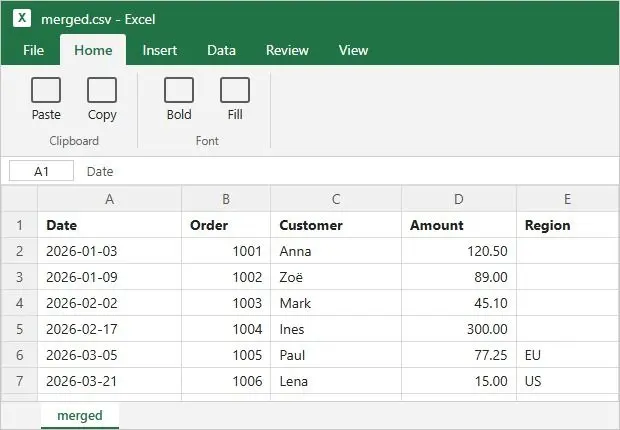
$rows = Get-ChildItem *.csv | ForEach-Object { Import-Csv $_.FullName -Encoding UTF8 } $cols = $rows | ForEach-Object { $_.PSObject.Properties.Name } | Select-Object -Unique $rows | Select-Object $cols | Export-Csv merged.txt -NoTypeInformation -Encoding UTF8 This script kept all five columns in our three test files, in the order first seen. January and February had empty Region cells; March kept its regions. The pandas.concat documentation describes the default outer join: "Columns outside the intersection will be filled with NaN values."
import glob, pandas as pdframes = [pd.read_csv(f, encoding="utf-8-sig") for f in sorted(glob.glob("*.csv"))] pd.concat(frames, ignore_index=True).to_csv("merged.csv", index=False, encoding="utf-8-sig") Header names must match exactly, apart from case in some programs. "Email" and "E-mail" become separate columns in every method here, ours included. Rename conflicting headers before merging. For example, a phone export from a VCF to CSV converter and a CRM export may name the same field differently.
If exports contain the same orders or customers, compare two Excel sheets before stacking them to find repeated rows. Remove duplicates once after merging.
Why do merged CSV files show garbled characters?
TL;DR
When you double-click a CSV, Excel guesses its encoding. Without a byte order mark (BOM), it may read UTF-8 with the wrong code page. Import through Data > From Text/CSV and set File Origin to 65001: Unicode (UTF-8), or save the merged file as UTF-8 with a BOM.
If the bytes are correct but Excel reads them with the wrong encoding, re-importing with the right File Origin fixes the display without changing the file. A Discourse Meta discussion explains that Excel needs encoding metadata, which a BOM provides. If characters were lost when writing, as in our PowerShell 5.1 test, no import setting can recover them. Re-run the merge from the original files with explicit UTF-8 encoding.
The copy command carries each source file's BOM into the merged file at the start of its header line. Deleting the extra header lines removes those BOMs too.
When the delimiter differs between files:
European-language versions of Excel and accounting programs often export semicolons because they use commas as decimal marks. If you merge those files with comma files, each semicolon row lands in one column. The e-iceblue CSV merging guide advises: "If your files use a different encoding or delimiter, adjust the import settings accordingly before processing." In PowerShell, read those files separately with Import-Csv -Delimiter ';'.
Excel and Import-Csv handle quoted fields containing line breaks. A line-based trick that deletes "line 1 of each file" can split those rows.
What happens when the merged file passes 1,048,576 rows?
TL;DR
CSV has no row limit, but an Excel worksheet stops at 1,048,576 rows. Load larger results into the Data Model with Power Query, or split the merge into parts.
1,048,576 rows
is the most one Excel worksheet holds, in Excel for Microsoft 365, 2024, 2021, 2019 and 2016Source
16,384 columns
is the widest one Excel worksheet gets, in the same versionsSource
Twelve monthly exports of 90,000 rows make 1,080,000 rows. Open that file directly and Excel loads only what fits, with the warning quoted in Microsoft's support article on oversized data sets: "This data set is too large for the Excel grid. If you save this workbook, you'll lose data that wasn't loaded."
Never save over the original CSV after this warning. Excel writes only the rows it loaded, deleting the rest. Close without saving, or use Save As with a new name to keep the partial view.
For analysis, merge with Power Query and choose Close & Load To > Only Create Connection, with Add this data to the Data Model checked. Memory limits the Data Model: Microsoft's specifications give 64-bit Excel no hard file size limit and 32-bit Excel a 2 GB address space. For another system, keep the merged result as CSV and skip Excel.
Is it safe to use an online CSV merger?
TL;DR
Check where the merge runs. Some programs claim files stay in the browser; others upload them to a server you cannot inspect. For customer lists or payroll, we'd merge locally.
You don't need to install anything. ExtendsClass offers "Keep only the header (first row) of the first file" and states on its CSV merge page: "Your files are not sent to the server side, your CSV files are merged directly in your browser!" That is the vendor's claim as of October 2026. We did not test online programs for this guide.
You can check in two minutes: open the program, press F12, switch to the Network tab and merge a dummy file. An upload request roughly the file's size means it left your PC. No request means the merge ran locally. A browser merger holds every file in the tab's memory, so large merges can slow down or fail. Its handling of mixed headers and encodings also depends on the program.
When does a desktop CSV merger beat the free methods?
TL;DR
When the files differ. Spreadsheet Compare & Merge Tool for Excel matches header text and writes one header. It reads .csv, .tsv, .xlsx and .xlsm on Windows without Excel installed.
You get every header in the order first seen, with empty cells where a file lacks a column. Matching ignores letter case and spaces at the edges of headers. For a file starting with a title or logo row, set the header row number to skip the rows above it. The program detects each file's delimiter (comma, semicolon, tab or pipe) and encoding (BOM, UTF-8, ANSI or Latin-1). A quoted multi-line comment stays one row. Damaged files are skipped and counted in the final message. At Excel's row limit, the program stops, keeps what it has merged and tells you to split the batch. You can merge CSV and Excel files into one workbook, saving as .csv or .xlsx on one sheet or one sheet per file.
copy and Export-Csv
Header repeated, or an extra column dropped
One delimiter and one encoding for the whole run
VS
Spreadsheet Compare & Merge Tool for Excel
Columns matched by name, gaps left empty
Delimiter and encoding read from each file
Resave old .xls files as .xlsx before adding them. Matching uses exact header text after trimming, with no synonyms. The program runs only on Windows and has no command line for scheduled runs. The trial writes the first 50 data rows, excluding the header; a license removes that limit.
Spreadsheet Compare & Merge Tool for Excel - Combine Excel Files into OneCSV files with different columns or delimiters? Merge them by header name on Windows, offline, without Excel.
How to merge a folder of CSVs in Spreadsheet Compare & Merge Tool
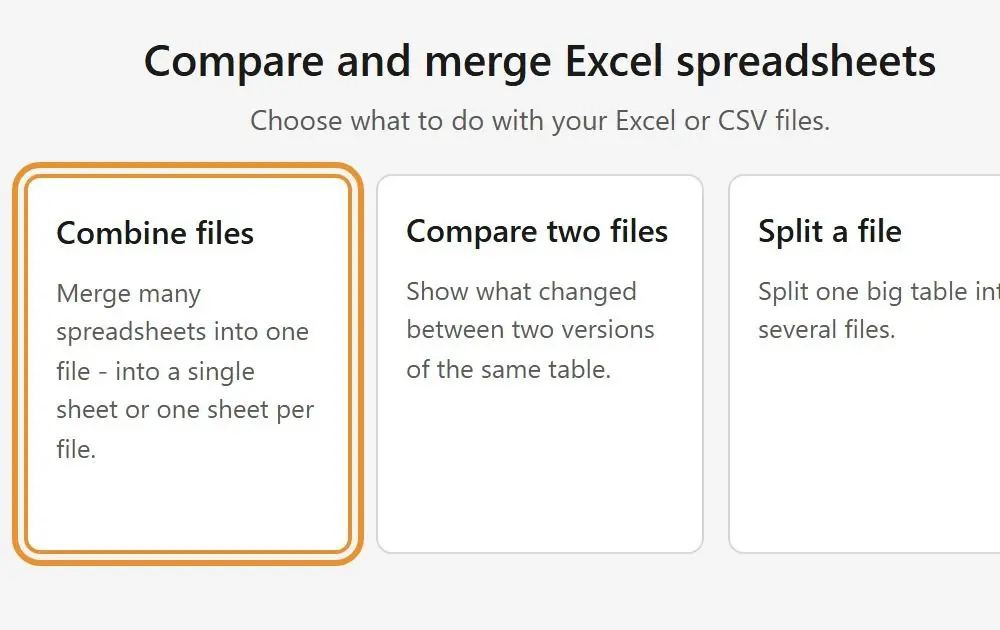
Open the program and choose Combine files
On the start screen, click Combine files to open the merge screen.
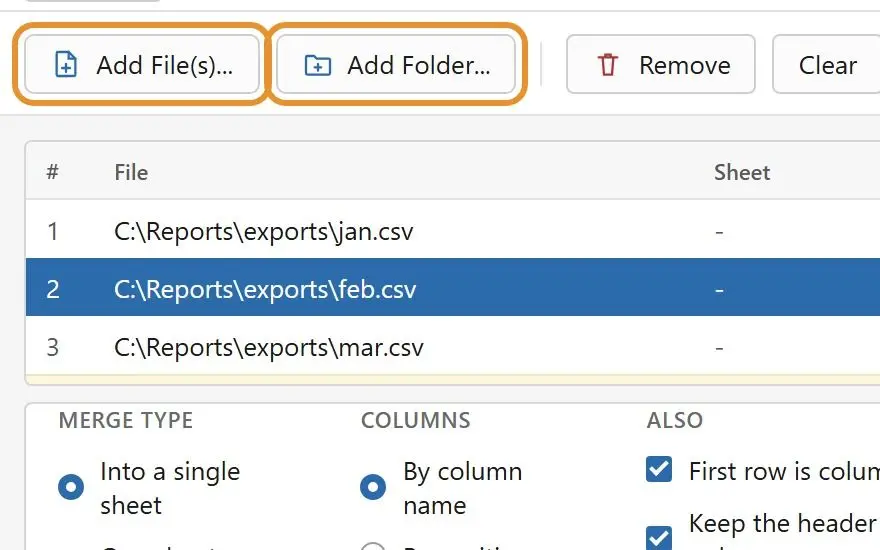
Add the CSV files or the whole folder
Click Add File(s) or Add Folder. Folder files arrive in name order, with duplicates skipped. Use the arrows to reorder them.
Choose one sheet or one sheet per file
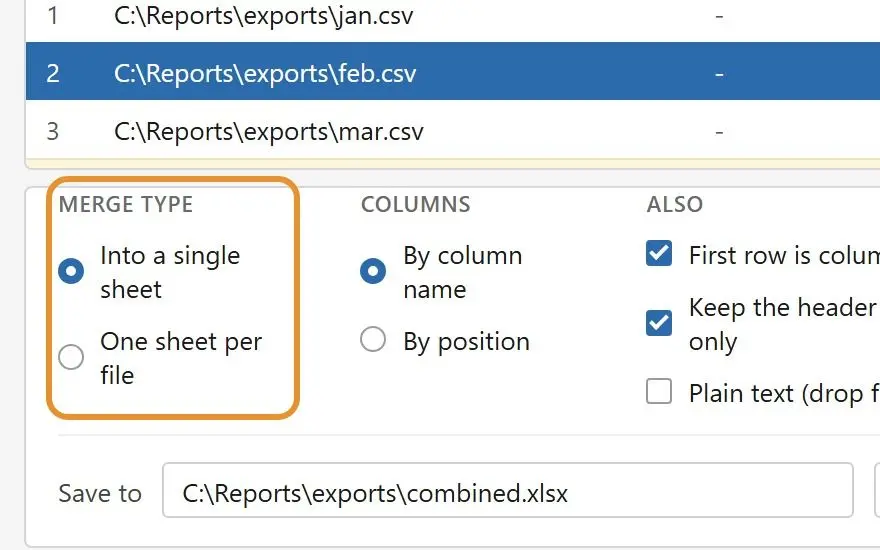
Under Merge type, choose Into a single sheet to stack rows or One sheet per file for separate tabs.
Match the columns by name
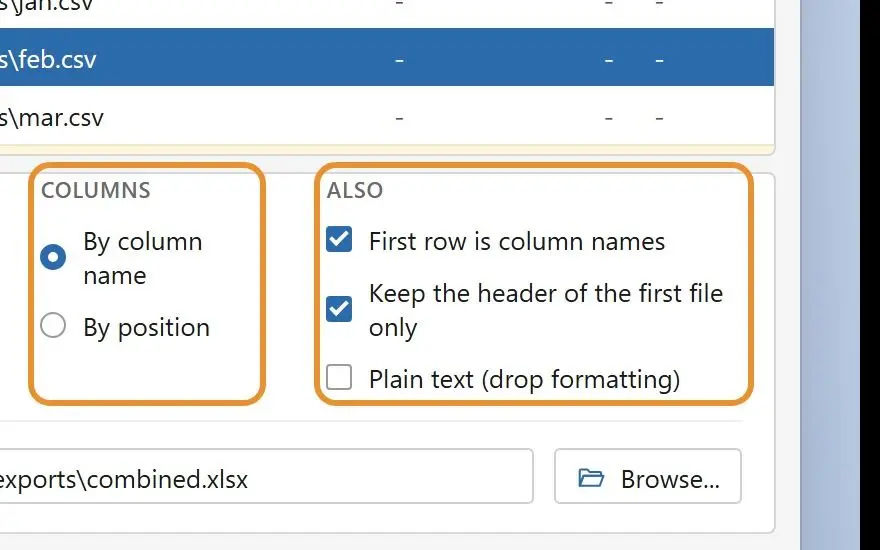
Under Columns, choose By column name. Under Also, select First row is column names and Keep the header of the first file only.
Save as CSV or XLSX and run the merge
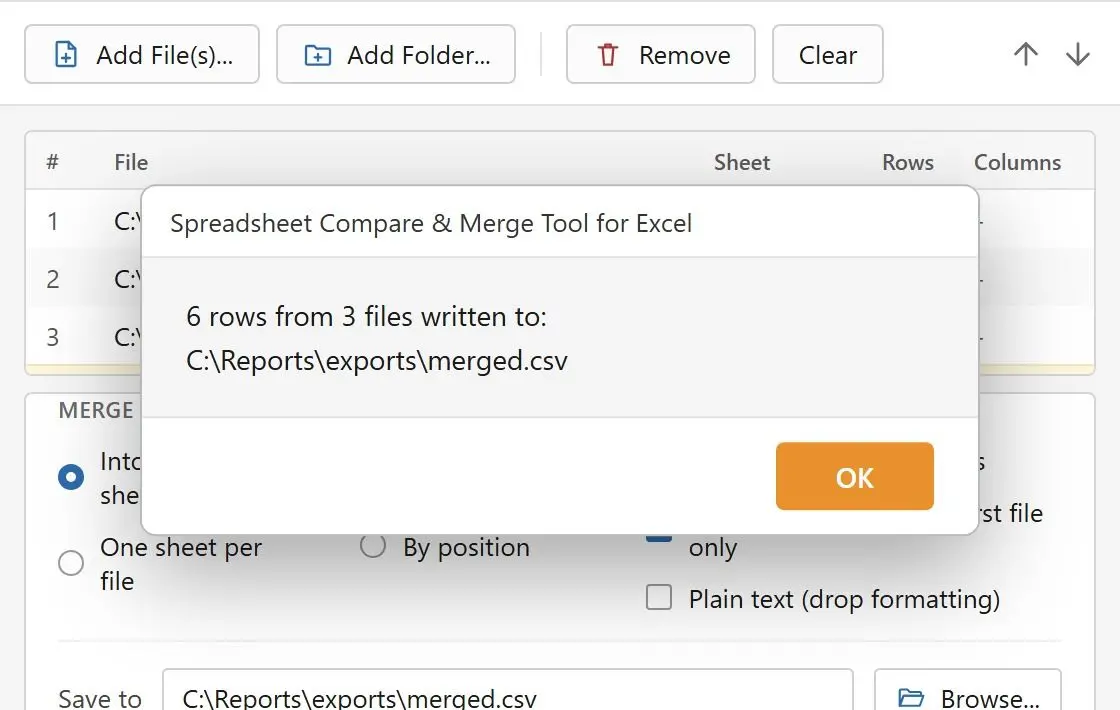
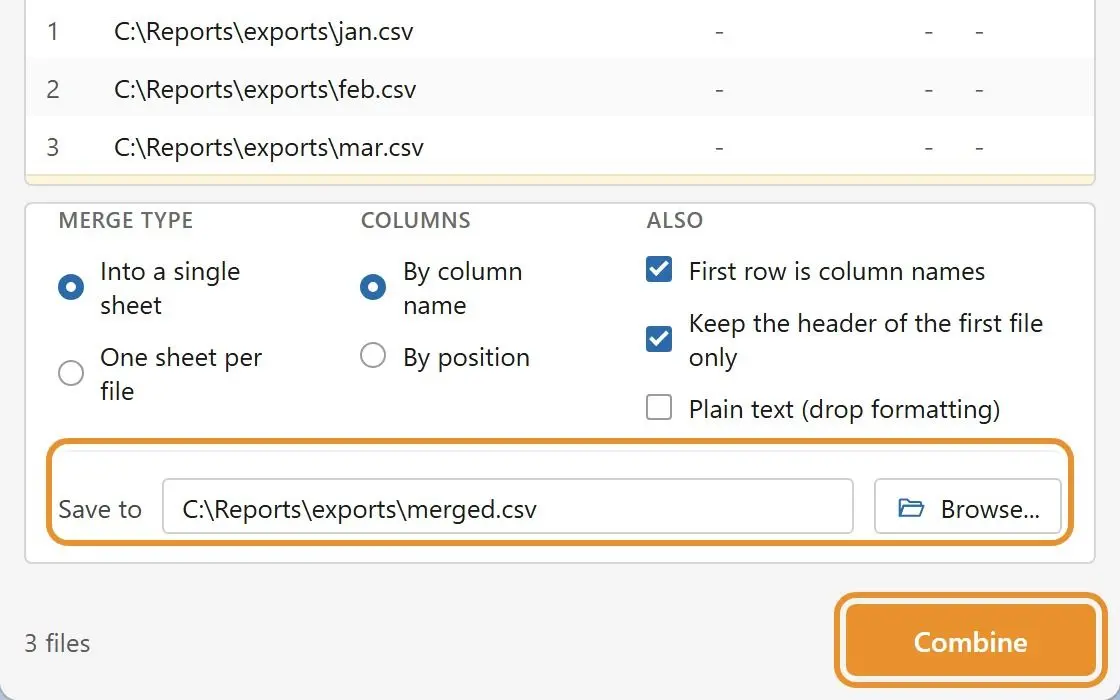
In Save to, end the file name with .csv or .xlsx and click Combine. The final message gives the row count, file count and output location.
Spreadsheet Compare & Merge Tool for Excel - Combine Excel Files into One
Spreadsheet Compare & Merge Tool for Excel by SoftOrbits is an Excel file combiner and a comparison tool in one window. It folds a folder of workbooks into a single file, then shows what changed between two versions of a table. The files are read by the program itself. Excel does not have to be installed on the machine that does the work.
Import each file to a new worksheet with Data > From Text/CSV, or choose One sheet per file under Merge type in Spreadsheet Compare & Merge Tool and save as .xlsx.
A leading  is a UTF-8 byte order mark read as ANSI text by a program that did not expect it. Set File Origin to 65001: Unicode (UTF-8), or read the file in Python with encoding utf-8-sig.


 Spreadsheet Compare & Merge Tool for Excel - Combine Excel Files into One