When does Consolidate merge spreadsheets, and when does it not?
TL;DR
Consolidate summarizes. It takes the same cells or labels from several ranges and returns one number for each, using SUM unless you choose another function. Use it for four regional budget sheets with one layout. It returns totals and drops individual rows from lists.
The sequence below comes from the Microsoft Support article titled Consolidate data in multiple worksheets.
On the master sheet, click the upper-left cell of the area where the result should appear.
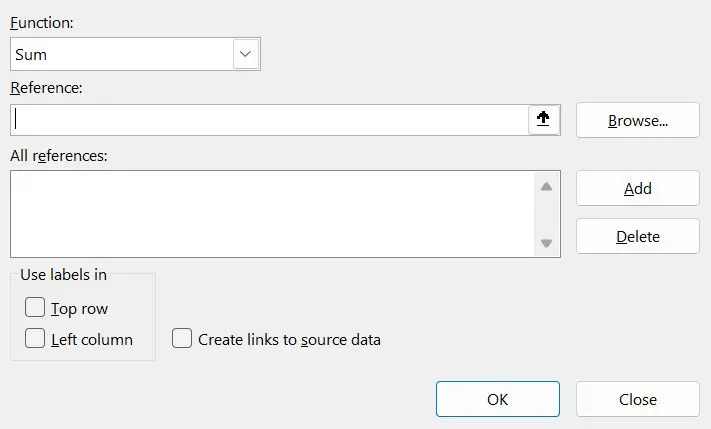
Select Data > Consolidate.
In the Function box, pick the summary function. SUM is the default.
Click Collapse, select a source range on another sheet, expand the dialog again and click Add. Repeat for each range.
Tick Create links to source data if the totals should follow later changes, then click OK.
Microsoft sets two conditions for the source lists: "Each column must have a label (header) in the first row and contain similar data. There must be no blank rows or columns anywhere in the list." By position expects every range to have the same layout. By category matches row and column labels, so the ranges may be arranged differently when the labels are identical. A note under the steps adds: "You cannot create links when source and destination areas are on the same sheet."
How to pull columns from one spreadsheet into another by a shared key
TL;DR
Use XLOOKUP, or VLOOKUP in older versions of Excel. Both read an ID in the first table, find the same ID in the second table and return a value from that row. The first table keeps its row count and gains columns. Use this when file A lists orders and file B holds prices for the same product codes.
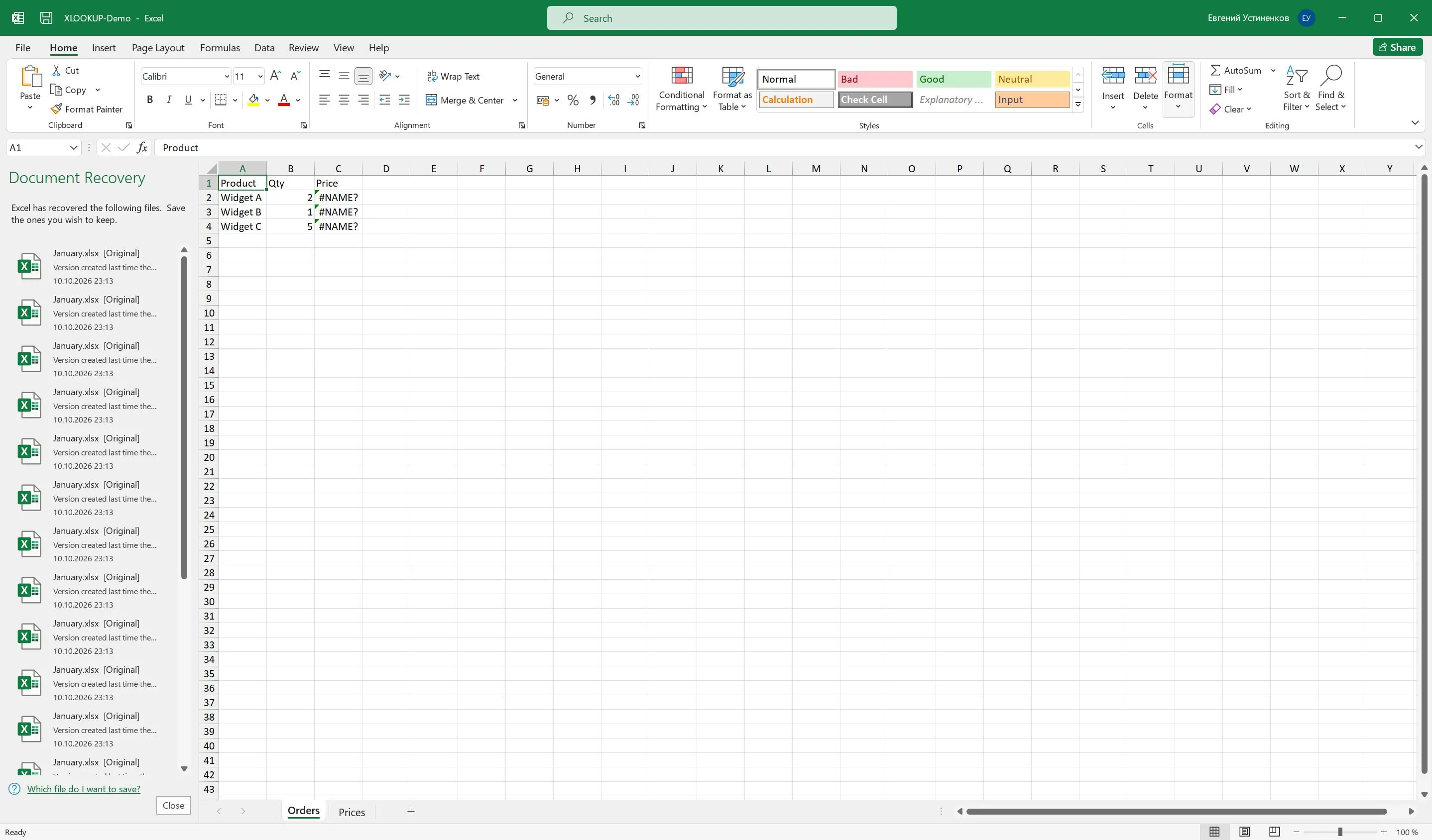
Open both workbooks, click the first empty column of the main table and write the formula against the other file. XLOOKUP is available in Microsoft 365 and in Excel 2021 or later.
=XLOOKUP(A2, [Prices.xlsx]Sheet1!$A:$A, [Prices.xlsx]Sheet1!$C:$C, "not found") The older equivalent needs the key in the leftmost column of the lookup range and a column number in place of a return range. =VLOOKUP(A2, [Prices.xlsx]Sheet1!$A:$C, 3, FALSE) Fill the formula down. Rows that return an error or "not found" have no partner in the second file. A trailing space can cause this, as can a product code stored as a number in one file and as text in the other. When the result looks right, copy the new column and paste it back as Values. That cuts the link to the second workbook.
Can a VBA macro merge Excel files automatically?
TL;DR
Yes. A macro can open every workbook in a folder, copy the used rows and paste them under the last row of a master sheet. It can automate a weekly merge. Many office PCs block macros, and company policy may require an IT administrator to turn them back on.
To keep the code, save the workbook as a macro-enabled .XLSM file. A workbook received by email or download can have its macros blocked until you open the file's Properties in File Explorer and unblock it. If the organization applies the policy named Block macros from running in Office files from the Internet, that checkbox does not help and the request goes to IT. A thread on unblocking macros, listed under Sources, covers both situations.
For a one-time merge, Power Query does the append without code. Keep VBA for jobs where the merge has rules that no menu covers.
When is a desktop merge tool the shorter route?
TL;DR
Spreadsheet Compare & Merge Tool for Excel appends .XLSX, .XLSM, .CSV and .TSV files into a single sheet or one sheet per file, and saves the result as XLSX or CSV. Columns line up by header text or position. It works on a PC without Excel, and workbooks and CSV exports can sit in the same list.
As an Excel file combiner, it suits a folder that Power Query cannot combine cleanly. Matching by column name keeps every header found in any file, in the order first seen. A missing column leaves empty cells. Letter case and spaces at the edges of a header are ignored, so "Email" and "email " land in one column. Matching by position ignores header names.
Workbooks saved in the 1904 date system are converted. In a CSV file, values like 007 stay text. A damaged file is skipped and counted in the final message. If the result reaches the worksheet row limit, the tool writes everything that fit and says so.
500,001 rows
merged in 8.64 seconds when we combined 50 workbooks of 10,000 rows each into one sheet in our own test
Font, fill color and number formats carry over unless you tick Plain text. Formulas are carried as written and their references are not rewritten, so a relative reference can point at a different row after the merge.
The tool appends by rows and does not merge by a key column or have a command line. Charts, images, pivot tables, conditional formatting, borders and alignment are not carried into the result. The old .XLS format is not read, nor are .XLSB and .ODS, so resave those files as .XLSX first. The trial writes the first 50 rows of a merge.
Twenty exports by hand
Open a file, select the rows, copy, switch windows, find the last row, paste. Check the columns still line up. Repeat 19 times and hope no file was pasted twice.
VS
One list of files
Add the folder, set the order, choose how columns match and click once. The closing message tells you how many rows came from how many files.
How to merge Excel files in Spreadsheet Compare & Merge Tool
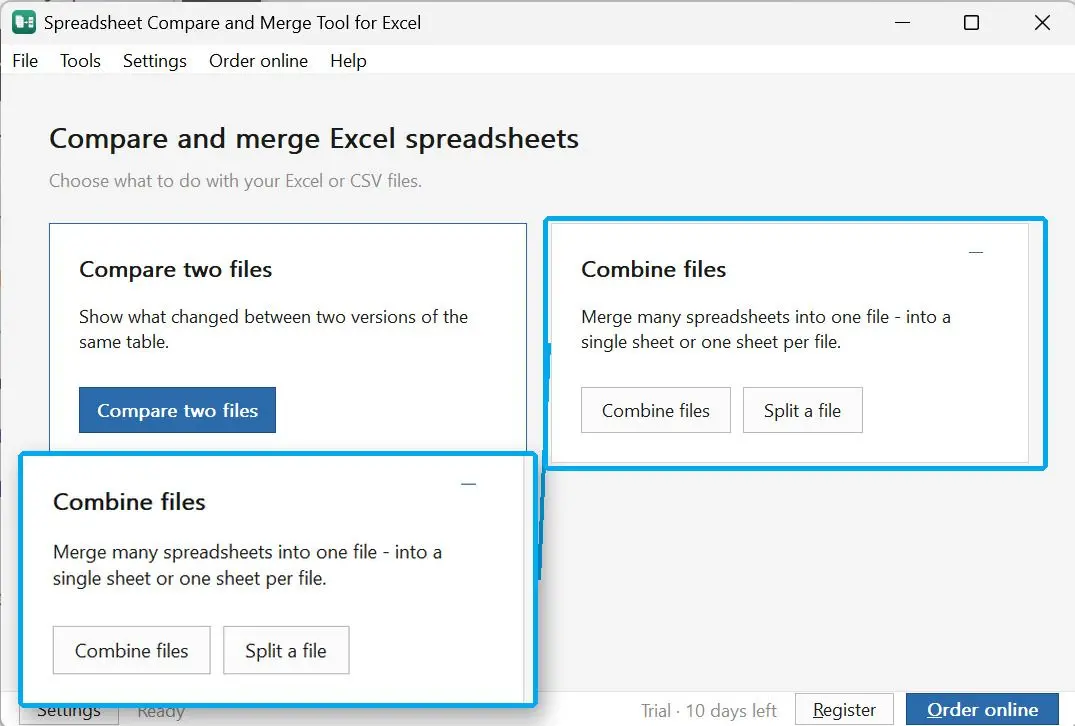
Open the program and choose Combine files
The start screen shows two cards. Click Combine files to open the merge screen.
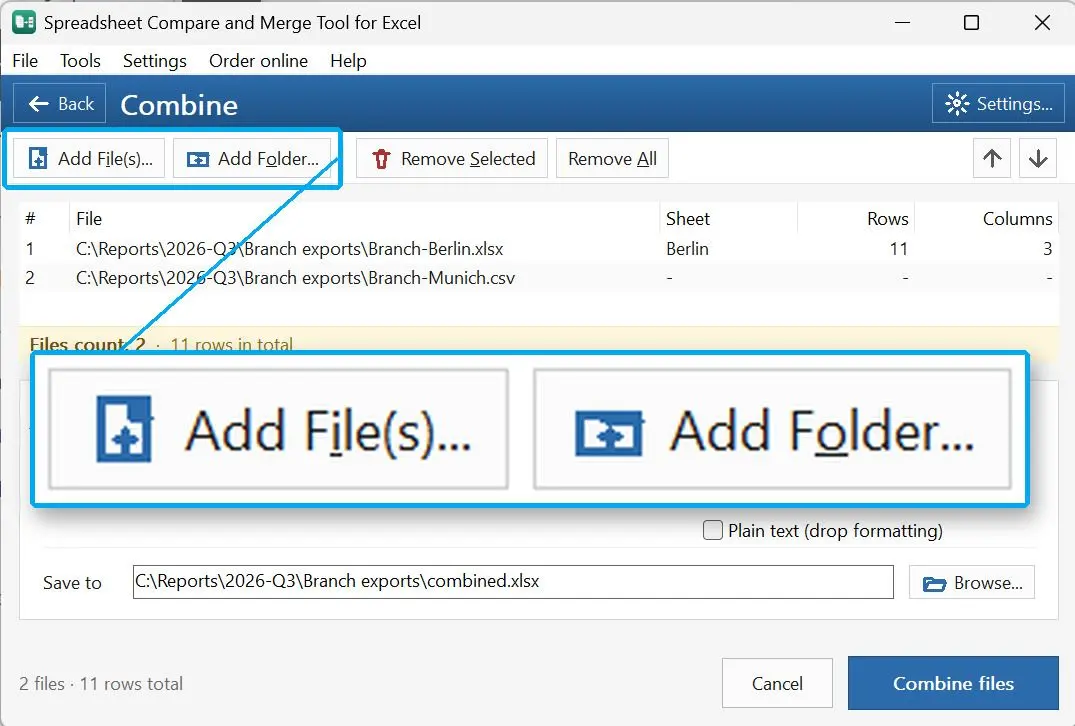
Add the two spreadsheets or a folder of them
Use Add File(s) for single workbooks or Add Folder for a batch. You can drag files onto the window. For each workbook, the list shows the sheet name and the number of rows and columns.
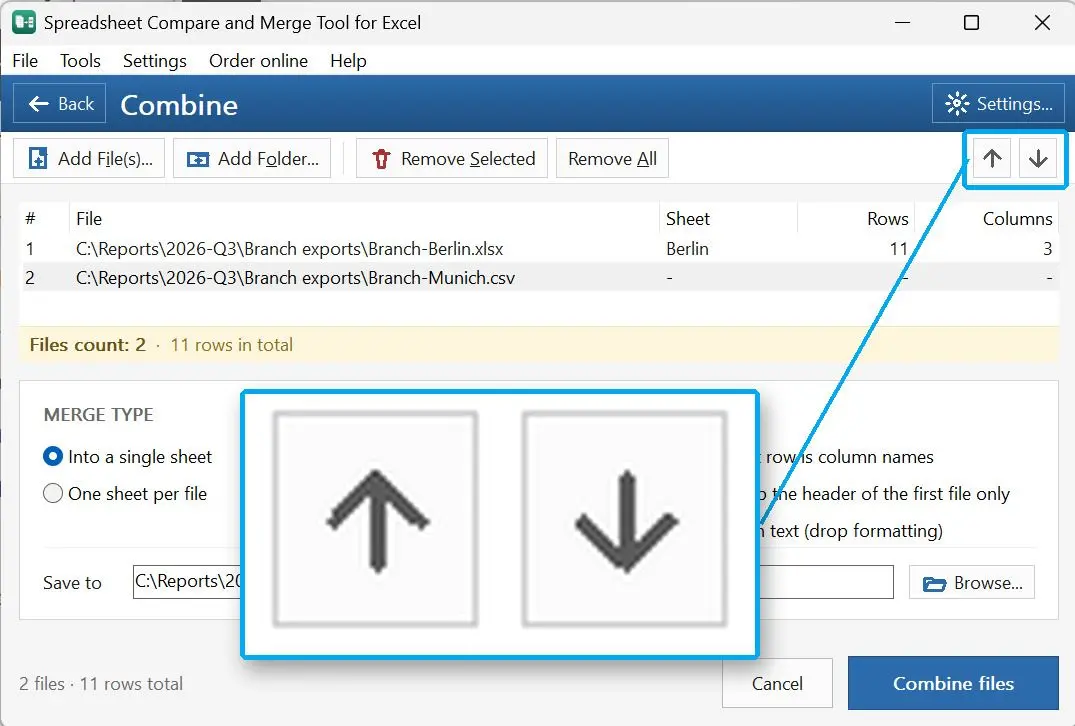
Put the files in the order you want the rows
Select a file and click the up or down arrow above the list, or drag the row to a new place. The list order becomes the result's row order.
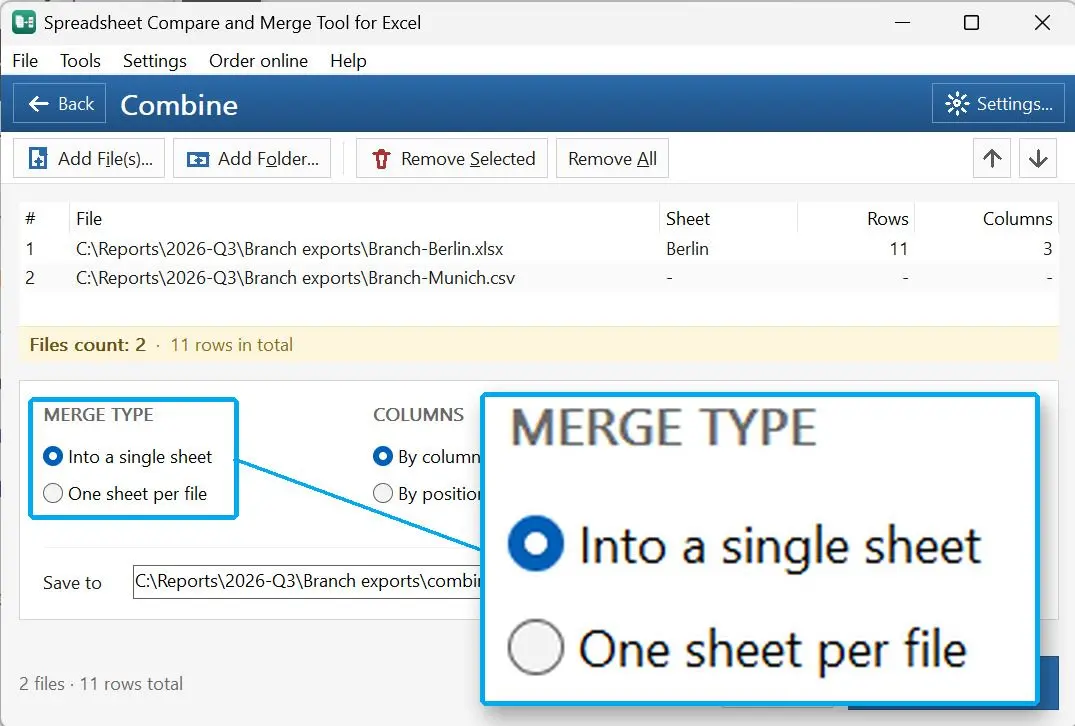
Choose one sheet or a sheet per file
Under Merge type, pick Into a single sheet to stack all rows, or One sheet per file to keep each file on its own tab.
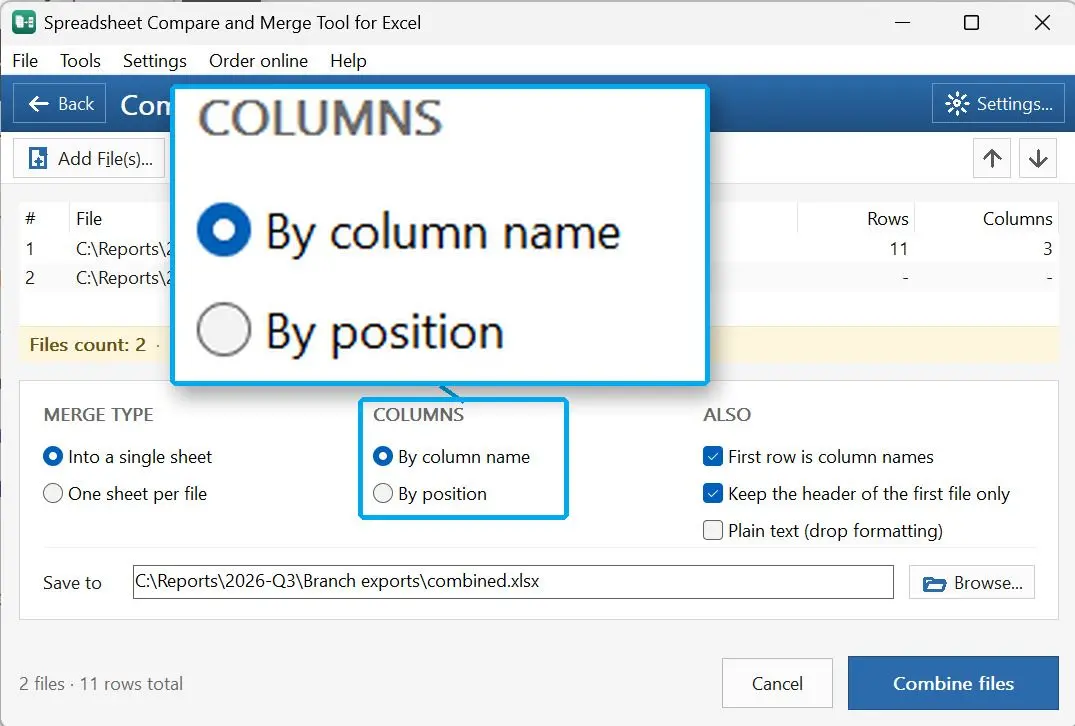
Tell the program how to line up the columns
Under Columns, pick By column name or By position. Under Also, tick First row is column names and Keep the header of the first file only so the header is not repeated inside the data.
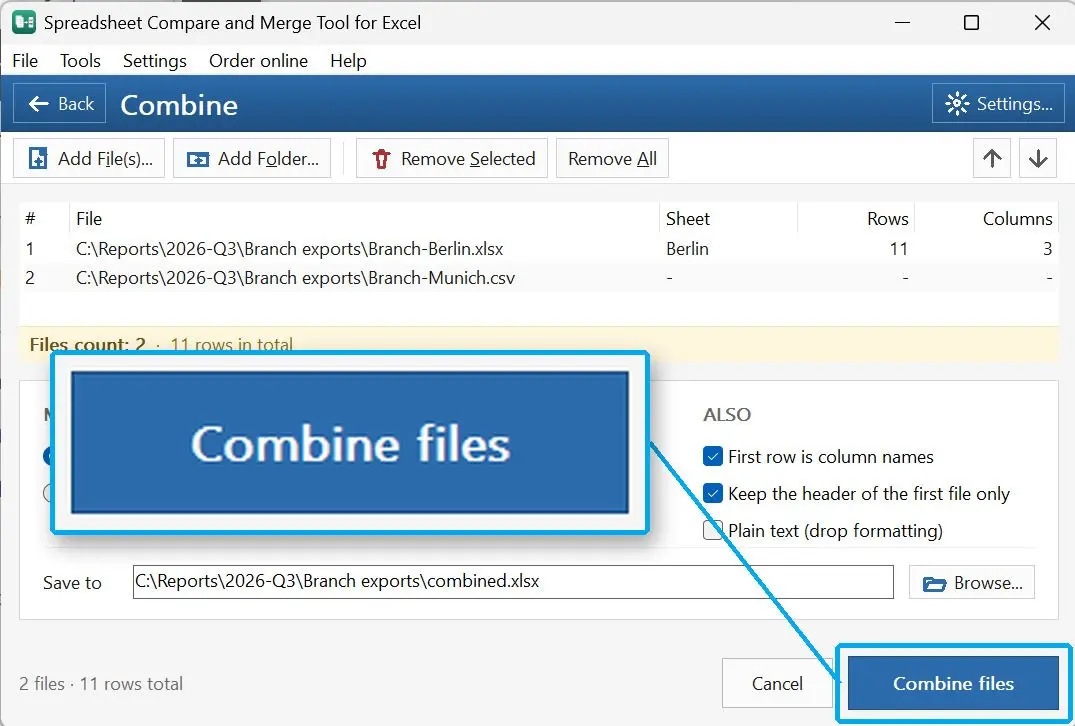
Name the output file and click Combine files
Save to already holds a suggested file name. Keep it or type your own, ending in .xlsx or .csv. The extension decides the format. Click Combine files and read the message with the row and file count. The program refuses to write over one of the source files.
Spreadsheet Compare & Merge Tool for Excel - Combine Excel Files into One
Spreadsheet Compare & Merge Tool for Excel by SoftOrbits is an Excel file combiner and a comparison tool in one window. It folds a folder of workbooks into a single file, then shows what changed between two versions of a table. The files are read by the program itself. Excel does not have to be installed on the machine that does the work.
How to combine two Excel sheets without duplicate rows
TL;DR
Append first, then remove duplicates in Excel. Select the merged table, choose Data > Remove Duplicates, tick the column that identifies a record and click OK. Append routes keep both copies of a duplicated row, and Spreadsheet Compare & Merge Tool for Excel does not remove duplicates.
The selected columns decide what counts as a duplicate. Tick every column and Excel removes only rows identical in all cells. Tick the ID column alone and it keeps the first row for each ID and deletes the rest, even when other cells differ. The surviving row is the one that came first, which may be the older address.
If the newer file should win, put it first in the merge. Sorting by a date column before removing duplicates has the same effect. Power Query has its own command, Home > Remove Rows > Remove Duplicates in the editor, and it runs again on every refresh. Microsoft warns that Power Query will not necessarily keep the first duplicate.
Write down how many rows each source file has before the merge. After removing duplicates, the total should equal the sum of the sources minus the number Excel reports as removed. If it does not, a file was added twice or left out.
How to compare two versions of a spreadsheet before merging them
TL;DR
If the two files are versions of one table, compare them before appending. An append doubles every unchanged row. A comparison shows which rows were edited, added or deleted, so you may need only the newer file and selected rows from the older one.
Excel's own aid is View > View Side by Side, with Synchronous Scrolling switched on. Both windows scroll together. This works for 50 rows, but an inserted row in a price list with a few thousand lines shifts everything below it.
The Compare two files mode of Spreadsheet Compare & Merge Tool takes exactly two files and shows them in two synchronized grids, with buttons to jump to the previous and next difference. Rows can be matched row by row or by a key column. A third setting matches them automatically and detects inserted and deleted rows. Matching by key suits two exports that share an order number but arrive sorted differently. The differences export as an XLSX file with highlights or as a CSV list. A PDF or HTML report is available for the other version's owner.
Can you merge Excel files online, and is it safe?
TL;DR
Yes, online mergers exist. The files leave your PC and a copy sits on a server you do not control. For a class schedule that is fine. For payroll, customer lists or anything under a confidentiality agreement, use a route that runs locally: Excel itself or a desktop tool.
In one Microsoft Tech Community thread, the author had 33 Excel files in one folder and could not find From Folder in Excel for Mac. An online service came first, and a workaround posted later in the same thread gave Excel access to the folder.
Excel for the web cannot copy a sheet into another workbook. If a website is the only option, strip columns that hold personal data from the copies before uploading.
Spreadsheet Compare & Merge Tool for Excel - Combine Excel Files into One
Merge two Excel spreadsheets with Move or Copy, Power Query, Consolidate or XLOOKUP. See where each method breaks and how to merge files with mixed headers.
Yes. If each spreadsheet should stay a separate tab, use Move or Copy to send one sheet into the other workbook. If the rows should form a single table, append them with Power Query or copy and paste. Both need Excel on the desktop, and the append needs the same column headers in both files.
Open both files in desktop Excel, right-click the sheet tab in the first file and select Move or Copy. Tick Create a copy, choose the second workbook under To book and confirm. The sheet arrives with its formatting. Formulas that referred to other sheets point back at the first file until you fix them.
Put the files in one folder and use Data > Get Data > From File > From Folder, then Combine & Load. Excel builds one table out of them. All files need the same column headers and data types. With mixed headers, or without Excel on the PC, a desktop merge tool does the same append.
Build the merge once in Power Query with From Folder. Saving a new file into the folder and clicking Refresh All adds its rows to the table. A VBA macro is another option, but macros are blocked on many company PCs and may need approval from IT.
Use Data > Consolidate when you want totals. Pick a function such as SUM, add a range from each file and confirm. Excel returns one summary value per label or position. To list every row in one table, use Power Query.
Load each sheet as its own query, then select Home > Append Queries in the Power Query Editor and pick the queries to stack. For sheets in separate files, From Folder loads and appends them in one step. The columns match by header name, so fix spelling differences first.
Excel for the web cannot copy a worksheet into another workbook. Microsoft states that this is not currently possible in the browser version and points to the desktop app. Inside a single workbook you can still copy and paste ranges between sheets online. To bring sheets together from several files, open the workbooks in desktop Excel.
Write an XLOOKUP formula that takes the value to search for, the column to search in and the column to return. In versions older than Excel 2021, VLOOKUP does the same with a column number. Both return one value per row, such as a price or name beside an ID.
We have not tested that service on workbooks, so we will not describe what it does with two spreadsheets. With any online tool, the files are uploaded to a server outside your control. If the spreadsheets hold customer or salary data, merge them locally.
Fix that before the merge. Most routes read the first row as column names, so a title line or logo row above the header shifts everything. Delete the extra rows in copies of the files. In Power Query, use Remove Top Rows and Use First Row as Headers.
Microsoft 365 Insider blog: the From Folder connector in Excel for Mac (https://techcommunity.microsoft.com/t5/microsoft-365-insider-blog/refresh-data-using-power-query-s-from-folder-connector-in-excel/ba-p/4227534) the rollout of the folder connector to the Mac Beta Channel


 Spreadsheet Compare & Merge Tool for Excel - Combine Excel Files into One