Yes. A macro loops through the folder with Dir(), opens each workbook and copies its rows or sheets into a master file. It runs locally with no file cap. The cost is upkeep: when the folder, the file type or a header changes, someone has to edit the code.
A typical combine macro reads the folder path, lists the files with Dir(), opens each file and pastes its used range under the last row of a master sheet. The Coupler.io version copies whole worksheets to the end of a main workbook instead of stacking rows, which gives one tab per file.
One user in a Microsoft Q&A question about combining hundreds of workbooks hit run-time error 424. A reply traced it to a workbook variable the code used but never assigned with Set.
Pick VBA when someone on the team maintains it and the folder layout is stable. For a one-off batch, or for a colleague who has never opened the VBA editor, Power Query or a desktop combiner is easier to support.
How do you combine CSV files and workbooks in one batch?
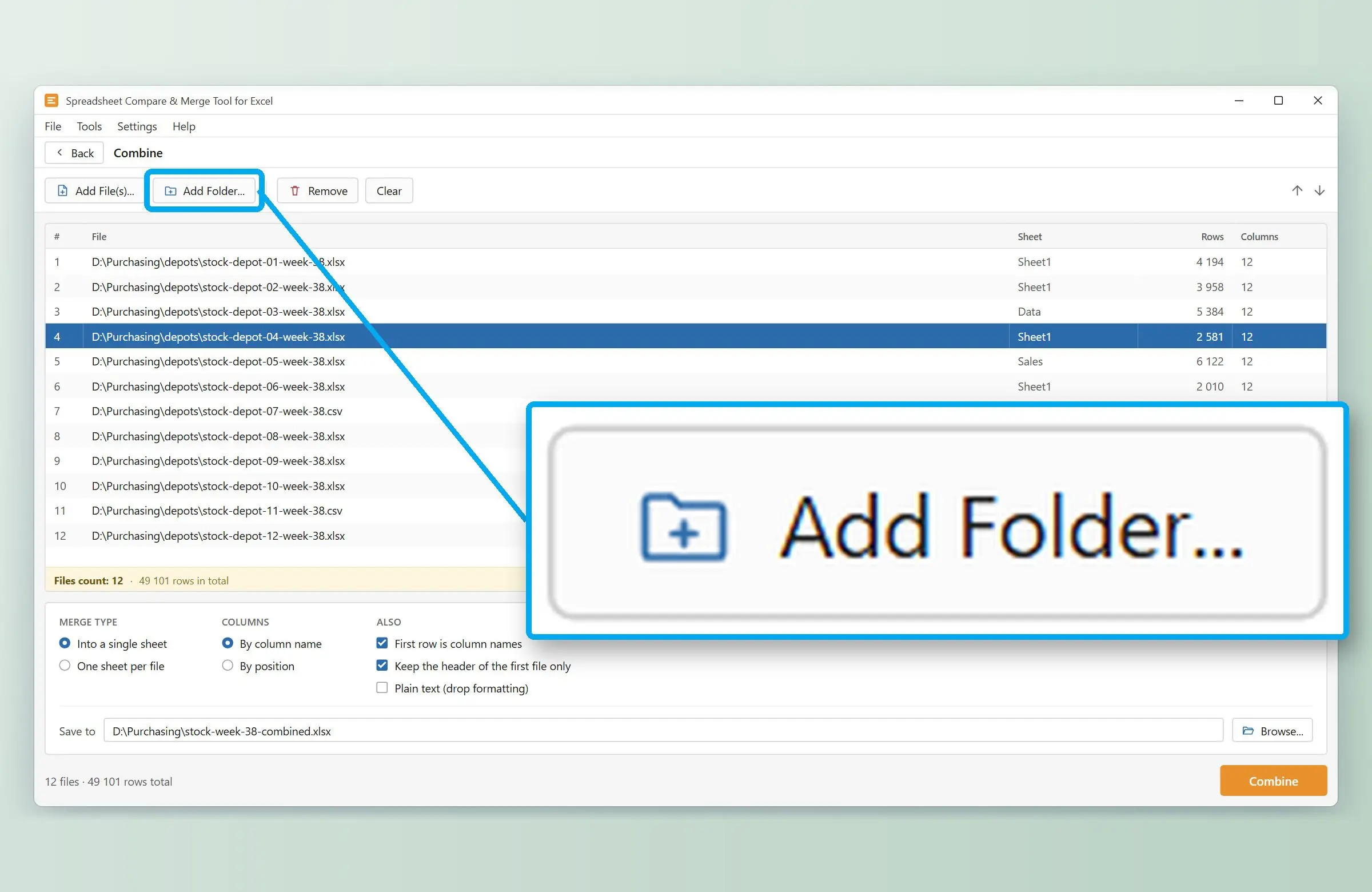
Power Query From Folder expects one file type per folder, so CSV and .xlsx files are usually combined in two passes. A desktop combiner that reads both can take the mixed folder in one run, matching columns by header name.
Accounting may export a CSV, a regional office may send .xlsx, and another file may be saved as .xlsm with a macro. Power Query's combine logic assumes "the same file type and structure", so the usual workaround is two queries, one per file type, followed by an append. If the folder holds only CSV exports, our separate guide on how to merge CSV files covers the command-line and PowerShell routes as well.
Why do dates change after combining CSV files?
A CSV file stores dates as plain text. The reader guesses the day-month order from the PC's regional settings or the type Power Query detected from the first file. In one Tech Community thread about a date problem, a Swedish-locale user merging files exported in Germany saw day and year swap places. The accepted fix was to change the column type with Using Locale... and pick the source locale.Before you trust a combined CSV batch, sort the date column and look at the first and last rows. Dates that jump to the wrong year show a swapped order.
What happens when the combined file passes 1,048,576 rows?
An Excel worksheet holds 1,048,576 rows by 16,384 columns. A combine that produces more rows than that cannot fit on one sheet, so either the extra rows are cut or the tool has to split the output. Check the total row count of your batch before you choose "one sheet".
The limit comes from Microsoft's Excel specifications and limits page. Sixty files of 20,000 rows each come to 1.2 million rows. A 32-bit copy of Excel reaches a second limit earlier, since it shares 2 GB of address space with the workbook and add-ins.
Power Query can load a large combine into the Data Model instead of a sheet, though you then work with it in a PivotTable. Our combiner writes up to the limit and then tells you the sheet reached Excel's row limit and the rows past it were not added. When that message appears, switch to One sheet per file or split the folder into two batches.
When is a desktop Excel merger worth it?
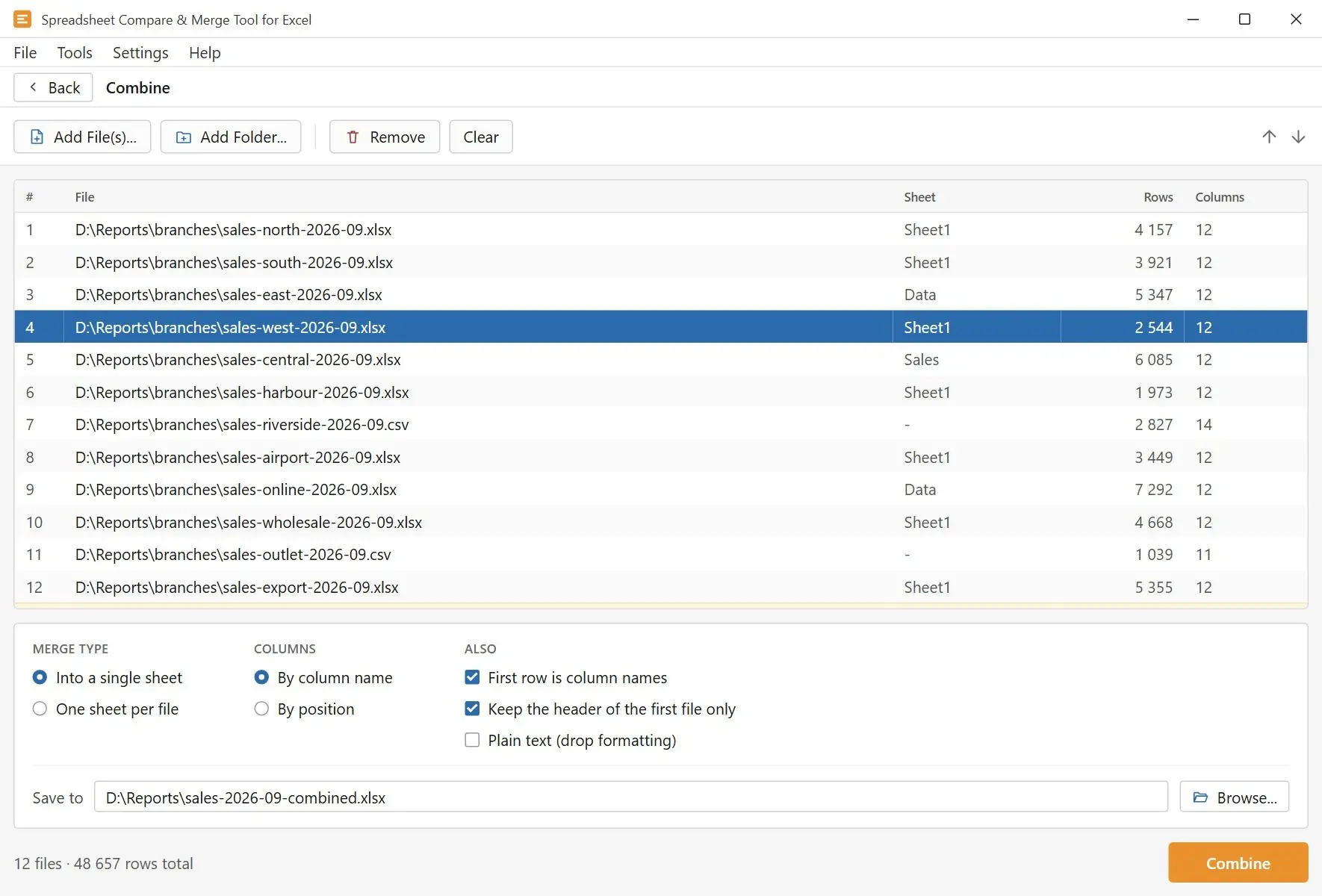
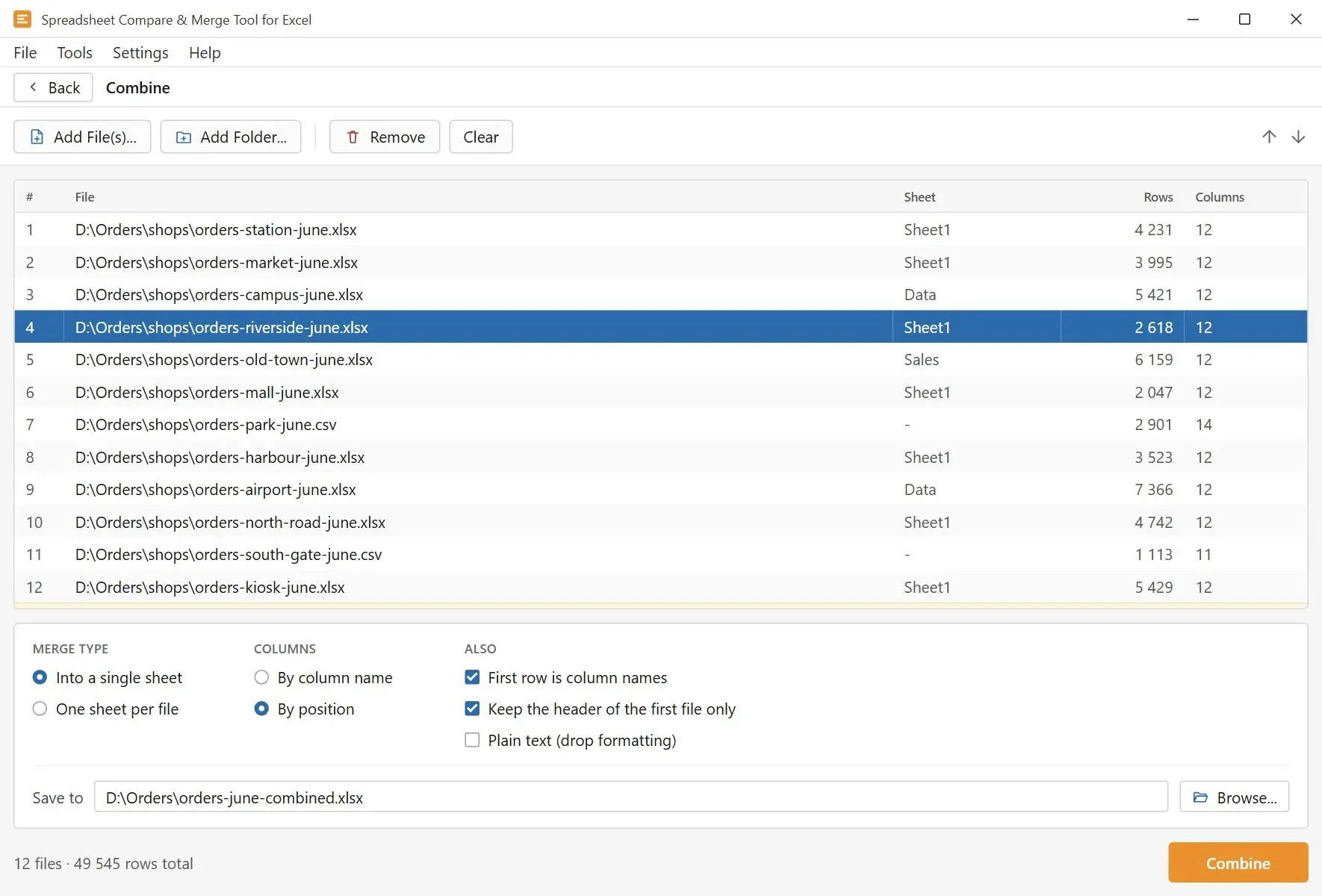
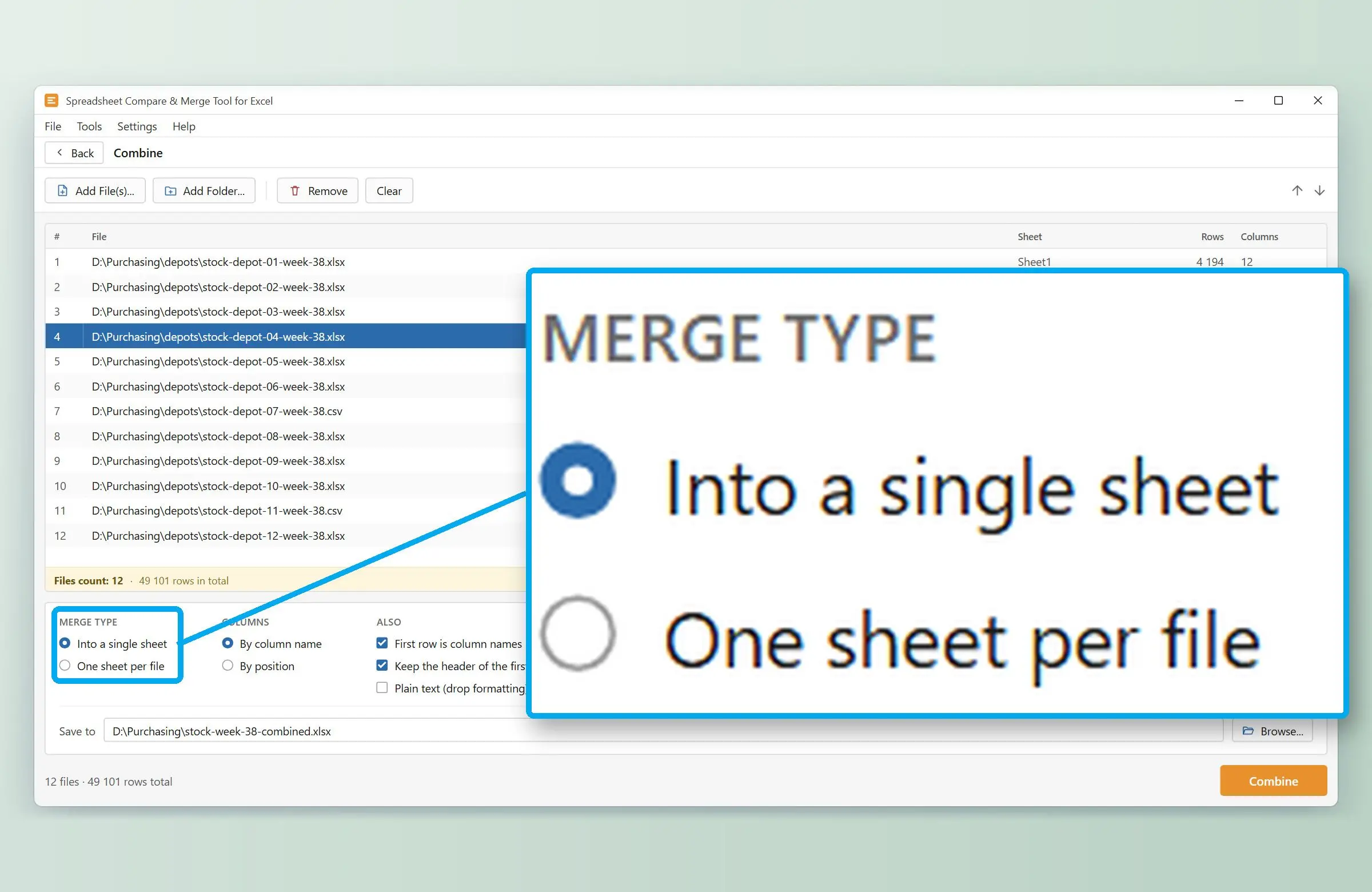
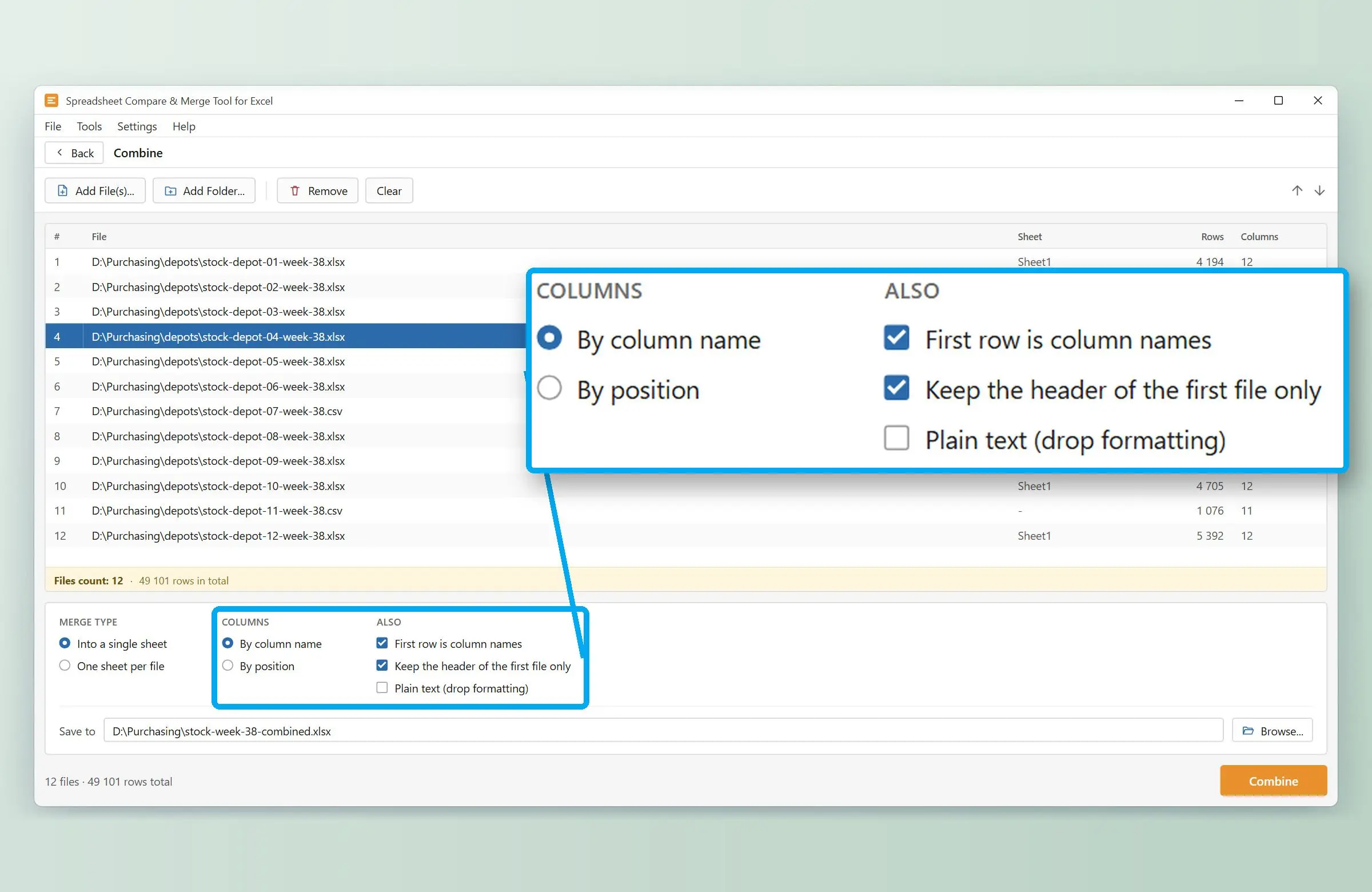
Use a desktop Excel merger when the folder mixes CSV and workbooks or the data must stay on the PC. Spreadsheet Compare & Merge Tool for Excel matches columns by header name and ignores case and extra spaces in headers.
Column headers are compared without regard to letter case or leading and trailing spaces, so a "Region " with a trailing space lines up with "region" from another file. A file that lacks a column gets empty cells there. A new column in a later file widens the result. Rows above the header row, such as a report title or a logo line, are left out.
A file that cannot be read does not stop the batch. The program finishes the rest and reports how many files were skipped. In our engine, peak memory is the result plus the largest single input, so a folder of 50 files does not need 50 times the memory.
- One file type per folder
- Header text must match exactly
- Title rows need a fix in the sample query
- Workbooks and CSV files in one batch
- Headers matched ignoring case and spaces
- Rows above the header skipped
Two gaps remain. No column records the source file name, and duplicate rows stay. The free trial combines any number of files but writes only the first 50 rows of the result. Output goes to an .xlsx workbook, or to .csv or .tsv for a single sheet. A licensed copy writes the whole table.
Can you combine files without opening them in Excel?
Yes. Power Query reads the folder without opening each workbook, though Excel itself has to run. Our tool reads and writes the files directly, so Excel does not need to be installed on the PC at all.


 Spreadsheet Compare & Merge Tool for Excel - Combine Excel Files into One