Quick answer:

  1. 1️⃣ Turbo PC Optimizer shows live RAM use, trims background apps and cuts startup items.
  2. 2️⃣ One app hogs memory: sort the Processes tab of Task Manager by Memory and end the top entry.
  3. 3️⃣ Slow after days of uptime: restart, then switch off startup apps in Settings > Apps > Startup.
  4. 4️⃣ Available memory near zero every day: add RAM, since no setting creates more of it.
Turbo PC Optimizer Screenshot.
️ Eugene - CEO at SoftOrbits, Candidate of Technical Sciences, has more than 16 years of expertise in software development, photo and multimedia applications, enhancing and transforming digital images and videos.
📅 Last updated on:  2026-11-05

Before you work out how to free up memory on PC, run one check: if RAM use sits at 80-90% while your PC still feels quick, open the Memory page in Task Manager. It shows whether Windows is short of RAM or using spare RAM as cache. Freeing disk space is a separate job.

What you will learn
Apply in 15 min Saves 1 hBeginner

What you'll need
  • Turbo PC Optimizer, for live RAM use, startup control and an on-demand trim
  • Task Manager (Ctrl+Shift+Esc) in Windows 10 or 11
  • The Settings app, for startup and background apps
  • About 15 minutes

How to free up memory on PC with Turbo PC Optimizer

TL;DR

Turbo PC Optimizer puts a live RAM graph, a memory trim button, startup entries and Windows services in one window on Windows 10 and 11. Turning off startup items keeps memory free after every reboot. A trim frees RAM immediately; Windows refills it as apps need their pages again.

Most memory guides send you through four Windows screens. In Turbo PC Optimizer, you can see used RAM against the total, programs that load at sign-in and services running in the background.

  • Click Optimize now in Memory optimization to trim background processes' working sets. Their pages move to standby or the page file, making RAM available without closing programs.
  • Turn on auto mode if one heavy app keeps taking memory from the rest. Trims repeat every 5, 10, 30 or 60 minutes, with 10 as the default.
  • Switch off startup items and services you never use.
  • Click Boost to the max before a game or a long render. It suspends windowless background processes and frees their memory. Click again to restore them. This mode also powers our game optimizer software.

The trim skips Windows core processes, the shell and other users' sessions. System tweaks get a restore point before they apply.

By hand in Windows
  • Task Manager for processes, Settings for startup apps
  • The Services console for background services
  • A restart to get leaked memory back
VS
In Turbo PC Optimizer
  • RAM graph, startup items and services in one window
  • A trim on demand or every 10 minutes
  • One click to suspend background apps, one to restore them

 Turbo PC Optimizer Memory optimization screen with a live RAM usage graph after Optimize now..

Turbo PC Optimizer
Turbo PC OptimizerSee RAM use, cut startup items and trim background processes in one window on Windows 10 and 11.

Is high RAM usage actually a problem?

TL;DR

Usually not. Windows keeps recently used data in standby memory and gives it to apps on request, so 80-90% in use on an idle Windows 11 PC is common. Low Available memory, Committed near its limit or stuttering when you switch apps points to a shortage.

In Task Manager, open Performance > Memory. In use is what apps hold, including compressed pages. Available includes the standby cache and is ready for Windows to hand out. Committed shows memory promised to apps against a limit equal to RAM plus the page file. Cached is standby data kept for faster launches.

A Yahoo Tech explainer on Task Manager readings says high standby and compressed memory are fine while the system stays responsive; repeatedly reaching the commit limit means a shortage. On Microsoft's Q&A forum, users ask why the bar shows 86% of 32 GB while the Users tab lists about 7 GB. The gap is cache, compressed pages and driver memory that no listed process owns.

Read the numbers, then pick a fix:

  • Available near zero with Committed close to its limit means a shortage. Close heavy apps and plan a RAM upgrade.
  • One process far above the rest when sorted by Memory points to that app. Close it or restart it.
  • A large Cached figure with healthy Available needs nothing.
  • Usage that climbs over days and drops after a restart suggests a leak. Restart weekly and update the growing app or driver.
  • Usage that stays high after a clean restart calls for RAMMap and a malware scan.

How long each fix lasts:

MethodWhat it freesHow long it lasts
Turbo PC OptimizerStartup items, services and background working setsStartup changes: every boot. Trim: until apps touch their pages again
End task in Task ManagerAll memory of one appUntil you open the app again
Startup apps turned offMemory of apps you rarely openEvery boot, until you switch them back on
RestartLeaked and piled-up memoryHours to days, depending on how long the PC runs
Browser memory saverMemory of inactive tabsWhile the tab sleeps
More RAMNothing; it raises the ceilingPermanent

How to free up memory on PC in Task Manager: close the apps that eat RAM

Open Task Manager from the keyboard

Press Ctrl+Shift+Esc. If a small window opens, click More details for the full list.

Sort processes by memory use

Open the Processes tab and click the Memory column header to put the heaviest app at the top.

 Task Manager Processes tab sorted by the Memory column with a browser at the top..

Save your work in that app first

Switch to the app and save open files. End task closes it without asking.

End the app you do not need right now

Right-click the app and choose End task. Leave entries under Windows processes alone; ending them at random can freeze the desktop or sign you out.

Check Available memory again

Return to Performance > Memory and compare Available with its earlier value.

Turbo PC Optimizer Turbo PC Optimizer

Turbo PC Optimizer clears out junk files, fixes registry clutter, and speeds up a sluggish Windows PC in one click - all on your own machine, with nothing uploaded.

How to stop startup apps from using memory

TL;DR

Apps that start at sign-in take RAM before you open anything. Turn off those you do not need in Settings > Apps > Startup or Task Manager's Startup apps tab. The change lasts across reboots; use the same toggle to switch an app back on.

Microsoft's performance tips for Windows say startup apps can slow boot time and increase background usage. On the Startup page, begin with apps whose impact label is High.

 Windows 11 Settings Apps Startup page with app toggles and startup impact labels..

Keep security software and your touchpad and audio utilities. You can safely switch off updaters, chat clients and cloud sync apps you launch by hand. Fewer programs competing for the disk at sign-in also make Windows startup faster.

Windows 11 background apps:

Some Store apps keep running after you close their window. Open Settings > Apps > Installed apps, click the three dots beside the app, choose Advanced options and set Background apps permissions to Never. Other settings that use memory and CPU appear in speed up Windows 11.

Does restarting your PC free up RAM?

TL;DR

Yes. A restart clears running processes, leaked memory and the standby cache, so usage often drops sharply after weeks of sleep and wake. If it returns to the same level immediately, check startup apps or a driver.

One user who had not restarted in weeks reported a ten-gigabyte drop after a reboot. That extreme case shows what can accumulate when you only shut down with fast startup and never restart.
Some owners report 15-20 GB in use with everything closed immediately after a restart. This usually means a driver holds memory that no process owns. Install pending Windows and driver updates, then check Microsoft's RAMMap utility. Its Use Counts tab lists driver-locked pages separately from Active and Standby memory.

How to cut browser memory use

TL;DR

Chrome and Edge run tabs and extensions in separate processes. With dozens of tabs, your browser is often Task Manager's biggest entry. Use the browser tabs memory saver (Memory Saver in Chrome or sleeping tabs in Edge), remove unused extensions and close chat apps built on the same engine when you do not need them.

In Chrome, open Settings > Performance and turn on Memory Saver. In Edge, turn on sleeping tabs under Settings > System and performance. Both free memory from inactive tabs and reload them when you click back.

Press Shift+Esc in Chrome or Edge to open the browser's task manager. It shows memory use for each tab and extension, which Windows Task Manager does not separate. A forgotten extension can hold hundreds of megabytes.
Teams, Discord and other apps built on a browser engine behave like extra browsers. In an admin thread about idle 16 GB office PCs stuck at 80%, a commenter reported getting 1-2 GB back by closing Teams alone. Efficiency mode in Windows 11 Task Manager lowers app priority and saves some CPU, but leaves memory with the app.

Should you clear standby (cached) memory?

TL;DR

Rarely. Windows fills standby memory with recently used data and gives it to programs on request. Clearing it makes those files load from disk again. It can briefly help a PC that is truly short of RAM.

Microsoft's performance team calls standby pages cache, and its documentation treats a large Cached figure as healthy. Yet one owner of a 32 GB laptop reported an almost immediate speedup after emptying the standby list in RAMMap. The gain faded in a couple of hours as Windows refilled the cache.

Run RAMMap as administrator and choose Empty > Empty Standby List. Optimize now in Turbo PC Optimizer also empties the standby list during each trim. On a 16 GB or 32 GB PC with plenty Available, expect only a smaller number on the graph.

Disabling SysMain (formerly Superfetch) to keep standby small is a popular tip. An answer on Microsoft's Q&A site warns that without the standby cache, apps take longer to start the first time after boot. Leave SysMain on unless a specific problem points to it.

Do RAM cleaners and memory optimizers actually work?

TL;DR

They lower Task Manager's percentage for a few minutes before Windows refills memory. In one independent Windows 11 test, usage fell from 28% to 17% and returned to 24% within 90 seconds. Our program's trim button works the same way. Use it before a heavy task; it is a temporary measure.

90 s
for usage to climb from 17% back to 24% after a RAM cleaner run on Windows 11, with two Edge tabs open
Source

Cleaners call the Windows EmptyWorkingSet function to force running apps' working memory out to the page file, as How-To Geek's explainer on memory optimizers describes. If an app needs pages that have left RAM, Windows reads them back from disk. Microsoft's working set documentation calls this a hard page fault, resolved by reading from the page's backing store. Empty RAM alone adds no speed.

Turbo PC Optimizer uses the same call. Its auto mode runs no more often than every 5 minutes.
A trim can help on an 8 GB laptop with a browser and a meeting app open, just before you start a game or an export.

Should you change the page file (virtual memory)?

TL;DR

Leave it on automatic. The page file is disk space Windows uses when RAM runs out. It keeps apps from crashing but is far slower than RAM. Setting its size too small causes low-memory warnings and app crashes.

Open Settings > System > About > Advanced system settings > Performance Settings > Advanced > Virtual memory Change. Keep Automatically manage paging file size for all drives ticked.

A larger page file raises the commit limit so heavy apps can open, but adds no speed. It also needs room to grow: Geek Rewind's Windows 11 RAM guide suggests keeping 10-15% of the drive free and notes that clearing junk files does not free RAM directly.

Is freeing up disk space the same as freeing RAM?

TL;DR

No. RAM holds running programs and empties on restart; disk space holds files. Deleting files frees storage. It helps memory only when the system drive is too full for the page file to grow.

Search results mix the two because phones call storage "memory". Turbo PC Optimizer frees RAM and leaves your files alone. Its disk analyzer only shows what takes up space.
If RAM looks fine on the Memory page but your PC is slow, use the disk, CPU and update checks in why your computer runs slowly.

Can malware be using your memory?

TL;DR

Yes. Crypto miners and adware run hidden processes that use memory and CPU around the clock. A full scan in Windows Security is free and should be your first check when usage stays high after a clean restart.

Open Windows Security > Virus & threat protection > Scan options, select Full scan and click Scan now. In Task Manager, look for an unfamiliar process that keeps growing. Right-click it and choose Open file location. A file in a random folder under AppData deserves a closer look. Sort Settings > Apps > Installed apps by install date and remove anything you did not install yourself.

When is adding more RAM the real fix?

TL;DR

When Available stays near zero during normal work and Committed keeps hitting its limit. No setting or cleaner creates memory. A second module or a larger kit raises the ceiling permanently.

4 GB
minimum RAM for Windows 11; Windows Central's author recommends 16 GB for general use and gaming
Source

Tom's Guide gives these rough sizes by task (link in Sources):

RAMFits
8 GBBrowser tabs and light apps
16 GBMost tasks and games
32 GB4K video editing
Before buying, check Slots used and memory speed on Task Manager's Memory page for upgrade information. Many thin laptops have soldered RAM, so check the manual first. For games, read how to optimize PC for gaming before spending money.

Sources

Turbo PC Optimizer Turbo PC Optimizer
How to free up memory on PC: check if Windows is really short of RAM, close heavy apps, cut startup items and browser tabs, and see when adding RAM is the fix.
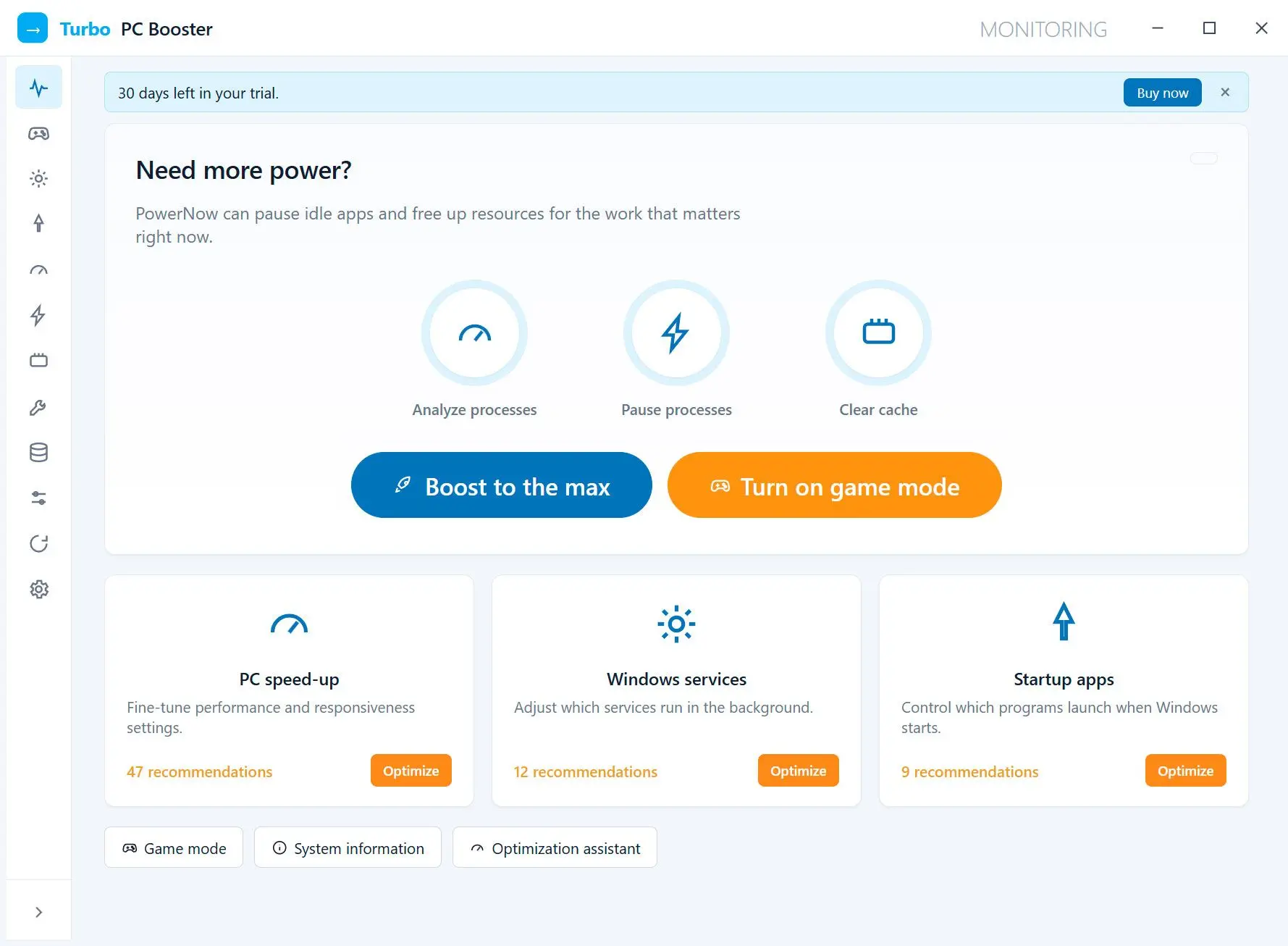
Turbo PC Optimizer Screenshot.


🙋Frequently Asked Questions

Restart your PC. If usage returns to the same level within minutes, check startup apps and drivers.

Turn off unused startup apps in Settings > Apps > Startup, set unused Store apps' background permissions to Never and enable Memory Saver or sleeping tabs in your browser.

A short spike is normal. If it stays there, check Task Manager's Memory page. With Available near zero and the PC stuttering, close the top app in Processes or plan a RAM upgrade.

Windows caches recently used files and programs for faster launches. That memory remains available to apps, so 10 GB cached on a 16 GB or 32 GB PC is healthy.

It empties the standby list and lowers Task Manager's reading. Recently used apps and files must load from disk again as Windows rebuilds the cache.

Only when the system drive is nearly full. Windows needs space for updates, temporary files and page file growth. Beyond that, deleting files adds neither speed nor free RAM.

Add a second 4 GB module or replace the stick with an 8 GB one of the same type. Check the manual for soldered RAM before buying.

16 GB covers browsing, office work and most games. 32 GB helps with 4K video editing, large virtual machines or heavy multitasking with many tabs and creative apps.

A trim lasts until apps need their pages again. Startup and services changes last because those programs stop loading at sign-in.