

After reading, you will be able to:

  1. 1️⃣ Tell in two minutes whether the bottleneck sits in your PC or on your network.
  2. 2️⃣ Stop Windows itself from quietly spending your bandwidth in the background.
  3. 3️⃣ Pick the fixes that actually move the number, and skip the ones that do not.
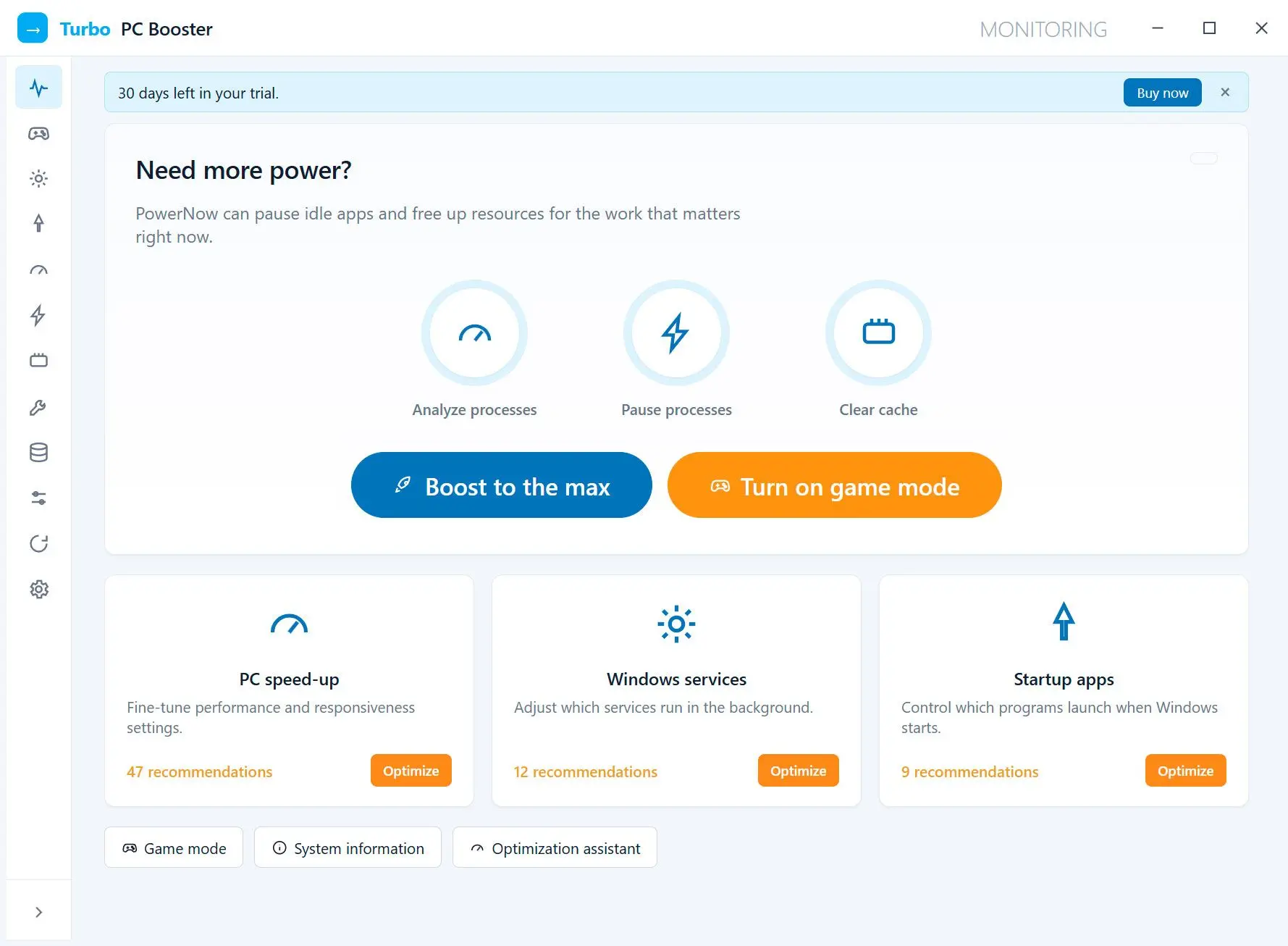
Turbo PC Optimizer Screenshot.
Eugene - CEO at SoftOrbits, Candidate of Technical Sciences, has more than 16 years of expertise in software development, photo and multimedia applications, enhancing and transforming digital images and videos.
📅 Last updated on:  2026-07-12

Most guides on how to increase download speed on PC send you straight to the router. Sometimes that is right, but often it is not. Your connection can test at full plan speed while a game patch crawls, because Windows is quietly handing part of the pipe to an update service you never agreed to feed. This guide splits the problem in half. First you find out whether the PC or the network is holding you back. Then you fix the side that is actually broken, starting with the Windows settings almost nobody checks.

What you will learn
Apply in 30 min Saves 3 hMedium

What you'll need
  • A Windows 10 or Windows 11 PC with an admin account
  • Task Manager and the Settings app (both built in, both free)
  • Turbo PC Optimizer for the PC-side part (startup, services, background processes), if you would rather not repeat the manual steps every month
  • About 30 minutes

Why is my download speed so slow even with good Wi-Fi?

TL;DR

A speed test measures what your connection can do at that instant, not what your PC leaves free for the download you care about. If the test shows your full plan speed and a file still crawls, the bandwidth is going somewhere else on the same machine.

Start with a reference point. The FCC broadband benchmark is 100 Mbps down and 20 Mbps up, raised from 25/3 Mbps in March 2024. That is the baseline for a modern household. A speed test that hits your plan number tells you the line is fine. The problem is downstream of it.

Run the numbers before you blame anything. Here is how long a 20 GB game download takes at various speeds, assuming the download gets the whole pipe and nothing else interferes.

Connection speed20 GB download, full speedWhat it means
25 Mbpsabout 1 h 47 minBelow the current broadband benchmark
100 Mbpsabout 27 minFCC benchmark speed
500 Mbpsabout 5 min 20 sTypical mid-tier fiber or cable plan
1 Gbpsabout 2 min 40 sOnly if the PC and the cable can keep up

The times above are theoretical, with no protocol overhead, so treat them as a floor. If your real download takes three times longer than the row that matches your plan, something is taking a cut. And when the whole machine feels sluggish, not only the downloads, the cause is broader than bandwidth: a computer running slow needs a different checklist.

How to tell whether your PC or your network is the bottleneck

TL;DR

Download the same file on a phone over the same Wi-Fi. If the phone is fast and the PC is slow, the fault is on the PC, and no router change will fix it. Users on Tom's Hardware report exactly this split, with one machine crawling while every other device on the network runs fine.

The test takes two minutes and it decides which half of this guide you actually need.

  • Run a speed test on the PC and write the number down.
  • Run the same test on a phone or a second computer on the same network.
  • Start the slow download again on the PC and open Task Manager with Ctrl + Shift + Esc.
  • Click the Network column header to sort processes by bandwidth.
If the phone gets far more than the PC, you have a PC-side problem, the exact situation in this Tom's Hardware thread where one machine downloaded slowly while the rest of the household was fine. If every device is slow instead, skip ahead to the router and Ethernet sections.

The Network column is where the argument ends. A process you did not start, sitting near the top of that list while your download crawls, is your answer. On Windows 11 the name people keep finding there is Service Host: Delivery Optimization, or Service Host: Network Service, which is the same traffic under a broader label.

How to stop Delivery Optimization and increase download speed on Windows 11

TL;DR

Delivery Optimization is a peer-to-peer update service built into Windows. It downloads update parts from other PCs and uploads yours to strangers, and by default it will spend up to 20 GB of upload per month doing it. It also has two hidden bandwidth limits that can throttle everything Windows pulls through it, updates and Store apps alike, down to almost nothing.

Delivery Optimization is where most of the mystery cases end, and none of the top guides we read for this article bothers to explain it. The behavior is documented. Microsoft's official reference lists a default monthly upload cap of 20 GB to internet peers and a default minimum background QoS of 20 MB/s. Those defaults are quiet ones. You never see them, and nothing in the interface tells you when the service is mid-transfer.

0.1 Mbps
was the bandwidth limit one user found silently set in Delivery Optimization on both the foreground and background sliders. Removing the limit fixed the update that had been stuck for days
Source

That case is worth reading in full. The user reported Windows Update stuck at 60% on a fast wired connection, and the top answer in the thread found the absolute-bandwidth fields set to a tenth of a megabit. Nobody in the thread remembers setting it. The field simply sat there, and everything Windows tried to download through the service inherited it.
Here is what to check, in order.

  • Open Settings and go to Windows Update, then Advanced options, then Delivery Optimization.
  • Turn off Allow downloads from other PCs. That stops the upload side.
  • Open Advanced options inside that page. There are two separate limit modes, absolute bandwidth and percentage of measured bandwidth.
  • Make sure both the foreground and the background limit are unchecked, or set high. An old value of 0.1 Mbps here starves every update and Store download the service handles.
  • Reboot. The service caches its policy and does not always pick up the change on the fly.

20 GB
is the default monthly cap on how much of your upload bandwidth Delivery Optimization will spend seeding update files to other people's PCs over the internet
Source

Here is the part where the documentation and reality part ways. Microsoft's docs describe a polite service that respects your limits and backs off. Users describe something else. One Microsoft Q&A poster wrote that Delivery Optimization was using all of their bandwidth, that killing the process in Task Manager only made it restart a few seconds later, and that turning the setting off, setting the lowest bandwidth cap and editing the registry all failed to stop it. That is undocumented behavior, and it happens anyway on a subset of machines, which is why the disk cleanup step further down matters.

Do not disable the Delivery Optimization or BITS services through services.msc or the registry to force the issue. Both are load-bearing for Windows Update, and a machine that cannot update is a worse problem than a slow download. Change the settings in the Settings app, clear the cache, and reboot. If the service still misbehaves after that, it is a symptom of a corrupt update cache, not a service you need to kill.

How to set a metered connection (and why it does not always hold)

TL;DR

Marking your network as metered tells Windows to pause most background downloads, including update delivery. It is the single fastest way to free bandwidth on a shared or capped connection. It is also not airtight. Some apps ignore the flag entirely.

The toggle lives in Settings, then Network and internet, then the properties of your Wi-Fi or Ethernet connection, under Metered connection. Flip it on before big download and off afterwards. Windows holds back update delivery and Microsoft Store updates while the flag is set. Most sync traffic backs off too.
Now the honest part. A Windows 11 user reported that the Xbox app pulled a game update in the background over a mobile hotspot and burned through a large chunk of their data allowance, writing that the app had auto-updates disabled and it completely ignored the metered connection. Treat the metered flag as one layer of defense, not a wall. Pair it with per-app background permissions and with the Delivery Optimization settings above.

If your slow downloads are specifically game patches, the launcher has its own throttle worth checking too, and the wider set of tweaks in our guide on how to optimize pc for gaming covers the ones that matter on patch night.

How to stop background processes and startup apps from stealing bandwidth

TL;DR

Cloud sync clients, launcher updaters and startup apps compete for the same connection as your download. Sorting Task Manager by the Network column names the culprit in seconds, and cutting it from startup keeps it from coming back after every reboot.

The bandwidth thief is rarely dramatic. It is OneDrive finishing a sync, Steam updating three games you have not opened in a year, a browser with thirty tabs refreshing ads, a launcher that installed itself into startup during setup. Each one is small. Together they take real bite out of the pipe.
Not every one of them is visible, either. One user on r/techsupport described the Background Intelligent Transfer Service constantly downloading something on Windows 11 24H2 with every Delivery Optimization setting already turned off. BITS is the transfer engine that other apps hand their downloads to, so its traffic can belong to almost anything installed on the machine.

Doing it by hand

Open Task Manager, sort by Network, guess which processes are safe to end, open the Startup tab, disable entries one by one, and repeat the whole pass in a month when new apps have added themselves back.

With a process and startup manager

See what runs at boot and what is running now in one list, suspend the heavy background apps for the duration of a download, and roll the change back if you needed one of them after all.

For the manual route, the Startup apps tab in Task Manager is the place to cut. Sort it by the Startup impact column, because the High entries are where the boot-time updaters hide. For the repeatable route, a background process manager shows startup entries, services and running processes in one view, and it allows you quickly suspend a group of them while the download runs. That is the PC side of the job, and only the PC side.

Pros:

Startup and service entries in one list instead of four Windows screens

Changes are reversible, so a wrong call is not permanent

Cons:

It does nothing about Wi-Fi, cabling or an underpowered internet plan

The manual steps in this guide are free and work fine if you enjoy repeating them

If it is boot time rather than download time that is bothering you, the deeper walkthrough on how to speed up windows startup covers the same startup list from another angle.

Is it a background app or malware eating your bandwidth?

Almost every process competing with your download belongs to software you installed and forgot about. A small share of cases have another explanation. Adware, a bundled coin miner or a compromised machine will move data on its own schedule, and none of them announce themselves in the Startup apps tab.

The tell is traffic you cannot account for:

  • A process transferring data in Task Manager's Network column with a name you do not recognize, still going after you close the browser, the launchers and the sync clients.
  • Steady upload while the PC is idle. Open Resource Monitor from the Start menu, go to the Network tab, and read the Send (B/sec) column per process. A machine doing nothing should not be sending much of anything.
  • Network activity from a process you cannot find a folder or a vendor for.

If that is what you are looking at, scan before you tune anything: open Windows Security, go to Virus and threat protection, then Scan options, and run a Full scan. Clean the machine first, because tuning Delivery Optimization on a PC that is quietly downloading something for somebody else fixes nothing. This part is antivirus work, not optimizer work: a startup and process manager shows you what is running and lets you stop it, but it cannot tell you whether the traffic is malicious.

How to free up bandwidth on the PC in five minutes

Close what is already downloading

Open Task Manager with Ctrl + Shift + Esc, click the Network column, and pause or quit whatever sits above your actual download. Sync clients and game launchers are the usual pair.

Turn the connection metered for the duration

Switch the Metered connection toggle on in your adapter's properties, and turn it off once the file has landed. Update traffic backs off while the flag is set.

Check both Delivery Optimization bandwidth limits

Settings, Windows Update, Advanced options, Delivery Optimization, then Advanced options again. Confirm nothing is capped at a low value on either the foreground or the background slider.

Cut the startup apps that put themselves back

Use the Startup apps tab in Task Manager, or a startup manager that shows services and running processes in the same list.

Turbo PC Optimizer Turbo PC Optimizer

How to free up disk space and clear the update cache

TL;DR

Windows keeps downloaded update files in a Delivery Optimization cache. When that cache is corrupt or bloated, the service keeps re-downloading and re-seeding the same data, which is exactly the traffic you are trying to stop. Disk Cleanup empties it.

Disk Cleanup is the fix the community landed on when nothing in the Settings app worked. In the thread about the service refusing to let go of the bandwidth, the answer that stuck was running Disk Cleanup, choosing Clean up system files, and running it a second time with Delivery Optimization Files and Windows Update Cleanup both ticked. The second pass matters because the first one only exposes the system-file categories.

  • Type Disk Cleanup in the Start menu and pick your system drive.
  • Click Clean up system files and wait for the second, longer scan.
  • Tick Delivery Optimization Files, Windows Update Cleanup and Temporary files.
  • Run it, then reboot and run it once more.
A drive that is nearly full makes this worse. Windows needs working room for update staging and for the page file. A download with nowhere to write crawls, and your connection has nothing to do with it. Check the free space on your system drive in File Explorer before you go blaming the network.

Should you switch to a wired Ethernet connection?

TL;DR

Ethernet removes interference, distance and channel congestion from the equation in one move. It is the most reliable single change you can make, and on a laptop it costs nothing more than a cable you probably already own.

Wi-Fi speed is a negotiation with the environment. Walls, microwaves, neighbors on the same channel and the distance to the router all take their cut before your download sees a byte. A cable removes that variability. One side-by-side test measured roughly 16 ms ping and 7 ms jitter on Ethernet against roughly 60 ms ping and 20 ms jitter on Wi-Fi from the same spot - a single test on one network rather than a universal number, though the direction holds.

When a cable genuinely is not an option, the Wi-Fi generation matters. Intel rates Wi-Fi 6 at up to 9.6 Gbps of theoretical throughput against 3.5 Gbps for Wi-Fi 5, roughly 2.7 times the ceiling. You will never see those numbers in practice. What you do see is crowd tolerance: a Wi-Fi 6 adapter paired with a Wi-Fi 6 router holds its speed in a building full of competing networks, where an older pair folds.

How to check your router, modem, and Wi-Fi signal

TL;DR

If every device on the network is slow, the PC is innocent. Test the connection with the PC plugged straight into the modem, reboot the hardware, and count how many devices are pulling data at the same time.

Work through the hardware in the order a support technician would.

  • Reboot the modem and router. Unplug both, wait thirty seconds, power the modem first and the router after it has synced.
  • Plug the PC directly into the modem with a cable and test again. If that fixes it, the router is the weak link.
  • Move the PC or the router. Distance and the walls cost more speed than most people expect.
  • Count the load. A 4K stream in another room and a console downloading a patch will take their share whatever you do on this machine.
  • Check for router firmware updates in its admin page. The address and the default login are usually printed on the sticker underneath the router.

Does changing DNS make downloads faster?

Slightly, and not in the way people hope. A faster DNS resolver such as Cloudflare's 1.1.1.1 or Google's 8.8.8.8 shortens the lookup, which happens before download starts. It does not widen the pipe once the transfer is running. A worthwhile thirty-second change for general browsing responsiveness. Not the fix for a 20 GB patch that is crawling.

How to update your network adapter drivers

TL;DR

A wrong or outdated network driver can negotiate the wrong link speed or leave a power-saving feature enabled that quietly halves your throughput. This is a real cause, but it only explains hardware-level slowness, never a Windows-side bandwidth policy.

Intel's own guidance in a wireless support thread is to get the driver from your system manufacturer or the Intel Download Center rather than trusting whatever Windows Update installed. Device Manager will happily tell you the driver is up to date when a newer one exists on the vendor's site.
On wired connections, look at the adapter's advanced properties. One documented case (linked in Sources) traced gigabit Ethernet running far below its rating to Energy Efficient Ethernet being enabled on the NIC. Turning it off and confirming the link speed was set to auto rather than a forced lower value restored the full rate. Open Device Manager, your adapter, the Advanced tab, and check the Speed and Duplex value while you are in there.

Does a VPN help, or is your ISP throttling you?

TL;DR

A VPN adds encryption and an extra hop, so in normal conditions it makes downloads slower, not faster. The one case where it helps is when your ISP is throttling a specific kind of traffic, and you can test for that in ten minutes.

Every VPN vendor writing about download speed will tell you their product is the fix, so treat that claim with skepticism. Encryption costs overhead, and routing your traffic through a server in another city adds latency on top. On a healthy connection, for a game patch, a VPN is a tax.

The exception is real. Some ISPs shape particular traffic types, usually peer-to-peer or heavy streaming, and if that is happening a VPN hides the traffic type and restores the speed. Note your download speed on the slow service, connect the VPN, and try again. If it gets faster with the extra encryption overhead in play, you found throttling; if it gets slower, which is the usual result, turn the VPN off while you download and move on.

Pitfalls when increasing download speed on PC

TL;DR

Most wasted effort here goes into upgrading something that was never the bottleneck. Check the PC-side settings before you pay your ISP more, and match each fix to the symptom instead of running down a list.

✔️ Blaming the ISP first.

The most expensive mistake on this list is upgrading the plan before checking Task Manager. Threads full of people with fast internet and slow downloads on Microsoft Answers usually end with a Windows setting, not a new contract. Run a wired speed test and check the Network column first.

✔️ Trusting the metered toggle to stop everything.

It stops most background traffic, not all of it. The Xbox app case above is the standing counterexample, and it happened on a hotspot where the data actually cost money.

✔️ Turning Delivery Optimization off and stopping there.

The on/off switch and the two bandwidth limit fields are separate settings. A limit left at a near-zero value from a past change keeps throttling your updates after the toggle is off, which is exactly what happened in the 0.1 Mbps case on Microsoft Q&A. Open Advanced options and look at both fields.

✔️ Downloading three large things at once.

A game patch, a Windows update and a cloud sync running together do not each get full speed. They split the pipe. Stagger them, and the total finishes sooner than the parallel version.

✔️ Expecting a driver update to fix a software throttle.

Drivers fix negotiation and hardware problems such as the power-saving NIC setting above. They do nothing about a bandwidth policy set in Windows. Steam users chasing unpredictable download speeds on high-end hardware are usually looking at background competition, not a bad NIC.

✔️ Reinstalling Windows to fix a slow download.

It works, in the sense that a sledgehammer opens a door. If the whole system has drifted rather than just the downloads, the gentler route in our guide to speed up windows 11 gets you most of the way with none of the reinstallation.

Turbo PC Optimizer Turbo PC Optimizer
Slow downloads on Windows? Find out if your PC or your network is the bottleneck, fix Delivery Optimization and background apps, and get your full speed back.
Turbo PC Optimizer Screenshot.


🙋Frequently Asked Questions

Good Wi-Fi only covers the hop between your PC and the router. Everything after that hop - the ISP, the server on the other end, and the other processes running on your own machine - is outside the router's control, and the Wi-Fi icon still shows four bars while any of them drags. Sort Task Manager by the Network column with the slow download running, and look at what sits above it. On Windows 11 the name at the top is often Service Host: Delivery Optimization.

When the Windows-side settings are already clean, look at how the adapter negotiated its link. A wired NIC with a power-saving option left on, or with the speed forced to a lower value instead of auto, will run well below its rating and never say a word about it. On Wi-Fi, the equivalents are the 2.4 GHz band, an aging adapter and a driver that Windows Update chose for you. Device Manager, Advanced tab, is where you check all of that.

Usually Delivery Optimization, the peer-to-peer service Windows uses for updates. It shares your bandwidth with other PCs and it has two bandwidth limit fields that can be set to a near-zero value without your knowledge. Turn off downloads from other PCs, then check both the foreground and background limits under Advanced options.

No. A cumulative update on a 100 Mbps connection should take minutes, not hours. Hours usually means a throttled Delivery Optimization limit, a corrupt update cache, or the update queueing behind other background traffic. Run Disk Cleanup with Clean up system files, tick Delivery Optimization Files and Windows Update Cleanup, and reboot.

One thing first, and it catches people out: a connection left marked as metered means Windows is holding the update back on purpose. Clear that flag when the update is the thing you actually want. After that the order is the two bandwidth limits under Advanced options, then a Disk Cleanup pass over the update cache, then a cable if one is within reach.

There is no single switch. The largest gains come from removing competition rather than adding capacity. Stop the background downloads, clear the Delivery Optimization throttle, and plug into Ethernet. If all of that is already clean and the speed has not moved, then your plan is the limit and an upgrade is finally worth paying for.

At full speed, about 27 minutes on a 100 Mbps connection, about 5 minutes on 500 Mbps, and close to 1 h 47 min on 25 Mbps. Real downloads run slower than that, because of protocol overhead and whatever limit the server on the other end applies. A download that drags out to triple its row in the table is sharing the pipe with something.

Move closer to the router or move the router higher and away from walls, switch to the 5 GHz band, and cut the background traffic on the PC itself. The metered connection toggle and the Delivery Optimization settings work exactly the same over Wi-Fi, and for a laptop on shared or dorm Wi-Fi they are often the only levers you actually control.

Only for the PC-side part of the problem. Turbo PC Optimizer trims startup entries, suspends the background processes that are competing for the connection, and shows you what is filling the drive - that is real bandwidth returned to your download. It does nothing for your router, your Wi-Fi signal or a slow internet plan. Anything advertising a network speed boost from software alone is overselling.

Sources

The threads quoted in the diagnosis, Delivery Optimization, metered connection and pitfalls sections are linked inline where the claim is made.