TL;DRFormat only after your files are on another drive and open there. The SD Association strongly recommends its SD Memory Card Formatter for every SD card type.
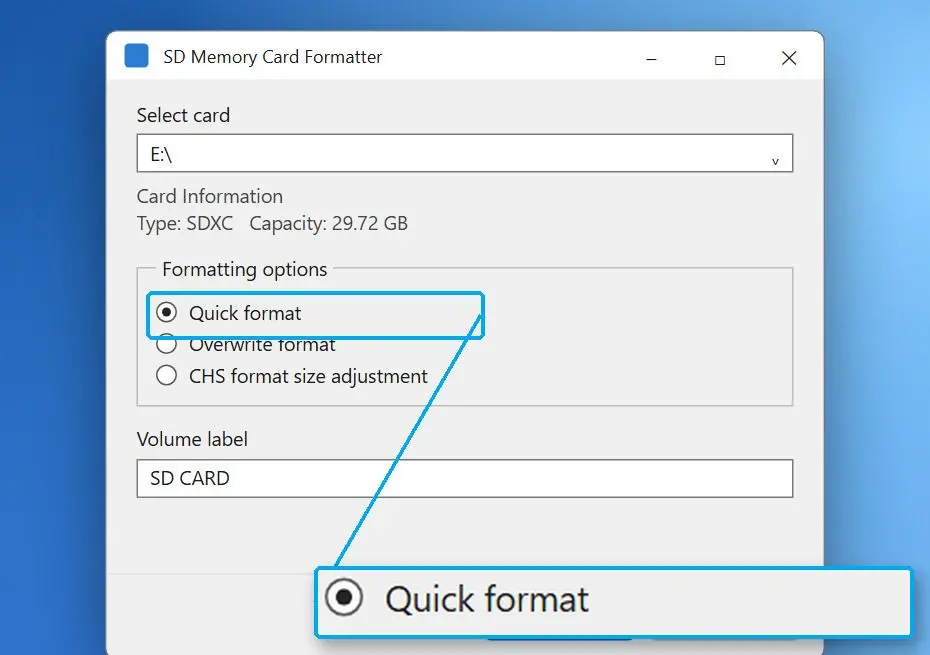
Install the formatter on the PC, select the card by its letter and size, and leave Quick format selected for the first try. Use Overwrite format if a quick format fails or the card keeps showing errors afterwards. It is slower and leaves nothing for a recovery tool to find.
Windows can format the card too. Right-click it in File Explorer, choose Format, pick the file system and keep Quick Format ticked. Under the SD card standard, SDHC cards up to 32 GB use FAT32 and larger SDXC cards use exFAT, and cameras expect the matching one. If the format stops with an error, read the section on dead cards before trying again.
Already clicked Format?
Stop using the card. A quick format writes a new, empty table and leaves the file contents in place until new photos overwrite them. In our exFAT test after a quick format, the scan found 142 of 144 files with their names. Our guide on how to
recover a formatted SD card walks through that case step by step.
Can a corrupted SD card be fixed? Match the error to the fix
TL;DRYes, when the damage is in the file system and the flash chip still works. Then a drive letter or chkdsk brings the card back, and a format does when they fail. A card that no reader detects, or one that stays read-only everywhere, has a hardware fault, and then the goal changes from fixing the card to saving the files.
Find the message Windows shows you in the first column, then read across to see how to fix corrupted SD card errors of that kind.
| What you see | Likely cause | First move | Risk to your files |
|---|
| Card not detected in any reader or PC | Reader, port or failed card | Second reader, another PC | None |
| Listed in Disk Management, no drive letter | Letter not assigned | Add a drive letter | None |
| "You need to format the disk" | Damaged file system | Read-only recovery scan | High if you click Format |
| RAW, chkdsk not available | File system not recognized | Deep scan, then format | High if you rebuild the partition first |
| Folders open, some files give errors | FAT errors | Copy files, then run chkdsk /f | Medium on FAT |
| "The disk is write protected" | Lock switch, reader or worn card | Switch, second reader, diskpart | Low |
| Format fails right away | Failing flash or controller | Copy what still reads, replace the card | The card is near its end |
In both high-risk rows Windows offers a fix that writes to the card.
How to fix a corrupted micro SD card on Android
TL;DRTake the card out and try it in a PC first. A phone that reports the SD card as corrupted may be failing to read a card that a computer opens without trouble, and on Windows you can copy the photos off before you go near the phone's format option.
Before removing it, restart the phone so it mounts the card again. Then power off, take the card out and check the contacts for dirt or a bent adapter. If the PC reads it, copy the files and follow the Windows steps above. If the PC asks to format it as well, use the same order: micro SD card recovery software first, format last.
Android's own format option erases the card the same way Windows does. Menu names differ between Samsung, Pixel and other phones, so look for SD card or Portable storage under Settings > Storage, and treat any Format button there like the Windows prompt.
What causes SD card corruption?
TL;DRSD card corruption usually starts with a write that did not finish. The card comes out during a transfer, or the camera battery dies while it is still saving. Worn flash and faulty readers account for most other cases, and they show up as write errors or a card that stops being detected.
A card keeps its file map in a few small areas near the start. A write that stops halfway can leave that map pointing at the wrong clusters while every photo is still intact, which is how one bad eject leaves an SD card corrupted, with a full card looking empty or RAW. Ejecting the card in Windows, or switching the camera off before you pull it, prevents most of these. The same failure modes hit USB sticks, and for a Kingston drive our Kingston USB recovery tool guide covers the vendor's own utility.
Can you fix a corrupted SD card that is physically dead?
TL;DRTreat the card as failing when no reader or device detects it, when it turns write-protected again after you clear the flag, or when every format fails. At that point stop running repairs, copy whatever still reads and replace the card.
A card that goes read-only on its own is usually failing. Even a clean surface scan does not save it. In one case a 32 GB card refused all writes while a surface scan reported zero bad sectors. A recovery specialist's advice was to recover the files and move them to something more affordable.
If no reader detects the card and the photos matter, a data recovery lab can sometimes read the memory chip directly. That costs far more than a new card, so it has sense only for files you cannot replace. For photos that a reader can still see, try a desktop tool first, and our list of photo recovery software compares the options.
Sources
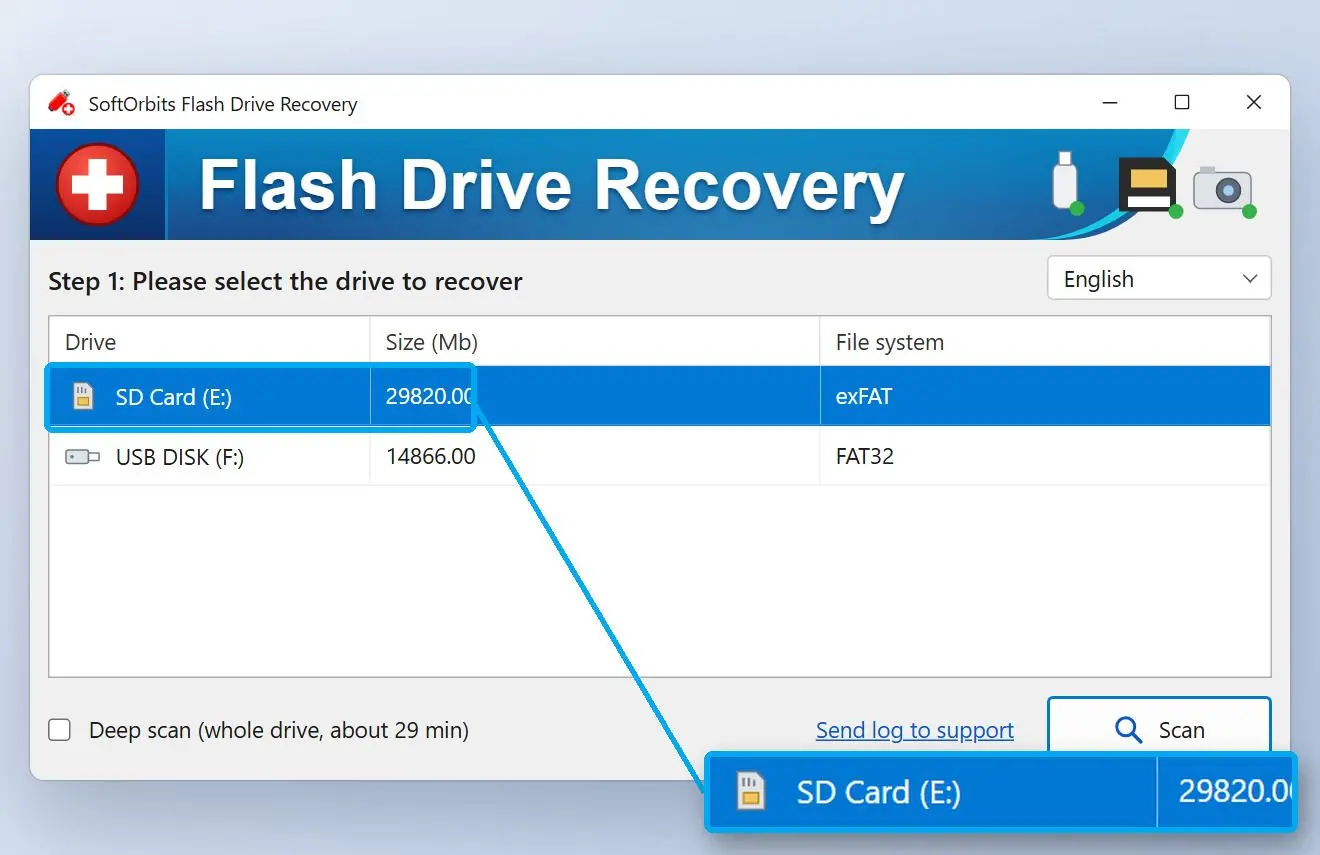
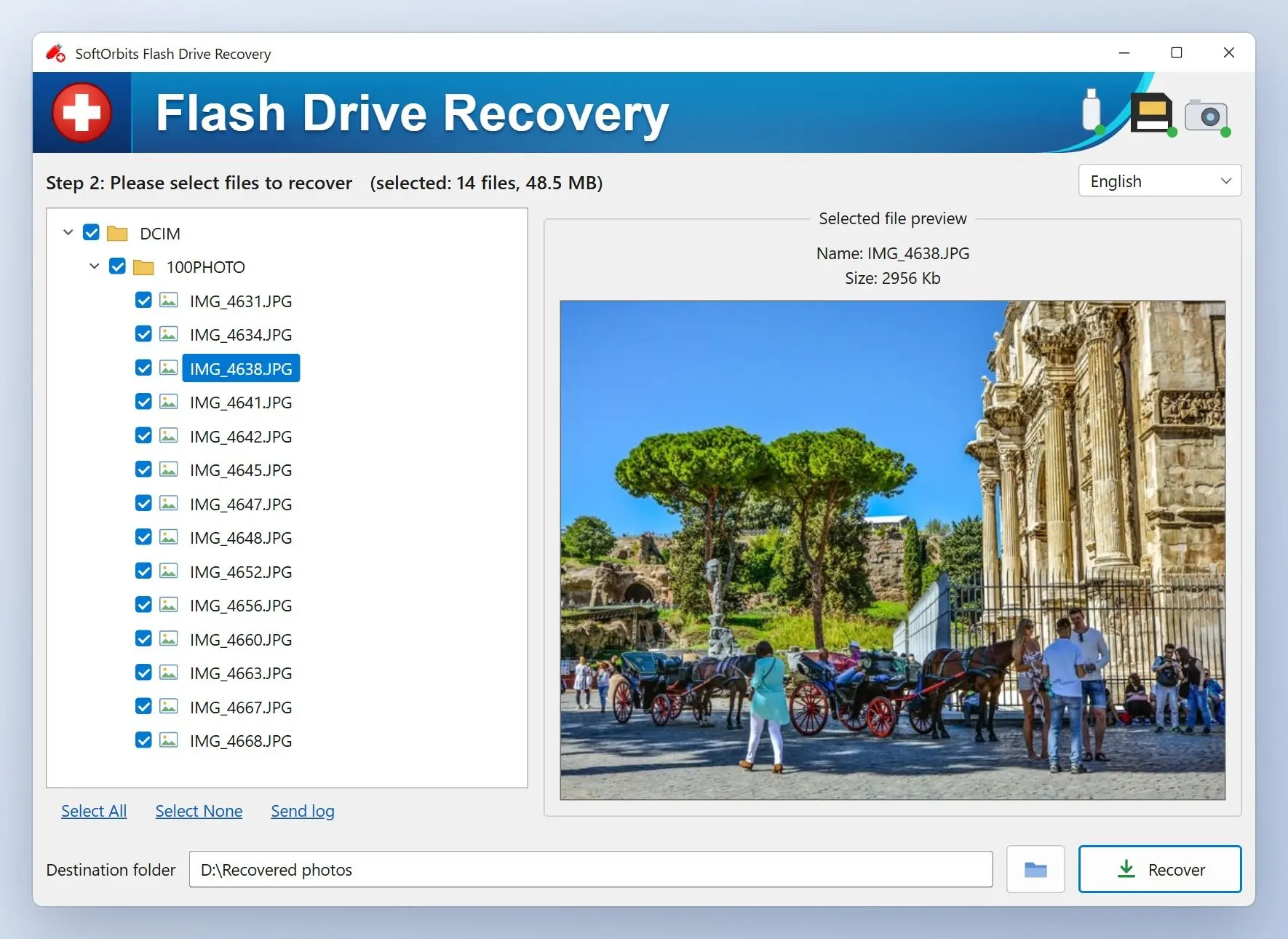

 SoftOrbits Flash Drive Recovery