Here is the fast way to get your files back:

  1. 1️⃣ Stop using the card the moment you notice the format.
  2. 2️⃣ Scan it with recovery software before new data lands.
  3. 3️⃣ Save the recovered files to a different drive.
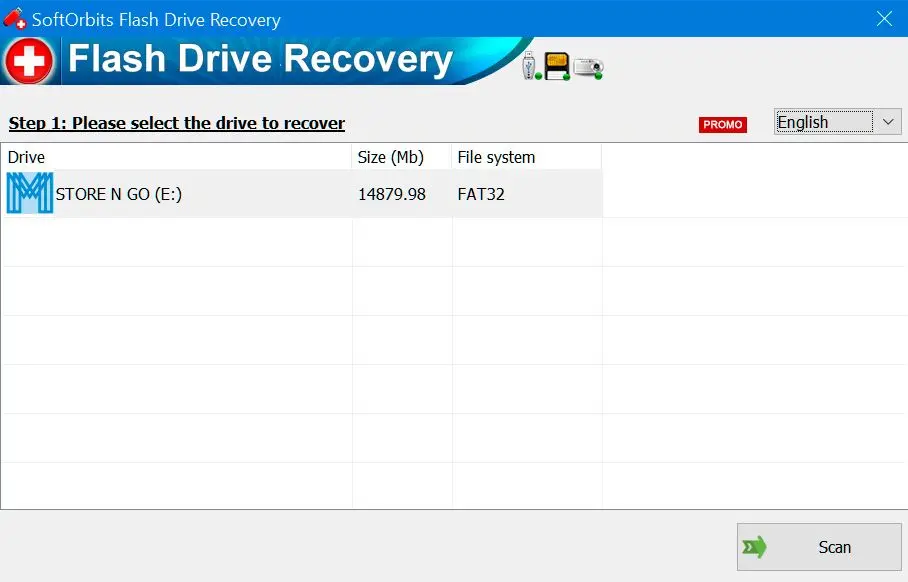
SoftOrbits Flash Drive Recovery Screenshot.
Eugene - CEO at SoftOrbits, Candidate of Technical Sciences, has more than 16 years of expertise in software development, photo and multimedia applications, enhancing and transforming digital images and videos.
📅 Last updated on:  2026-07-18

Here is how to recover formatted SD card files on Windows before new photos overwrite them. A quick format only clears the index that lists your files, so the photos and videos stay on the card until something new is written over them, and that gap is your window to act. SoftOrbits Flash Drive Recovery scans the card at that level and pulls the files back, and the free tools below can help too. The rest of this guide covers what to do first, which method fits your case, and the mistakes that quietly lower your odds.

What you'll need
  • SoftOrbits Flash Drive Recovery: scans the card and restores files locally on your PC
  • A Windows PC (10 or 11)
  • An SD card reader (a camera cable alone is not enough)
  • About 20 minutes, plus scan time for large cards

What you will learn
Apply in 20 min Saves 4 hEasy

Can you recover a formatted SD card?

TL;DR

Usually yes. A quick format only deletes the file index, not the data itself, so your photos and videos sit untouched on the card until new files overwrite them. What kills your odds is the shooting you do after the format, more than the format itself.

Most people who format a card by accident get their files back, because the format you triggered rarely scrubs the chips clean. Think of a full memory card from a two-week trip. You tap the wrong menu item, the camera reports the card as empty, yet every frame is still physically there. The system just forgot where they are, and recovery software rebuilds that map or reads the raw data directly.

The odds drop in two cases. First, if new data has been written over the old files, whether photos, a system thumbnail, or a fresh format pass. Second, if the card ran a full format or a secure erase rather than a quick one. You can't be sure up front, but for a plain quick format on a card you stopped using, most files come back.

What actually happens when you format an SD card?

TL;DR

Formatting rewrites the card's file-system table, the map that points to each file. The bytes of your photos stay in place; the card simply reports the space as free. A full format, or a physical overwrite, is what actually destroys the data.

An SD card stores files on flash memory and keeps a table (its FAT32 or exFAT file system) that records where each one begins and ends. A quick format wipes that table and starts a fresh one, so the card looks empty in seconds while the file contents remain on the chips. That is why recovery is possible at all.

Quick format vs full format:

The difference is not cosmetic. SanDisk's own support notes that a quick format "deletes files from the volume" without scanning the disk, while a full format scans for bad sectors, as spelled out on the SanDisk support page, and on modern Windows can also write zeros across the whole card. A quick format is recoverable; a full zero-fill usually is not. The file system also decides how big a single file can be, which explains one common scare.

4 GB
is the largest single file a FAT32 SD card can hold, so long 4K clips are often split into parts and only look "missing"
Source

Cards up to 32GB usually ship as FAT32, and larger cards default to exFAT, which drops that 4GB single-file ceiling. If a long recording seems to have vanished, it may have been saved as several linked parts rather than lost.

Camera menus usually run a quick format, not a full wipe, even when the screen says "Format card." That is the good news most people miss in the panic: the files are almost always still there right after an in-camera format. What ruins recovery is the shooting you do next, not the prompt you already tapped.

What to do first (and what not to do)

TL;DR

The single most important move is to stop writing to the card immediately. Pull it from the camera, do not shoot another frame, and do not let any app "repair" or reformat it. Every new file can land on top of a photo you want back.

Picture the wedding card you formatted in-camera before copying a single frame off it. The instinct is to fiddle, snap a quick test frame, or let Windows "repair" the card. Each of those actions can be the write that overwrites your files.

The first five minutes:

Remove the card and set the physical write-protect lock switch on the side to the locked position, so nothing can write to it by accident. Move it to a computer using a card reader rather than the camera cable. Do not reformat it, do not run a "repair," and do not let any auto-fix prompt touch it. Then install recovery software and scan.

Do not take "just one more photo" to test the card, and do not let Windows or the camera reformat it to "fix" an error. Writing anything new, even a thumbnail or a system file, can overwrite the exact photos you are trying to recover. Once a flash cell is overwritten, the old value is gone, with no hidden second copy to fall back on.

Guessing with CMD and reformats

Retyping chkdsk commands, reformatting to "fix" the card, and hoping the files reappear. They do not, and each attempt can overwrite more data.

A guided deep scan

Point the tool at the card, run one signature-level scan, preview what it finds, and save the keepers to another drive.

Recover the card with recovery software

Download and install SoftOrbits Flash Drive Recovery

Get the free trial for Windows and install it, then connect the SD card with a card reader.

 SoftOrbits Flash Drive Recovery install screen..

Select the SD card and choose a deep scan

Pick the card's drive letter and start a full deep scan. It reads file signatures, not just the old index.

 Selecting the SD card in Flash Drive Recovery..

Preview the found files

Wait for the scan to finish, then preview the recoverable photos and videos to confirm they open cleanly.

 Preview of recovered photos..

Save recovered files to a different drive

Select what you need and save it to your PC or another drive, never back to the same SD card.

 Saving recovered files to a PC folder..

SoftOrbits Flash Drive Recovery SoftOrbits Flash Drive Recovery

SoftOrbits Flash Drive Recovery restores files from USB sticks, memory cards, and cameras. It brings back deleted and corrupted files after quick formatting or file-system errors, with FAT32 and NTFS support and scans tuned for real-world flash recovery jobs.
Can Windows recover a formatted SD card on its own?

TL;DR

Windows helps in two ways. It can restore from a File History or OneDrive backup, or scan with the free Windows File Recovery tool. Neither un-formats the card, and Windows File Recovery only finds files on an SD card in its Extensive (signature) mode.

Before you install anything, check your backups. If File History or OneDrive had a copy of those photos, restoring them is faster and cleaner than any recovery scan. That covers the files that were already offloaded, not the ones still only on the card.

Windows File Recovery (winfr):

Microsoft ships a free tool called Windows File Recovery in the Microsoft Store. It works, but the syntax is unfriendly, and on an SD card the mode matters. The official Microsoft documentation states that recovering files from non-NTFS file systems is only supported by Extensive mode. The docs don't emphasize this part. SD cards are almost always FAT32 or exFAT, so the fast "Regular" mode that guides tend to show first finds little to nothing. Skip straight to Extensive (signature) mode, or use a graphical tool that runs the same scan without typing commands.

Does CHKDSK or a Command Prompt trick recover it?

TL;DR

No. CHKDSK, ATTRIB, and the "chkdsk /f" tricks you see in forums fix file-system errors; they do not rebuild formatted files. Worse, letting CHKDSK write to a damaged card can lower your recovery odds.

The Command Prompt route is the most common wrong turn people take, and it is a trap, because it feels technical and free. MiniTool's guide says plainly that these commands cannot help recover data from a formatted SD card, and running them can write changes to a volume you would rather leave frozen. If a card is already RAW or damaged, CHKDSK may make it look repaired while quietly overwriting what a proper scan could still read.

CHKDSK and ATTRIB were built to repair a file system, not to bring back files a format already dropped from the index. Running them on a formatted or RAW card can write changes to the volume and reduce what a proper scan can still find. Get the files off the card before you let anything try to repair it.

SoftOrbits Flash Drive Recovery SoftOrbits Flash Drive Recovery

SoftOrbits Flash Drive Recovery restores files from USB sticks, memory cards, and cameras. It brings back deleted and corrupted files after quick formatting or file-system errors, with FAT32 and NTFS support and scans tuned for real-world flash recovery jobs.

Free vs paid: is free SD card recovery good enough?

TL;DR

Free tools can recover a formatted card. PhotoRec and Windows File Recovery both work, but they trade a friendly interface for a command line and no easy preview. Paid tools like SoftOrbits Flash Drive Recovery add previews, simpler steps, and support.

In practice, free sd card recovery software reaches the same underlying data. The price buys ease, previews, and help when a scan stalls, not better access to the chips. PhotoRec is the standout free option. Its own documentation notes that it "ignores the file system and goes after the underlying data," so it still works even when a card's file system has been reformatted or badly damaged.

480+ file types
is what PhotoRec can recognize by signature (about 300 file families), which is why free, file-system-agnostic tools can rescue photos even from a reformatted card
Source

You can see the full support list on the PhotoRec project page. The trade-off is real, though.

ToolInterfacePreview before savingSignature-based scanCost
PhotoRecCommand lineNoYes (about 300 file families)Free
Windows File Recovery (winfr)Command lineNoYes, Extensive mode onlyFree
SoftOrbits Flash Drive RecoveryGraphicalYesYesFree trial; paid license

Where free tools stop:

Free tools run from a command line or a bare interface, rarely let you preview a photo before you commit, and put the burden of saving output to the correct drive on you. For a one-time rescue where the files matter, many people would rather click through a preview and save than memorize scan flags, which is what a paid tool is for.

How to recover photos, RAW, and video files

TL;DR

Recovery works by file signature, so JPG photos, RAW files (.ARW, .CR2, .NEF), and MP4 videos all come back the same way, as long as they were not overwritten. Large 4K clips are the most fragile because they occupy the most space on the card.

Signature-based recovery does not care whether a file is a snapshot or a raw sensor dump; it recognizes the header pattern of each format and reassembles the data. That means Canon .CR2, Nikon .NEF, and Sony .ARW files come back alongside ordinary JPG and MP4 files. Video is the touchy case. A long clip spans many sectors, so if any part was overwritten, the file may recover but refuse to play cleanly. The same signature-based approach powers flash drive recovery for USB sticks and thumb drives, not just cards.

What if the card is corrupted or shows as RAW?

TL;DR

A card that shows as RAW or asks to be formatted has lost its file-system map, not necessarily its files. Run a signature or deep scan first; if a tool already failed, image the card to a file and recover from the copy instead of hammering the original.

Card reads as RAW? That is the file system gone, not the photos. Windows may pop up "You need to format the disk before you can use it," and you should decline it. For a card that will not mount, dedicated data recovery software for corrupted sd card media reads it block by block and rebuilds files from their signatures, exactly like it would after a format.

If one tool has already failed on the card, do not keep retrying on the physical card. Image it to a single file first, then recover from that copy so the original stays untouched. Brand-specific guides help when a card or stick will not even show up. For a SanDisk device, see how to repair a SanDisk flash drive. In one SanDisk community thread, a card that would not be recognized properly simply needed a different reader before any tool could see it.

Other brands hit the same recognition wall. General USB flash drive repair tools cover it for a stick that will not show up at all, whatever the label on the case.

How to recover a formatted SD card on a Mac

TL;DR

The rules do not change on macOS. Stop using the card, connect it through a reader, and run a Mac-native recovery tool. SoftOrbits Flash Drive Recovery is Windows-only, so on a Mac either pick a macOS recovery app or borrow a Windows PC and a card reader.

Everything above about stopping writes, using a reader, and scanning by signature applies on a Mac too. Open Disk Utility only to confirm the card appears, and do not click Erase. Because our tool is a Windows app, Mac users have two honest choices. They can run a macOS-native recovery program, or plug the card into a Windows machine through a reader and follow the steps in this guide. Either way, the card itself should stay quiet until the scan runs.

How to prevent SD card data loss next time

TL;DR

Prevention comes down to a few habits. Copy files off after every shoot. Eject the card safely instead of yanking it, and don't format until you have confirmed the files are backed up somewhere else.

Most data-loss stories start the same way, with a card that was never offloaded. Build the habit of copying every shoot to two places before you reuse a card, and eject through Windows rather than pulling the card mid-write. Keep a spare card so you are never tempted to reformat a full one in the middle of a session. It also helps to know where your brand's recovery guide lives before you need it. A Kingston recovery tool guide, for instance, covers Kingston cards and sticks. Format in the camera, not the computer, when you do reuse a card, so the file system matches the device.

Pitfalls when recover formatted sd card

TL;DR

Most failed recoveries trace back to what people do after the format. The format itself is rarely the problem; the real culprits are new photos, a second reformat, or saving files back to the same card. Avoid these and your odds jump.

✔️ Kept shooting on the card.

After an accidental format, taking even a few new photos can overwrite the ones you want back. Reddit's r/datarecovery is full of these accidental-format threads where the shooting after the mistake did the real damage. Stop the moment you notice.

✔️ Reformatted a second time to fix an error.

Running another format or a full format to clear a card error compounds the loss. One user wrote about 100GB of new data across two sessions and mostly recovered the wrong files. Image or scan first, format last.

✔️ Assumed the format was quick and kept using the card.

Most in-camera formats are quick, which is good news, but that is not a license to keep shooting. In a widely upvoted r/videography thread, the top reply stresses stopping all use until recovery is done.

✔️ Saved recovered files back to the same card.

Writing recovered output onto the card you are recovering can overwrite the very files still waiting to be read. Always save to your PC or a second drive.

✔️ Plugged the camera in by USB instead of pulling the card.

Over USB or MTP many cameras hide the raw volume, so a tool sees less than half of it. A plain reader exposes the block level, and that's where signature scans live.

SoftOrbits Flash Drive Recovery SoftOrbits Flash Drive Recovery
Formatted the wrong SD card? A quick format only hides your files. Here is how to recover a formatted SD card on Windows before your data is overwritten.
SoftOrbits Flash Drive Recovery Screenshot.


🙋Frequently Asked Questions

Do not format it back yet; run recovery first. "Formatting it back" would overwrite the files you are trying to save. Recover the photos and videos to another drive with a recovery tool, confirm they open, and only then reformat the empty card in your camera or in Windows so it is clean for reuse.

Not reliably. Phone apps can scan a microSD in some cases, but a desktop scan through a reader sees far more of the card. If you only have a phone, at least stop using the card, then move to a PC and micro sd card recovery software as soon as possible. Our microSD card recovery software guide covers the card-reader route.

No, not usually. A quick format, the default in cameras and in Windows, only clears the index that lists your files and leaves the actual data on the card until new files overwrite it. A full format or a secure erase is different and can wipe the data for good, but those cases are the exception, not the norm.

Yes, up to a point. PhotoRec and Windows File Recovery are free and can rescue files from a formatted card, though both run without an easy preview. Paid tools charge for the easier workflow and the preview step. Both free and paid reach the same bytes on the card.

Often yes. A card that reads as RAW or corrupted has usually lost its file-system map, not its files. If one tool failed, stop retrying on the original. Image the card to a file first, then run a deep signature scan on that copy so you avoid touching the source again.

Sometimes. A factory reset on a device often triggers a quick format of the storage, which leaves data recoverable much like any format. If the reset ran a deeper low-level wipe or wrote a fresh image over the card, the odds fall sharply. Stop using the card and scan it the same way you would after a format.

Sources