Does the High or Ultimate Performance power plan make the CPU faster?
TL;DR
A little, for CPU-heavy work. High and Ultimate Performance stop Windows from scaling the processor down between bursts of load. They draw more power and produce more heat, which is why Microsoft keeps Balanced as the default for most systems.
Balanced lowers the processor's performance state when load drops and can park cores. Microsoft's Windows Server note on power plans says this can slow CPU-intensive apps; the same logic applies on a desktop. High Performance keeps the processor in its top state and turns off dynamic scaling. The stock reply on Windows help forums is exactly this switch, on the promise that it can maximize CPU utilization.
A user fighting a constant 100% load on Windows 11 noticed the processor kept following the maximum value of the plan, even with the minimum state set to 0%. Keeping the processor in its top state makes it respond faster after a pause. Ultimate Performance removes small delays caused by power saving. How-To Geek's walkthrough of the plan describes a responsiveness gain without a raw FPS boost.
20 min
of idle time before High Performance turns the hard disk off; Ultimate Performance never turns it offSource
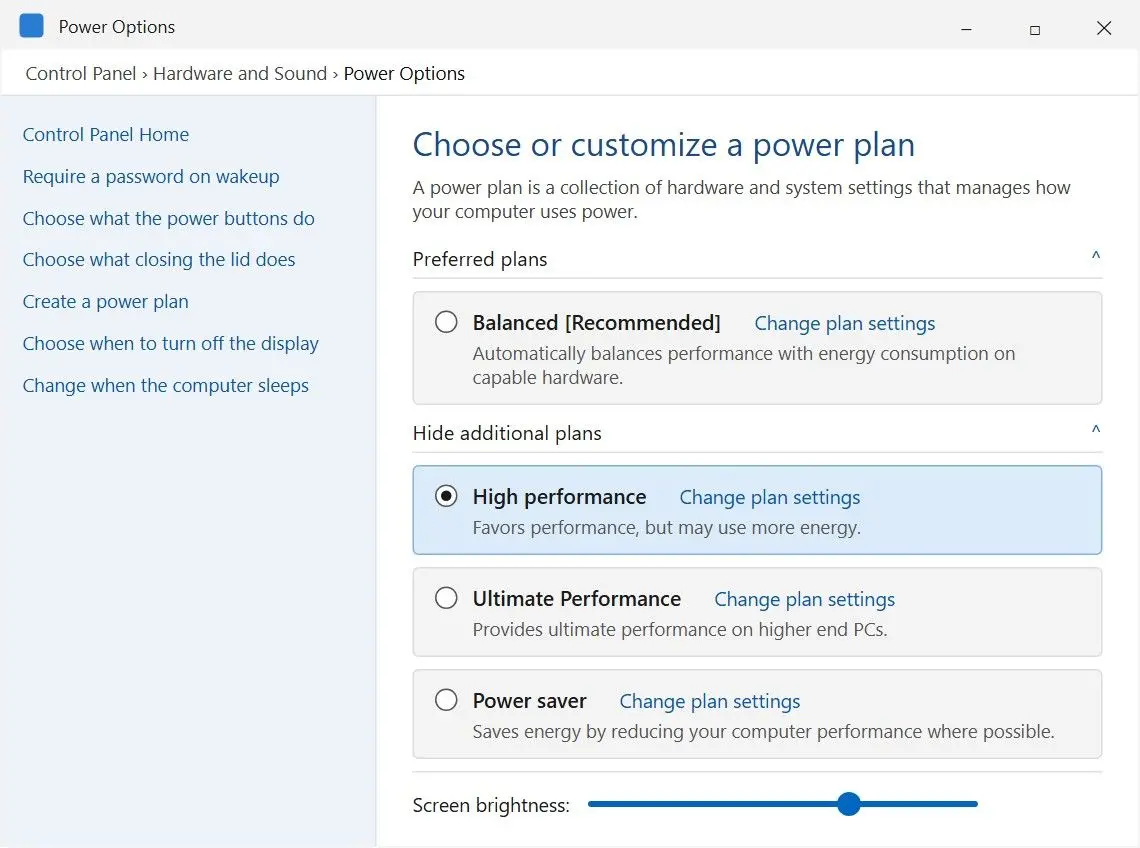
Open Control Panel > Hardware and Sound > Power Options, expand Show additional plans and pick High performance. Ultimate Performance is hidden on many machines, especially laptops. Add it to the list by running this command in an administrator Command Prompt:
Microsoft's documentation warns that High Performance can increase power consumption unnecessarily on a lightly loaded system and suggests Balanced in most cases. Forums recommend High performance as the first fix. The plan helps a desktop under steady CPU load but does little when background apps cause the slowdown.
On a laptop, use High or Ultimate Performance only while plugged in at all times. On battery, the plan drains the charge faster. Extra heat makes the CPU throttle sooner, cancelling the gain.
How do you keep the CPU cool enough to hold its speed?
TL;DR
Keep it below its throttling point. A hot CPU lowers its clock to protect itself. Dust in the fans and dried thermal paste can cost more speed than any Windows setting.
Dust on fan blades and heatsink fins restricts airflow, making the CPU run hotter for the same work. Shut down and unplug your PC. Use short bursts of compressed air on the fans, heatsink and case vents. Hold each fan still with a finger so the air cannot spin it up. On a laptop, aim through the intake and exhaust vents.
Thermal paste between the chip and cooler dries out with age. SlashGear's CPU tips suggest replacing it every few years. Remove the cooler, wipe away the old paste, apply a fresh layer and refit the cooler. If you have never opened a case, a repair shop can do this in one visit. Your desktop case needs a clear airflow path from front to back. Put your laptop on a hard surface; a blanket or sofa cushion blocks the intake.
Why is my CPU at 100% when nothing is running?
TL;DR
Something is running without a window: often Windows Update or an antivirus scan, sometimes the search indexer or a stuck process. Restart, then sort Task Manager by CPU to see which process stays on top.
Short bursts after sign-in are normal while Windows finishes updates and scans. If the load stays at 100% for ten minutes or longer, it usually points to one process. Task Manager will name it. A clean boot narrows the search but is no cure on its own. One Windows 11 owner with a CPU stuck at 100% tried it and found that nothing changed, apart from fewer apps able to max out the processor. That points to Windows itself or a driver as the source of the load.
Once a week
is the minimum restart rhythm the IEEE Computer Society recommends, so Windows can clear temporary files and start freshSource
Ending System, Service Host or Windows Explorer can freeze or restart Windows. The load returns after the next boot anyway.
Why is the System process using high CPU after a Windows 11 upgrade?
System (PID 4) handles kernel and driver work, so its load usually traces to a driver. After a Windows 11 upgrade, one user saw it stay above 20% and called a clean reinstall an unacceptable solution. Before trying that blunt fix, install pending Windows Update updates. Download the latest chipset and graphics drivers from your PC or motherboard maker's support site; storage drivers are on the same page.
Is 70% or 95% CPU usage normal?
TL;DR
Under a heavy job, yes. Games, video exports and code builds use most of the CPU. On an idle desktop, a load that stays over 70% with no apps open deserves a Task Manager check.
A CPU at 95% during an export finishes sooner than one held at 50%. Watch for a busy CPU on an empty desktop or a fan that never slows. On the Performance tab, brief peaks are fine; a flat line near the top means something keeps the processor busy.
What causes poor CPU performance?
TL;DR
Heat and power settings can hold your CPU back, while unwanted work keeps it busy. Outdated drivers and malware are rarer causes that look the same in Task Manager.
Battery mode can also cap CPU speed, and open browser tabs add background load. You can address throttling and background load without new hardware. If an unfamiliar process keeps the CPU busy, run a full scan with Microsoft Defender. If CPU usage looks fine, the disk or memory may be limiting performance: check those to make a PC run faster.
Can software raise your CPU clock speed?
TL;DR
No. The chip and firmware set the top clock speed; no Windows program pushes it past that. Software helps your CPU reach its rated boost more often by removing power limits, heat and background load.
A common forum question asks how to speed up a CPU besides overclocking, on the belief that a higher GHz number always buys more performance. One thread advised High performance and Windows updates. The asker had tried both but still saw 3.05 GHz instead of the hoped-for 5.40 GHz. The Speed figure on the Performance tab changes each second, dropping at idle and climbing toward the boost clock under load. If it stays low under heavy load, the CPU is throttling. Check power settings and cooling.
Is overclocking worth the risk?
TL;DR
For most people, no. You risk voiding your warranty, extra heat and crashes. Many mainstream Intel chips cannot be overclocked. The other fixes here help a stock CPU reach its rated speed without those trade-offs.
Overclocking raises the multiplier or voltage in the BIOS to run the CPU past its rated clock. You need better cooling, a stress test after every change and patience for blue screens. Extra voltage strains equipment rated for less. PCWorld's overclocking guide notes that AMD Ryzen chips can be overclocked on B- and X-series AM4 boards, while most mainstream Intel CPUs are locked.
If you try it, start with a clean, cool machine and change one setting at a time. On a laptop, cooling already limits performance, so overclocking rarely pays off.
How to make your CPU faster: which fixes come first?
TL;DR
Start with free changes you can undo in a minute, followed by power settings. Leave overclocking for last or skip it. The tiers below follow that order.
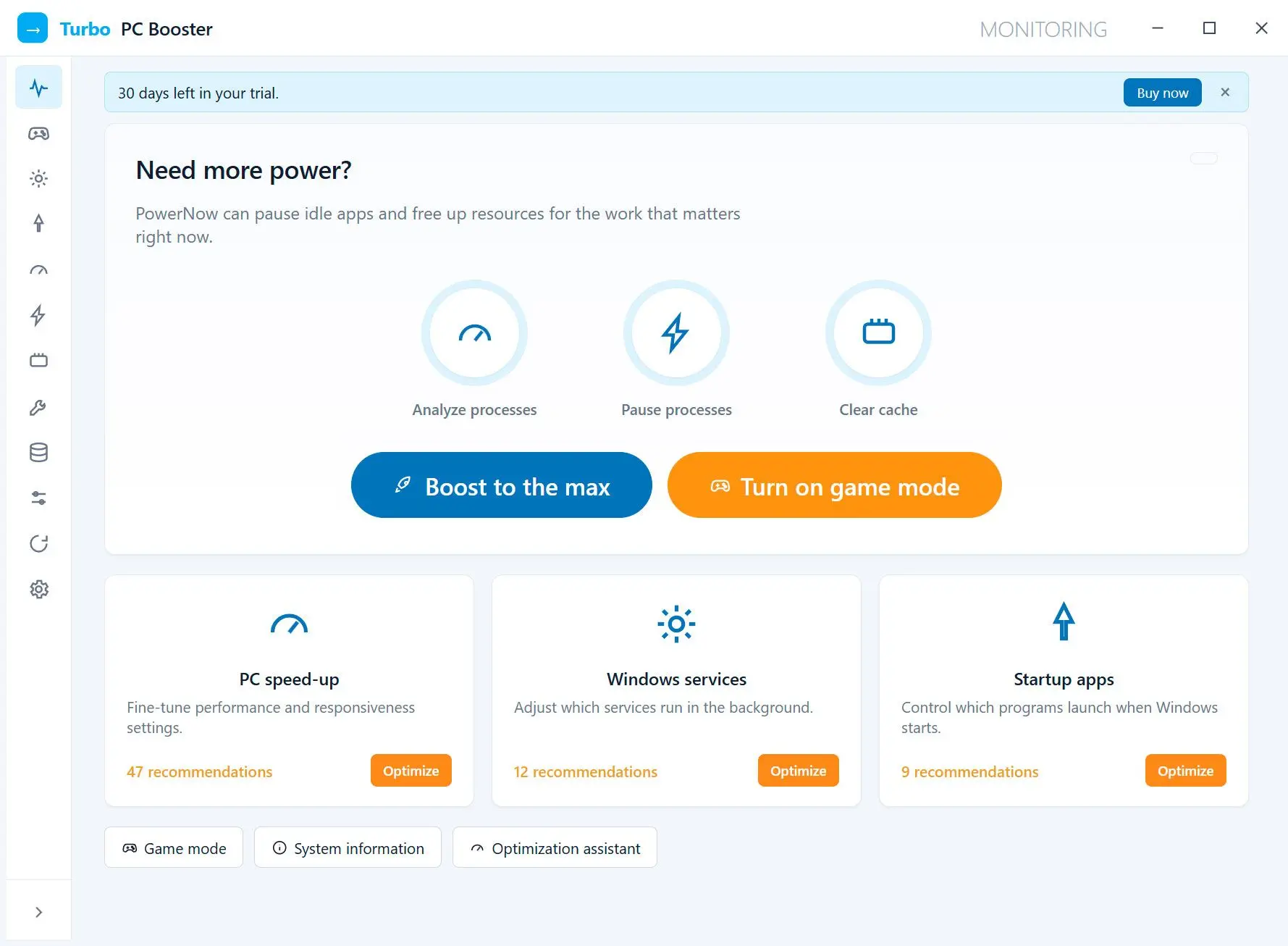
Do first: restart, check Task Manager, disable High impact startup apps, clear fan dust, or run Turbo PC Optimizer to handle startup and background apps in one pass.
Worth trying: High or Ultimate Performance on a plugged-in desktop, current chipset drivers, and uninstalling programs unused for about six months, as the IEEE Computer Society guide recommends.
Skip: overclocking without better cooling, Ultimate Performance on battery, ending System or Service Host, and any tool promising a higher GHz.
Turbo PC Optimizer
How to make CPU run faster without overclocking: stop background load, trim startup apps, pick the right power plan and keep the chip cool on Windows 11 and 10.
It can be. Core count, chip generation and boost clock matter as much: a newer 3.4 GHz CPU can outrun an older, higher-clocked one. Compare benchmarks for the exact model.
A forum test found little or no frame rate gain: the plan mainly removes small power-saving delays. A game booster addresses background apps by pausing them while you play.
 Turbo PC Optimizer