You will:

  1. 1️⃣ See how each of nine tools handles a stamped watermark, and what it quietly cannot fix.
  2. 2️⃣ Get an honest pros and cons list and a real price for every pick.
  3. 3️⃣ Learn when a desktop app beats a browser eraser, and when the law is not on your side.
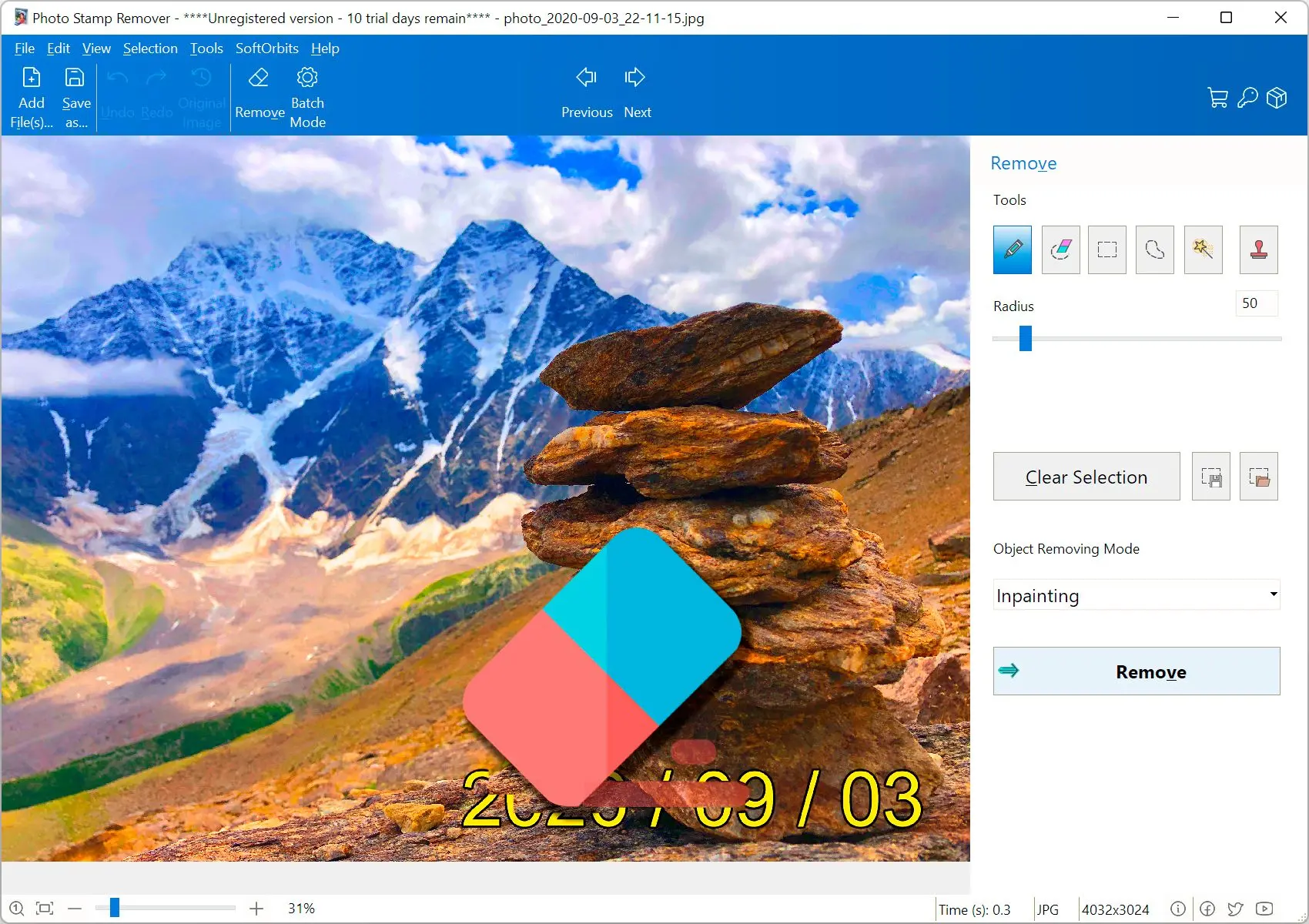
Photo Stamp Remover Screenshot.
Eugene - CEO at SoftOrbits, Candidate of Technical Sciences, has more than 16 years of expertise in software development, photo and multimedia applications, enhancing and transforming digital images and videos.
📅 Last updated on:  2026-07-21

You own a box of stock photos, and the only thing between you and print is the vendor's sample mark stamped across each one. You would rather not upload client images to a random website to get rid of it. That is the real starting point for most people who look for the best watermark remover software. They want a clean result, on their own machine, without a monthly bill or a privacy gamble. This guide ranks nine tools for Windows, from dedicated desktop apps to browser-based erasers, with honest pros, cons, and a real price for each pick.

Disclosure: SoftOrbits makes SoftOrbits Watermark Remover. We ranked every tool below against the same criteria, our own included, so you can compare before you download.

What you will learn
Apply in 10 min Saves 2 hEasy

Quick comparison of the 9 watermark removers

ToolBest forPricePlatform
SoftOrbits Watermark RemoverBatch cleanup of owned photos, on your PCFree trial, then licenseWindows
HitPaw Watermark RemoverPhoto and video in one app$39.99 one-time (1 PC); team from $30.95/yrWindows, Mac, web
InpaintSimple one-off manual removalOne-time (see vendor)Windows, Mac
Adobe PhotoshopFull manual controlSubscriptionWindows, Mac
GIMPZero-budget manual editingFree (open source)Windows, Mac, Linux
Cleanup.picturesQuick single-image brush edit (online)Free 720p; Pro $3-5/moWeb only
Dewatermark.aiAutomatic detection, occasional use (online)Free 2-3/dayWeb only
FotorPhoto and video on the go (online/app)Free tier; subscriptionWeb, iOS, Android
Apowersoft / AiseesoftNo-signup free eraser (online)FreeWeb only

How we picked and tested

TL;DR

We judged nine tools on five things. Does the tool process on your PC or upload to a cloud. What it actually removes. How honest the free tier is. Its price model. And the complaints that keep showing up in reviews. No tool wins on all five, so your files and your privacy decide the pick.

Our lead question was simple. Does the tool work on your own machine, or does it send your image to a server you do not control? For owned stock photos or client work, that answer alone rules some options out. From there we looked at what each one removes (watermarks, text, logos, date stamps), how it prices that, and what real users say went wrong.

  • Local or cloud. Whether your photos stay on your Windows PC or upload to a website.
  • What it removes, from watermarks and logos to captions and date stamps, on photo or video.
  • Free-tier honesty. A resolution cap, a stamped-on output watermark, or a tiny daily quota.
  • Price model. A one-time license, a subscription, or genuinely free.
  • Real-world use. Recurring complaints we found on Reddit and review sites like G2 and Trustpilot.
A note on how we tested. We run our own watermark tool on Windows every day, and we could install and try the free and open options here, GIMP included, plus the free tiers of the online erasers. For paid-only licenses we did not buy, such as a full Photoshop subscription or a HitPaw license, our read leans on the vendor's own docs, its trial behavior, and repeated user reports. We flag that plainly in each card. Where a card says "My take", that is a personal read of one tool; "Our take" is us talking about the software we make.

The 9 best watermark remover tools, reviewed

1. SoftOrbits Watermark Remover, best for Windows users cleaning owned photos in batch

SoftOrbits Watermark Remover is a dedicated Windows app built for one job, not a general editor with a removal feature bolted on. You point it at a watermark or a date stamp, brush the area, and it fills the gap back in. It has an auto-detect mode that tries to locate the mark for you, with manual area select as the fallback when a mark is faint or semi-transparent. Internally it offers several fill modes for the reconstruction, from inpainting to texture generation, plus a clone stamp and concealer for touch-ups. The part that matters for owned or client images is that it processes locally on your PC after a first-run model download, so your photos are not uploaded to a cloud. It also runs whole folders at once and has a command line for automation, which is why the batch-stock use case is where it fits best.
 SoftOrbits Watermark Remover auto-detecting a stamp on a photo..

Pros:

Runs on your PC after the first-run download, so images are not uploaded to a cloud

Auto-detect for the mark, with manual select as backup on faint or semi-transparent logos

Batch processing and a command line for whole folders of files

Free trial, plus a browser version with 5 free credits to try first

Cons:

Windows-only desktop build; there is no native macOS or Linux app

Paid after the trial; it is not a permanently free tool

The first launch downloads AI models, which takes a few minutes before offline use kicks in

Auto-detect can need a manual touch-up on complex or semi-transparent marks

Verdict: The pick if you clean batches of owned watermarks on Windows and do not want your images leaving your machine.
Our take. We make this one, so read the disclosure above. The workflow is what we stand behind. Point it at a folder of vendor-stamped stock, let auto-detect find the marks, and the batch run clears the whole set in one pass. That folder-at-a-time speed is why it earns the top spot for repeat cleanup work.

2. HitPaw Watermark Remover, best for someone who wants photo and video in a single app

HitPaw covers both photos and video, with several AI removal modes and a one-time-purchase option, which is why people who edit clips as well as stills gravitate to it. The catch shows up around money, not features. Its free web version stamps its own watermark on the output, so you cannot really judge quality before paying. On Trustpilot it sits at 4.1 out of 5, yet independent aggregation elsewhere shows a much lower 2.8 on Sitejabber across 55 reviews, and the gap is driven mostly by refund and auto-renewal disputes rather than the tool failing at its job.

Pros:

One tool for both photo and video removal

One-time perpetual license for 1 PC at $39.99; team plans from $30.95/year for 5 PCs (vendor page)

Several AI removal modes to choose from

Cons:

Free web version stamps its own watermark on the result

Refund and auto-renewal complaints recur across review sites

A wide rating gap (4.1 on Trustpilot vs 2.8 on Sitejabber) signals support friction

Verdict: Reasonable if you need one app for stills and clips and you buy the license outright with eyes open on the refund policy.

My take. I would try the paid tier through a card I can dispute, because the refund thread is the loudest signal here, louder than anything about output quality.

3. Inpaint, best for a simple one-off manual removal without a subscription

Inpaint is a general retouching desktop app that its maker positions for watermark and logo removal, among other repairs like date stamps and stray power lines. You brush over the mark and it reconstructs from nearby pixels. That works well on a plain background and struggles when the watermark sits over a face or busy texture, because there is nothing clean nearby to copy. Reviewers also note the selection is a rough blob rather than precise text detection, so it grabs more area than just the mark.

Pros:

Straightforward select-and-remove workflow for non-technical users

Batch support with no stated limit on image count or size

One-time desktop app, no subscription

Cons:

Reconstructs from nearby pixels, so it distorts over faces and complex texture

Blob-style selection grabs more than just the watermark

Not a true auto-detect tool; you place the selection yourself

Verdict: Fine for a quick, simple mark on a plain area; not the one for watermarks over a subject.
My take. On a flat sky or wall it is genuinely quick. Put a logo over someone's face and the seams show, which matches what reviewers report.

4. Adobe Photoshop, best for someone already in Adobe who wants full manual control

Photoshop gives you the highest ceiling on quality, with Generative Fill for automation and a manual Clone Stamp when it fails. The ceiling comes with a floor, though. You pay a subscription and climb a steep learning curve. It is also less of a magic button than people expect for this exact task, which we get into in the docs-versus-practice section below. On aggregated G2 reviews the two loudest recurring complaints are cost and the learning curve, sitting right next to genuine praise for editing depth.

Pros:

Deepest manual toolkit when automation fails, layers and all

Industry-standard results in skilled hands

Several removal routes, from Generative Fill to the manual Clone Stamp

Cons:

Subscription cost, no one-time buy

Steep learning curve for a task other tools do in two clicks

Content-Aware Fill is inconsistent on watermarks specifically (see below)

Verdict: Worth it only if you already own Photoshop and want manual control; overkill for a plain watermark.
My take. This is a suggestion by documentation and community reports, not a bought license on our end, and the community itself is blunt about Content-Aware Fill on watermarks.

5. GIMP, best for a zero-budget user willing to learn the manual way

GIMP is the free, open-source route. It has no AI auto-detect for watermarks; you use the Clone tool and Healing tool to paint over the mark with sampled pixels, the same manual craft as Photoshop without the bill. On its G2 reviews people praise the Clone tool even on large images while flagging an unintuitive interface and a real learning curve for non-designers.

Pros:

Free and open source, with no trial clock or subscription bill

Strong Clone and Healing tools for manual removal

Runs on Windows, Mac, and Linux alike

Cons:

No AI auto-detect; every removal is by hand

Steep learning curve and an interface newcomers find awkward

Slower on large or complex files, per user reports

Verdict: The best free option if you have patience and a simple mark; not a fast batch tool.
My take. I have cleaned a plain-background logo in GIMP in a few minutes; it was fiddly but free. Over texture it turned into careful, slow brushwork.

6. Cleanup.pictures (ClipDrop), best for a quick single-image brush edit in the browser

Cleanup.pictures is an online, brush-based eraser. You paint over the object or watermark and its AI fills the gap. It is genuinely fast for one image and needs no install. The trade-off is that it is online-only and the free tier caps exports at 720p, so anything print-bound needs the paid plan. Product Hunt reviewers also mention slow queues and the odd login failure at busy times.

Pros:

No install; brush-and-done workflow anyone can use

Fast, accurate on straightforward single-image removals

Free to try within the resolution cap

Cons:

Online-only; your image goes to a server

Free exports capped at 720p, with a visible watermark reported on free output

No batch processing on the free product

Verdict: Handy for one low-res image in a pinch; not for batch or print work.
My take. For a single web-size image it is the least-friction tool on this list. I would not push a print job through the free tier.

7. Dewatermark.ai, best for occasional automatic removal without brushing

Dewatermark.ai leans on automatic AI detection, so you upload and it finds the mark without you brushing. That is the appeal, and the limit is the free quota. It is online-only, and the free daily allowance is small enough that you cannot really evaluate it before deciding to pay.

Pros:

Automatic detection, no manual brushing needed

Simple upload-and-go workflow

Removes stickers and emoji as well as plain text marks

Cons:

Online-only; no desktop app

Tiny free daily quota limits real evaluation

No independently documented quality edge over rivals

Verdict: Fine for the odd automatic removal; the quota makes it impractical for volume.
My take. The automatic pass is nice until the daily allowance runs out mid-task, which for me was the whole story.

8. Fotor, best for photo and video removal mainly on mobile

Fotor is a browser and mobile tool that removes marks of every common kind, from text and logos to date stamps and subtitles, on photo and video. It is the pick if you also want light editing alongside removal, mostly on a phone. Notably, its own product page admits minor blurriness can appear when a watermark overlaps complex motion, which is a rare bit of vendor honesty and a useful signal about video in general.

Pros:

Works on web, iOS, and Android with no desktop install

Handles a wide range of mark types on both photo and video

Light editing tools alongside removal

Cons:

No Windows desktop app; online and mobile only

Free video exports capped at a 3-second preview

Billing and auto-renewal complaints are the dominant grievance

Verdict: Good for casual photo and video cleanup on a phone; not a desktop workflow.
My take. The self-disclosed blur note earned some trust from me. The 3-second free preview earned back some skepticism.

9. Apowersoft / Aiseesoft Free Watermark Remover Online, best for a no-signup free eraser

Apowersoft is the literal "free, no install, no signup" option. It uses rectangular selection boxes rather than a freehand brush, which is fast on a plain logo and clumsy on an irregular shape. A third-party comparison notes the box selection is coarser than the brush and lasso tools rivals use, so precise removal on odd shapes is harder.

Pros:

Free and no signup; runs in the browser

Box picks are quick for a simple rectangular mark

Erases several marks per image in one pass

Cons:

Online-only; no offline desktop path

Coarse on irregular or curved shapes; the box grabs straight edges only

"Free" marketing hides paid steps for advanced features, per user reports

Verdict: Worth a try for a simple rectangular mark you own; the selection tool limits everything harder.
My take. For a boxy corner logo it is fine and free. For anything shaped like real text over a subject, I reached for a brush tool instead.

Is it legal to remove a watermark?

TL;DR

Watermark removal sits in a legal gray zone, and this is general information, not legal advice. Removing a watermark from an image you do not own, or do not have permission to edit, may violate copyright law such as the DMCA and related rules. Only clean marks off images you own or are licensed to use.

The tools are neutral; the use is not. Most legitimate reasons to remove a watermark involve your own content. Think a sample mark on stock you licensed, or a date stamp on a family photo you took. Taking someone else's protected image and stripping their mark is a different thing entirely. Per one legal explainer, doing that without consent may run into the Copyright Act's Section 1202, though that is a plain-language summary, not a verdict on your situation. The tension is real for photographers too. Per a trade-press survey reported by PetaPixel in early 2026, around 58% of surveyed members of a photographers' association said they lost commissioned work to generative AI, which is why watermarks matter to them and why removal is loaded, not neutral. Even on Adobe's forum, members pushed back mid-thread on discussing removal at all, since the mark was there to protect unlicensed use.

Only remove a watermark from an image you own or have written permission to edit. Stripping a mark from someone else's protected photo can violate copyright law, and this article is not legal advice.

How does AI watermark removal actually work?

TL;DR

An AI remover looks at the pixels around a mark and rebuilds what sat behind it, a technique called inpainting. It works from the surrounding image, not a copy of the original, so a clean background reconstructs well and a busy one smears.

When you brush over or auto-detect a watermark, the tool treats that area as missing and paints it back using the pixels nearby. That technique is content-aware inpainting. On a plain sky or wall the guess is easy and the result looks clean to the eye. Over a face, fine text, or repeating texture, there is no clean neighbor to copy, so the fill can blur or invent detail that was never there. That is the honest limit on every tool here, ours included. It is also why a desktop app that lets you switch fill modes or drop in a manual clone stamp tends to beat a one-button online eraser on the hard cases. For the step-by-step, our guide to an AI watermark remover walks through it.

Are free watermark removers actually free?

TL;DR

Rarely, for real work. Free online removers usually cap resolution at 720p, stamp the output with their own mark, or throttle you to two or three images a day, so you cannot judge or use the result until you pay.

The pattern repeats across the online tools, and it is a pricing tactic, not a bug. You get a taste, then a wall.

720p
is the free-tier export cap on Cleanup.pictures; lifting it needs the Pro plan
Source

2-3 images a day
is the entire free quota on Dewatermark.ai, so real evaluation means paying
Source

Media.io shows a third variant. Its free downloads are capped at 720p and carry the Media.io mark, so the "free" output advertises the tool rather than serving you. A genuinely free desktop path exists, but it is the manual one. GIMP costs nothing and removes marks by hand, at the cost of your time. If your goal is a usable, full-resolution file without a subscription, weigh the free browser tools against a desktop trial before you commit. For a walk-through on a single image, our guide on how to remove a watermark from a photo covers the manual and automatic routes.

Removing watermarks from video vs photos

TL;DR

Video is harder than stills across every tool. A mark that sits still on one frame moves, flickers, or changes background across a clip, so the fill has to stay consistent frame to frame, and vendors say so themselves.

A still photo gives the AI one background to reconstruct. Video gives it hundreds, and they change. That is why the category struggles more with clips, and why one vendor says so plainly. Fotor's product page notes quality drops over fast-moving footage. That candor is the useful part; treat any tool promising flawless video removal with suspicion. For stills, a photo-focused desktop app is the cleaner path. For video, HitPaw and Fotor at least cover it, with the caveats above. For moving logos specifically, see our guide to an AI video logo remover.

Desktop software vs online tools

TL;DR

Desktop wins on privacy, resolution, and batch; online wins on convenience and zero install. For owned or client images at full resolution, a Windows app keeps the files on your machine and off a free-tier cap.

Four of the nine picks here are browser-based, which the SERP full of "best software" lists tends to gloss over. Online tools are frictionless for one low-res image. They also send your photo to a server, cap the free export, and rarely batch. A desktop app trades the install step for local processing, full resolution, and folders at a time.

Online eraser

Upload each image to a website. Accept a 720p cap or a stamped-on watermark on the free tier. One file at a time. Your photo sits on someone else's server.

Desktop app on Windows

Add a whole folder. Process at full resolution on your own PC, nothing uploaded. Auto-detect or manual select, then export the batch in one pass.

Can Photoshop, Canva, or GIMP remove watermarks?

TL;DR

All three can touch the pixels, none has a reliable single-pass watermark removal. Photoshop's own community reports Content-Aware Fill leaves a blurry mess on watermarks; Canva has no real remover; GIMP is manual only.

General editors are where marketing and reality part ways. General editors imply clean removal, and their own users say otherwise. On the Adobe forum, a user who tried Content-Aware Fill to remove a watermark got back a "messy blurred image", and a community expert replied that there "just isn't enough information for it to assess the image and decide what needs to be added," and called the hope for a clean fix "wildly optimistic." Canva has no dedicated watermark remover at all; the "Canva method" people share is a manual cover-and-crop workaround, not removal. GIMP is honest about being manual. The Clone and Healing tools work, but there is no auto-detect, so you do the reconstruction yourself. The takeaway is not that these tools are bad. It is that a general editor is not automatically better at this narrow task than a tool built for it. If your mark is text, our guide on how to remove text from a picture shows the dedicated route.

What we left out (and why)

A short list is only honest if you can see what did not make it. Three tools came up in research and stayed off the ranked nine for concrete reasons.
  • Media.io (AniEraser) A capable browser and mobile eraser, but its free downloads are capped at 720p and carry the Media.io watermark, so it is not a true installed desktop app for full-resolution work. We left it out because it is online-only with a stamped free tier.
  • PhotoGrid Offers free batch removal of up to 20 images with no login, which is generous, but it is mobile and browser first with no Windows desktop build. We left it out for being mobile-first with no desktop app.
  • watermarkremover.io Useful enough that we cited its own tool comparison for the box-versus-brush point, yet it is a browser-only service with an online quota rather than an offline Windows path. We left it out for being browser-only with no local processing.

Which watermark remover should you pick?

TL;DR

Match the tool to the job. Batch of owned stock on Windows, pick a local desktop app. One low-res image, a free browser eraser is enough. Protecting your work rather than editing, you want a watermarker, not a remover.

The right pick depends less on which tool is "best" and more on who you are.
The best watermark remover software for you depends on the job in front of you. Windows users cleaning owned stock photos in batch want a dedicated desktop app: auto-detect, batch folders at full resolution, and the files staying on your PC. That is the case SoftOrbits Watermark Remover is built for, with the honest caveats that it is Windows-only and paid after the trial.

Occasional users with a single image should not install anything. A free browser eraser like Cleanup.pictures clears one mark in a minute, as long as you accept the 720p free cap and that the image goes to a server. For a boxy corner logo you own, the no-signup Apowersoft eraser is even quicker.
Photographers usually have the reverse need, protecting their work rather than stripping a mark. Add your own watermark instead, and keep the removal tools for cleaning date stamps or old marks off images you already own. You can also remove a date stamp from a photo with the same class of tool.

Photo Stamp Remover Photo Stamp Remover

Remove unwanted watermarks, text, and logos from your images with the free SoftOrbits Watermark Remover.

Photo Stamp Remover Photo Stamp Remover
Compare the 9 best watermark remover software tools for Windows in 2026. Honest pros, cons, and prices, plus which ones only run in your browser.

Remove unwanted watermarks, text, and logos from all types of images.

Photo Stamp Remover Screenshot.


🙋Frequently Asked Questions

Technically yes, most marks can be reduced or removed by inpainting tools, and a photographer's watermark is no different technically. Legally it is very different: removing another person's protected watermark without permission can violate copyright law. Stick to images you own or are licensed to edit.

Not really. Canva has no dedicated watermark remover. What people call the "Canva method" is a manual workaround, covering the mark with a shape or crop, which is not the same as reconstructing what was behind it. A dedicated tool does a cleaner job.

It depends on ownership, the same as with images. Removing a watermark from a PDF you created or are licensed to edit is generally fine; stripping a protective mark from someone else's document may breach copyright or the document's terms. Treat this as general information only.

It is okay when the image is yours or you have permission, for example a sample mark on stock you licensed. It is not okay to remove a mark placed to protect someone else's work, which is the whole reason the mark is there.

The tool you use does not change the law. Asking an AI to strip a watermark from an image you do not own can still violate copyright, exactly as it would with any editor. Ownership and permission are what matter, not which app does the pixels.

AI removal is a feature, not a permission. The technology is legal to use on your own content; it does not grant you the right to remove marks from images you do not own. Same rule as every answer here: own it or be licensed to edit it.

Sources