Quick answer:

  1. 1️⃣ Up to 15 PDFs on Windows: select them in File Explorer, right-click, Show more options, Print.
  2. 2️⃣ More than 15 files or a whole folder: print in groups of 15, or lift the limit with a registry value or PowerShell.
  3. 3️⃣ Hundreds of PDFs with copies or page ranges per file: Batch Printing Software prints the folder from one list.
  4. 4️⃣ Mac: open all the PDFs in one Preview window and print from there.
Batch Printing Software Screenshot.
️ Eugene - CEO at SoftOrbits, Candidate of Technical Sciences, has more than 16 years of expertise in software development, photo and multimedia applications, enhancing and transforming digital images and videos.
📅 Last updated on:  2026-10-29

How to print multiple PDFs at once depends on the batch size: right-click Print handles up to 15 files in File Explorer. The command disappears when you select the 16th file. Use the section that matches your batch, including how to batch print PDF files that need their own settings. Later sections cover print order, duplex and pages per sheet.

What you'll need
  • A Windows 10 or 11 PC, or a Mac with Preview
  • A desktop PDF reader set as the default app for .pdf files
  • Optional: SumatraPDF for command-line printing, or Batch Printing Software for big folders
  • About 10 minutes for the first run, less after that

What you will learn
Apply in 10 min Saves 2 hBeginner

Print multiple PDFs at once on Windows 11 and 10 from File Explorer

Open the folder and select the PDFs

Click the first file, hold Ctrl and click the rest, or press Ctrl+A to take everything. Keep the selection at 15 files or fewer. More than that? Skip to the section on folders with more than 15 PDFs.

Open the classic right-click menu

On Windows 11, right-click the selection and choose Show more options, or press Shift+F10. On Windows 10 the Print entry sits in the first menu.

 Windows 11 File Explorer classic context menu with Print highlighted for 12 selected PDF files..

Click Print and leave the PC alone for a minute

Windows passes each file to your default PDF app. The app opens it, prints it and usually closes it again. There is no print dialog. The UCLA IT knowledge base notes that the files go to the last printer you printed from, so print one test page to the right printer first.

Check the printer queue

Open Settings > Bluetooth & devices > Printers & scanners, pick the printer and open its queue. You should see one job per PDF.

Batch Printing Software Batch Printing Software

Batch Print Software for Windows by SoftOrbits prints a stack of files without opening them. Add files or a whole folder, press Print once, and every document goes to the printer in the order you set. It prints DOCX and XLSX as well, even on a PC where Microsoft Office is not installed.

Why is there no Print option in the right-click menu?

TL;DR

On Windows 11 the Print command lives under Show more options (or Shift+F10), not in the short modern menu. If it is missing there too, the app set as default for .pdf files does not register a print command, so Windows has nothing to call.

On Windows 11, Shift+F10 opens the full menu. If Print is missing there too, check the default .pdf app. Open Settings > Apps > Default apps, search for .pdf and switch it to a desktop reader such as Acrobat Reader or SumatraPDF. A browser set as the PDF viewer often adds no print command.

Docs vs practice: Microsoft and university help pages present right-click Print as the simple path. People on Windows 11 report the item missing, and the advice to drag PDFs onto a printer shortcut or into the print queue window fails for many of them with an error. Treat the queue drag as unreliable and use the context menu or a script instead.

How to print all files in a folder when it holds more than 15 PDFs

TL;DR

File Explorer hides Open, Print and Edit when you select more than 15 files. Print the folder in groups of 15, or raise the limit with the MultipleInvokePromptMinimum registry value, which Microsoft documents for this exact case.

15 files
is the default selection size above which File Explorer drops Open, Print and Edit from the right-click menu, by design, according to Microsoft Learn

For a folder of 60 invoices, select and print four groups of 15. Sort the folder by name, select the first 15 with Shift+click, print, and wait until the jobs show up in the queue before sending the next group. If the second group starts while the first is still opening, the batches can interleave on the tray.
For larger folders, change the limit. The Microsoft Learn article on shortened context menus names the value: MultipleInvokePromptMinimum, a DWORD under HKEY_CURRENT_USER. The number must be larger than the count of files you plan to select. Setting it to 16 brings the menu back but still will not open more than 16 files.

Back up the registry key before you edit it (right-click the Explorer key in Regedit and choose Export). Microsoft suggests raising this value only in a controlled environment. Every selected file opens your PDF app, and 300 at once can stall a slow PC.

reg add "HKCU\Software\Microsoft\Windows\CurrentVersion\Explorer" /v MultipleInvokePromptMinimum /t REG_DWORD /d 100 /f
Sign out and back in, or restart Windows Explorer in Task Manager, for the change to apply. To undo it, delete the value and Windows falls back to 15.

Which route fits your batch:

MethodFiles per runPer-file settingsPrint orderWhat you need
File Explorer right-click Print15 by default, more after the registry changeNo, one set for allNot guaranteed, one job per fileBuilt into Windows
Batch Printing SoftwareA whole folder (10 per batch in the trial)Copies and page range per file, duplex and layout per batchFollows the list orderPaid desktop app with a free trial
PowerShell + SumatraPDFNo menu limitOne set per commandCommand orderOpen-source PDF reader
Merge in Acrobat, print onceOne combined fileNo, one set for allExactly as you arrange itAcrobat Standard or Pro
Acrobat Action WizardA folderPer actionFolder orderAcrobat Pro

How to batch print PDF files with different settings per file

TL;DR

When a folder holds a few hundred files, or some need two copies and others only page 1, a batch printer works better than every free route. Batch Printing Software keeps the whole folder in one list, lets you set copies and page range per file, and applies duplex and pages per sheet to the whole batch.

A folder can contain 140 client statements that need duplex, a cover letter that needs three copies, and a contract where only pages 2-6 matter. Set copies and the page range on each file, turn on duplex once for the run, and skip opening the documents one by one.

We built batch printing software for that case. Add a folder or drag files into the list, reorder them, and set copies and page range on each row. The rest is set once for the whole batch in Document settings:

  • Collated or uncollated copies
  • Odd or even pages only
  • Duplex on the long or short edge
  • Paper tray
  • 1, 2, 4, 6 or 9 pages per sheet
Files print without opening in their own programs, straight to the printer you pick, with no printer dialog per file. A counter under the Print button shows roughly how many sheets the run will use before any paper moves.
 Batch Printing Software list of PDF files with copies and page range set per file..

If one PDF is damaged, the program skips it and keeps going. The closing report counts printed and skipped files, adds page and sheet totals with the run time, and names each problem file with its reason. The free trial prints up to 10 files per batch and 100 files in total, and adds one summary page at the end of each run. A license removes all three.

Right-click Print in File Explorer
  • 15 files per run, then the menu item disappears
  • Same settings for every file
  • Your PDF app opens for each file
VS
Batch Printing Software
  • The whole folder in one list
  • Its own copies and page range for each file
  • Printed and skipped counts, plus each problem file by name

 Batch Printing Software report after a run: 48 PDFs printed, 1 damaged file skipped with the reason shown..

Batch Printing Software
Batch Printing SoftwareLoad a folder of PDFs, give each file its own copies and page range, then print the lot from one window.

How to print all PDFs in a folder from PowerShell or the command line

TL;DR

PowerShell can send every PDF in a folder to the printer with Start-Process -Verb Print, handing each file to whatever app opens PDFs. For control over copies and duplex without any dialog, the open-source SumatraPDF reader prints a list of files with -print-to-default and -print-settings.

Open the folder in File Explorer, type powershell in the address bar and press Enter. A PowerShell window opens in that folder. The Start-Process reference documents the Print verb, which does the same thing as right-click Print without the 15-file limit.

Get-ChildItem *.pdf | Sort-Object Name | ForEach-Object { Start-Process -FilePath $_.FullName -Verb Print; Start-Sleep -Seconds 3 }
The three-second pause gives the PDF app time to spool each file, so jobs reach the queue in name order more often. The viewer window can stay open after the last file, and scripts that run unattended usually have to close processes themselves. Acrobat with Protected Mode on can refuse commands from outside processes, so the loop may run without printing.
SumatraPDF's command-line documentation says -print-to sends every file named in the command to a chosen printer, -print-to-default uses the default printer, and the program exits when it finishes. Settings go into -print-settings as one comma-separated string.

The value duplexlong turns on long-edge duplex, 2x prints two copies, 1-3 limits the page range, and fit scales pages to the paper. Add -silent to hide print errors.
$sumatra = "C:\path\to\SumatraPDF.exe"
& $sumatra -print-to-default -print-settings "duplexlong,2x" -silent (Get-ChildItem *.pdf | Sort-Object Name).FullName

4 duplex modes
in SumatraPDF -print-settings (duplex / duplexshort / duplexlong / simplex), per the SumatraPDF command-line docs, applied to every file in the command

Run the command on three short files first, then print multiple PDF files at once from the full folder. Printer drivers differ in how they treat duplex requests.

Should you merge PDFs into one file before printing?

TL;DR

Merging is the one reliable way to lock page order, because the printer receives one job instead of dozens. The trade-off: one set of settings for everything, and no clean break between documents unless you add blank pages.

In Acrobat Standard or Pro, open Tools > Combine Files (All tools > Combine files in the new interface), click Add Files, drag the thumbnails into the order you want, then click Combine and save the result. Adobe's Combine Files help page walks through the same steps. The combined PDF is saved as a new file, and the originals stay as they were. The free Acrobat Reader cannot combine files.
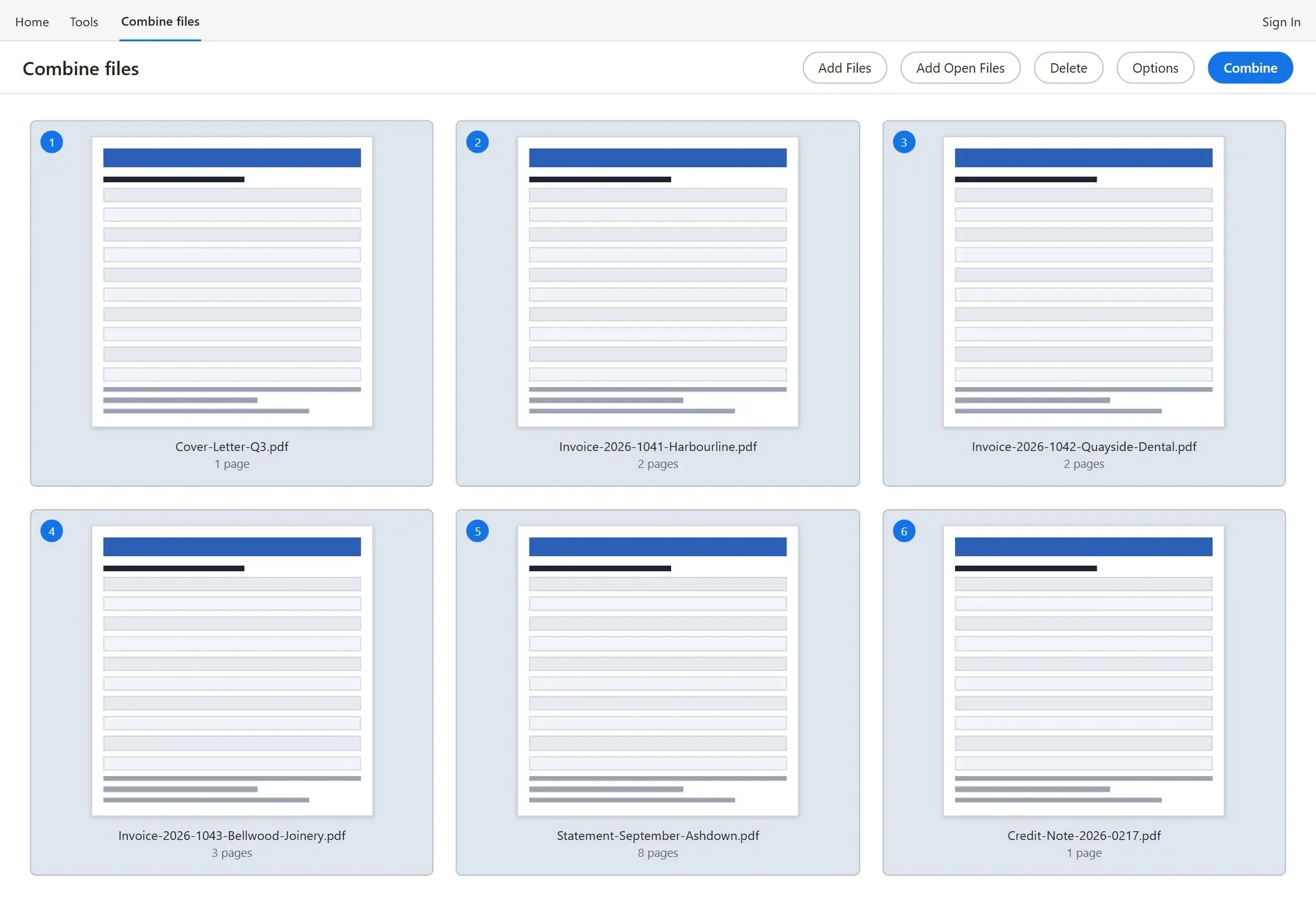
 Acrobat Combine Files tool with six PDF thumbnails arranged in print order..

Remove cover sheets or blank scans first. You can delete pages from PDF files in bulk. Double-sided printing has its own trap with odd page counts. A merged file of several hundred pages can overflow a small office printer's memory, so print it in two halves if the queue stalls.
Keep the files separate when each document has to leave the printer as its own stack, such as client statements that get stapled one by one. Use a tool that prints them as separate jobs in a fixed order.

How to print multiple PDFs at once in Adobe Acrobat without locking up your PC

TL;DR

Acrobat Pro can batch print through the Action Wizard, but it opens each PDF on screen while it works, and Acrobat stays busy until every file has spooled. Start the run after hours, or use one of the methods above for large folders.

Selecting several PDFs in File Explorer while Acrobat is already open often ends with the error "Acrobat cannot open this file while printing another document." Acrobat handles one print job at a time. Close Acrobat before you right-click Print. If it has to stay open, do not print multiple PDF files at once; send them in smaller groups.

The Action Wizard route (Tools > Action Wizard > New Action, add a Print step, pick a folder) works, yet with a 200-file folder every PDF can flash on screen and you cannot use other programs until the run ends. Acrobat waits only for spooling, so a fast printer helps less than you would expect.
Test the action on five files, then run the full folder when you do not need the PC. That is how to print multiple PDFs at once in Acrobat without tying up your workday. If the files need different settings, one action applies one print setup.

How to keep print order and stop duplex files starting on the back of the last one

TL;DR

Every method except merging sends one print job per file, so the order on the tray is not guaranteed. Number the file names, pause the printer while you send the batch, and pad odd-length files with a blank page before duplex printing.

Windows prints jobs in the order they reach the queue, and big files take longer to spool than small ones. A 40-page PDF selected first can land after a 1-page PDF selected second.

  • Rename files with a numeric prefix (001-, 002-) so sorting by name gives the order you want.
  • In the printer queue, choose Printer > Pause printing, send the batch, check the order in the queue list, then resume.
  • For duplex, give every odd-length document a blank last page, or print single-sided.
Batch Printing Software supports duplex in two ways. Hardware duplex goes to the driver only when the printer reports it can do it. A manual mode prints odd pages first, waits for you to flip the stack, then prints even pages. That is useful on printers without a duplex unit.

Can you print PDF and Word files in one batch?

TL;DR

Not from File Explorer: the UCLA knowledge base notes that all selected files must be the same type, so PDFs and Word documents go in separate rounds. A batch printing tool or a convert-first step lets mixed folders print in one pass.

File Explorer will not print multiple PDF files at once together with Word files, so they need separate rounds. The guide on how to print multiple Word documents at once covers the Word side, including printing without opening each file.

Turning saved web pages into PDFs first with a batch HTML to PDF converter puts the folder in one format. Batch Printing Software skips that step. Word and Excel files go into the same list as PDFs. Images, saved emails and web pages do too, and everything prints in the order you set.

How do I print 2 pages on one sheet (or more)?

TL;DR

Printing 2 pages on one sheet is a print-dialog setting, not a batch feature. In Acrobat or Reader choose Multiple under Page Sizing & Handling; on a Mac pick Pages per Sheet in the Layout section; in Windows many printer drivers offer it under Printing Preferences.

In the Acrobat print dialog, select Multiple, set pages per sheet (2, 4, 6, 9 or 16), and choose the page order. The setting applies to the open document only, so it does not help with a folder unless you merged the files first.
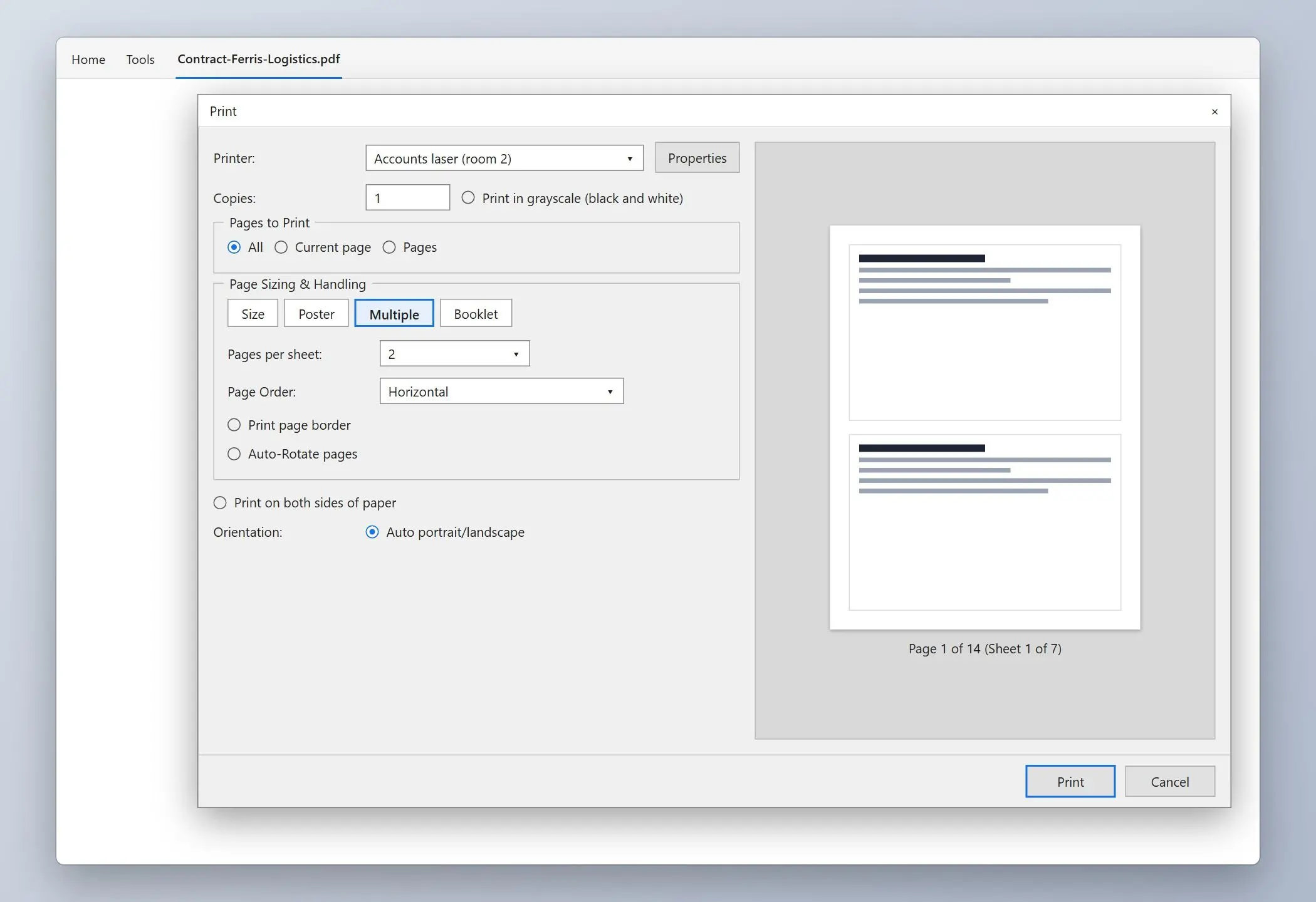
 Acrobat Print dialog with Multiple selected and 2 pages per sheet..

Mac users find the same option in the Layout section as Pages per Sheet. On Windows, check your printer's Printing Preferences; the option name varies by driver. Batch Printing Software sets pages per sheet for the whole batch. If some files need 2-up and others full size, put them in separate runs.

How do you print multiple PDF files at once on a Mac?

TL;DR

Select the PDFs in Finder, open them together in Preview so they share one window, then print from there. Apple's Preview guide recommends exactly that for multiple files. Dragging files onto the printer queue also works.

To print multiple PDF files at once, select the PDFs in Finder, right-click them and choose Open With > Preview. The Preview printing guide notes that opening several files in one Preview window is the way to print them together. Check the thumbnail sidebar before printing: its order is the order on paper, and it does not always match your Finder selection.

You can also open the printer's queue from System Settings and drag the PDFs into it. Each file prints with the printer's default settings.

What about printing from a browser, Google Drive or a locked PDF?

TL;DR

Browsers print one PDF at a time, so they are no help with a batch. Files in Google Drive or OneDrive need to be on your disk first, and a PDF with a print restriction prints only after the restriction is removed by its owner.

Can you print multiple PDFs at once from a browser? No: Edge and Chrome open PDFs well, but they have no batch print command. If a browser is your default PDF app, that is also the usual reason the Print item is missing in File Explorer.

In Google Drive, select the files and choose Download. Drive packs several files into a ZIP. Extract it, then use any method above to print multiple PDF files at once. For OneDrive files marked as online-only, set Always keep on this device first, or every print command waits for a download.
Some PDFs carry an owner password that blocks printing. They open fine but the print command is greyed out, and a batch run skips them. If the documents are yours, a PDF password remover can lift the printing restriction before the run.

Batch Printing Software Batch Printing Software
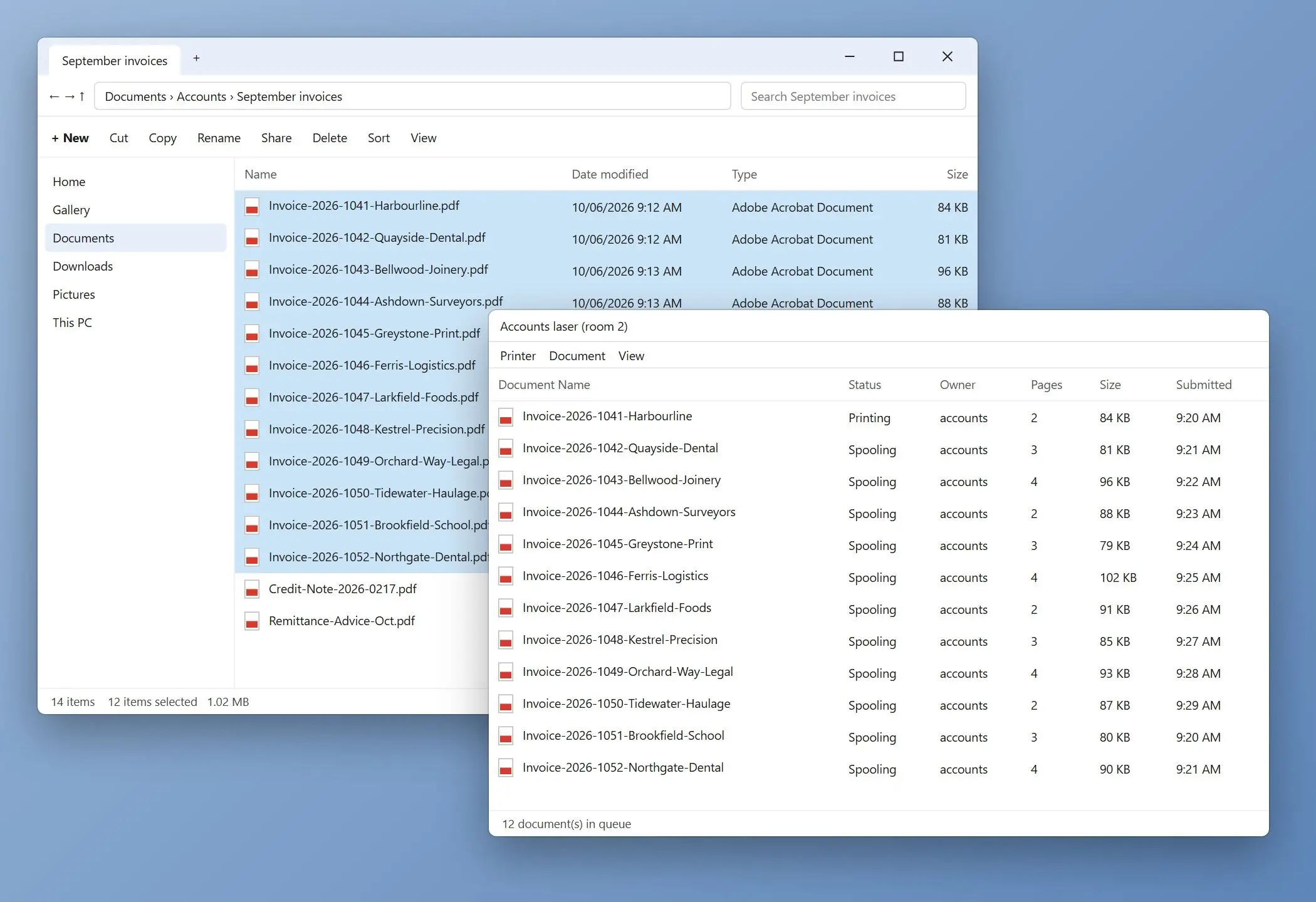
How to print multiple PDFs at once without opening them: File Explorer for up to 15 files, PowerShell for whole folders, plus order, duplex and Mac tips.
Batch Printing Software Screenshot.


🙋Frequently Asked Questions

Yes. You can print multiple PDF files at once on Windows: select up to 15 PDFs in File Explorer, right-click and choose Print (under Show more options on Windows 11). Larger folders need PowerShell, SumatraPDF or a batch printing program.

Yes. Right-click the file in File Explorer and choose Print. Windows sends it to your default PDF app, which prints it without showing a dialog, using the last printer you printed from.

Select the files, right-click, click Show more options (or press Shift+F10), then Print. The files must be the same type, and the limit is 15 per selection unless you change it in the registry.

Open the folder, press Ctrl+A and use right-click Print if it holds 15 files or fewer. For more, print in groups of 15, run the PowerShell loop from this article, or load the folder into a batch printing tool.

Sort the folder by Type, click the first PDF, then Shift+click the last one. Or type *.pdf in the File Explorer search box and press Ctrl+A on the results.

In paid Acrobat, use Tools > Combine Files, add the PDFs, drag them into order and save. Print the combined file once, and the pages come out in exactly that order.

Combine them first, then print the single file. For duplex, add a blank page to files with an odd page count, or each document starts on the back of the previous one.

Acrobat prints one job at a time. When you select several PDFs while Acrobat is busy, the extra files are refused. Close Acrobat first or print in smaller groups.

The trial prints up to 10 files per batch and 100 files in total, with one summary page added at the end of each run. A license removes these limits.

Sources