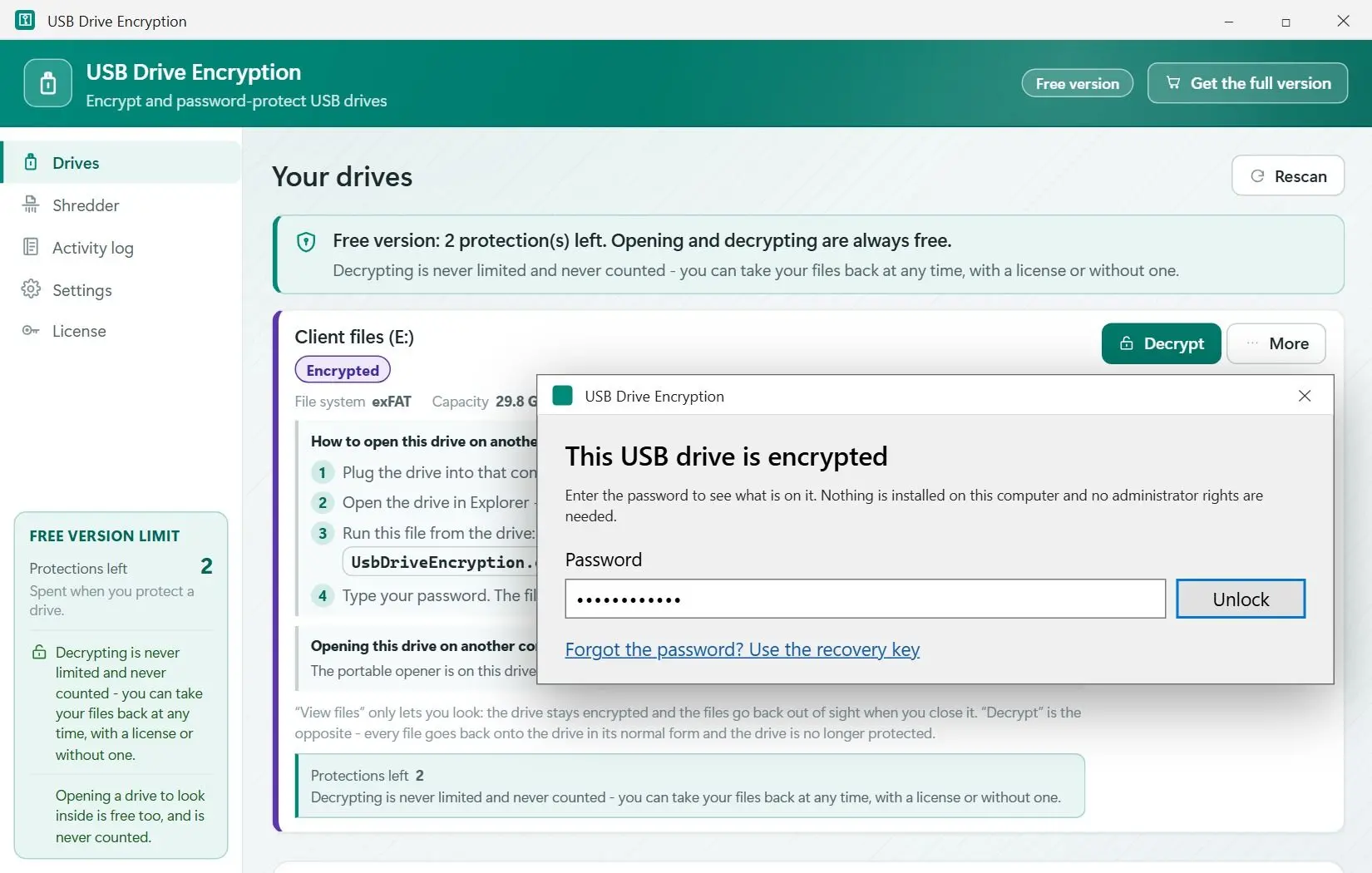
How to encrypt a USB drive on a Mac with Disk Utility
TL;DR
Disk Utility can lock an external drive with a password, but only by erasing it first, so copy your files off before you start. After that, macOS asks for the password every time the drive is connected. The Finder offers the same lock through a right-click Encrypt command on drives that are already in a supported format.
Copy everything you need from the stick to the Mac.
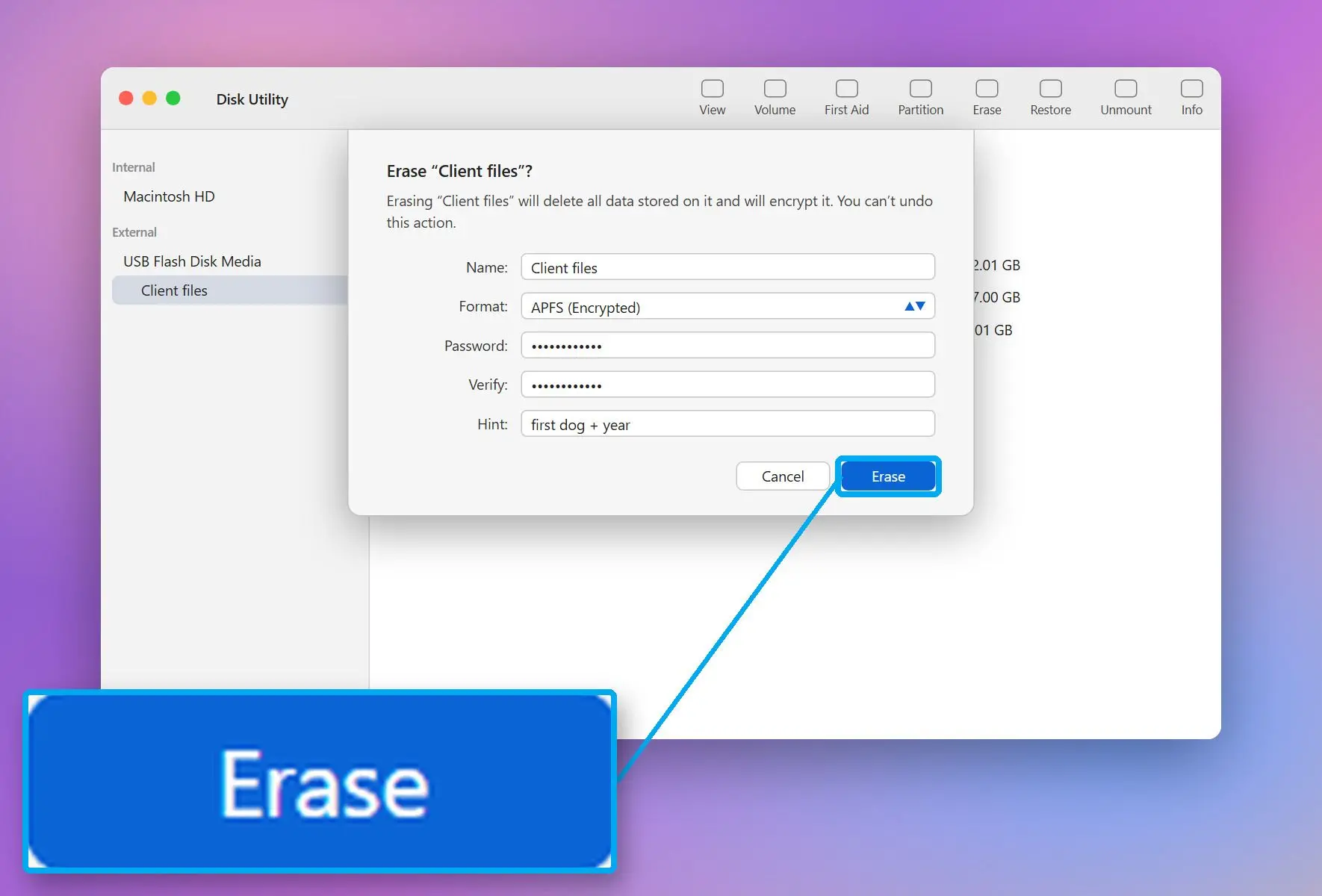
Open Disk Utility, choose View > Show All Devices, select the stick and click Erase.
In Format, pick an encrypted option such as APFS (Encrypted), enter and verify the password, then click Erase.
Copy your files back to the stick.
To change the password, select the volume in the sidebar and choose File > Change Password. In Finder, Control-click the drive on the desktop and choose Encrypt followed by the drive name. Which? says this appears only for drives formatted as APFS or Mac OS Extended.
Disk Utility deletes everything on the stick as part of encryption. Apple puts it plainly: "To encrypt and protect the device with a password using Disk Utility, you must erase the device first." Confirm every file is copied before you click Erase.
Can one password-protected flash drive work on both Windows and Mac?
TL;DR
Not with the built-in tools. BitLocker To Go is a Windows feature and an encrypted APFS volume belongs to macOS, and Proton's guide to USB encryption notes that operating-system encryption will not work across systems. For a shared stick, the realistic choices are an encrypted archive, a VeraCrypt container or a drive with its own keypad.
Keep a shared exFAT stick as exFAT, which Windows and macOS both read and write, and keep the private files secure inside something both systems can open.
An encrypted .7z archive is the lightest option. Each machine needs an archiver that reads encrypted 7z files.
A VeraCrypt container gives you a mounted drive with normal file editing. VeraCrypt has versions for Windows, macOS and Linux, but it must be installed on both machines.
A keypad drive skips the computer entirely, at the price of buying new hardware.
USB Drive Encryption is not one of them: its opener runs only on Windows.
How to encrypt a USB drive with a free VeraCrypt container
TL;DR
VeraCrypt is a free, open-source tool that stores an encrypted container file on the stick and mounts it as a drive after you type the password. It suits a stick you plug into your own computers. On someone else's Windows PC it needs administrator rights even in portable mode, because it loads a driver to mount the container.
The VeraCrypt beginner's tutorial names a USB memory stick as one place the container can live:
Install VeraCrypt, click Create Volume and choose Create an encrypted file container.
Pick Standard VeraCrypt volume, click Select File and name a new file on the USB stick.
Keep the default encryption settings, set the container size, type a long password and click Format.
To use it, select a free drive letter in the main window, click Select File, pick the container on the stick and click Mount.
Dismount the container before you unplug the stick, or the last changes inside it may not be written.
Is a password-protected 7-Zip archive good enough?
TL;DR
For keeping a handful of files away from casual readers, yes. 7-Zip encrypts .7z archives with AES-256, and with file-name encryption turned on, nobody sees the file list without the password. Every machine needs an archiver, and changing one file means extracting it and packing the archive again.
The 7z format page confirms AES-256 support, and 7-Zip itself is free under the LGPL. To build the archive on Windows:
Select the files, right-click and choose 7-Zip > Add to archive.
Set Archive format to 7z.
Under Encryption, type the password twice and tick Encrypt file names.
Click OK, test that the archive opens with the password, then remove the plain copies from the stick.
Deleted plain copies can remain recoverable in flash memory, so build the archive on the PC and copy only the .7z file to the stick.
Is a USB flash drive with hardware encryption and a PIN pad worth it?
TL;DR
A keypad drive is the one option that does not depend on the computer. You type a PIN on the drive itself, so it works with Windows, macOS or anything else with a USB port. Kingston's IronKey Keypad 200, for example, is described by the vendor as using XTS-AES 256-bit hardware encryption. The trade-off is trusting claims you cannot check yourself.
According to Help Net Security's coverage of the launch, the Keypad 200 has no factory PIN, so you set your own on first use. At launch it came in capacities from 8 GB to 128 GB with a three-year limited warranty.
8-15
digits in the IronKey Keypad 200 PIN, with no factory-preset PIN (vendor figures reported in 2022)Source
Proton's USB encryption guide calls hardware security claims "extremely difficult to verify" and advises buying only from brands you trust. A keypad drive suits machines you cannot control or install software on. For a stick you already own, software encryption costs nothing extra, while hardware encryption means buying a new drive and trusting its security claims.
Which method should you pick?
TL;DR
Choose how to encrypt a USB drive by the computers you will plug the stick into. Windows Pro on every machine means BitLocker To Go. Any Windows Home PC in the chain calls for a tool with its own opener. A Mac in the mix calls for a container, an archive or a keypad drive.
Walk down the list and stop at the first line that matches you:
If every PC runs Windows Pro, Enterprise or Education, use BitLocker To Go. It is free and already installed.
If any of your PCs runs Windows Home, use USB Drive Encryption.
If the stick only ever meets Macs, use Disk Utility.
If it travels between Mac and Windows computers and you control both machines, a VeraCrypt container works. If you do not control them, a keypad drive does.
If you only need to hand over a few files once, an encrypted 7z archive is enough.
Method
Where you can set it up
Opening on another computer
Encryption
BitLocker To Go
Windows 10/11 Pro, Enterprise, Education
Password on other Windows PCs (Home not confirmed by Microsoft)
AES-128 by default, 256-bit optional
USB Drive Encryption
Any edition of Windows 10/11
Opener on the stick, no install, no admin rights
AES-256-GCM, Argon2id key
macOS Disk Utility
Mac (erases the drive first)
Password when connected to a Mac
Encrypted APFS or Mac OS Extended
VeraCrypt container
Windows, macOS, Linux
VeraCrypt installed, admin rights on Windows
Chosen at setup
7-Zip archive (.7z)
Any PC with 7-Zip
An archiver that reads encrypted 7z
AES-256
Keypad drive (IronKey Keypad 200)
Bought as hardware
PIN on the keypad, any system
XTS-AES 256-bit (vendor claim)
What happens if you forget the password of an encrypted USB drive?
TL;DR
With real encryption, the password or the recovery key is the only way back in. Microsoft's FAQ says a BitLocker drive cannot be recovered without its password or recovery key, and Apple warns that you cannot open an encrypted disk without its password. Save the recovery key the moment you create it.
BitLocker To Go offers three backup choices in its setup wizard. USB Drive Encryption shows its recovery key once, after you set the master password. In the portable opener, Forgot the password? Use the recovery key switches the password box to the key.
If you change the master password later, drives encrypted earlier keep the password they were encrypted with and still open with the recovery key. When the app says your master password does not open a drive, try the old password. Lose both the password and the key, and the data is gone. Nobody at our support desk, Microsoft or Apple holds a spare copy. Proton's guide also says no encryption system is foolproof.
Never keep the recovery key on the drive it opens. Print it or keep it in a password manager.
How to remove password protection from a USB stick
TL;DR
Open the drive with its password, then switch encryption off in the same tool that turned it on. BitLocker To Go has a Turn off BitLocker command, USB Drive Encryption has Decrypt, and a Mac drive needs its files copied off before you erase it back to a normal format. Once decrypted, the stick is readable by anyone who holds it.
On Windows Pro, open Control Panel, go to BitLocker Drive Encryption and click Turn off BitLocker next to the stick after typing its password. Leave the stick connected until Windows reports that decryption is finished.
In USB Drive Encryption, click Decrypt next to the stick. Every file returns to its normal form and the protected folder disappears. View files only shows the contents and leaves the drive encrypted. You can encrypt the stick again later; in the free version each new protection counts toward the three runs. On a PC without the app, the portable opener does the same job with Decrypt the whole drive. For a VeraCrypt container, mount it, copy the files out and delete the container file. For a 7z archive, extract it and delete the archive. On a Mac, copy the files off, then erase the stick in Disk Utility to a non-encrypted format such as exFAT if it also has to work on Windows.
USB Drive Encryption
Password protect a USB drive on Windows Pro with BitLocker To Go, on Windows Home without it, or on a Mac. Steps, free options and recovery keys.
Use the tool that matches your system. Windows Pro, Enterprise and Education use BitLocker To Go, and Macs use Disk Utility. Windows Home needs a tool such as USB Drive Encryption, VeraCrypt or an encrypted 7-Zip archive. Only encryption protects the data; a hidden folder can be unhidden with one checkbox in File Explorer.
Install a third-party encryption tool. USB Drive Encryption encrypts the stick on any Windows 11 edition and leaves an opener on it. VeraCrypt and 7-Zip are free, but each PC that opens the drive needs the software, and VeraCrypt also needs admin rights there.
Yes. Microsoft offers Device Encryption on Home, but it only covers the system disk and disks built into the PC. USB sticks are not covered, so it cannot password protect a flash drive.
Plug it in and enter the password in the tool that locked it. BitLocker To Go drives prompt in Windows, drives protected with USB Drive Encryption open through UsbDriveEncryption.exe on the stick, and VeraCrypt containers are mounted in VeraCrypt. If the password is lost, use the recovery key.
Open the stick with its password, then decrypt it. Use Turn off BitLocker in Control Panel for BitLocker To Go, or Decrypt in USB Drive Encryption. On a Mac, copy the files off and erase the drive to a non-encrypted format.
In Disk Utility, select the drive and click Erase, then choose an encrypted format with a password. Erasing deletes everything, so copy the files off first. The Finder's Encrypt command skips the erase on a drive that already uses a Mac format such as APFS.
The same methods work as for a flash drive. Microsoft lists external hard disks among the drives BitLocker To Go encrypts, and Disk Utility encrypts external storage on a Mac. USB Drive Encryption works with flash drives, memory cards and external drives that Windows reports as removable.
Opening takes seconds. The first encryption and a full decryption take longer because every file is rewritten. The progress window shows the time left, and the stick should stay connected throughout.
On work PCs it is usually a policy: administrators can block writing to removable drives. If the stick is read-only on every PC, the drive itself may be failing; see how to fix a write-protected SanDisk flash drive.
 USB Drive Encryption