Get-WinEvent accepts the same XPath through -FilterXPath, so Windows filters the events before PowerShell sees them. Read fields by name from the event XML. Code that relies on positions like Properties[18] can break if the field order changes.
Run Windows PowerShell as administrator and paste this. It returns the last 500 network logons with the five fields you need most:
Get-WinEvent -LogName Security -MaxEvents 500 -FilterXPath "*[System[(EventID=4624)] and EventData[Data[@Name='LogonType']='3']]" |
ForEach-Object { $d = @{}; ([xml]$_.ToXml()).Event.EventData.Data | ForEach-Object { $d[$_.Name] = $_.'#text' } [pscustomobject]@{ Time = $_.TimeCreated; User = $d.TargetUserName; Ip = $d.IpAddress; Process = $d.LogonProcessName; Package = $d.AuthenticationPackageName }
Group the results to see which addresses produce the most events:
$logons | Group-Object Ip | Sort-Object Count -Descending | Select-Object -First 10 Count, Name
A file server may show a handful of addresses with hundreds of hits each. Those are mapped drives and backup jobs. Open a single address that appears twice at 03:12. In PowerShell 7, Microsoft's Get-WinEvent reference also lists a -FilterHashtable form that takes named event data, so @{LogName='Security'; Id=4624; LogonType=3} is a shorter way to the same set. For failed attempts, swap 4624 for 4625 and add Status and SubStatus to the object.
When does a dedicated event log viewer save time?
TL;DR
Event Viewer and PowerShell answer one question per query. A dedicated viewer helps when you review Windows logon events every day, receive .evtx files from other machines, or want SubStatus codes in words instead of hex.
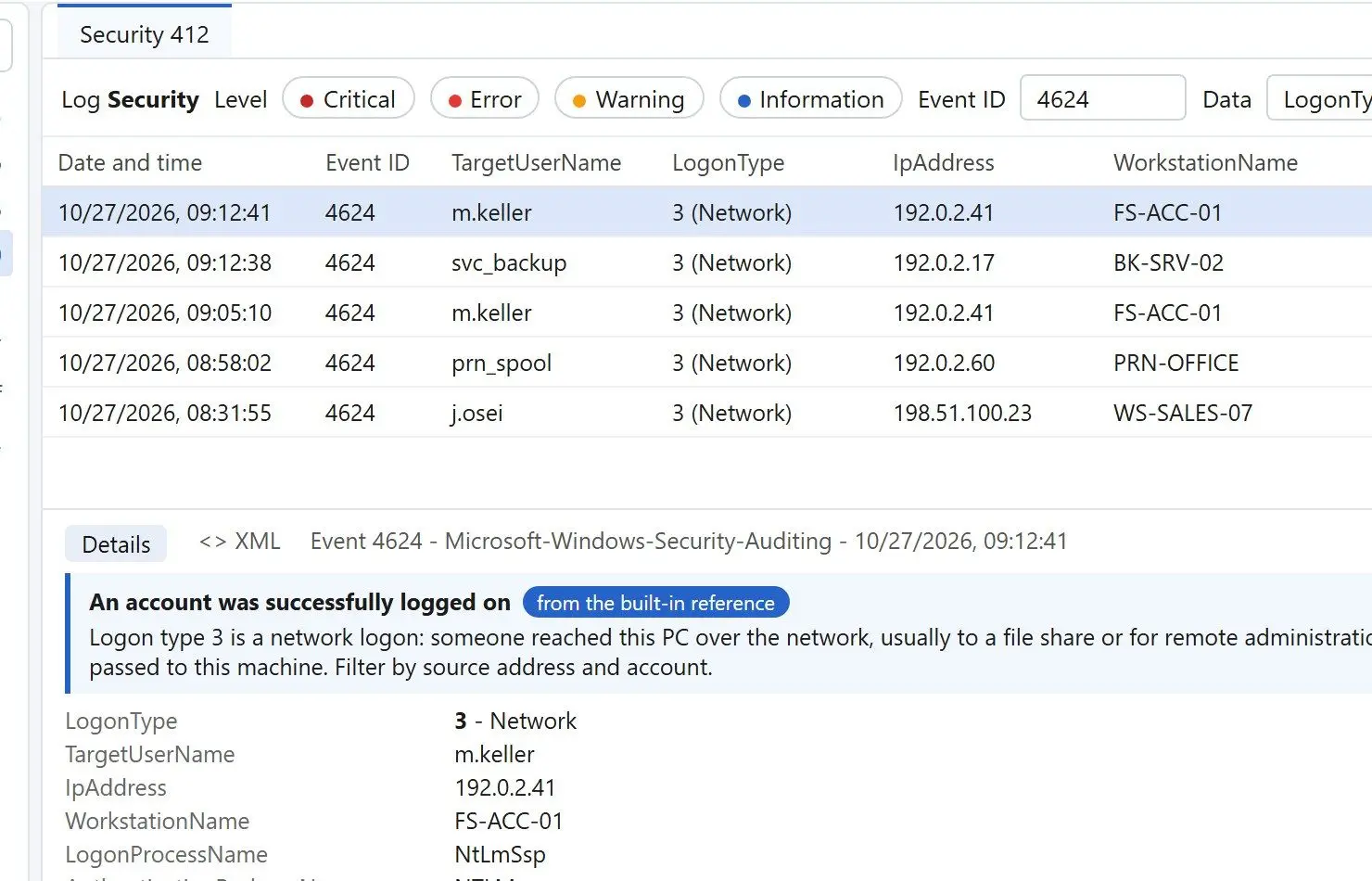
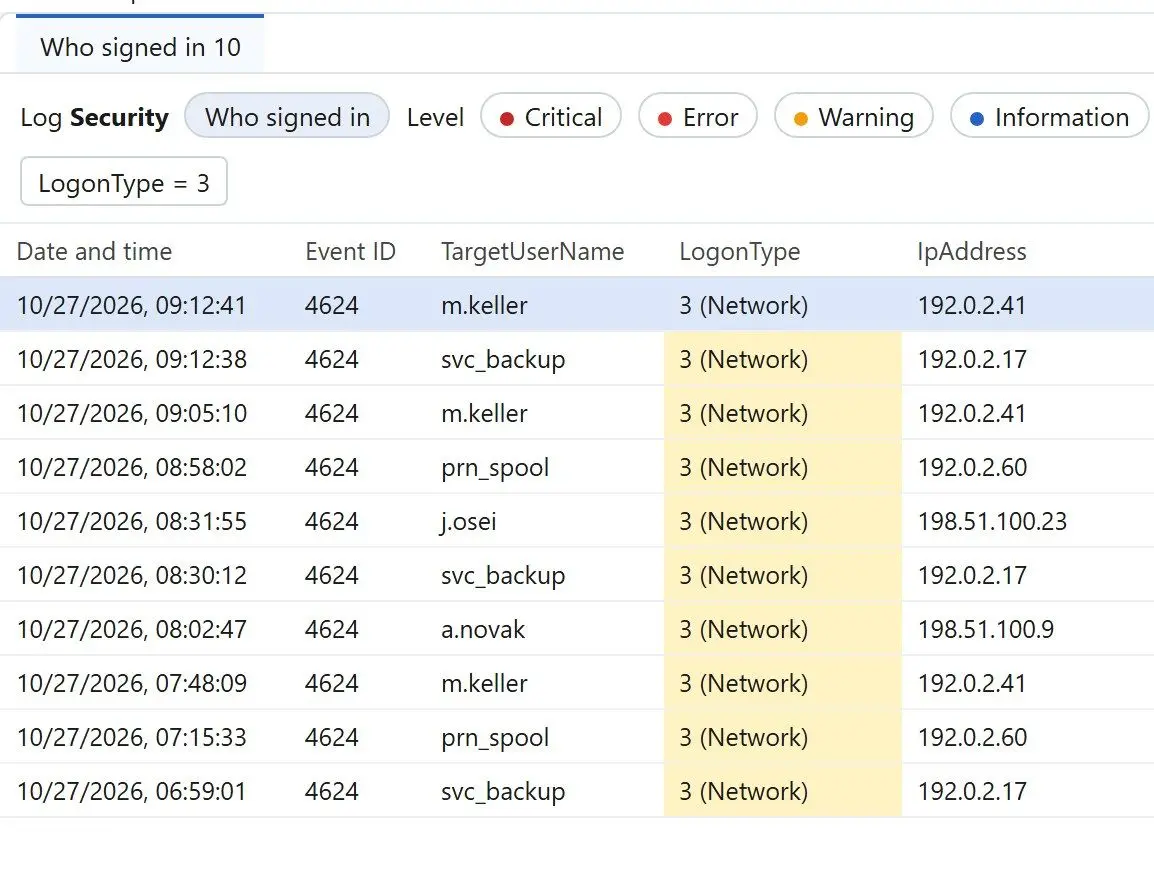
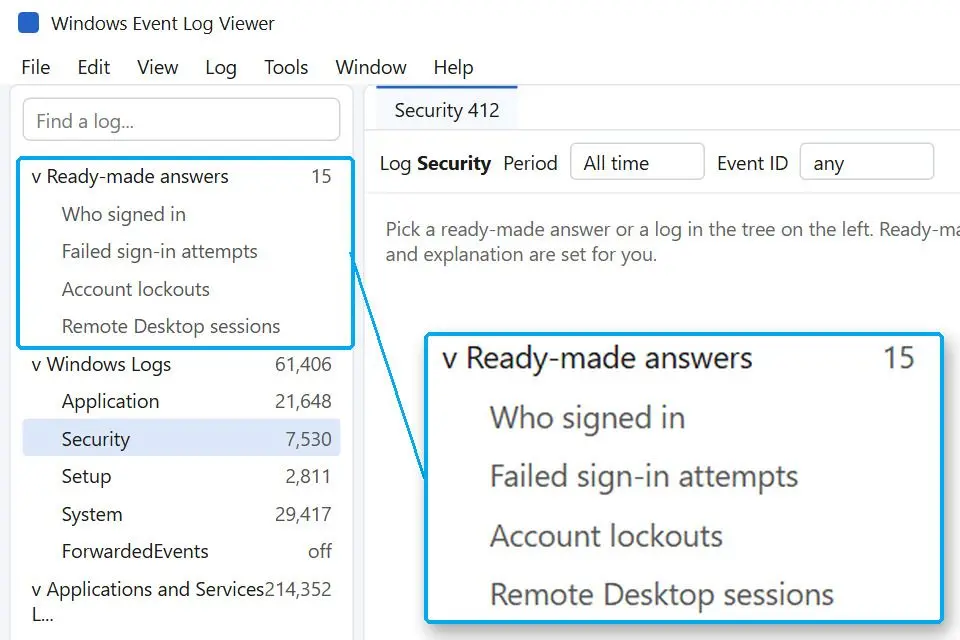
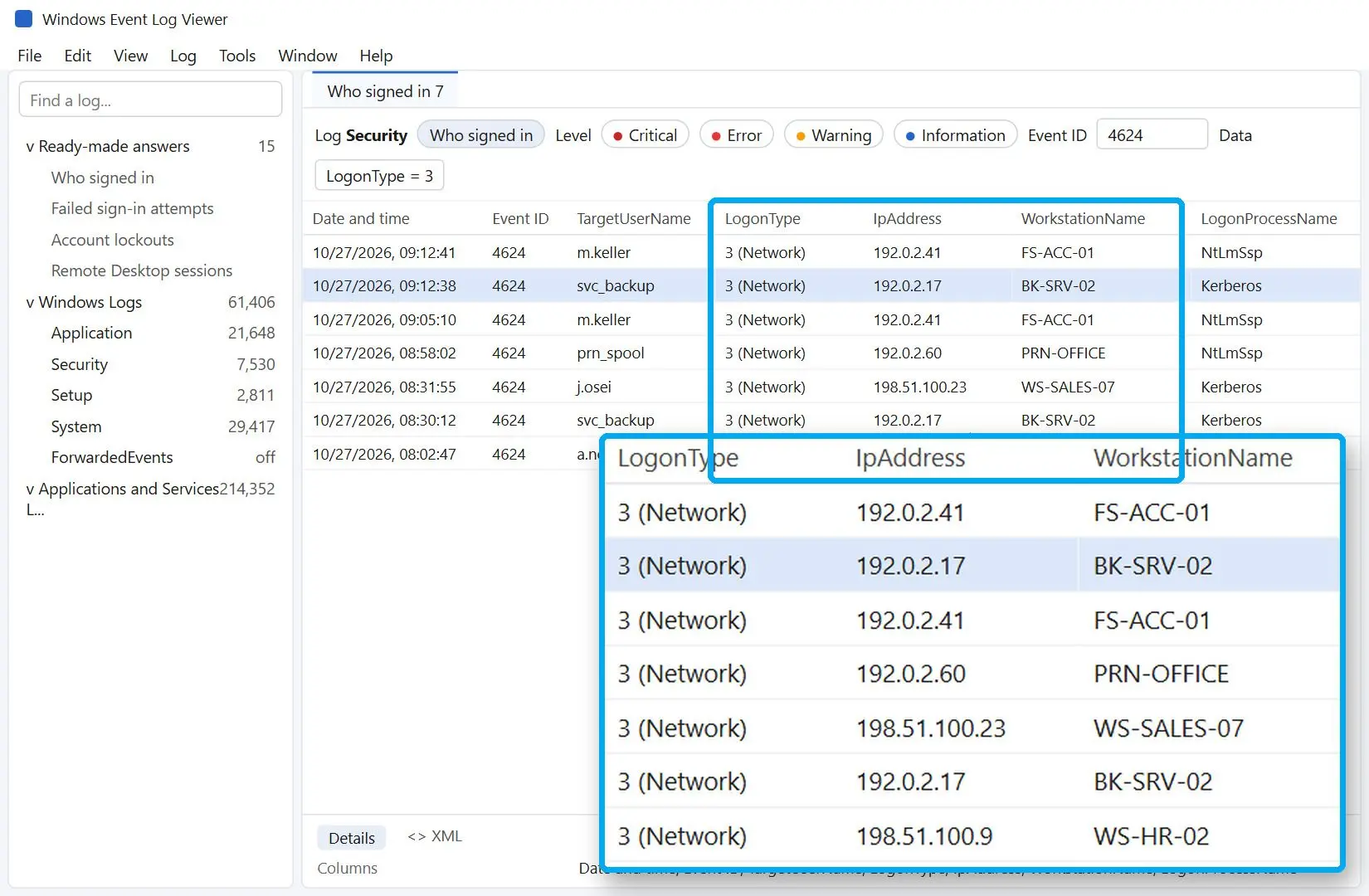
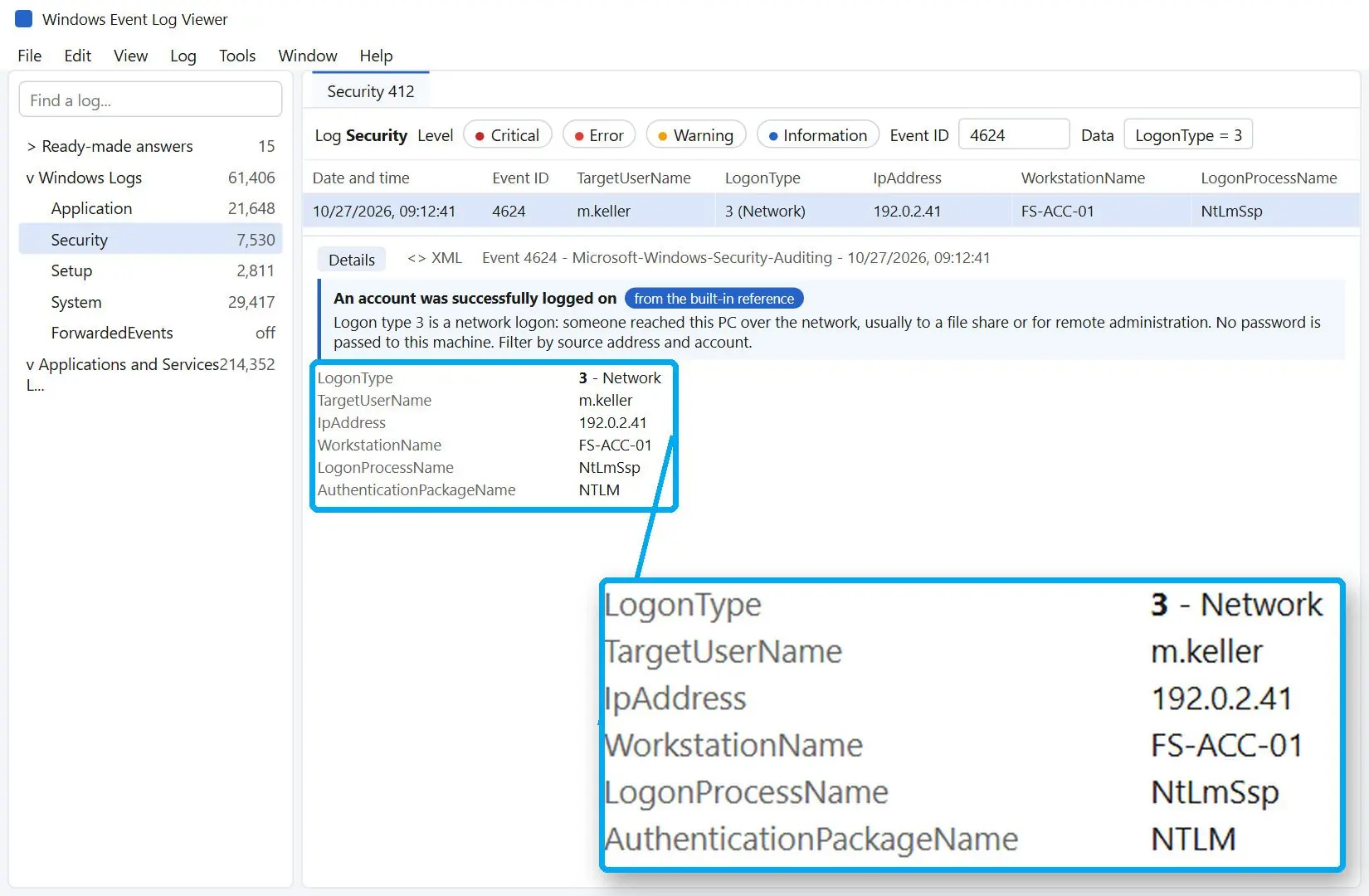
We build event log viewer software for this job. Windows Event Log Viewer puts a Ready-made answers group at the top of the log tree. Who signed in lists every 4624 except service logons (type 5) and shows account, domain, LogonType, IpAddress, WorkstationName and LogonProcessName as columns. Select a row to see each EventData field and the logon type in words.
The filter compiles to XPath and Windows runs it before the grid loads.
49 ms
to return 615 matching records from a 34,232-record log in our test of Windows Event Log Viewer
Event Viewer
Logon type filter only through hand-written XML
SubStatus stays a hex code you look up
Nothing tells you when failed logons pile up
VS
Windows Event Log Viewer
Who signed in and Failed sign-in attempts are one click each
Logon type, address and SubStatus as columns, codes explained in words
An alert rule fires after a set number of failures within a time window
It opens .evtx and .evt files copied from another PC, including damaged ones, and explains the fields when the source provider is missing on your machine.
Windows Event Log ViewerSee every network logon with account, address and logon type as columns, and get an alert when failed logons pile up
The grid fills with successful logons, with service logons already removed. Network logons show 3 in the LogonType column.
Check the address and the logon process of each network row
Select a row and read Network Information in the details pane. Add another field with Add a column and a template such as {DATA[AuthenticationPackageName]}.
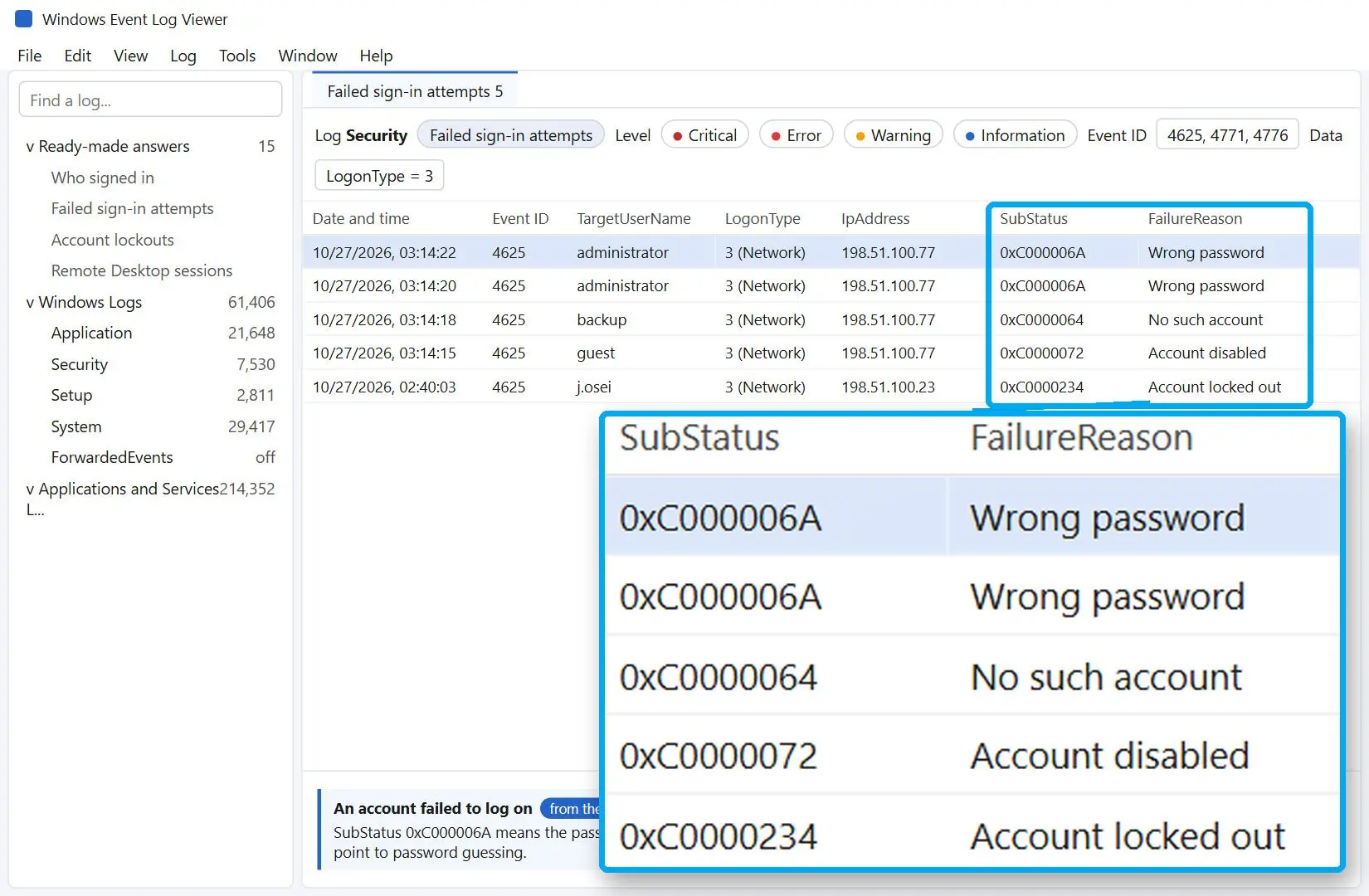
Open Failed sign-in attempts for Event ID 4625
This answer covers the last 7 days of 4625, 4771 and 4776 with Status, SubStatus and FailureReason as columns, so 0xC000006A reads as a wrong password.
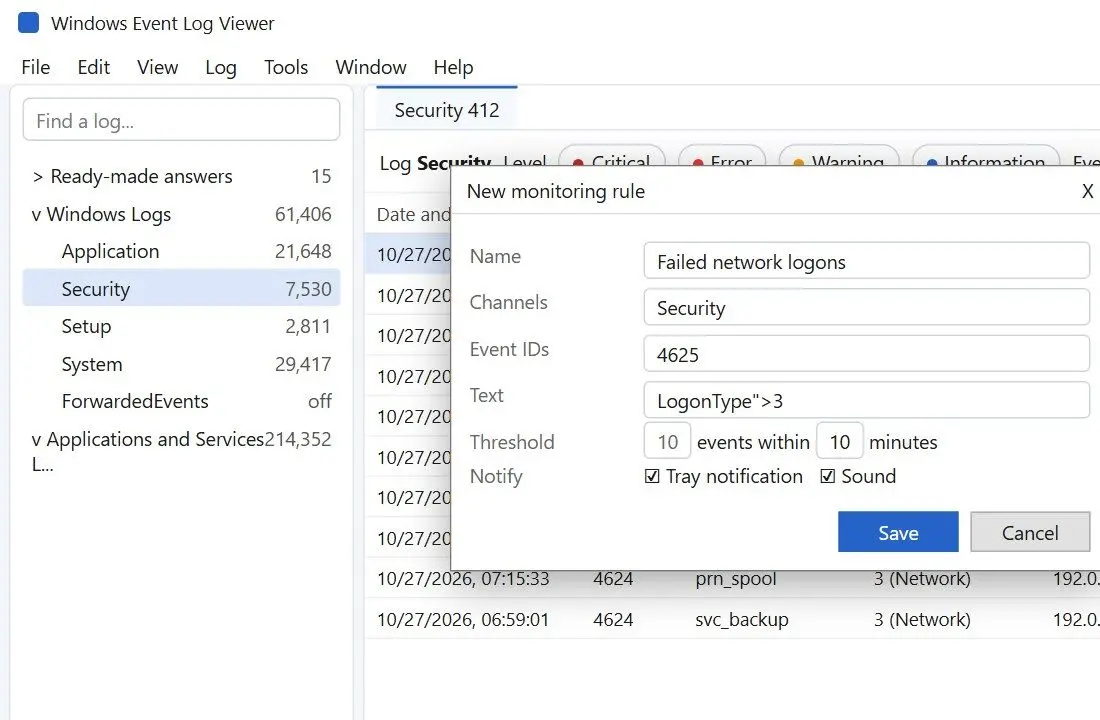
Add an alert rule and export the list
In Live monitoring and alert rules, create a rule for 4625 with a Threshold such as 10 events in 10 minutes and a tray notification. Use Export to save the grid as CSV for the ticket. Monitoring and full export are part of the licensed version.
Windows Event Log Viewer
Windows Event Log Viewer & Monitoring Software opens live Windows logs and .evtx files brought from another PC, explains what each Event ID means, and alerts you when a rule you set fires.
Type 3 is the Network logon. Microsoft's 4624 reference says, "A user or computer logged on to this computer from the network." The event is written on the accessed machine, so the server holding a share records it and the laptop opening the share does not.
4624 is a successful logon and 4625 a failed one. A third, 4634, closes the session. Network sessions tend to be short. A file opens and the session ends, and a busy file server can record the pair thousands of times a day.
12
logon type values in Microsoft's 4624 table, numbered from 0 (System) up to 13Source
The event 4624 reference on Microsoft's documentation site covers the Network Information fields. Whether a network logon is allowed depends on the user right "Access this computer from the network". "Deny access to this computer from the network" wins when both apply.
Windows logon type 3 means the same thing on Windows 10, Windows 11 and Windows Server. What differs between machines is which services connect to them. Auditing covers who comes in. What Windows sends out is a separate group of settings, which a Windows 11 privacy tool handles.
What creates a type 3 logon on a normal network?
TL;DR
Opening a shared folder or mapped drive over SMB, printing to a shared printer and browsing an IIS site with Windows authentication all produce type 3. A domain controller checking the password of someone signing in on another machine does too, as does a failed RDP attempt when Network Level Authentication is on.
Every \\server\share access and every drive letter that reconnects at sign-in.
✔️ Shared printers.
The print server sees each client as a network logon.
✔️ Web servers.
IIS with Windows authentication logs type 3. Basic Authentication sends the password in readable form and shows up as logon type 8 instead.
✔️ Domain controllers.
A user signing in anywhere in the domain triggers a network check on a DC.
✔️ Failed RDP with NLA.
Sophos investigators note that, "A failed RDP login where NLA is enabled shows up as a logon type 3", because NLA authenticates across the network before the session exists.
✔️ Remote admin tools.
PsExec connects to ADMIN$ over SMB, so it starts with a network logon. Type 3 alone proves nothing here. The tell is a service installed right after it (event 7045).
If a share holds files only two or three people should open, a folder password protector adds a password on top of the share permissions.
Windows logon types compared: type 3 vs 2, 10 and service logons (type 5)
TL;DR
Type 3 is network access to resources. Logon type 2 is a person at the keyboard, logon type 10 is a Remote Desktop session, and type 5 is a service starting under its own account. The same user can produce several types in one morning.
Microsoft's 4625 page lists nine logon types that show up in failed logons:
Type
Name
What usually creates it
2
Interactive
Sign-in at the keyboard or the console
3
Network
Shares, mapped drives, printers, IIS with Windows auth, DC password checks
4
Batch
Scheduled tasks running under a stored account
5
Service
A service started by the Service Control Manager
8
NetworkCleartext
Network logon where the password reached the package unhashed, such as IIS Basic auth
9
NewCredentials
runas /netonly: local work as you, outbound connections as another account
10
RemoteInteractive
Remote Desktop or Terminal Services session
11
CachedInteractive
Domain sign-in with cached credentials when no DC answers
Type 7 appears when someone returns to a locked screen. Types 0, 12 and 13 complete the table of twelve logon types and are rarely needed in a logon review. Type 5 fills the log at every boot, so many reviews hide it first.
Why does the domain controller log type 3 when the server shows logon type 10?
TL;DR
Each machine writes its own part of the sign-in. The Remote Desktop server records the session it created as type 10, and the domain controller records the network password check as type 3.
To trace one RDP session end to end, read three places:
On the server: 4624 with type 10, then 4634 when the user signs out.
On the DC: 4624 with type 3 for the same account at the same minute.
On the server again: 4625 with type 3 if the password was wrong and NLA is on.
Searching the server for type 3 to find RDP users misses successful sessions, because the two machines record different logon types. Searching the DC for type 10 returns nothing.
Is a type 3 logon normal or a sign of an attack?
TL;DR
Most network logons are routine. Look closer when NTLM appears where Kerberos is expected, when one address fails with many account names, or when an admin-share logon is followed by a new service within minutes.
Normal, leave it:
Domain computers opening shares and printers through Kerberos from known internal addresses.
Service accounts connecting from the servers that are supposed to use them. Microsoft suggests comparing Source Network Address against an allow-list for these accounts.
A DC logging type 3 for users who just signed in elsewhere.
A 4624 followed by 4672 (special privileges) for an administrator. That pair appears every time an admin signs in.
Check it, it may be fine:
NTLM in a domain where you expect Kerberos. Connecting by IP address instead of a name is a common, harmless reason.
A Logon Process you have never seen on this server.
A workstation name nobody on the team recognizes.
128 bits
is the NTLM session key length Microsoft expects in a 4624 event; Kerberos events always show 0, so any other NTLM value deserves a look
Act now:
A run of 4625 from one address with SubStatus 0xC0000064. Microsoft's wording: "Especially if you get several of these events in a row, it can be a sign of a user enumeration attack."
Many different account names failing from a single address. That is password spraying, and the run often ends with 4740, the lockout.
An administrator account logging on by NTLM from a workstation that never manages servers. CISA warns that attackers "will often use pass-the-hash or a discovered password" to move with stolen credentials.
A type 3 logon to ADMIN$ or C$, followed by remote service creation on the same host.
5-10 min
is the correlation window MITRE gives as an example between remote file access over an admin share and remote execution in its SMB lateral movement analytic
Why are Source Network Address and Workstation Name empty?
TL;DR
The protocol decides which fields fill in. Microsoft states that network logons with Kerberos likely have no workstation information and NTLM logons have no TCP/IP details, so a "-" in Source Network Address is normal for many type 3 events.
The workstation name deserves less trust than it gets because the client supplies it. The SANS Internet Storm Center once logged failed type 3 attempts with a random workstation name arriving from several diffrent IP addresses. Match the name against the address, and the address against your DHCP or firewall records.
Do not block an address the moment it shows up in a 4625 run. Check first that it is not a file server, a printer or a domain controller, or the fix takes down half the office.
When the address is missing, look on the other side of the connection:
On the domain controller, the matching Kerberos (4771) or NTLM (4776) failure for the same account and minute.
In firewall and VPN logs. A brute force through an exposed web portal can leave its source addresses only in the firewall log.
On the suspected client, anything that still holds an old password. Check Credential Manager first. Then look on scheduled tasks and services, and finally at mapped drives. Process Monitor filtered on lsass.exe, plus klist and whoami /all, show who is trying to authenticate.
For lockouts, event 4740 has a CallerComputerName field. Most often it is a phone with the old mail password still saved.
How to read Event ID 4625 logon type 3 failures
TL;DR
A 4625 with logon type 3 means a network sign-in was refused. Status gives the broad reason and SubStatus the exact one: 0xC000006A is a wrong password for a real account, while 0xC0000064 is an account name that does not exist.
Microsoft's 4625 documentation lists the codes. These are the ones worth memorizing:
Code
Meaning
What to check
0xC0000064
User name does not exist
Several in a row from one address: possible user enumeration
0xC000006A
Correct user name, wrong password
Stale stored password or guessing against a real account
0xC000006D
Bad user name or authentication information
Generic Status; read SubStatus for the real reason
0xC000006F
Logon outside allowed hours
Logon hours policy on the account
0xC0000070
Logon from a workstation the account may not use
Allowed workstations list on the account
0xC0000072
Account disabled
A service or task still using a retired account
0xC000015B
Logon type not granted on this computer
Network access user rights
0xC0000234
Account locked out
Look for the 4740 and its CallerComputerName
Two checks separate common causes. Lots of usernames from one address suggests an attack. One account failing from an internal machine at a steady rhythm, every few minutes, is almost always a stored password that changed.
Turning off logon auditing to quiet the 4625 noise removes the evidence you will want during the next incident. Hide the noise in the view and keep the log collecting.
Which fields in a type 3 event tell you the most?
TL;DR
Account Name and Source Network Address say who and from where. Logon Process and Authentication Package say how. Logon ID links the event to what happened during the session.
✔️ Logon Process.
NtLmSsp means NTLM did the work. Kerberos means a ticket did. The logon process Advapi means a program signed in on a user's behalf through the Windows LogonUser API, which is common for IIS, services and scripts that store credentials.
✔️ Authentication Package.
Kerberos, NTLM or Negotiate. Inside a domain Kerberos should dominate.
✔️ Key Length.
Always 0 for Kerberos. For NTLM, Microsoft recommends watching for anything other than 128.
✔️ Logon ID.
The Event Viewer logon ID is the same value in the 4672 that grants admin privileges and in the 4634 that closes the session. Filter on it to rebuild one session from start to finish. Log collectors sometimes keep one half of the pair and drop the other, so check the source machine before you conclude a session never ended.
Windows Event Log Viewer
Logon type 3 is a network logon in Event ID 4624 and 4625. See what creates it, how to filter it in Event Viewer or PowerShell, and when it signals an attack.
It means a network logon. A user or computer authenticated to this machine from the network, usually to open a shared folder, print or answer a domain password check. The event is written on the machine that was accessed.
Event ID 4624 is the Windows event log logon event ID for a successful sign-in. It records every successful logon together with the logon type and the account behind it. Failed attempts are 4625, and 4634 marks the logoff.
A logon attempt failed. Read the Logon Type to see how the attempt came in (Event ID 4625 logon type 3 is a refused network sign-in), then SubStatus for the exact reason, such as 0xC000006A for a wrong password or 0xC0000064 for an unknown account name.
Press Win+R, type eventvwr.msc and press Enter. Logon events are under Windows Logs > Security, which needs an administrator account. Use Filter Current Log to narrow the list.
Advapi in the Logon Process field means a program signed in through the Windows LogonUser API instead of an interactive prompt. IIS, services and scripts with stored credentials produce it. On a server that runs none of them, it is worth a look.
Yes. Kerberos remains the default inside an Active Directory domain. Network logons fall back to NTLM when a client connects by IP address or when either machine sits outside the domain, which explains many NTLM type 3 events.
Type 5 is a service logon. The Service Control Manager starts a service under its configured account, and that writes a 4624 with type 5, mostly at boot. A type 5 logon by an administrator account is unusual.
You can, and it is a bad trade. Turning the auditing off also removes the failed attempts you need during an incident. Filter type 3 out of the view instead, or exclude it inside your collector's own settings only.
Usually. Event 4634 closes the session and carries the same Logon ID as the 4624 that opened it. If a collector shows only one half, check the source machine before you assume the session stayed open.
Yes. Event Viewer opens .evtx files through Open Saved Log. Windows Event Log Viewer also opens damaged .evtx and .evt files and explains the 4624 fields even when the original event provider is missing.


 Windows Event Log Viewer