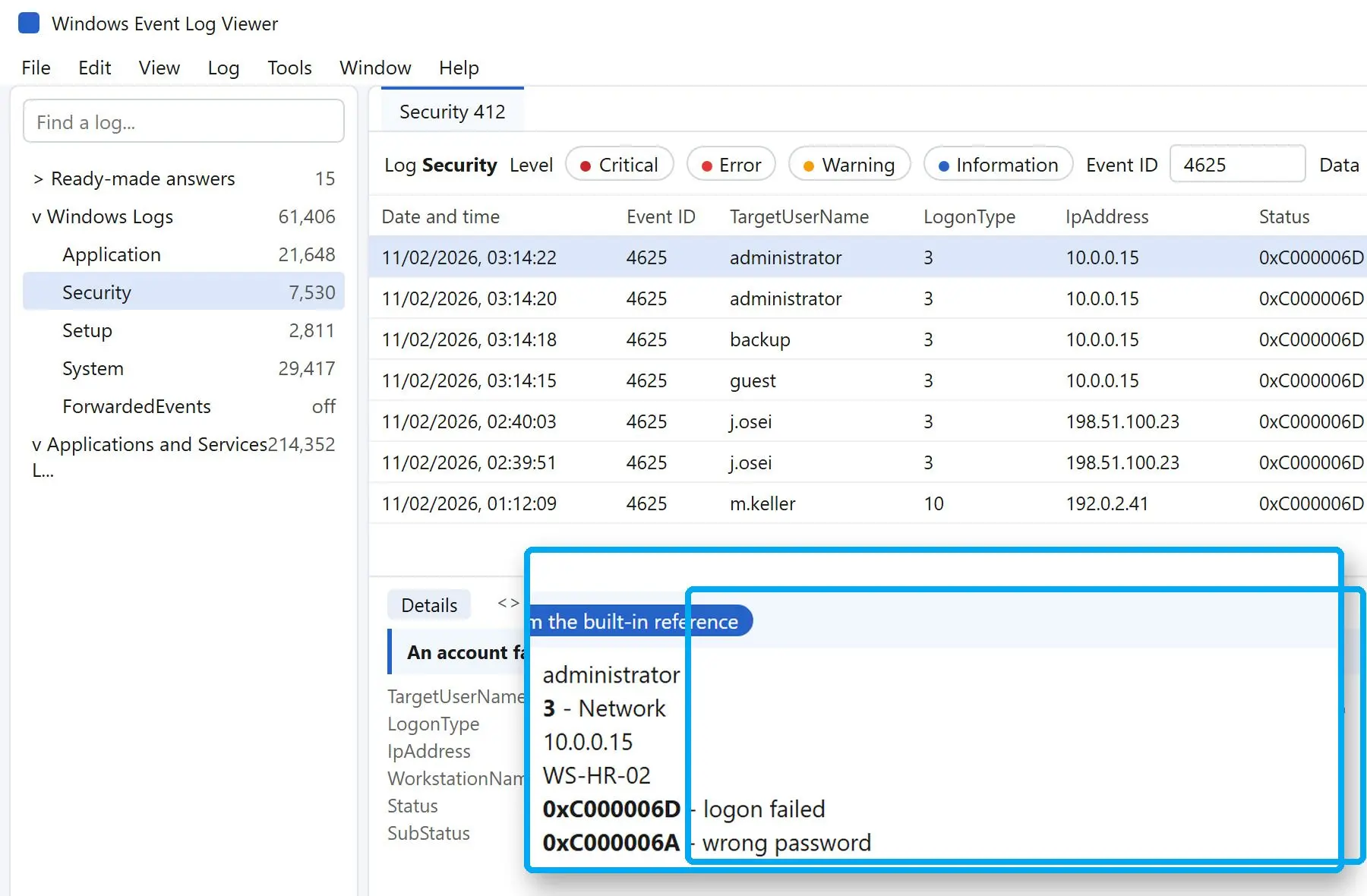
Status gives the broad reason and Sub Status the precise one. 0xC000006D in Status means the user name or authentication data was bad. Sub Status narrows it down: 0xC000006A means a wrong password, and 0xC0000064 an unknown account.
Microsoft's reference for event 4625 lists these common failure codes:
| Code | What Windows means | What to check first |
|---|---|---|
| 0xC000006D | Bad user name or authentication information (generic) | Read Sub Status for the specific reason |
| 0xC000006A | Misspelled or bad password | Saved credentials, a service or task with an old password |
| 0xC0000064 | Misspelled or bad user account | Several in a row can mean user name guessing |
| 0xC0000234 | Account locked out | Event 4740 on the domain controller, then the device that keeps retrying |
| 0xC0000072 | Account disabled by an administrator | Whether the account should still be in use |
| 0xC0000070 | Logon not allowed from this workstation | The "Log On To" restriction on the account |
| 0xC000015B | User not granted the requested logon type | User rights such as "Allow log on through Remote Desktop Services" |
| 0xC000005E | No logon servers available | Network or domain controller reachability |
Sources disagree on 0xC000006D: some pages call it a bad user name; others describe a general failure paired with a more specific Sub Status. Read Sub Status before treating 0xC000006D as "wrong password".
Subject shows the account that requested the logon, often SYSTEM or a service. Look under Account For Which Logon Failed for the user whose attempt failed. Randy Franklin Smith's Security Log encyclopedia explains each field and the full list of failure reasons, from expired passwords to clock skew between the client and domain controller.
What does the logon type tell you in a 4625?
Logon Type shows how the attempt reached the computer. Type 2 is someone at the keyboard, 3 is a network connection such as a shared folder, and 10 is Remote Desktop. Use the number to decide whether to check a person, a server or an exposed RDP port.
Microsoft's table for this event includes more values; these explain most failures:
| Logon Type | Name | Typical source of a failure |
|---|---|---|
| 2 | Interactive | Someone typing at the console or a local session |
| 3 | Network | A mapped drive, shared folder or remote management tool |
| 4 | Batch | A scheduled task running under the account |
| 5 | Service | A Windows service set to log on with the account |
| 7 | Unlock | A wrong password typed on a locked workstation |
| 10 | RemoteInteractive | Remote Desktop or Terminal Services |
| 11 | CachedInteractive | Cached domain credentials used without a domain controller |
Type 3 covers anything that authenticates over the network. One laptop with a stale mapped drive can produce failures every few minutes. For successful network logons, use logon type 3 in event 4624 and how to filter it.
Types 4 and 5 almost always point to software retrying with stored credentials.
How to trace the source IP of a 4625 failure
Read Source Network Address and Workstation Name in Network Information, then Caller Process Name. Windows event 4625 is written on the computer where the logon was attempted: a failure against a file server appears in that server's Security log.
Source Network Address is the IP the bad password came from. On a domain network, use it to identify the device and the person or job using it.
- Copy Source Network Address and Workstation Name from the event
- Check Logon Type against the table above
- Read Caller Process Name; winlogon.exe points to an interactive sign-in at the console
- Check Authentication Package: NTLM or Kerberos tells you which path the credentials took
- Match the time against 4624 on the same machine to see whether a successful logon followed
If the address belongs to another server, search that server too. Scripts using one service account across machines often leave these chains.
Why is Source Network Address empty or "-" in event code 4625?
Windows does not collect the caller's IP on every code path. Some 4625 events show "-", 0.0.0.0 or a blank Workstation Name. An empty field does not tell you where the attempt started.
The official field reference omits this caveat. A Microsoft Azure Security post on missing source information shows a 4625 with Source Network Address 0.0.0.0 and explains that some Windows code paths do not collect the IP.
Workstation Name may be filled even when the IP is missing. Match failure times against firewall, VPN or RDP gateway logs. Logon Type 3 or 10 with user names absent from your domain points to outside traffic.
On servers with RDP open to the internet, blank events are sometimes linked to Network Level Authentication being off. We have not verified that link. Test it by enabling NLA on one server and checking whether subsequent failures include an address.
Is it a brute-force attack or a mistyped password?
A few failures for one account from a known PC usually mean a person or a stale password. Many user names from one source, or one password tried against many accounts, suggest guessing. Microsoft flags several 0xC0000064 failures in a row as a sign of user name enumeration.
Sort by source and account:
- Same account, same PC, Sub Status 0xC000006A, a handful per day: a user or saved credential with an old password; fix the credential
- Same account, failures every few minutes around the clock, Logon Type 3, 4 or 5: stale stored credentials
- Many user names from one IP, mostly 0xC0000064: user name guessing; block the source and check which port it reached
- Many real accounts, each failing once or twice from one source: password spraying as MITRE ATT&CK describes it; reset exposed passwords and review lockout settings
- Logon Type 10 from public addresses: Remote Desktop is reachable from the internet; put it behind a VPN or gateway
A burst of 0xC0000234 afterward means the lockout policy has triggered. It stops guessing on those accounts but also locks out their users. Expect a help desk call for each locked account.
Save the Security log before resetting passwords, rebooting or changing audit settings. Use Save All Events As in Event Viewer and keep the .evtx file. On a busy server, older entries are overwritten as the log fills, erasing the first failures of an attack.
Why does 4625 keep coming back from the same account?
Repeated 4625 events for one user name usually come from software holding an old password. Check scheduled tasks and services, followed by saved network connections and Credential Manager entries. Logon Type tells you where to start.
After a password change, Logon Type 4 points to Task Scheduler, type 5 to a service, and type 3 to a mapped share or another network connection. On the source machine, check tasks and services running as the account, then Credential Manager for saved Windows credentials.
On a workstation, a 4625 with Caller Process Name consent.exe, Logon Type 11 and a NULL SID in Subject usually traces back to an elevation prompt where the cached password did not match. consent.exe handles the UAC prompt. Check local UAC settings before starting incident response.
If an NTLM failure occurs with a password you know is correct, the target may refuse the protocol, such as NTLMv1 after it was disabled. Check Authentication Package before resetting the password again.
Why can't I log in with my domain credentials?
Read Sub Status in the 4625 on the machine you tried. 0xC0000234 means a locked account, 0xC0000072 a disabled account, 0xC000006A a wrong password, and 0xC0000070 a workstation outside the allowed list.
You may be outside the account's allowed logon hours, or its password may have expired. Clock drift between your computer and the domain controller can make Kerberos reject the request. The account may also lack the right to use that logon type, a common reason a regular user cannot access a server through Remote Desktop.
For a locked account, 4740 on the domain controller names the computer that caused the lockout. Check that device for repeated attempts with old credentials, often from a phone or laptop.
How is Windows event ID 4625 different from 4624, 4771 and 4776?
4625 records a failed logon on the target computer; 4624 records a successful one. Domain controllers record Kerberos pre-authentication failures as 4771 and NTLM credential checks as 4776, so a failed domain sign-in can leave records on two machines.
| Event ID | Meaning | Where it is logged |
|---|---|---|
| 4624 | An account was successfully logged on | The computer being accessed |
| 4625 | An account failed to log on | The computer being accessed |
| 4771 | Kerberos pre-authentication failed | Domain controller |
| 4776 | The computer attempted to validate the credentials (NTLM) | Domain controller, or the local machine for local accounts |
| 4740 | A user account was locked out | Domain controller |
Correlate by Logon ID and time. A 4625 followed a minute later by a 4624 for the same account indicates a corrected typo. If no 4624 follows a run of failures, investigate the source.
Sources
- Microsoft Learn: 4625(F) An account failed to log on. Field reference, Logon Type values and failure codes
- Ultimate Windows Security: event 4625. Full list of failure reasons by Status and Sub Status
- Microsoft Azure Security: missing source information. Why Source Network Address can be empty
- MITRE ATT&CK T1110.003 Password Spraying. One password tried against many accounts
- MITRE ATT&CK T1110.001 Password Guessing. How guessing one account differs from spraying many
 Windows Event Log Viewer