 Batch Picture Resizer
JPEG and JPG are the same format. Learn how to convert JPEG to JPG by renaming the extension on Windows or Mac - no quality loss, no upload.
How do I change a .jpeg to .jpg on a Mac?
Click the file name in Finder, press Return, and edit the extension to .jpg. To fix a whole folder, select many files, right-click, and use Rename. macOS keeps the full image intact.
To change JPEG to JPG on a Mac, start by showing the extension, which is sometimes hidden. Select the file and open Get Info with Command-I, then uncheck Hide extension so you can see and edit the .jpeg. Now click the name in Finder, press Return, change .jpeg to .jpg, and confirm with Use .jpg. For many files at once, select them all, right-click, choose Rename, and use the "Replace Text" option to swap jpeg for jpg across the batch. If you would rather re-export than rename, opening the image in Apple's Preview and choosing Export lets you save as JPEG, though for a pure extension fix the rename is faster and lossless.
Will renaming .jpeg to .jpg reduce image quality or break the file?
No. A rename touches only the file name and never the pixels, so there is zero quality loss. Quality drops only if you open and re-save the image in an editor, which re-compresses it.
That fear is what sends people to "safe" converter sites, and it is misplaced. Renaming a file changes a string of text in the file system. It does not decode, re-encode, or recompress a single pixel, so the JPEG data stays untouched. The real danger is the opposite move. Opening the photo in Paint or Photoshop and choosing Save As JPEG re-encodes the image with lossy compression and genuinely degrades it, which is what users mean when they say a file "got worse after I converted it." For a JPEG-to-JPG change, never re-save and only rename.
Does changing the extension delete or change EXIF metadata?
No. Renaming the extension leaves all EXIF and IPTC metadata fully intact, including the shooting date and the GPS location, because it never opens or rewrites the file's contents.
A pure rename modifies only the file name in the directory, and the binary content is never read or rewritten. Your capture date and camera settings survive exactly as they were, and so do any GPS tags it carries. Metadata specialists confirm this in the ExifTool support forum. Where metadata actually disappears is the re-save route again, or some online tools that strip data on export. Renaming is the metadata-safe path.
Is an online JPEG to JPG converter worth it?
For a plain JPEG-to-JPG change, no. Online tools upload your image to a stranger's server, make you wait, and hand back a renamed file, sometimes with a re-encode that quietly lowers quality.
Six of the top results for this search are upload-and-download web tools that present a rename as a "conversion." For this specific task they add cost and risk without any value. Your photo leaves your computer and sits on a third-party server, and you wait for a round trip to do something a right-click does instantly. Some of those tools also re-encode the image during "conversion," which can shave quality off a file that needed nothing done to it. The honest reasons to ever use one are narrow. Maybe you are on a locked-down work machine where you cannot rename files, or you are on a phone with no easy file manager. Otherwise the local rename wins on speed and privacy every time.
When you actually need a real converter
You need a true converter only when the source is a different format such as camera RAW or iPhone HEIC going to JPG. That is a genuine re-encode, and a desktop batch tool handles dozens of files offline.
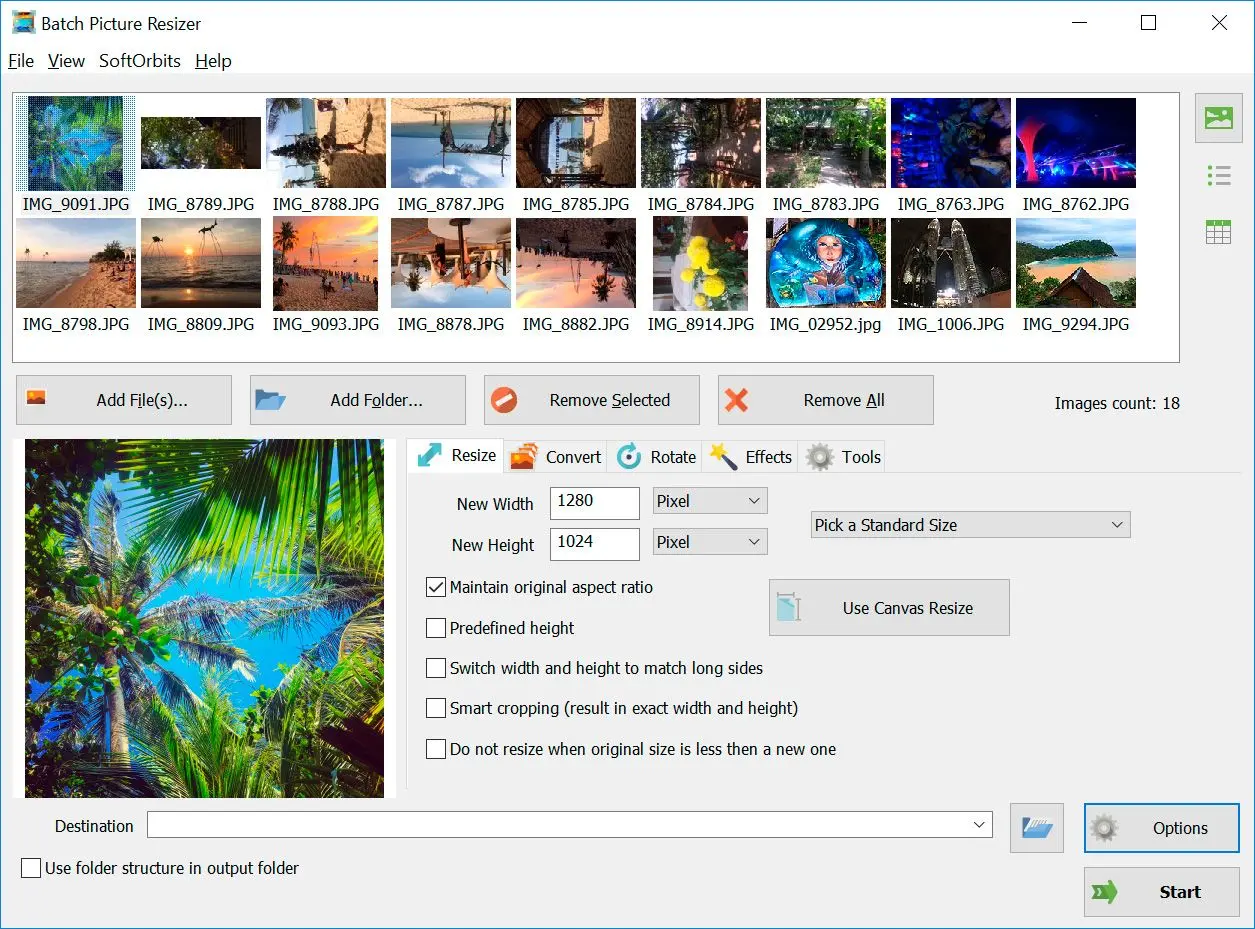
Drawing this line saves a lot of confusion. A rename works when the file is already a JPEG and only the extension is wrong. A real conversion is needed when the bytes inside are a different format that has to be re-encoded into JPEG. Think of a Canon CR2 straight off a camera. An iPhone HEIC photo counts too, and so does a layered Photoshop PSD or a print-ready TIFF. For those, a desktop tool such as Batch Picture Resizer processes a whole folder offline and gives you a quality slider before export. Nothing is uploaded, and a batch of two hundred photos finishes in one run.
The table below maps the format you actually have to the guide that handles it, so you land on the right walkthrough instead of a generic converter:
| Your situation | What to do |
|---|---|
| File is .jpeg, a form wants .jpg | Rename the extension (this guide) |
| Camera RAW (CR2, NEF) to JPG | RAW to JPG converter |
| iPhone HEIC to JPG | HEIC to JPG converter |
| Camera DNG to JPG | DNG to JPG converter |
| Print-ready TIFF to JPG | TIFF to JPG converter |
Pitfalls when converting JPEG to JPG format
Most JPEG-to-JPG trouble comes from hidden extensions, re-saving instead of renaming, or mixing up the shell command. Each one is easy to avoid once you know the trap.
Rename with extensions hidden and you get image.jpeg.jpg, which opens in nothing. Windows hides known extensions by default, so turn on File name extensions before you rename. The same hidden-extension confusion surfaces when people try to change the extension in Microsoft Q&A threads.
If you open the photo and export it again, the editor re-compresses the pixels and shaves off quality you did not need to lose. For a JPEG-to-JPG change you never open the image, you just edit its name. The same confusion about whether the two are even different formats fills Quora threads.
The ren *.jpeg *.jpg shortcut works in Command Prompt, not PowerShell. Match the command to the shell or you will get a "not recognized" error, the kind of bulk-rename mix-up people sort out in Microsoft Q&A threads.
When a site rejects .jpeg, it almost always just wants the .jpg extension. Try a rename first before reaching for any converter, because that is usually the whole fix. People burn time hunting for converters over this in Tom's Guide forum threads.
Because the image data is untouched, the preview and the file size stay the same after a rename. That is correct behavior, not a sign the rename failed.
Batch Picture Resizer
Sources