Offline and private: which alternatives keep your voice on your PC
TL;DR
Four picks run recognition locally: SayOnce and Dragon do it out of the box, Talon runs its engine on-device, and Superwhisper can with local models. Wispr Flow, Otter.ai, Google Docs, and Win+H itself all send audio to a server.
The single biggest reason to leave Win+H is that it has no offline mode at all, so if keeping your voice on the machine matters, the shortlist narrows fast. SayOnce processes speech locally out of the box and is built specifically for the private, paste-anywhere flow. Talon runs its engine on-device, Superwhisper can load downloadable models instead of calling the cloud, and Dragon Professional is fully offline too, just in a pricier bracket. The cloud tools here, Wispr Flow, Otter.ai, and Google Docs voice typing, cannot match this, and neither can Win+H. If you also need to turn recordings into text without uploading anything, a local batch transcriber covers that, the same job we walk through in our guide to transcribing video to text.
One-time purchase vs subscription: what you actually pay
TL;DR
SayOnce and Dragon are one-time purchases. Talon and Google Docs are free, and Win+H is free too. Wispr Flow bills monthly, and Superwhisper and Otter.ai sit in the middle with free tiers plus paid plans.
Price model matters more than the sticker number when you dictate every day. Win+H, Google Docs voice typing, and Talon's base tier cost nothing, though the first two trade that for cloud processing and the third for a steep setup. Among the paid tools, SayOnce and Dragon Professional are straight one-time purchases, with Dragon at the high end around $699 on reseller listings and SayOnce far more affordable. Wispr Flow is subscription-first at roughly $15 a month, which adds up to about $180 a year, and Superwhisper and Otter.ai each hand you a free tier before their paid plans. The math is simple. Dictate daily for years and a one-time offline tool usually wins on total cost, while a subscription makes sense only when you want continuous AI cleanup and device syncing and are fine paying for it.
Also considered: tools we left off the top seven
TL;DR
Three more come up in these searches. Voice Access, VoiceTypr, and OpenWhispr each fit a narrower reader than the seven above, and here is the honest reason for each.
Seven picks is a shortlist, not the whole market. These are the tools we tried or read up on and left off, with the reason each dropped for a Windows user leaving Win+H:
Voice Access. The other built-in tool, and unlike Win+H it runs on your machine offline once a language pack is downloaded. But it is built around spoken commands rather than clean writing, and it covers only about 15 locale variants, so it is a narrow fix rather than a general dictation upgrade.
VoiceTypr. A one-time, offline-by-default dictation app that answers subscription fatigue well. It stayed off the main list only because it is a newer, smaller vendor with a thinner review trail than the names above, not because the pitch is wrong.
OpenWhispr. Free, open-source, and MIT-licensed, it runs local Whisper or Parakeet models on your machine and phones home only if you hand it a cloud API key. The cost is your time, since setup is a do-it-yourself affair with no formal support, so a non-technical reader will bounce off it.
How to choose the right Windows Voice Typing alternative
TL;DR
Match the tool to who you are. We sketch four honest profiles below, from the privacy-first professional to the free-only user, and each one lands on a specific pick so the choice makes itself.
The shortest way through this is to find the profile that sounds like you and take the pick attached to it.
The privacy-first professional handling legal, medical, or client audio on Windows. Offline is non-negotiable, so the cloud tools and Win+H are out from the start. SayOnce sits at the top here for everyday dictation, with Dragon as the long-form specialist if you dictate book-length documents and money is no object.
The subscription-tired daily dictator who just wants to pay once. A one-time offline tool like SayOnce pays for itself inside a year against Wispr Flow's monthly bill, and you get the paste-into-anything flow Win+H fumbles.
The developer with a repetitive-strain injury who needs hands-free control, not just text. Talon is the tool built for that, learning curve and all, and it runs its engine locally so privacy comes along for free.
The free-only user who will not pay anything. Try Win+H first, since it is already on your PC, then Google Docs voice typing for documents and OpenWhispr if you are technical and want offline and open-source. If none of those hold up, that is your signal that a one-time tool is worth the small outlay.
For a wider look at the whole category, our roundup of the best dictation software ranks these and a few more side by side. And for everyday typing inside Windows apps, it is the same idea as dictating voice to text in Word, where a local tool keeps that text private.
SayOnce - Voice Dictation Software
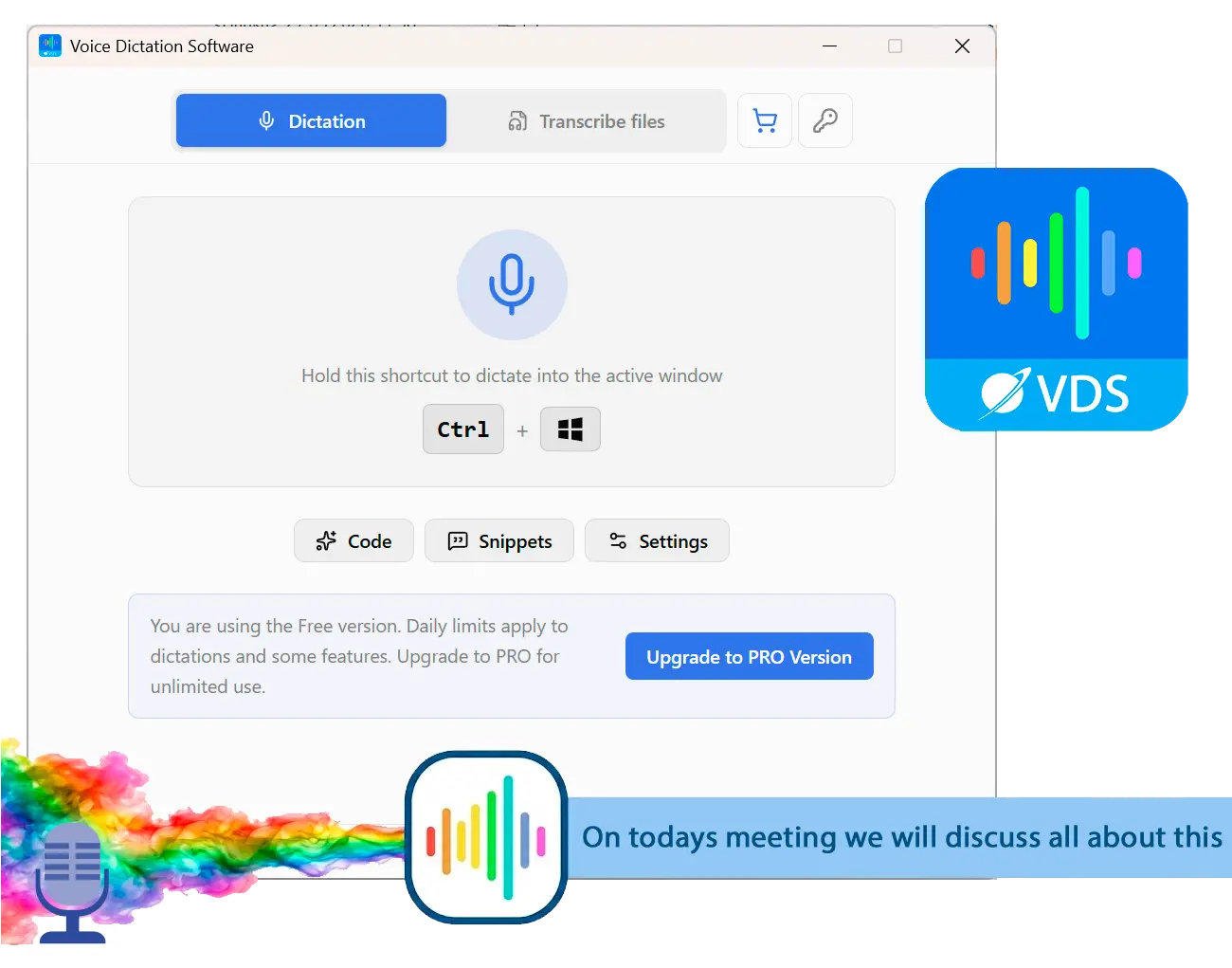
Voice to Text Dictation Software for Windows allows you to input text 4x faster. Just hold a hotkey and speak instead of typing text. Convert your audio and video files into text for quick reading.
Windows Voice Typing (Win+H) needs the cloud and mangles names. Here are 7 offline, cross-app alternatives to Windows voice typing, tested and ranked with honest pros and cons.
For offline, private dictation that pastes into any app, SayOnce is our pick, since it runs recognition on your machine and costs a single payment. If you want AI cleanup and do not mind the cloud and a subscription, Wispr Flow is the polished option instead.
No. Microsoft's documentation states that Win+H voice typing needs an internet connection and sends your audio to cloud speech services. For offline dictation, use an on-device tool like SayOnce, Dragon, or Talon, or the separate built-in Voice Access, which runs locally after a first-time language download.
The on-device tools do the recognition on your machine rather than a server. SayOnce, Dragon, and Talon run locally, and Superwhisper can with its local models. The cloud tools, Wispr Flow, Otter.ai, and Google Docs voice typing, all send your audio off the device, and so does Win+H.
Yes. Google Docs voice typing is free inside Chrome, Talon Voice is free at its base tier, and OpenWhispr is free and open-source but needs a technical setup. The built-in Voice Access is free too and runs offline, though it covers only about 15 locales and centers on voice commands.
Win+H uses a fixed cloud vocabulary that cannot learn your terms, so names it misses stay wrong, and users report on Microsoft's Q&A that the auto-punctuation setting does not always persist between sessions. Dedicated tools fix both with a personal dictionary and their own punctuation cleanup, either rules-based and local like our presets or AI-based in the cloud.
Yes for the dedicated tools. SayOnce and most paid alternatives paste text into the window you are working in, including code editors and terminals, from one global hotkey. Google Docs voice typing is the exception, since it works only inside a Google Doc in Chrome.
On raw recognition after training, Dragon is still the benchmark, while for everyday speech the modern engines are close and most people will not notice a big gap. The real split is punctuation: rules-based cleanup like our presets applies it locally and instantly, and AI cleanup like Wispr Flow's reads more naturally at the cost of sending your audio to a server.
Dictation tools paste live speech into a window, while meetings usually want a recorder plus a transcriber. Otter.ai, a local batch transcriber, or a dedicated meeting tool suits that job more than a live dictation hotkey.

 SayOnce - Voice Dictation Software
 SayOnce - Voice Dictation Software