Main Features of Dragon Professional
Dragon Professional v16 gives you speaker-adaptive dictation into any Windows app, custom voice commands and macros, a custom vocabulary, single-speaker audio file transcription, and accessibility tools. It needs Windows 10 or 11, at least 4GB of RAM, and an internet connection for activation.
Everything below comes from official Nuance data sheet for v16, not from a marketing round-up.
your words land in the document or the form-based report you already have open, not in a scratch text box you copy out of.
custom commands that insert boilerplate or a signature, plus multi-step macros. In an enterprise setup they can be shared across a team through Nuance Management Center.
add industry terms and acronyms so Dragon stops mangling the terms of your trade.
the engine adapts to one trained speaker's voice over time, which is the mechanism behind Dragon's accuracy reputation.
turn a recorded audio file into text. The data sheet is explicit that this handles a single speaker only, so it is not a meeting transcriber.
point it at a folder of recordings and it batch-transcribes them.
customizations such as Auto-Text carry over to the separate Dragon Anywhere app on iOS and Android.
Mouse Grid across multiple monitors plus macro-based navigation for users with limited mobility. Dragon can also play your dictation back in your own voice.
PowerMic 4 support, Citrix deployment and central license administration.
The system requirements are modest on paper. Windows 10 or 11, a 4GB RAM minimum, 8GB of free disk. One detail is easy to miss. The download and the activation need you to be online, so "offline" here describes the recognition, not the install.
Pricing and Performance Review
Nuance no longer publishes a price on its own page and routes you to a contact form. Third-party trackers put Dragon Professional Individual v16 at $699.99 one-time. The vendor claims 99% accuracy from first use, while verified reviewers report closer to 90% out of the box and around 95% with a trained profile.
Start with the price. It is what most people came for. The official Dragon page does not show a price. You are asked to contact sales. The $699.99 figure comes from third-party pricing trackers rather than from Nuance, and it is worth knowing that before you quote it to a finance team. The pricing breakdown at getvoibe lists $699.99 one-time for the Windows desktop edition as of July 2026, with upgrades from older versions around $299 to $399. An independent Dragon software review at Typing Lounge arrives at the same $699 ballpark.
| Edition | Price | Notes |
|---|---|---|
| Dragon Professional Individual v16 | $699.99 one-time (third-party listing) | Windows only; the cheapest desktop edition still sold |
| Dragon Home | Discontinued in 2023 (was roughly $150-200) | The consumer entry tier no longer exists |
| Dragon Legal Individual | Around $799 one-time | Legal vocabulary, same desktop engine |
| Dragon Anywhere Mobile | $14.99/mo or $149.99/yr | iOS and Android only, not a desktop license |
| Dragon Professional Anywhere | Subscription, price not disclosed | Cloud sibling; the official page has no price, only a contact form |
Upgrade costs are the part buyers underestimate. One verified Capterra reviewer writes that they "paid over $500 for what I was told was a plan that would include free upgrades" and later found that support cost another $200. A user of nearly three decades put it more bluntly on Reddit, saying they got sick of paying for upgrades and of dealing with serial numbers.
Now accuracy. Marketing and reviews do not agree here. Nuance's data sheet promises dictation "3 times faster than typing" with "99% recognition accuracy, right from the first use." That is a self-reported vendor claim with no independent benchmark behind it. The verified reviews on Capterra tell a calmer story. One reviewer writes that "with an above average microphone, its accuracy is easily about 95% and likely 90% right out of the box." The 99% ceiling is reachable, but it arrives after training and a decent microphone, not on day one.
Speed and stability are the other half of performance. Dragon is heavy. Typing Lounge calls it resource-intensive and recommends 8GB and a quad-core processor for comfortable use, double the official minimum. Capterra reviewers report that "after long stretches, it tends to slow and crash. Save early save often." Budget for a machine with headroom, not for the spare office laptop you were hoping to use.
Editing and navigating a document entirely by voice, which no cheaper Windows tool does
Custom vocabulary and macros that adapt to specialist work
Recognition happens on your PC, so dictation does not stream to a cloud service
Strong accessibility story for users who cannot rely on a keyboard
$699.99 one-time, and Nuance does not publish that price on its own page
Accuracy out of the box is nearer 90% than the advertised 99%
Resource-hungry, and reviewers report slowdowns and crashes in marathon sessions
Upgrades and support cost extra on top of a perpetual license
Run the installer and let the product activate. Activation is anonymous, but the machine has to be online, so you cannot set Dragon up on an air-gapped PC.
The New User Profile Wizard asks for a profile name, your age group and the region or language you write in. Those answers set the vocabulary, spelling and auto-formatting rules Dragon will use, so pick the region you actually write for.
Point the profile at the microphone you will really use. A headset or a decent USB mic makes bigger difference to accuracy than any setting in the app.
Read the training text aloud so Dragon adapts to how you speak. Skipping this is the most common reason why people conclude Dragon is inaccurate.
Run Accuracy Tuning and Add Words from Documents. Dragon scans files you already wrote and pulls your vocabulary and phrasing into its language model.
Put the cursor where the text belongs, turn the microphone on, and speak naturally. Dragon converts speech to text in the active app in real time.
Use the correction commands rather than retyping. Every correction feeds the profile, so the next session is better than this one.
That command lists the voice commands available in whatever app you are in right now, which is the fastest way to learn the command layer.
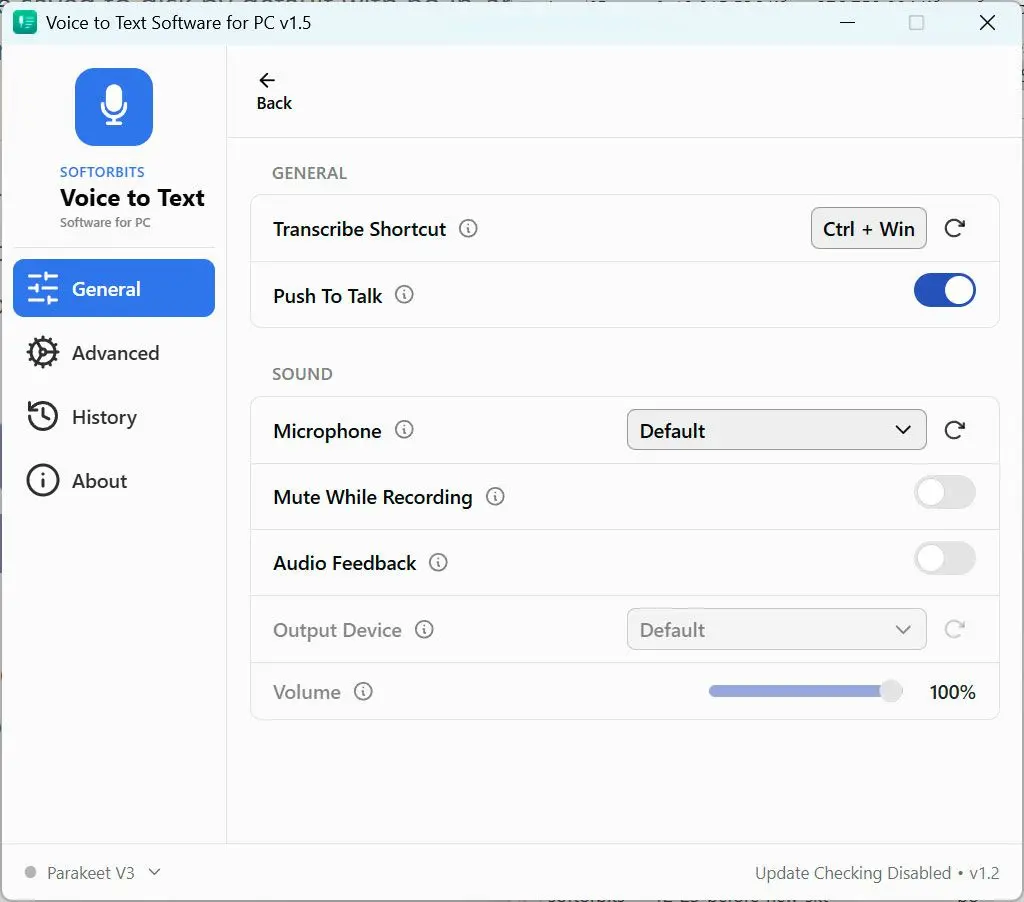
Voice to Text Dictation Software for Windows allows you to input text 4x faster. Just hold a hotkey and speak instead of typing text. Convert your audio and video files into text for quick reading.
Is Dragon NaturallySpeaking discontinued?
No. Dragon Professional v16 is still on sale for Windows. But Dragon Home was discontinued in 2023, the Mac version died in 2018, and the last data sheet Nuance published for the desktop product is dated December 2022. The product is frozen rather than dead.
The discontinuation question is the one the search results handle worst, so here is the plain answer. You can still buy Dragon Professional Individual v16 for Windows today. Nobody has pulled it from sale. What has happened is quieter and, for a buyer, more relevant.
The consumer edition is gone. Dragon Home, the roughly $150 to $200 tier that most private buyers actually wanted, was discontinued in 2023, which is why the entry point to desktop Dragon now costs $699.99. Dragon for Mac was discontinued back in 2018, and no Dragon product runs natively on macOS today. On an r/ChronicIllness thread, someone who had relied on Dragon for fourteen years because of chronic pain described calling Nuance, being told "Dragon for Mac was discontinued last year," and reacting with a flat "Ugh!"
Meanwhile the Dragon brand itself is very much alive, just somewhere else. Microsoft is putting the name on Dragon Copilot, an AI clinical assistant for hospitals, and that is the line clinicians should watch. If you are a writer, a lawyer, a developer or anyone else on a normal Windows desktop, you are looking at software the vendor has stopped developing for you.
Where Dragon falls short
The real weak points in 2026 are a live Windows 11 bug with Word, no Mac support, a steep command learning curve, crashes in long sessions, and paid upgrades on top of a perpetual license. None of them are fatal on their own. They stack.
The bug first, because it is current and it affects the most common setup there is. On Microsoft's own Q&A, a user reports that Dragon "will recognise the dictation (it appears in a recognition history) but for some reason the text (or part of it) will not appear in word" on Windows 11 with Microsoft 365. A Microsoft community moderator points at a compatibility issue between Word and Dragon dictation and sends people to Dragon support; more than ten users have marked the same thread with the same symptom. Buying $699.99 dictation software that intermittently refuses to put words into Word is a hard thing to defend.
Before you buy, test Dragon against the exact app you dictate into most, on the exact Windows build you run. The recognized-but-not-inserted problem in Word on Windows 11 is reported on Microsoft Q&A by more than ten users and has no fix posted, and it is the kind of fault that only shows up after your refund window closes.
The accuracy complaints are more nuanced than "it does not work." Dragon is good once trained. Getting there takes effort, and for some people it never gets there. A long-time user with muscular dystrophy, ten years into using Dragon daily, put it this way on r/speechrecognition. "I've always been astounded by its sluggishness and inaccuracy; even when I attempt to speak as clearly and slowly as possible, many words still get dropped." Speech that deviates from the training model is exactly the case Dragon is marketed for. It is also where it disappoints hardest. In that same discussion, other users pushed the poster toward cheaper modern tools.
Then there is the learning curve. As a Capterra reviewer puts it, "there is a challenging learning curve and one must learn many voice commands in order to edit using voice." The command layer is powerful, and it is also a language you must learn before the product pays back. Most people who quit Dragon quit in the first week, before the profile has had a time to adapt.
Finally, the platform. Dragon is Windows only. There is no Mac build and no Linux build, and the mobile app is a separate subscription. If your work moves between machines, Dragon does not move with you. People in that position usually end up on browser tools or the free built-in option, and our roundup of Windows voice typing alternatives walks through what that trade actually costs.
Best alternative: SayOnce for offline Windows dictation
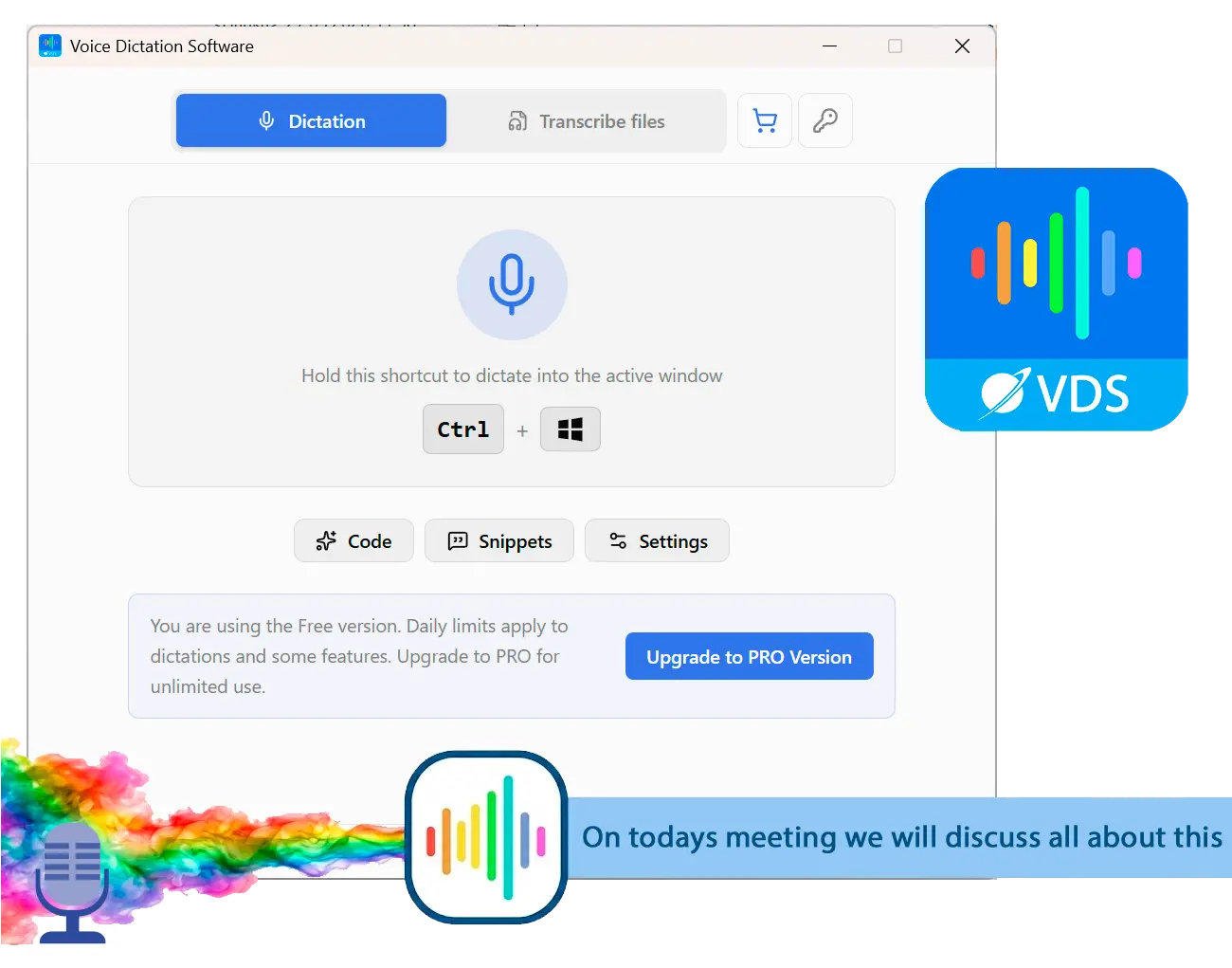
SayOnce is a $49.99 one-time Windows dictation tool: hold Ctrl+Win, speak, and the text lands at your cursor in any app. Recognition runs on your PC with a local model, with no profile training and no subscription. It has no voice commands, so it replaces Dragon only if dictation is all you needed.
SayOnce solves a narrower problem than Dragon, and it solves it for $49.99 once. You hold a global hotkey, which is Ctrl+Win by default, you speak, and the text lands at your cursor in whatever window is focused. Word, Slack, a bug tracker, your IDE. There is no profile to train, no wizard, and no reading a training script out loud before you can start.

Recognition runs on your own PC using a local NVIDIA Parakeet model of about 478 MB, downloaded once on the first run. After that, your speech does not leave the machine to be transcribed. It is CPU-first, so no GPU is required, and the installer is around 12 MB. SayOnce covers 25 recognition languages and 20 interface languages. Rules-based presets for prose, code and email fix punctuation, capitals and filler words as you dictate. There is a personal dictionary for your own terms, snippets that expand a trigger phrase into a block of text, and a batch queue that turns recorded audio and video files into plain text.
Install, activate online, create a profile, pick your age group and region, run General Training, then run Accuracy Tuning on your own documents before the accuracy gets good.
Install, wait once for the model to download, hold Ctrl+Win, and talk. The text appears where your cursor already was.
SayOnce is not a Dragon replacement for everybody.
Types into any Windows app at the cursor, with no wizard and no voice training
One payment of $49.99 rather than $699.99, and no upgrade treadmill
A 12 MB installer that runs CPU-first, so an office laptop with no GPU is enough
Transcribes a queue of recordings, not just live speech
No voice commands and no editing by voice; out of scope in v1
Windows 10 and 11 only, with no Mac or Linux build and no mobile app
25 recognition languages, and no specialist medical or legal vocabularies
Presets are rules-based, so they tidy punctuation and filler but do not rewrite what you said
Dragon vs SayOnce
Dragon Professional costs $699.99 on third-party listings and gives you voice commands, macros and editing by voice after profile training. SayOnce costs $49.99, starts dictating on the first run, and has no command layer. Pick Dragon if you drive the computer by voice; pick SayOnce if you only want your words typed for you.
Both of these are Windows desktop tools you buy once, not rent. The similarity stops there. Dragon is a voice-control platform with dictation inside it. SayOnce is dictation, and nothing else.
| Feature | Dragon Professional v16 | SayOnce |
|---|---|---|
| Price | $699.99 one-time (third-party listing; no price published by the vendor) | $49.99 one-time, home license |
| Voice commands and editing by voice | Yes, deep command and macro layer | No, not in v1 |
| Voice training required | Profile creation plus General Training | None, dictate on first run |
| How you start dictating | Microphone toggle, per app | Global hotkey (Ctrl+Win) into any app |
| Where recognition happens | On your PC; activation needs internet | On your PC; model downloaded once |
| Recognition languages | Varies by edition and vocabulary | 25 |
| Custom vocabulary | Yes, plus shareable enterprise word lists | Personal dictionary and snippets |
| Audio file transcription | Yes, single speaker only | Yes, batch audio and video to text |
| Platform | Windows 10/11 only, Mac discontinued in 2018 | Windows 10/11 only |
| System requirements | 4GB RAM official minimum; reviewers suggest 8GB | CPU-first, no GPU required |
The table is a fork in the road, not a scoreboard. If you spend your day telling a computer what to do, and the dictation is only one part of that, Dragon earns its price and there is no real substitute. If you spend your day writing and you only want your words to appear where you are already typing, most of what you are paying Dragon for is machinery you will never switch on.
When Dragon is still the better pick
Dragon wins whenever the voice has to do more than dictate. Editing and navigating by voice, custom macros and specialist vocabularies are all things Dragon does and SayOnce does not. So is running a PC without hands.
We would be lying if we said Dragon has been overtaken across the board. It has not. There are four cases where it remains the right answer, and three of them are cases where our own product does not compete.
If you cannot use a keyboard or a mouse, Dragon is not a productivity upgrade, it is access. Mouse Grid, voice navigation, playback of your own dictation, and macro-driven control add up to a way of running a PC without hands. SayOnce has a hotkey and a microphone. Different category of tool.
If you edit by voice, Dragon has no peer on Windows. Selecting a sentence, then deleting a paragraph and correcting a word without ever touching the keyboard is a real workflow that real people rely on, and it is exactly what our tool leaves out. If you work in a specialist vocabulary, Dragon lets you load your terms and share word lists across a team, which is why law firms and clinics stuck with it. And if your organization needs central license administration or Citrix deployment, no $49.99 desktop app is going to fill that hole.
Dragon lost the argument on price and on momentum, not on capability.
Other Dragon alternatives we also considered
Windows Voice Access is free and built in, and it recognizes speech on the device, but it has no custom vocabulary and no batch file transcription. Otter.ai is excellent at meetings and wrong for dictation. Braina is a cheaper desktop option with its own accuracy claims. None of them replicate Dragon's command layer.
Dragon is not the only Windows dictation tool worth naming, and the alternatives split by what they are for. Here is what else we looked at and why each landed where it did.
If you want the whole field side by side rather than a single swap, our roundup of the best dictation software for Windows compares the offline and cloud options together, and our guide to voice to text software for Windows goes deeper on accuracy.
Sources