
 SayOnce - Voice Dictation Software
Voice to Text Dictation Software for Windows allows you to input text 4x faster. Just hold a hotkey and speak instead of typing text. Convert your audio and video files into text for quick reading.
Pricing and Performance Review
The price is zero and there is no paid tier, so the only real question is performance. Reviewers put Win+H around 85 to 90 percent on clear conversational English, and accuracy drops on accents, room noise and specialist vocabulary. The cleanup pass is what you actually pay with.
Pricing takes one line. Windows Voice Typing costs nothing and ships with Windows 10 and 11. There is no license key to buy and no paid tier to upgrade to. Nothing expires, because there is no trial. On cost nothing beats it. Most people stop looking right there.
Performance is the interesting part. A figure of 85 to 90 percent accuracy on conversational English shows up repeatedly across independent reviews of the feature. What none of those reviews publish is a methodology, so we treat it as a rough industry consensus rather than a benchmark. Read those reviews closely and the number only ever covers plain prose from a clear speaker in a quiet room. Product names and code are a different story.
The failure modes are consistent and easy to reproduce. As one review of built-in Windows dictation puts it, "accuracy drops noticeably with accents, technical vocabulary, background noise", and non-native speakers see a meaningful drop. That is not a niche complaint. On the Microsoft Tech Community forum, in a thread about the best voice-to-text tools for Windows, users say the same two things. Recognition accuracy is greatly affected by accents, and the tool struggles with complex sentences and jargon.
Punctuation is its own category of pain. A PCWorld writer who dictated an entire article with the built-in tool found that a long pause gets read as a period and starts a new sentence, and that fixing homophones by voice is trial and error. The polish stays manual. Dictating code is worse again. VoxBooster's teardown of Win+H calls voice typing plus code a notoriously rough combination, and the reason is structural. There is no way to teach Win+H a vocabulary. Paid dictation software for Windows usually lets you add custom terms. Win+H does not, so the jargon stays broken.
Costs nothing, ships with the OS, needs no account
One shortcut works in every text field on the system
Automatic punctuation and voice commands out of the box
43 languages, far more than Microsoft's on-device alternative
Needs an internet connection for every word; there is no true offline mode
Audio is processed in Microsoft's cloud, not on your PC
Accuracy drops on strong accents, a noisy room and specialist vocabulary
No custom vocabulary, so a misheard name stays misheard forever
No file transcription and nothing to format the output with
Open Notepad, or Word, or the search box in your browser, and click where the words should land. Voice typing types at the caret, so if nothing is focused, nothing happens.
Use the physical shortcut, or tap the microphone key on the touch keyboard. A small floating panel appears near the bottom of the screen.
Do not start talking until the panel shows Listening.... Speaking too early is the most common reason the first few words vanish.
Talk at a normal pace in complete phrases rather than word by word. The recognizer depends on surrounding context, so isolated words are guessed worse than sentences.
With auto-punctuation on, commas and periods appear on their own. With it off, say the marks out loud, such as "comma" and "period".
Say Delete that or Erase that to drop the last phrase, Select that to highlight it, Undo that to revert. For keys, say "Press Enter", "Press Backspace", "Press Tab" or "Press Space".
The gear on the panel holds the auto-punctuation toggle and the profanity filter. It also picks the default microphone and sets how long the tool waits before it stops listening.
Say Stop listening or press the microphone button again. The panel closes and your text stays where you dictated it.
Voice to Text Dictation Software for Windows allows you to input text 4x faster. Just hold a hotkey and speak instead of typing text. Convert your audio and video files into text for quick reading.
Where does Windows Voice Typing fall short?
Three limits are structural rather than bugs. Recognition runs in Microsoft's cloud, so no connection means no dictation. There is no custom vocabulary, so specialized terms never improve. And the punctuation is guessed from your pauses, which is why a long session ends in a manual cleanup pass.
Start with the connection. This is not a corner case, it is the design. Microsoft's help page says it in one sentence. "Voice typing uses online speech recognition, which is powered by Azure Speech services." Every phrase you dictate leaves the machine, gets recognized on a server, and comes back as text. On a train with patchy signal, on a plane, or on a locked-down corporate laptop with restricted outbound traffic, the feature simply does not work.
Win+H is not on-device dictation. Your audio travels to Microsoft's Azure speech servers on every session. For a shopping list that is irrelevant. For client notes, medical details or anything under an NDA, it is worth knowing before you press the shortcut.
The dependency also makes the tool fragile in ways that are hard to predict. Users report sessions that quit listening in the middle of a sentence and have to be restarted, which is what turns a five-minute dictation into a fifteen-minute one. Browser dictation does the same thing. Our SpeechTexter review found the same pattern in a browser tab: free and convenient right up to the moment the connection wobbles.
Then there is the vocabulary limit. Win+H cannot learn. There is no dictionary you can feed it, no way to add "Kubernetes" or a client's surname or a drug name, and no correction loop that makes it smarter next week. VoxBooster puts the technical-writing case bluntly: you will spend more time correcting than you saved by dictating. If you write about your own product all day, you hit that in the first paragraph.
Complaints are easy to find once you look. A user on r/windowsapps, hunting for a locally hosted replacement, wrote that they were using native voice typing (Win+H), but the accuracy is low and it feels slow. And in a practical comparison of Windows speech-to-text options, one writer noted that correction overhead starts to add up as sessions get longer, with no single tool winning every workflow. Win+H is fine for two sentences. Two pages is a different job.
Voice Typing vs Voice Access vs Windows Speech Recognition
Windows ships three different speech features and people mix them up constantly. Voice Typing is cloud dictation into a text box. Voice Access drives the whole PC on-device but covers only four languages. Windows Speech Recognition is the local legacy system, still around but no longer the focus.
This confusion is the single most common thing we see in forum threads, and it matters, because the answer to "does Windows dictation work offline" depends entirely on which feature you mean.Voice Typing (Win+H) is what this review is about. It dictates text into whatever field has the cursor. It is cloud based, it needs the internet, and it covers 43 languages.
Voice Access is the accessibility feature added in Windows 11 22H2. It does far more than dictate. It can open apps, click buttons and scroll pages by voice, and it runs on-device with no internet connection at all. That sounds like the answer to the privacy problem, and for some people it is. The catch is language coverage.
Quality is the other catch. In a roundup of Windows speech alternatives, Voice Access is described as producing "mistyping, shaky punctuation and capitalization, and accuracy that lags behind iPhone or Apple dictation". The same piece sums up the local trade-off in one line: the privacy was right, the accuracy and the maintenance were not. The built-in local option exists. You pay for it in languages and in accuracy.
Windows Speech Recognition (WSR) is the legacy system that predates both. It is fully local and gives voice control of the PC, but its recognition quality is dated and Microsoft has clearly moved on. It is still buried in some builds, and a handful of power users still prefer it, though it is not where the platform is going.
Microsoft's stack makes you choose: 43 languages in the cloud, or 4 on your PC. No built-in option gives you both.
Best alternative for offline dictation: SayOnce
SayOnce runs the speech model on your own PC, so dictation works with no internet. It types into any Windows app at the cursor, cleans up formatting with rules-based presets, and transcribes recordings. It is Windows-only and it is paid.
SayOnce goes straight at the two things that push people off Win+H. It is offline voice dictation for Windows that behaves like the built-in tool in the ways you liked and differs in the ways you did not.
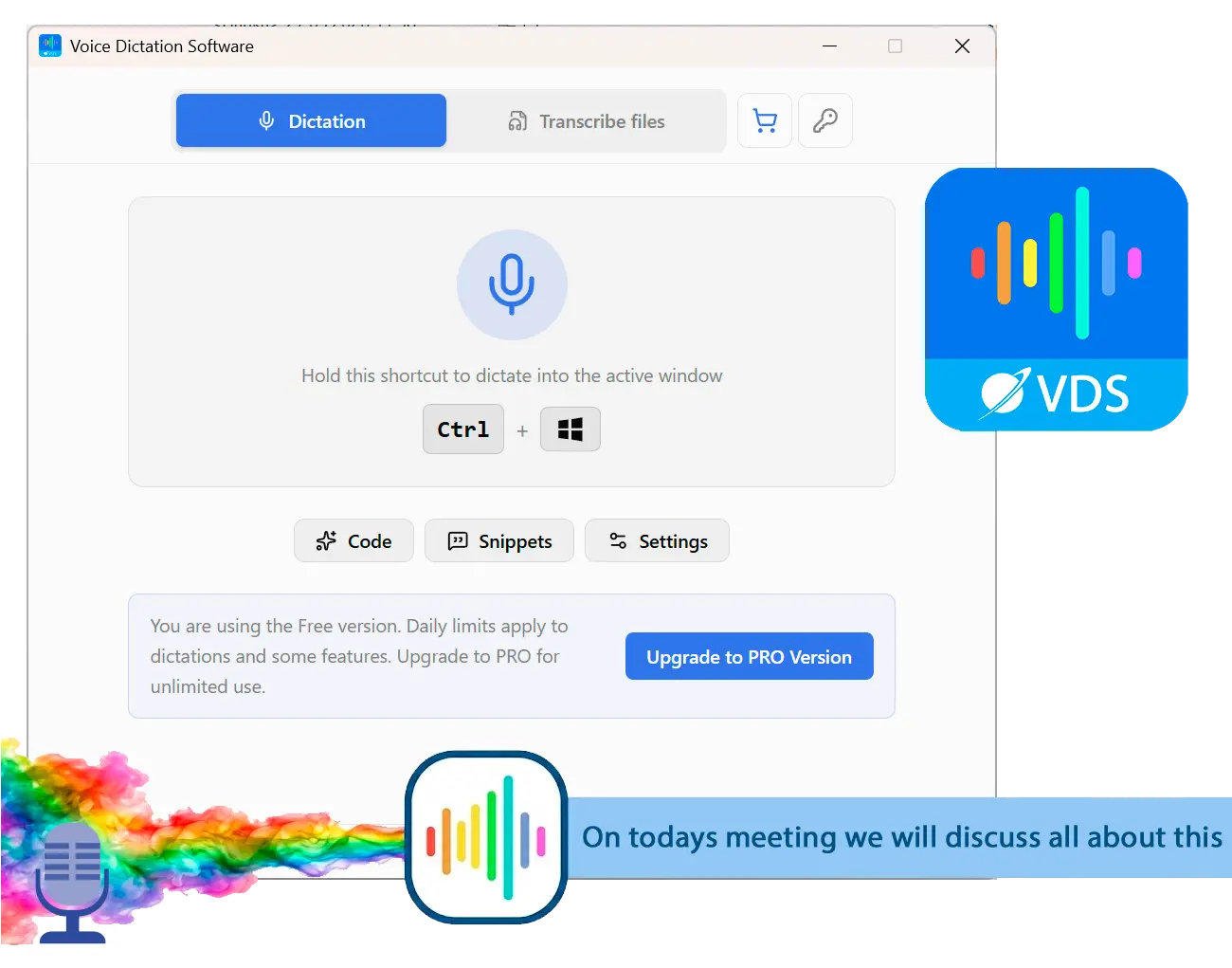
The workflow has the same shape as Win+H. You hold a global hotkey, Ctrl+Win by default, speak, and the text appears at your cursor in the active window. There is no separate window to dictate into. Nothing to copy out. What changes is what happens under that hotkey. Recognition runs on an NVIDIA Parakeet model that lives on your disk, about 500 MB, downloaded once on first run. It is CPU-first, so no graphics card is required.

SayOnce also fills the gaps that Win+H leaves empty. Rules-based presets for prose, code and email clean up punctuation, capitals and filler as you dictate, which is exactly the manual pass you do by hand after every Win+H session. A personal dictionary handles the names and jargon that the built-in tool will never learn. Snippets expand a trigger phrase into a block of boilerplate. Batch mode turns audio and video files into .txt. Win+H does not attempt this at all. The license is a one-time payment rather than a subscription, listed at about $49.99 for home use, though the price you see can differ by region. The free mode gives you 21 dictations a day with no expiry date.
We are equally direct about what SayOnce does not do. It runs on Windows 10 and 11 only. Mac, Linux and phone users are out of luck. It recognizes 25 languages against Microsoft's 43, so a less common language may not be on the list. The presets follow rules, not AI, so they will tidy your punctuation but they will not rewrite a rambling sentence into a clean one the way a large language model would. And it costs money once you pass the free daily cap, while Win+H never will.
Dictation works with no connection; speech is recognized on your PC
Types into any Windows app at the cursor, like Win+H does
Presets fix the punctuation and strip the filler while you speak
Personal dictionary for the names Win+H never learns; snippets for boilerplate
Batch transcription of recordings into plain text files
One-time license instead of a monthly subscription
Windows 10/11 only; no Mac, Linux or mobile version
25 recognition languages against 43 for Windows Voice Typing
Presets follow rules, so they do not rewrite clumsy sentences
Paid once you pass the free daily cap of 21 dictations
Downloads a model of about 500 MB on first run
Windows Voice Typing vs SayOnce and the other options
Win+H wins on price and on language count, 43 against SayOnce's 25. It loses on everything that needs the connection to go away, a dictionary to exist, or a recorded file to become text.
Here is the side-by-side on the axes people actually weigh. Microsoft's figures come from its own support pages, SayOnce specs come from our product data, and the Dragon price is given as a range because the third-party reviews that publish it disagree with each other.
| Axis | Windows Voice Typing (Win+H) | Voice Access | Dragon | SayOnce |
|---|---|---|---|---|
| Offline | No; needs the internet | Yes; on-device | Yes | Yes; after the first model download |
| Price | Free with Windows | Free with Windows | Roughly $200-700 depending on the source | One-time from about $49.99 |
| Where speech is processed | Microsoft Azure cloud | Your PC | Your PC | Your PC |
| Formatting | Auto-punctuation only | Auto-punctuation, reported as shaky | Deep formatting and macros | Prose, code and email presets (rules-based) |
| Custom vocabulary | No | No | Yes, with voice training | Yes, personal dictionary and snippets |
| File transcription | No | No | Yes | Yes; media files to .txt |
| Languages | 43 | 4 | Varies by edition | 25 speech / 20 interface |
| Whole-PC voice control | No | Yes | Yes | No; dictation only |
Win+H takes price and language coverage; free and already installed is hard to argue with. Voice Access is for driving the whole computer by voice, if you speak one of its four languages. Dragon still has the deepest vocabulary training, and reviewers put it at 95 to 97 percent once you have trained it on your voice, but it is priced for an employer rather than for a person. SayOnce covers one narrow case. You dictate on Windows every day, into whatever app is open, and you want text back that needs no cleanup. For the wider field ranked rather than this narrow comparison, the best voice to text software for Windows covers more tools with pros and cons for each.
Other alternatives we also considered
Four more tools come up in every Win+H thread. Each one is a real answer to a different question, which is exactly why none of them made the table above.
Not every tool that could replace Win+H earned a place in the table above. Here is what else we looked at and why each one landed where it did.
the polished AI dictation app people mention most often. It genuinely turns rambling speech into clean prose. We cut it for weight. How-To Geek reports 800 MB of idle RAM and an 8 to 10 second startup delay plus punctuation errors inside Teams. That is a lot of overhead for a tool you invoke twenty times a day.
open source and local by default. It adds an optional cloud tier around $8 a month and lets you pick the Whisper model yourself. We could not verify its numbers. Its comparison page leans on accuracy superlatives with no independent benchmark behind them, and we do not repeat vendor claims we cannot check. Read its own vs-page for Windows speech with that caveat in mind.
the developer favorite for hands-free coding. It is free on a donation model and fully local. The learning curve ruled it out. Talon is a system you learn over weeks rather than a button you press, and that is the wrong shape for someone who just wants Win+H to stop mishearing them.
free and accurate on clear English, and already there if you live in Docs. Its scope is too narrow. It works inside Google Docs in a browser and nowhere else. It is cloud based too, so it fixes neither the connection problem nor the system-wide one.
The full ranked list rather than these four sits in our roundup of Win+H and Voice Access alternatives, eight tools compared side by side.
When is Windows Voice Typing still the better pick?
Stay on Win+H if your dictation is short and occasional, if your machine is always online, if you need a language outside the 25 SayOnce covers, or if you cannot spend anything. Free and already installed is a real advantage, and for a large share of users it is enough.
We are not going to tell everyone to install something. Win+H genuinely wins in several situations.
Dictate a couple of sentences into a chat box twice a week? The built-in tool is right there and costs nothing, and installing a dedicated app for that is overkill. A zero budget settles it too. Free and imperfect beats paid and better. Language matters more than processing, so if yours sits outside SayOnce's 25 but inside Microsoft's 43, the built-in tool may be your only practical option. Local recognition is no help at all in a language the model does not speak. And if you need to control the whole PC by voice rather than type into it, neither Win+H nor SayOnce is your answer. Voice Access or Talon is.
The line we would draw is volume. Under a page a day, Win+H is fine. Over a page a day, the correction overhead starts to cancel out the time you saved, and that is when a tool with a dictionary and formatting presets pays for itself.
 SayOnce - Voice Dictation Software
Sources