Photo Retoucher Photo Retoucher

Restore and enhance old photos with SoftOrbits Photo Retoucher, AI-based photo restoration software. Remove scratches, reduce noise, and colorize black-and-white images automatically with AI.

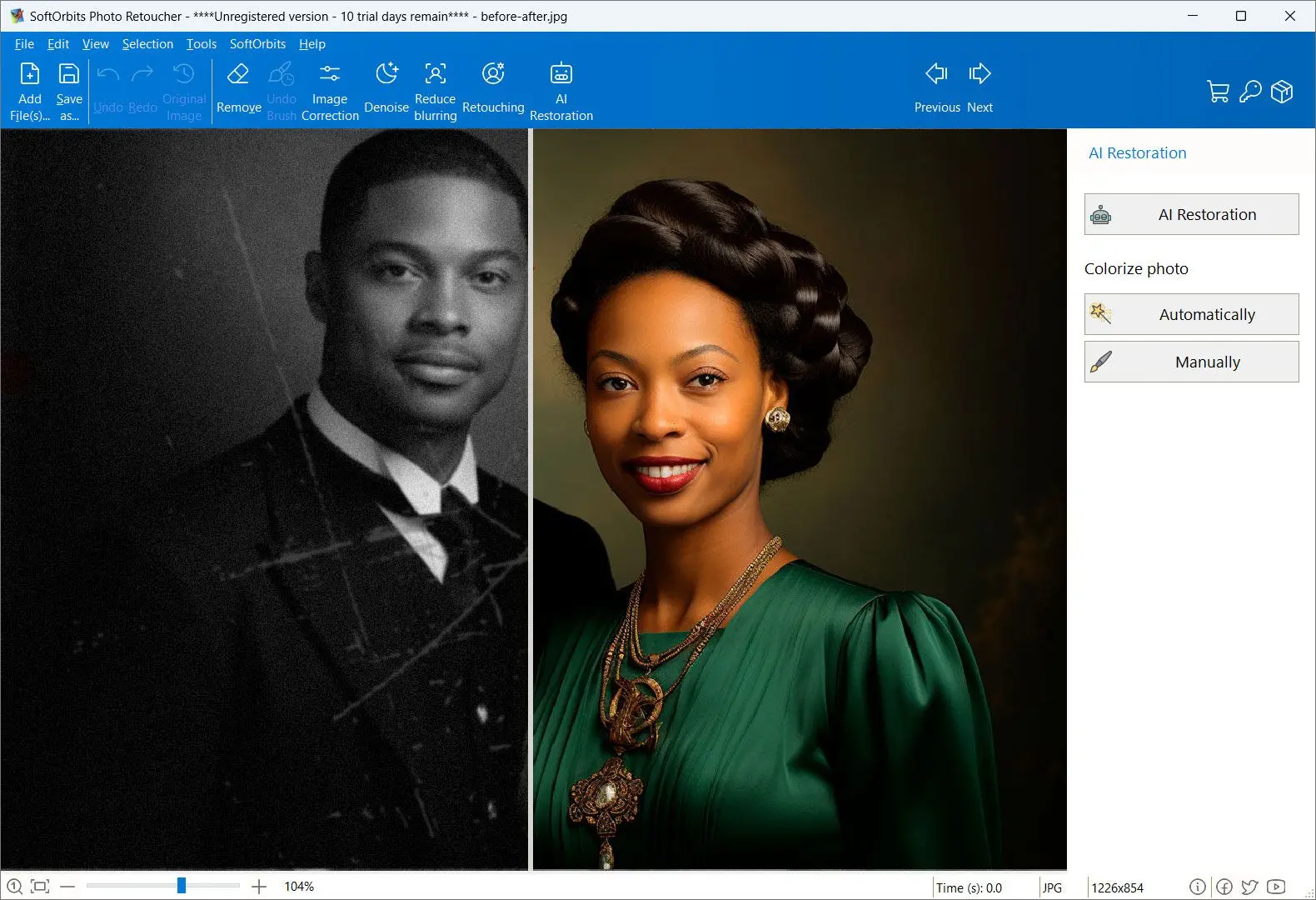
Photo Retoucher Screenshot.

In this review, you will:

  1. 1️⃣ See what PhotoGlory really does with a torn, faded family photo.
  2. 2️⃣ Get the current price of all three tiers and the catch inside the free trial.
  3. 3️⃣ Compare it with SoftOrbits Photo Retoucher before you spend a cent.
Photo Retoucher Screenshot.
Eugene - CEO at SoftOrbits, Candidate of Technical Sciences, has more than 16 years of expertise in software development, photo and multimedia applications, enhancing and transforming digital images and videos.
📅 Last updated on:  2026-07-11

This PhotoGlory review covers what the old photo restoration app from AMS Software gets right, where it comes up short, and what to use instead on Windows. PhotoGlory sells a simple promise. Drop in a scanned photo, click one button, watch the scratches vanish and the black and white turn to color. For a lot of shoeboxes that promise holds. For deep creases, torn corners and scans you plan to print big, it gets complicated, and the free trial is where most people find that out the hard way.
Disclosure: SoftOrbits makes Photo Retoucher. We reviewed every tool below using the same criteria, including our own, so you can compare before you download.

Our verdict is 3.5 out of 5. PhotoGlory is a real restoration tool with a friendly interface, honest one-time pricing and colorization that holds up on simple portraits. What drags it down is a trial that will not let you finish the job, automatic repair that smudges deep creases, and no upscaler for anything you want to print.

Best for: casual restorers with moderately damaged photos who also want retro effects and frames.

Skip if: badly torn scans, a missing face, an enlargement headed for the wall.

What you will learn
Apply in 12 min Saves 3 hEasy

What is PhotoGlory?

TL;DR

PhotoGlory is a Windows desktop app from AMS Software built for a single job, restoring old family photos. It repairs scratches and tears and revives faded color. It colorizes black and white shots with AI. Retro effects come on top. You pay once, across three tiers, and there is no Mac version.

PhotoGlory sits in a small, specific category. It is not a general photo editor and does not try to be. Open it, load a scan, and every tab points at the same outcome, making a damaged print look like it did the day it was taken. That focus is the reason why people find it at the first place.
The audience is easy to picture. Someone inherits a box of prints from a grandparent, scans a few dozen, then stalls, because the obvious tool for the job is a full editor they do not know. That exact question shows up over and over in communities. On a Quora thread about repairing lots of old family photos, people weigh buying Photoshop against getting dedicated restoration software. Nobody wants to learn layer masks to fix a photo of their grandmother.

PhotoGlory answers that with a tabbed workspace instead of a canvas. You move left to right across the Tools, Enhancement and Retouch tabs, and each one holds handful of controls rather than a hundred. It is a narrow tool. That is deliberate.

Main Features of PhotoGlory

TL;DR

The core set covers automatic AI colorization, one-button defect repair and manual retouch brushes for scratches. On top of that sit faded-color correction, batch processing and more than 100 stylized effects. The automatic restore button is reserved for the top PRO tier.

Here is what the program actually ships, based on the vendor's pages and its listing in the Microsoft Store.

✔️ AI colorization in one pass

the app reads the scene and paints a black and white photo by itself. The Microsoft Store listing calls it content-aware AI colorization. Manual accents on smaller details come with the Deluxe and PRO tiers.

✔️ Manual retouch brushes

a Patch tool for large tears, a Clone Stamp for stains, a Healing Brush for fine scratches.

✔️ Automatic restore

a single Restore Old Photo button on the Enhancement tab that clears basic defects without you picking a brush. This one is a PRO-tier feature.

✔️ Faded color correction

sliders that pull back the color of prints that went yellow, magenta or simply flat with age.

✔️ Crop, straighten, red-eye

the housekeeping tools you need after scanning, including cropping the chewed-up edges out of the frame.

✔️ Batch processing

run restoration and colorization across dozens of photos instead of one at a time.

✔️ Over 100 effects and frames

retro tints, stylized text labels, frames, date stamps, with 3D LUT profiles on PRO.

✔️ Built-in scanning

pull images straight from the scanner without second app in the chain.

✔️ Windows support only

it runs on Windows 11 down to Windows 7. No Mac build exists.

The effects library deserves a callout, because it is the one place PhotoGlory beats most restoration tools, ours included. If you want the restored photo to end up as a vintage-styled print with a frame and a date stamp on it, PhotoGlory does that in the same window. Tools that stop at repair hand you a clean file and leave the styling to you.

Pricing and Performance Review

TL;DR

PhotoGlory is a one-time purchase, not a subscription. Regular prices run from $27.50 to $56.00 across three tiers, and a 30% discount was live when we checked in July 2026. The catch is the tiering. Automatic restoration is locked to the top PRO plan, so the cheapest license is not the product most reviewers describe.

The license model is the good news. There is no monthly fee. AMS Software sells what its order page calls a life-long license, with free updates for 12 months after purchase. Some third-party directories, Crozdesk among them, list PhotoGlory as a subscription from $19.25 a month. That is wrong. The vendor's own checkout charges once.
Prices below were checked on 11 July 2026, with a 30% promotion running until 15 July. Treat the discounted column as a snapshot, not a permanent price.

PlanRegularDiscounted (July 2026)What it adds
Standard$27.50$19.25Auto colorization, tear and crack repair, faded color correction
Deluxe$42.00$29.40Manual color accents, major defect repair, rebuilding missing fragments
PRO$56.00$39.20Automatic one-button restoration, 100+ filters, 3D LUT support

$19.25
PhotoGlory Standard at the July 2026 promo price, down from a regular $27.50, paid once rather than monthly
Source

Read that table twice before you buy. The headline feature in every PhotoGlory demo, the button that restores an old photo automatically, is limited to the PRO tier at $56.00 regular. Buy Standard because it is cheapest and you are buying the manual-brush version of the product. That gap between the marketing and the entry tier is the most common complaint we found.

On performance we lean on independent numbers rather than the vendor's adjectives. The HitPaw hands-on review scores it 4.5 out of 5 for ease of use and 4.0 for colorization quality, but only 3.5 for restoration accuracy and 3.5 for face enhancement. That spread matches what we saw in user feedback. The interface is genuinely pleasant. The repair engine is average.
Colorization is the strongest part. On a straightforward portrait with a plain background, the AI picks believable skin tones and does not bleed color across edges. Push it toward a group photo, a busy background or a vintage uniform, and HitPaw's testers report random gray patches and unnatural color bleeding creeping in.

~4 / 5
PhotoGlory's average score across 80+ Trustpilot reviews, checked July 2026; ratings split sharply between people who love the results and people who ran into the trial
Source

Pros:

Costs one payment, with no subscription and no account to create

Colorizes simple black and white portraits convincingly in a single pass

Ships over 100 effects and frames that restoration tools usually skip

Runs a clean, tabbed interface a non-editor can learn in ten minutes

Handles batches, so a shoebox is not a hundred separate sessions

Cons:

Puts automatic restoration behind the $56.00 PRO tier

Smudges deep creases and torn-away paper instead of rebuilding them

Leaves gray patches on complex backgrounds during colorization

Lists no AI upscaler in its feature set, so a small scan stays small

Runs on Windows, with nothing for Mac owners

How to use PhotoGlory

Install PhotoGlory and open your scan

Download the installer from the vendor site, run it, then open your scanned photo. The distributive is small, around 9 MB, and it installs in under a minute on Windows 10 or 11.

Crop the damaged edges first

If the corners are chewed or the border is torn, go to the Tools tab and pick Crop. Drag the markers so the ruined edges fall outside the frame, then click Apply. Doing this first leaves the repair tools less to fix.

Run the automatic restore pass

Switch to the Enhancement tab and click Restore Old Photo. The app clears basic defects on its own. This button is a PRO-tier feature, so on Standard and Deluxe you skip straight to the manual brushes.

Clean up what the auto pass missed

Open the Retouch tab and match the tool to the damage. Use the Patch tool on large tears, the Clone Stamp on stains and mid-size rips, the Healing Brush on fine scratches and dust specks. Work on high zoom, with short strokes, and undo often.

Fix the faded color

Back on the Enhancement tab, use the color sliders to pull the yellow or magenta cast out of an aged print and bring the contrast back. Move one slider at a time and compare with original.

Colorize the black and white shot

Apply automatic colorization, then look at the edges. On the higher tiers you can set manual accents where the AI guessed wrong, which is usually clothing, flowers and anything with an unusual color.

Save the result and check the file

Export the finished photo and open the exported file outside PhotoGlory. Check its pixel dimensions against the original scan before you close the program, because the trial and the auto pass do not always give back what you put in.


Photo Retoucher Photo Retoucher

Restore and enhance old photos with SoftOrbits Photo Retoucher, AI-based photo restoration software. Remove scratches, reduce noise, and colorize black-and-white images automatically with AI.

Where Does PhotoGlory Fall Short?

TL;DR

Three things trip people up. The free trial blocks the save you actually wanted, automatic restoration can hand back a smaller file than your scan, and deep creases confuse the repair pass into smudging. None of this is fatal on light damage. All of it matters on a photo that is genuinely wrecked.

Start with the trial, because that is where most of the anger lives. Reviewers on Trustpilot report that the trial would not let them save a restored photo without buying the top package first, which turns "try before you buy" into "buy before you try". Others report saved files that reopen only inside the software rather than exporting cleanly. Ratings there are polarized rather than uniformly bad, and plenty of people are delighted, but the pattern in the negative half is consistent, and it is about the trial and the sales funnel, not the pixels.

Then there is output size. The same Trustpilot reviewers report that the automatic restore pass hands back an image at a much lower resolution than the original scan, small enough to be useless for printing. If you scanned at 600 dpi specifically so you could enlarge a 4x6 print into something framed, that is the whole job gone. Check the exported dimensions before you commit. If enlargement is your real goal, plan a separate pass to bring a picture back to HD quality after restoration.

Before you pay, restore one photo end to end in the trial and open the exported file in Windows Photos. Compare its pixel dimensions to your original scan. If the trial will not export at all, that is your answer about whether the workflow fits you.

The third gap is the restoration engine itself. HitPaw's testers found that on deep creases, or areas where the paper actually ripped away, the automated tool can get confused and smudge the region instead of rebuilding it, leaving you to finish by hand with the Clone Stamp. Heavily pixelated or severely damaged scans overwhelm it entirely. The manual brushes are there, and they work, but G2 reviewers call them basic for professional-level restoration.

Colorization has a similar ceiling. It is excellent on a plain portrait and shaky on a crowd. If your box is full of wedding groups and military uniforms, expect to spend real time on manual accents, and read up on how to colorize a black and white photo properly before you judge the result. The AI gives you a first draft. You finish it.

Is PhotoGlory safe and legit?

TL;DR

Yes. PhotoGlory is a real product from AMS Software, a long-running Windows developer, and it is listed in the Microsoft Store. Installing it is not a security risk. The complaints you find are about trial limits and pricing pressure, not malware or stolen data.

The "is PhotoGlory legit" question comes up constantly in search, so it deserves a straight answer. There is no evidence that PhotoGlory is malware or a scam in any meaningful sense. AMS Software has published Windows photo and video tools for years, the app has a Microsoft Store page, and the aggregator listings are ordinary. Crozdesk scores it 83 out of 100 in image editing (checked July 2026), which is a middling but respectable number.

PhotoGlory is a desktop program with no account and no web upload step in the workflow, which matters more than people realize when the photos in question are of dead relatives.
What people are really reacting to is the buying experience. A trial that blocks the save. Marketing that shows the PRO result while the Standard price appears in the headline, and the flagship button locked to the top tier. That is a pricing design choice, and a frustrating one. It is not fraud. Judge it as a purchase decision.

Best alternative: SoftOrbits Photo Retoucher

TL;DR

Photo Retoucher is our Windows tool for the same job, built around the three places PhotoGlory strains. It rebuilds faces, fills scratches without repainting the frame, and enlarges the result for print. You pay once, and the AI runs on your machine, start to finish.

We built Photo Retoucher for the harder end of the same pile of photos. Where PhotoGlory paints a broad automatic pass over the image, SoftOrbits Photo Retoucher runs separate AI models for separate problems, and that difference shows up exactly where the reviews above say PhotoGlory struggles.

Scratches and creases go through an AI defect detector plus inpainting, which fills only the pixels of the damage and leaves the rest of the frame untouched at 1:1. The model does not repaint a region it half-understands. It reconstructs a mask. If your prints are covered in fine scratches, our guide to dust and scratch removal software walks through the same workflow in detail.
Faces get their own model. A grandparent's face that dissolved into grain on a 1950s snapshot is reconstructed rather than sharpened, so you get a legible person instead of a blur. Colorization is AI-driven with manual touch-up on top, the same idea PhotoGlory uses. There is also an Object Remover for the things you want gone, from a stranger at the edge of the frame to a date burned in by a film camera.

After a PhotoGlory auto pass

The deep crease across the photo comes back smeared, so you zoom in and rebuild it by hand with the Clone Stamp, one stroke at a time.

With AI scratch detection and inpainting

The detector marks the damage, inpainting fills only those pixels, and the rest of the scan stays byte for byte what you scanned.

The other gap it closes is size. AI Photo Enlarger takes a restored scan of a small print and puts it on a wall. PhotoGlory has no equivalent.

8x
upscale that SoftOrbits Photo Retoucher can apply to a restored scan before you send it to print
Source

Everything happens on the PC in front of you. GPU acceleration works on AMD, NVIDIA or Intel graphics, and there is a plain CPU fallback if the machine has none. Batch mode allows you process a whole folder at once. Licensing is one payment, like PhotoGlory, and there is a free trial, so you can put your own scan through the pipeline first.

We are not going to pretend it does everything. Photo Retoucher is a Windows program, so Mac owners need a different tool, same as with PhotoGlory. Styling is not our job: no effects library, no frames, no date stamps. On first launch it downloads its AI models, so you need an internet connection once.

Pros:

Rebuilds faces with a dedicated AI model instead of sharpening them

Fills scratches and creases without repainting the surrounding frame

Upscales the finished file up to 8x for print

Removes strangers, date stamps and watermarks from the shot

Processes photos on your own PC, with no upload step in the workflow

Costs one payment, with GPU acceleration and batch folders included

Cons:

Supports Windows, with no Mac or web version

Ships no artistic effects, frames or date stamps

Downloads AI models on first launch, so the first run needs internet

Focuses on repair, so styling the print is a job for another tool

PhotoGlory vs SoftOrbits Photo Retoucher

TL;DR

PhotoGlory wins on creative breadth, with 100+ effects, frames and date stamps. Photo Retoucher wins on the repair itself. Face reconstruction, scratch fills that do not smear, an 8x print upscale, object removal. Pick by the problem you actually have.

Here is the side by side on the points people actually weigh. PhotoGlory facts come from the vendor pages and the independent reviews linked above. Photo Retoucher specs come from our product data.

FeaturePhotoGlorySoftOrbits Photo Retoucher
PlatformWindowsWindows
ProcessingLocal (no cloud)Local (no cloud)
Defect repairAuto restore (PRO tier) plus Patch, Clone Stamp, Healing BrushAI scratch detector plus inpainting; manual Clone Stamp and Concealer
Face restorationGeneral retouch tools, no dedicated face modelDedicated AI face reconstruction
ColorizationAutomatic AI, manual accents on Deluxe and PROAutomatic AI plus manual color touch-up
Upscaling for printNot in the feature listAI Photo Enlarger, up to 8x
Object removalRetouch brushes onlyObject Remover for people, text, dates, watermarks
Artistic effects and frames100+ effects, frames, date stamps, 3D LUTsNone
Batch modeYesYes
LicenseOne-time, three tiers ($27.50 to $56.00 regular)One-time, single tier
TrialFree; reviewers report limits on saving the resultFree trial; limits listed on the product page

The split is clean. PhotoGlory wins on breadth of creative output. Photo Retoucher wins on the repair itself. Lightly faded prints, no structural damage, and you want them pretty on the shelf - PhotoGlory is enough. Torn paper or a face that is gone, and repair matters more than the effects library.

When Is PhotoGlory Still the Better Pick?

TL;DR

Choose PhotoGlory when you want effects and frames alongside the repair, when automatic restoration is worth the PRO tier to you, or when your photos need light cleanup rather than reconstruction. It is a friendly program, and its interface is easier than ours.

We would not push everyone toward our own product, and there are honest cases where PhotoGlory is the smarter buy.
If styling is part of the goal, PhotoGlory is the only one of the two that does it. A restored image with a period-correct frame, a caption and a date stamp is a finished gift, and PhotoGlory produces that in one session. We produce a clean file and stop.
If your damage is light, the extra machinery does not earn its keep. A faded print with a couple of surface scratches and no structural damage is exactly what the automatic pass is tuned for, and the 4.5 out of 5 HitPaw gave its usability is not marketing. The learning curve really is shallow.

If you already own an AMS Software product and know the interface, that familiarity has value too. Neither program has a Mac build, so that point cancels out. Mac owners need to look at a different category of tool entirely.
The one thing we would push back on is buying Standard and expecting the demo experience. If automatic restoration is the reason you are here, the tier you want is PRO, and at that price the comparison with the alternatives gets a lot tighter.

Also considered: what we cut and why

TL;DR

Five other tools show up in every PhotoGlory alternatives list, and we looked at all of them for this job. None of them replaces PhotoGlory cleanly for a box of scratched family prints, and here is the honest reason for each.

The shelf around PhotoGlory is crowded. These are the names we checked and did not recommend for this specific case, along with what each one is actually built for.

  • Wondershare Repairit (cut for the wrong problem and subscription pricing). It repairs corrupted and broken photo, video and document files, which is a different job from restoring a physically damaged print. Its own PhotoGlory alternatives page prices it from $39.99 a year, so you keep paying while PhotoGlory charges once. Right tool for a broken file, wrong tool for a scratched photo.
  • MyHeritage Photo Enhancer (cut for a genealogy-first design with almost no control). Built to enhance and animate ancestor faces for a family tree, and it does that well. But there is barely a setting to touch, so one specific tear on one specific print is not a job you can aim it at.
  • Luminar Neo (cut for being a general editor rather than a restoration specialist). It is a broad AI photo editor. Buy it if you want one program for old photos and everyday shooting, skip it if the shoebox is the only reason you are shopping.
  • VanceAI Photo Restorer (cut for cloud processing and pay-per-credit billing). Runs online, charges by credit. Your family scans travel to somebody else's server, and the bill grows with the pile, which is fine for three photos and the wrong shape for a shoebox.
  • GIMP (cut for manual work and a steep learning curve). Free, open source and entirely manual. It will restore anything if you learn clone stamping and healing properly. That is exactly the learning curve most people came to PhotoGlory to avoid.

If you want the full field rather than the cut list, our roundup of the best photo restoration software compares the free options next to the paid ones.

Photo Retoucher Photo Retoucher
PhotoGlory review 2026: an honest test of the old-photo restoration app, its real pricing, trial limits, and the best Windows alternative.
Photo Retoucher Screenshot.


🙋Frequently Asked Questions

Yes, with conditions. It is a legitimate restoration tool with a friendly interface and honest one-time pricing, and its colorization is strong on simple portraits. Independent testing scores its restoration accuracy around 3.5 out of 5, so it handles moderate damage well and struggles with deep tears and badly degraded scans.

On light and moderate damage they work well. Faded color, dust and fine scratches are largely a solved problem. Deep creases, missing corners and destroyed faces are where the differences show, because filling those areas means inventing plausible pixels rather than cleaning up existing ones. Test any tool on your worst photo, not your easiest.

Reviewers report that saving and exporting the restored result is limited in the trial, with some saying they had to buy the top package before they could finish a photo. Run one image through end to end and try to export it before you pay, then check the exported file's dimensions against your scan. Trial limits are worth checking on any restoration tool, ours included.

Yes. It is a normal Windows application from AMS Software with a Microsoft Store page, it needs no account, and there is no credible malware claim against it. The complaints you find in reviews are about trial limits and upsell pressure, not about security.

That depends on the damage. For light fading and surface scratches, PhotoGlory handles the job and throws in effects and frames. For torn paper, a face lost to grain, or a scan you want to print large, SoftOrbits Photo Retoucher is our pick on Windows, because it inpaints damage instead of smearing it and enlarges the result up to 8x.

Professional work means rebuilding what is gone, not just cleaning what is there. Reviewers call PhotoGlory's manual brushes basic for that level. Dedicated AI models for faces and defects, plus a proper upscaler, matter more at that end, which is what our own tool was built around. Photoshop remains the manual benchmark if you have the hours.

GIMP is the honest free answer on Windows, since it will restore anything if you are willing to clone stamp by hand. Free AI restorers exist online, but they upload your family scans to somebody else's server and cap what you can export. Most paid desktop tools, PhotoGlory and ours among them, offer a trial first.

Sources