Do you really have to pay $0.99 for the HEVC Video Extensions?
TL;DR
Usually, yes. Windows offers a free "HEIF Image Extensions" app, yet on its own it rarely decodes iPhone HEIC photos. By Microsoft's own note, a video extension must also be installed. That video piece is the HEVC Video Extensions, commonly $0.99 in the Microsoft Store.
Here is where it gets confusing. The free HEIF Image Extensions package sounds like the whole fix, but Microsoft's own store listing says a video extension package must also be installed to view HEIF images. For iPhone photos, that means the paid HEVC Video Extensions. Long Microsoft forum threads land on the same conclusion. The free extension alone rarely opens a real iPhone HEIC.
$0.99
is the usual Microsoft Store price for the HEVC Video Extensions, the codec many iPhone HEIC photos need on top of the free HEIF extensionSource
The free HEIF extension and its catch
Some Windows 11 machines do ship HEVC, so a lucky few never pay. But the guidance you find online, "just install the free HEIF extension," falls short on most iPhone photos, which is why the codec chase feels endless.
Even with both extensions installed, some builds stay broken. Users on Microsoft Q&A traced blank HEIC previews to a bad HEVC build (v2.2.10.0) and fixed it only by rolling back to an older package. If the docs say "install the extension" but your photos still won't open, you are not doing it wrong. The codec chain itself can be the problem.
Can you open HEIC on Windows without converting it?
TL;DR
Yes. Once the HEVC codec is installed, Windows Photos and File Explorer show HEIC thumbnails and previews with no conversion. The limits are real, though. There is no built-in HEIC editor and no built-in way to batch-export a whole folder. Most people still convert eventually.
For just a few photos, installing the codec is enough. The thumbnails come back in File Explorer, and a right-click Preview opens each shot directly once the codec is in place. Microsoft does not, despite a common search, ship its own bulk HEIC-to-JPG converter; the Photos app can re-save one image at a time, and that is the extent of the built-in tooling. The moment you want to edit these photos, send them to someone on an older PC, or hand off fifty at once, converting to JPG is simpler than keeping the codec happy on every machine.
How to convert HEIC to JPG on Windows in one batch
Download and install the HEIC to JPG converter
Grab the free trial for Windows and run the installer. It installs and runs locally, no account needed.
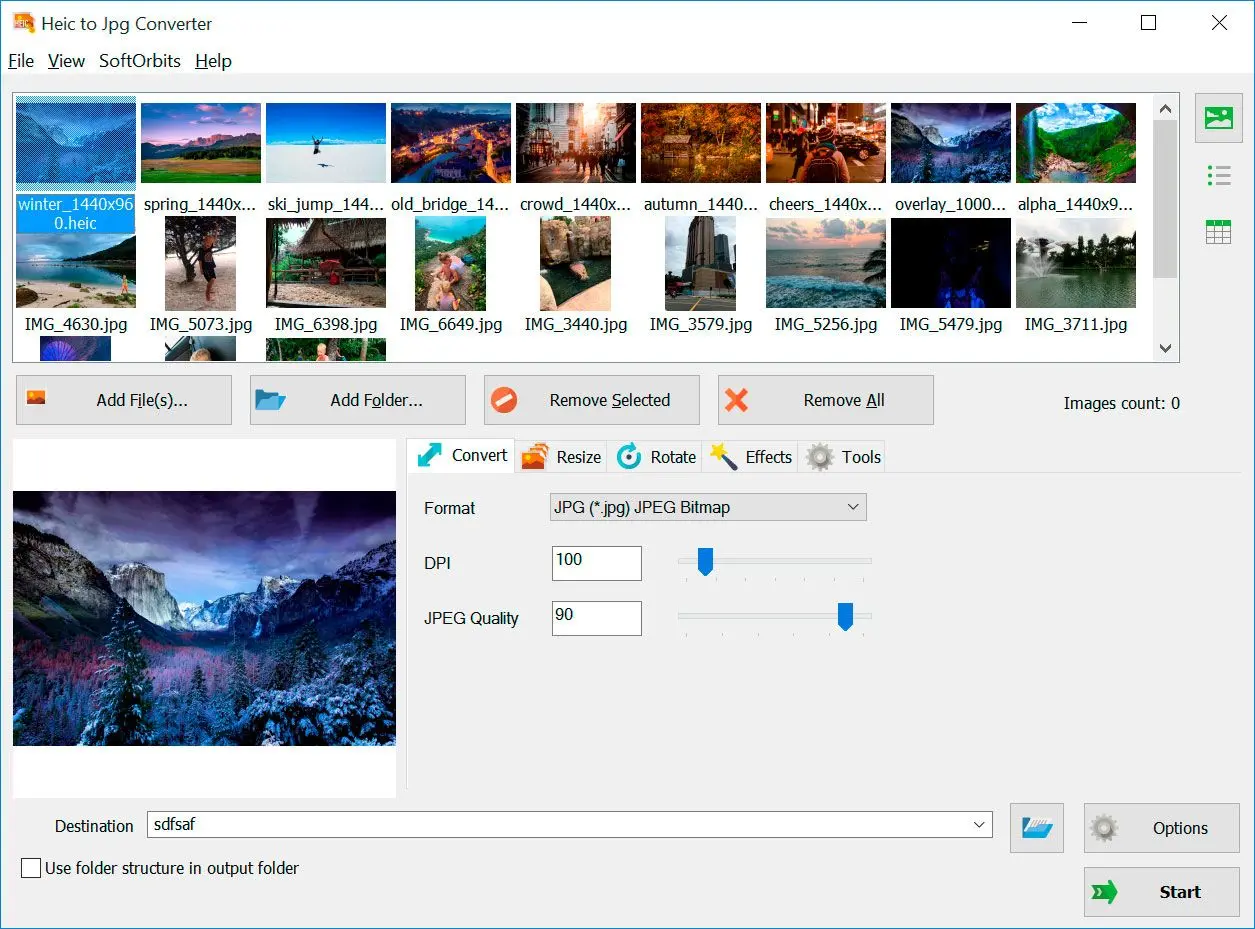
The native route makes you re-save one photo at a time; a batch tool takes the whole folder in one pass. SoftOrbits HEIC to JPG Converter runs locally on Windows 10 and 11, keeps EXIF and the capture date, and never uploads your pictures.
When the job is a few dozen photos or a full year of a camera roll, the manual routes stop being reasonable. Our tool exists for exactly that case. Point it at a folder, get JPGs back. It also holds onto HDR and wide-gamut color as it writes each JPG, so a sunset sky does not flatten out the way it can through a quick online convert. It also reads HEIC directly, so you can preview the shots before you convert. Want the plain converter without the troubleshooting? Grab it from our HEIC to JPG page. The main HEIC to JPEG converter download works too.
Pros:
Converts a whole folder of HEIC to JPG in one pass
Keeps EXIF, date taken, and color profile through the batch
Built-in HEIC viewer, so you see photos even without the Windows codec
Cons:
It is a converter, not a full photo editor
Windows only; there is no Mac build
Convert HEIC to JPG for free with built-in Windows tools
TL;DR
Windows can convert HEIC to JPG for free, one file at a time. Open the photo in Photos and use "Save as", or open it in Paint and export as JPG. Both need that codec first, and neither does batches. A full roll is slow going.
To avoid installing anything extra, the free routes work for a handful of photos. In Photos, open the image, click the three-dot menu, and choose Save as with JPG as the type. Paint does the same through File > Save as > JPEG. The catch is that both still rely on that codec to open the HEIC in the first place, and both convert exactly one file per trip through the menus. For twenty or two hundred photos, that is a long afternoon, and that is the gap a batch tool fills.
Saving one at a time in Photos
Open a photo, three-dot menu, Save as, pick JPG, choose a folder, repeat. Multiply by your whole camera roll.
Batch converting the folder
Drop the folder in, pick JPG, click Start. The full roll converts in one pass while you do something else.
Open in Photos and Save as JPG
For the occasional photo this is genuinely the quickest path and costs nothing beyond the codec you already installed. For a backlog, see the batch route above or our convert HEIC to JPG in bulk walkthrough.
Is it safe to use an online HEIC to JPG converter?
TL;DR
For a couple of non-private photos, sure. For your own photos, be careful. Online converters upload your images to someone else's server. Free web tools also cap batches hard, and one popular site limits you to five files at a time. They rarely suit a whole roll anyway.
Online converters are convenient and they skip the codec problem entirely, but they come with two real costs. First is privacy. Your photos travel to a stranger's server to be processed. Even the tools are candid about it. FreeConvert's own policy says uploaded files sit on their servers for a few hours before deletion, and HowToGeek flatly advises against uploading private photos to them. Second, the small-batch caps make them impractical for the exact job most people have.
Think twice before uploading your whole photo library to a free web converter. Those photos may hold location data and faces of people who never agreed to land on a third-party server. A local, offline converter keeps the whole thing on your PC.
Stop the problem at the source: make your iPhone shoot JPEG
TL;DR
You can sidestep HEIC for future photos. On the iPhone, open Settings, tap Camera, then Formats, and choose "Most Compatible" instead of "High Efficiency". From then on the camera saves JPEG, which opens on Windows with no codec at all.
Switching to JPEG does not fix the HEIC photos you already have. Those still need the codec or a conversion. But it stops new ones from causing the same headache. The trade-off is size. JPEG files are larger, so you give up some of the storage savings that made Apple pick HEIC. If your phone is tight on space, keep High Efficiency and convert on the PC; if it is not, "Most Compatible" is the fix that ends the problem for good.
Pitfalls when your iPhone HEIC photos won't open on Windows
TL;DR
Most "still won't open" cases are not a broken PC. They are a buggy extension build, a Live Photo that Windows reads as video, a converted photo that comes out sideways, or a copy that failed midway. Each has a specific fix.
✔️ A buggy HEVC extension build.
Installing the codec does not always help, because the codec itself can ship broken. In one Microsoft support thread people fixed blank HEIC previews only by rolling the HEVC Video Extensions back to an older package. If both extensions are installed and photos still won't open, suspect the build before you suspect the file.
✔️ Live Photos read as video, not image.
A Live Photo carries a short motion clip, and Windows sometimes treats the HEIC as a video file it can't play, a case documented on Microsoft's answers forum where HEIC and MOV both stopped opening in Photos. If one specific photo refuses to open while the rest are fine, it is often a Live Photo. Turn Live off on the iPhone, or convert it, and it behaves like a normal image.
✔️ Converted photos come out sideways.
Orientation is stored as metadata, and some conversion routes ignore it. A portrait shot then lands rotated. Users flag this across Microsoft community threads. A converter that keeps EXIF keeps orientation with it; check a couple of portrait shots after any batch.
✔️ The photos never copied cleanly.
Sometimes the file on the PC is a broken half-transfer, not a codec problem at all. The same "it won't open" reports fill Microsoft's community answers, and some of them trace to a bad transfer rather than the codec. One common variant is a cloud-sync error such as 0x80070194, where the file only half-downloads from OneDrive or iCloud and never finishes. If a HEIC won't open and won't convert, re-copy it from the iPhone over a cable rather than through a flaky cloud sync, then try again.
HEIC to JPG Converter
Windows Photos suddenly won't open your iPhone HEIC photos? Here's why the codec broke and how to fix it - view them, or convert HEIC to JPG in batch, offline.
Because iPhones save photos as HEIC, which uses the HEVC codec that Windows doesn't always include. Install the HEIF Image Extensions plus the HEVC Video Extensions, or convert the photos to JPG, and they open normally.
Not a bulk one. The Photos app can open a HEIC and re-save it as JPG one file at a time once the codec is installed, but there is no built-in batch converter. A whole camera roll needs a third-party tool.
Your iPhone has been saving HEIC by default since iOS 11 to save space. Nothing changed on the phone; you likely just moved to a Windows PC that lacks the HEVC codec. Switch the camera to "Most Compatible" to get JPEG going forward.
The reliable way is to convert it to JPG, since viewing HEIC still relies on that codec. A desktop converter turns the file into a JPG that opens in any app without extensions.
For one photo, "Save as" in the Photos app is quickest. For many, a batch converter is far faster. Point it at the folder, pick JPG, and it processes the whole set on all CPU cores in one pass.
Yes. A desktop converter runs entirely on your PC, so your photos never touch a server. That keeps location data and faces off third-party sites, which matters for a personal camera roll.
There is a small, usually invisible loss because JPG is also compressed. Convert from the original HEIC rather than a screenshot, keep quality high, and the difference is hard to see for normal viewing and printing.



 HEIC to JPG Converter