
 HEIC to JPG Converter
Get a HEIC to JPG converter software download for Windows 10 and 11. Convert HEIC to JPG locally on your PC in batch with full color profile support.
HEICtoJPG.com Pricing and Performance Review
The web converter is free, with no paid tier or card required. We did not benchmark its conversion speed. The independent tests below cover the compression engine.
The page makes money through a Google ad slot in the side panel and promotion of the JPEGmini desktop app. That separate product has its own pricing, outside the scope of this review.
We could find no published per-file size ceiling on the converter page or in its legal text. You can check the photo-count allowance before uploading, but not a limit in megabytes.
The Phoblographer's hands-on review found a 65 percent size cut while keeping 95 percent of the quality. It could not distinguish an 8x10 print of the optimized file from the original. Macworld reported reductions of half to 80 percent for camera originals and 20 to 40 percent for web-sized images.
For web conversion speed, the only published figure comes from a review on macxdvd.com. It reports around ten seconds per photo and batches that "tend to get stuck". The review markets a rival desktop converter, so treat those findings as an interested party's claims. They are repeated elsewhere without that qualification.
Download your JPGs within that window. Until deletion, the uploaded originals and converted files remain on a server you do not control.
The converter page's subheading promises "Your files are deleted immediately after conversion". That conflicts with the Terms you accept.
You keep ownership of your content, but the Terms of Use also grant Beamr "a nonexclusive, worldwide, royalty free, perpetual, irrevocable, sub licensable and transferable right to use, process, store, copy, reproduce, reformat, translate, modify and create derivative works" from it. Beamr "may use your Content internally for improving the Service".
Broad licence clauses are common in free upload services. We found no evidence that Beamr does anything unusual with your files. Still, the licence survives the deletion promise. A mountain holiday photo may be an acceptable trade; consider the wording before uploading photos of your children, a passport, a client contract or a medical document.
Free, with no account needed to start
Runs in any browser on any operating system
Compression engine has independently tested results
Terms give a specific deletion window
Your photos are processed on a remote server
Uploading grants Beamr a permanent content licence
JPG output only, with automatic compression
Free web batches have a photo-count cap
You must collect converted files before deletion
You need an internet connection, and a fast one for large batches
Open heictojpg.com in any browser
Go directly to the site. You do not need an account, an extension or a download.
Drag them onto the page or select them with the upload button.
Each photo is converted and compressed automatically.
Download the results one by one or as a batch, depending on how many you sent.
Download before the retention window expires. If you return next week, you will have to start again.
Use the free JPEGmini Cloud signup to convert more files, or choose the desktop app for larger batches.
Get a HEIC to JPG converter software download for Windows 10 and 11. Convert HEIC to JPG locally on your PC in batch with full color profile support.
Where HEICtoJPG.com Falls Short
Before you convert a library, check four limits: remote processing, output controls, undocumented EXIF handling and the time needed for large uploads.
Privacy concerns about online converters recur on Apple's own discussion forums: users question site security and what might happen to their photos. A developer on Reddit described building a client-side HEIC converter because most online services require private photos to be uploaded. These concerns address remote processing; they are not evidence of misconduct by heictojpg.com.
You get no PNG or TIFF output, and no quality slider to trade size against sharpness. To convert HEIC to PNG, you need another program. You also have to accept JPEGmini's compression settings.
Metadata needs a closer check. In Adobe's community and Apple's forums, users describe HEIC-to-JPG workflows losing the "date taken" field and disrupting chronological sorting. We checked heictojpg.com's homepage, FAQ and legal text: none documents EXIF handling. We cannot confirm whether it preserves or strips metadata. That uncertainty matters when you are converting your photo history.
An iPhone import can contain several hundred photos. Microsoft's community forum includes requests to convert around a thousand HEIC files without handling each individually. Windows still ships no native batch converter. For a library that size, we recommend a way to convert HEIC to JPG in bulk locally, avoiding the upload and download.
Best Alternative: A Local HEIC Converter for Windows
With a desktop converter, you can process whole folders on your PC, choose other output formats and keep the results without a deletion deadline.
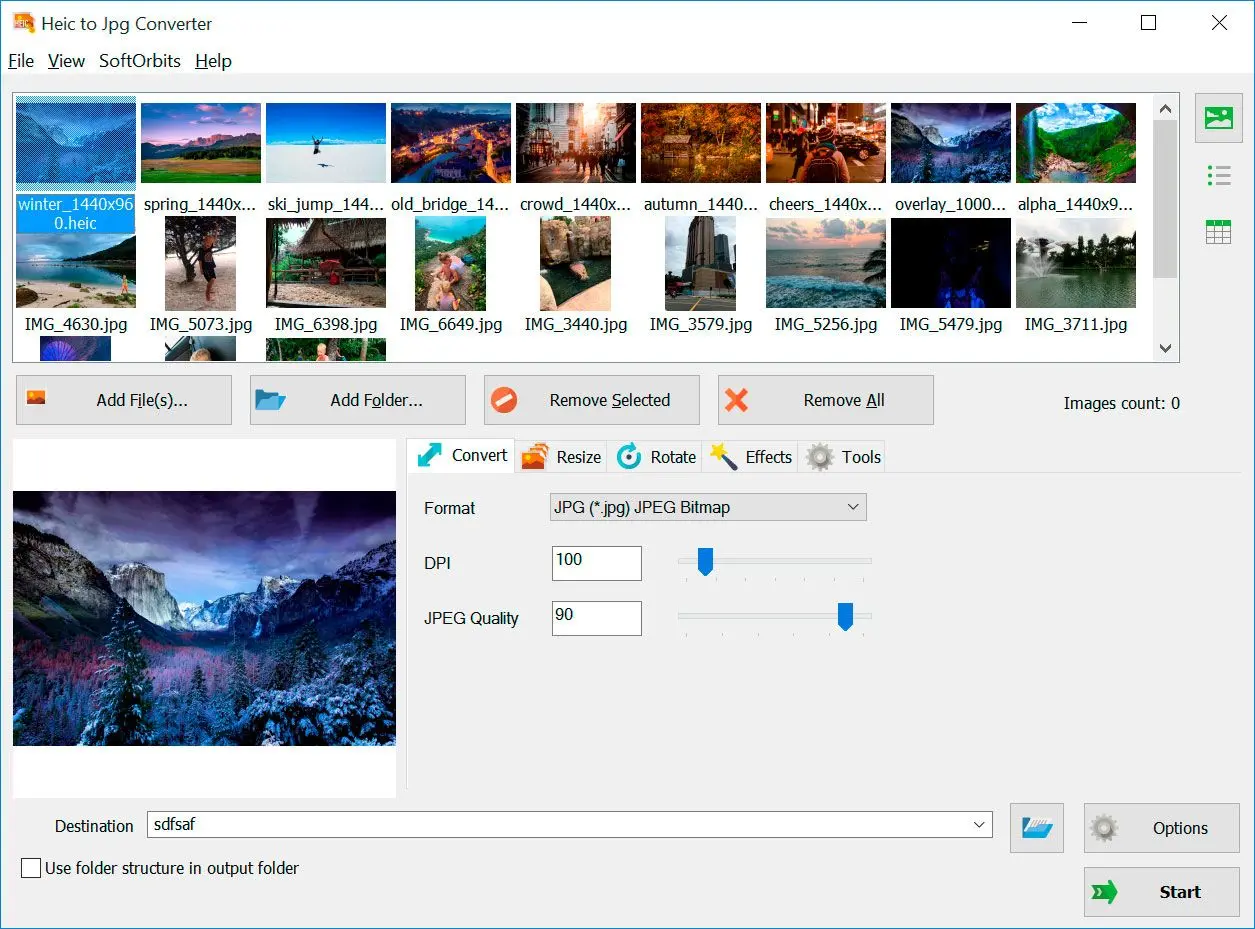
SoftOrbits HEIC to JPG Converter runs locally. For your first conversion, you need:
Conversion uses all your CPU cores, and the .heic files stay on their existing drive. Add a folder instead of selecting photos individually: a thousand-photo import takes one drag and one click. Output defaults to JPEG, with other formats available.
HDR and the original wide-gamut colors are preserved. You can rename each JPG using the date the photo was taken, and check photos in the built-in HEIC viewer before converting. Rotate, crop and resize work in the same pass.
If you import photos from an iPhone every month, the command line interface and Explorer integration let you script the process.
You have to download and install the program. It is Windows only, so it will not suit a Mac or Chromebook. The trial leads to a paid licence. If you convert two photos a year, we would use the free website.
HEICtoJPG.com vs SoftOrbits HEIC to JPG Converter
HEICtoJPG.com is convenient when you cannot install software. SoftOrbits HEIC to JPG Converter gives you local batch conversion, output controls and file retention.
This comparison uses HEICtoJPG.com's pages and Terms of Use alongside our program's documented capabilities. Unpublished details are marked as such.
| Criterion | HEICtoJPG.com | SoftOrbits HEIC to JPG Converter |
|---|---|---|
| Where conversion happens | On Beamr's servers; files are uploaded | Locally on your PC |
| Internet required | Yes | No |
| Batch size | Capped free web batches; larger jobs promoted through JPEGmini Cloud or desktop | Whole folders, using all CPU cores |
| File retention | Uploaded originals and converted files are removed under the Terms' retention window | Output stays in a folder you choose |
| Output formats | JPG only | JPEG by default, plus other formats |
| Quality control | None; compression is automatic | Yes; resize, crop and rotate before conversion |
| EXIF / date taken | Not documented | Rename by date taken; HDR and wide-gamut color profiles preserved |
| Content licence you grant | Permanent rights under the Terms of Use | No upload or associated content licence |
| Automation | None | Command line and Explorer integration |
| Platforms | Any OS with a browser | Windows 10 and 11 only |
| Price | Free | Trial, then a paid licence |
When HEICtoJPG.com Is Still the Better Pick
Use heictojpg.com for a small, non-sensitive batch when installing a Windows program would take longer than converting the photos.
On a Mac, Linux machine or Chromebook, you can use the website without needing our Windows converter.
On a work laptop, Intune or Group Policy may block installation and even access to Microsoft Store. Users have reported being unable to add HEIC support for that reason. The website requires no installation permissions.
For two or three photos, skip the desktop installation and licensing. Drag in the picture you need for an email and download the JPG.
A screenshot, whiteboard photo or expenses receipt may also be suitable for an upload service when it contains nothing sensitive.
Other Alternatives to HEICtoJPG.com (and What We Cut)
For alternatives, consider desktop Windows converters and viewer components according to the job. Also check the address carefully: one unrelated service uses a nearly identical domain.
a free desktop converter that processes files on your PC. It is simpler than most, with fewer batch controls, as discussed in our iMazing HEIC Converter review.
adds right-click HEIC conversion and Windows Photo Viewer support. It suits occasional conversions better than folders; our CopyTrans HEIC review covers it.
Microsoft's Store package lets Windows display HEIC files. You still need a converter to produce JPGs.
competent online converters. Some offer controls heictojpg.com lacks, such as a quality toggle. We excluded them because they also process uploaded files on a server.
the double "o" identifies a separate, unaffiliated service. Check the address when typing it from memory.
We also excluded aggregator "alternatives" pages with no testing and automated domain-reputation scanners appearing for "heictojpg.com review". Their trust scores do not explain the terms you accept.
 HEIC to JPG Converter
Sources