
 HEIC to JPG Converter
Get a HEIC to JPG converter software download for Windows 10 and 11. Convert HEIC to JPG locally on your PC in batch with full color profile support.
Main Features of iMazing HEIC Converter
iMazing HEIC Converter gives you drag-and-drop input, JPEG or PNG output, an EXIF metadata toggle, and local offline processing, all for free. The Converter 2 update added quality sliders plus HEVC video conversion.
Here is what the tool actually gives you.
drop single HEIC and HEIF files or an entire folder onto the app, or use the Add File button.
PNG keeps more quality but produces a much larger file, so most people stay on JPEG.
preserve or strip the photo metadata during conversion.
sliders added in the Converter 2 update, so you can dial output down where the original HEIC-only version gave you no say at all.
the rebuilt app converts HEVC and H.265 clips to MP4, which the original HEIC-only tool never did.
a standalone download for each, plus the same converter built into the full iMazing app.
the standalone converter is 100% free and separate from the paid iMazing device manager.
The Mac listing gives a sense of how light the app is. On the Apple App Store, the version at the time of writing is 2.0.13 at about 14.6 MB, and the store page shows no rating overview because it has not received enough ratings yet. Treat any star numbers you see on affiliate blogs with caution, since the official listings do not display one.
Pricing and Performance Review
iMazing HEIC Converter is 100% free with no paid tier, funded as the free spinoff of DigiDNA's paid iMazing iPhone manager. Performance is fine on small drag-and-drop jobs, but batch reliability draws the most complaints, and there is no neutral speed benchmark.
On price there is little to weigh. The standalone converter is free, with no premium plan and no account. It is a free companion to the paid full iMazing suite, not a trial that nags you to buy. What you pay is really in the friction, not in dollars, and that friction shows up mostly on bigger jobs.
We did not run our own timed benchmark for this review, so we will not quote a speed number as fact. No neutral, independent speed test of the tool exists either; the "finishes in under 30 seconds" figures you find on other review blogs come from sites that sell competing converters, so we treat them as marketing, not data. The vendor says the rebuilt app should "chew through thousands of media files at a time," which is its own claim to prove, not ours.
Where the picture gets mixed is reliability. Across several review write-ups, the single most repeated complaint is that batch conversion stalls or fails partway through a folder with no clear error. One competing-vendor review flatly states that "many users complained about the crash converting issues." That source sells a rival tool, so weigh it with care. Even so, the same complaint shows up often enough to note fairly. On the Aiseesoft write-up, the crash-on-convert theme is one of the headline gripes. For a free tool this is not a dealbreaker; for a folder of 800 vacation photos it is worth knowing before you rely on it.
Costs nothing, with no account and no trial nag
Dead-simple drag-and-drop that anyone can use in seconds
Runs on both Windows and Mac
Processes locally, so photos never leave your machine
Batch jobs can stall or fail on a large folder
No crop, resize, or rotate before you convert
No built-in HEIC viewer beyond the conversion queue
No right-click Explorer integration or command line on Windows
Get the iMazing HEIC Converter free download for Windows or Mac from the official site, or open the Tools menu inside the full iMazing app if you already have it. The Windows build runs on Windows 10 and 11.
Open the application so the drop window is ready.
Drag single HEIC files or a whole folder into the window, or use the Add File button to browse for them.
Choose your output format. JPEG suits most needs, while PNG keeps more quality at a much larger file size.
Adjust the quality and resolution sliders if you want, a control the older HEIC-only version did not offer.
Decide whether to keep or strip the photo metadata during conversion.
Click Convert, then choose a destination folder and wait for the progress bar. Large batches can take a while, and everything runs locally with no upload.
Get a HEIC to JPG converter software download for Windows 10 and 11. Convert HEIC to JPG locally on your PC in batch with full color profile support.
Why does iMazing HEIC Converter stop working mid-batch?
The most common reason is a large or mixed batch that stalls without a clear error, often with a few files silently skipped. A second, Windows-specific issue is not the converter at all but Windows' own HEIC handling, which can refuse to open files until the HEIF extension is installed.
The reliability complaint has two distinct shapes, and it helps to separate them. The first is the batch itself. Users report that a folder conversion freezes midway, or that some perfectly valid HEIC files get skipped or rejected with nothing on screen to explain why. On a small handful of photos you rarely see this. On a few hundred, the odds climb, and there is no pause-and-resume, so you often restart the whole job.
The second shape has little to do with the converter. It comes from Windows itself. HEIC support on Windows is patchy, and photos can throw a "We can't open this file" error even after the official HEIF Image Extensions are installed. A Microsoft Q&A thread shows how tangled this gets. It is a broad Windows-and-Photos gap that lands on whatever tool you happen to be using, no matter which converter you picked, so it reads as "iMazing not working" when the real fix is on the Windows side.
If a big batch keeps stalling, split it. Convert a few dozen photos at a time rather than one giant folder, and check the output count against the input count, since silent skips are the failure mode people miss most.
Where does iMazing HEIC Converter fall short?
Beyond batch wobble, the real gaps are depth. There is no crop, resize, or rotate before conversion, no built-in viewer, no right-click Explorer entry, and no command line for automation. Converting can also drop the original capture timestamp, which breaks photo chronology.
Start with editing. iMazing converts, and that is all. There is no way to crop or resize a photo on the way out, so if you need a batch of resized JPEGs you convert first and then reach for a second tool. Reviewers also note it keeps no history of what it already converted and cannot pause a running batch to drop a few images.
Then there is metadata drift. Converting HEIC to another format can lose the original capture date, which quietly reorders your library by conversion time instead of the moment the photo was taken. On the MacRumors forums, users chasing this exact problem found that even a dedicated shortcut "can't reassign initial timestamp for created images." It is a wider conversion pain, but it bites here too.
The last gaps are workflow ones on Windows. There is no right-click entry in File Explorer to convert a HEIC without opening the app, and no command line, so you cannot script a nightly job or a watch folder. For a quick one-off that is fine. For anyone converting HEIC every week, launching it by hand each time gets old. If Windows refuses to show your photos at all, the fix for when Windows Photos won't open HEIC covers the extension side of the problem.
Best Windows alternative: SoftOrbits HEIC to JPG Converter
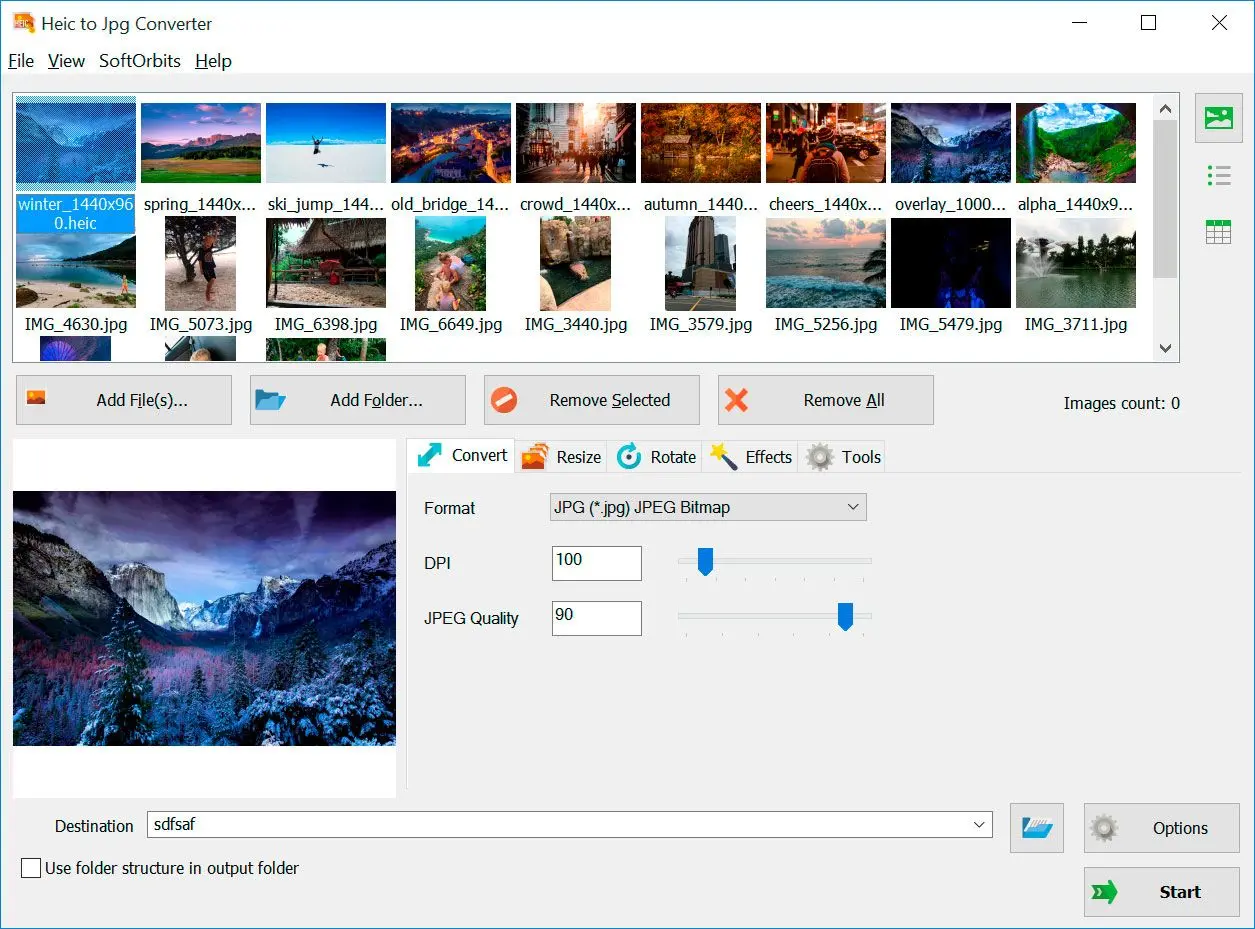
SoftOrbits HEIC to JPG Converter takes the opposite approach on the two things iMazing leaves on the table. It runs a reliable batch and lets you edit before you save. It converts HEIC to JPG or PNG using all your CPU cores, so a full folder finishes as one job instead of stalling halfway. And it lets you rotate, crop, smart-crop, or resize a photo before conversion, which iMazing cannot do at all.
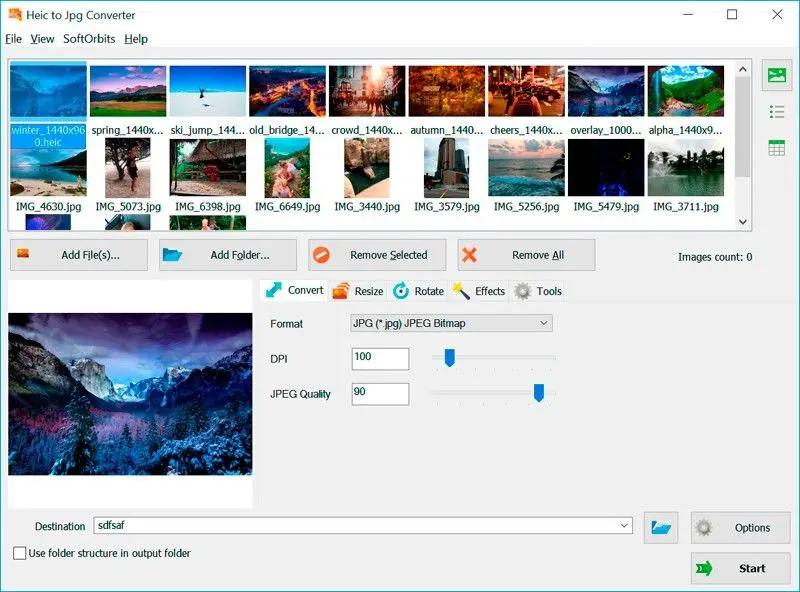
It also fills the workflow gaps. A built-in HEIC viewer lets you preview before and after. There is a right-click Explorer entry that converts without launching the app, a command line for automation, and a watch-folder option that converts files the moment they land. Full color-profile, HDR, and wide-gamut handling keeps the quality that HEIC captured. You can also rename output files by capture date, so your chronology survives the conversion. SoftOrbits HEIC to JPG Converter is a free download with a trial, and the license is paid. The honest trade against iMazing is money for reliability, editing, and automation. You can grab the heic to jpg converter download for Windows and try a batch before you decide.
Drop the folder, click Convert, and hope it does not stall or silently skip files. No editing step either, so resized photos mean a second app.
Load the folder, crop or resize if you want, and convert on all CPU cores in one pass. Rename the files to keep the library in order.
We are honest about the trade-offs. Our tool is paid once you pass the trial, while iMazing is free forever. It runs on Windows 10 and 11 only, with no Mac or mobile build, so an iMazing user on a Mac stays with iMazing. And it is a focused converter, not the broad iPhone-management suite the iMazing brand is known for. If you convert HEIC often on a Windows PC, though, the batch and editing depth are the whole reason to switch.
Converts full folders on all CPU cores without stalling
Crops and resizes each photo before you convert, with smart crop too
Adds a HEIC viewer and Explorer right-click, plus a command line and watch folder for automation
Keeps quality with HDR color support, and renames by capture date
Paid license after the free trial, where iMazing is free
Windows 10/11 only, with no Mac or mobile version
A focused converter, not a full iPhone-management suite
iMazing HEIC Converter vs SoftOrbits HEIC to JPG Converter
Here is the side-by-side on the points people actually weigh. The facts below come from each vendor: iMazing details from imazing.com and the app stores, and SoftOrbits specs from our own product data.| Feature | iMazing HEIC Converter | SoftOrbits HEIC to JPG Converter |
|---|---|---|
| Price | Free | Free trial, paid license |
| Platforms | Windows and Mac | Windows 10/11 only |
| Batch reliability | Complaints of mid-batch stalls | Multi-core batch in one pass |
| Output quality / HDR control | Quality slider in Converter 2; no HDR control | HDR and wide-gamut color profiles |
| Edit before convert | No crop, resize, or rotate | Crop, smart crop, resize, rotate |
| Built-in viewer | No | Yes, preview before and after |
| Command line / automation | No | Yes, plus watch folder |
| Explorer right-click | No | Yes |
| Offline processing | Yes | Yes |
The table makes the split clear. iMazing wins on price and reach, since it is free and covers both Windows and Mac. SoftOrbits wins on control, with reliable batch, editing before conversion, and Windows automation that iMazing does not offer. If your HEIC jobs are small and occasional, the free tool is enough. When they are frequent, or you need resized JPEGs from a batch that does not stall, the paid Windows tool earns its keep. To run one large job, the step-by-step to batch convert HEIC to JPG shows the multi-core path end to end.
When is iMazing HEIC Converter still the better pick?
iMazing is the smarter choice when you want zero cost, when you are on a Mac, or when the job is a quick handful of photos. For an occasional drag-and-drop conversion with no editing, its free, cross-platform simplicity is hard to beat.
We would not push everyone to a paid tool. iMazing genuinely wins in a few real cases. If you cannot spend anything, free and functional beats paid and better. It runs on macOS as well as Windows, so a Mac user has no reason to look at a Windows-only converter. And for someone who converts a dozen iPhone photos once a month, dropping them on a window and clicking Convert is genuinely less hassle than learning a deeper tool. The rebuild also closed the old "no quality control" complaint, so that mark against it is now mostly historical rather than a current fact. If your only need is converting a few shots to send to a friend, iMazing does that well and asks nothing in return.
Is iMazing HEIC Converter safe to use?
Yes, iMazing HEIC Converter is safe in the everyday sense. It comes from an established vendor, needs no account, and processes photos locally with no upload, so your images are not sent to a server the way online converters require.
There is no reason to treat iMazing HEIC Converter as unsafe. DigiDNA is a known developer, the app is listed on both the Microsoft Store and the Apple App Store, and there is no account to create or personal data to hand over. The strongest safety point is that conversion is local. Your HEIC photos are processed on your own machine and never uploaded, which is a real privacy edge over browser-based converters that ask you to send files to their servers. If you are converting private photos, a local desktop tool, whether iMazing or a Windows alternative, is the safer path than any upload-and-download web service.
Other HEIC converters we also considered
CopyTrans HEIC adds Explorer preview and right-click convert on Windows but only outputs JPEG. Apple's own "Most Compatible" setting stops new HEIC at the source. Online converters are convenient but upload your photos, so they trade privacy for zero install.
iMazing is not the only option, and it is worth knowing the field before you settle. Here is what else we looked at and why each one landed where it did.
 HEIC to JPG Converter
Sources