Dictation is free with ads, Premium removes them for $1.9 a month, and file transcription is pay-as-you-go at $0.1 a minute. Accuracy is good on clear English in a quiet room. Accents are the weak point, and that weakness comes from the speech engine, not the interface.
Pricing is simple, which is rare here. Three lines on the page, and no seat tiers. The numbers below come straight from the official pricing page, checked in July 2026. Third-party directories quote other figures, roughly $10 a year in some listings and $0.99 a month in others, so treat any number you see elsewhere with care.
Plan
Price
What you get
Dictation, Free
$0
Browser notepad and Chrome extension, with on-page ads
Dictation, Premium
$1.9 / month
Same notepad and extension without ads, plus priority support
Transcription
$0.1 / minute
Pay as you go: file upload, speaker ID in English, timestamps, .srt, API
$1.9 / mo
Speechnotes Dictation Premium, the ad-free tier (vendor pricing, checked July 2026)Source
The free tier is funded by banner ads, and independent reviews of the tool call them distracting rather than harmless. For a two-minute note that is noise you can ignore. For an hour of drafting, the ads get in the way, and $1.9 a month is an easy price to pay for quiet. Now accuracy, which is where reviews of this tool usually go soft. Speechnotes claims around 95% on quality recordings in English. That is a self-reported figure, with no independent benchmark behind it. The engine underneath is Google's Web Speech API, and that engine has been measured by people with nothing to sell. In a 2017 study in the JALT CALL Journal, Ashwell and Elam measured the same API at roughly a 65.7% success rate on Japanese first-language speakers of English, well below what native speakers scored in the same test.
65.7%
success rate of the Google Web Speech API, the engine behind Speechnotes dictation, measured on Japanese learners of English against a far higher native-speaker score (Ashwell and Elam, 2017)Source
Read 95% and 65.7% together. Clear native English in a quiet room lands close to the vendor claim. A strong accent or a noisy room pulls it down fast, and no amount of interface polish fixes an API you do not control.
Pros:
Free to start, with no signup and nothing to install
Ad-free Premium is $1.9 a month, one of the cheapest paid tiers in this category
File transcription is pay-per-minute, with no subscription trap
Continuous dictation, so you are not clicking the mic every sentence
Cons:
Ads in the free tier, which independent reviews call distracting
Accuracy drops sharply on accented speech, by the engine's own measured record
Browser dictation dies with your Wi-Fi, since recognition runs in the cloud
Speaker labels, timestamps, and captions are locked behind the paid tier
How to use Speechnotes
Open Speechnotes in Chrome or Edge
Go to speechnotes.co in a Chromium-based browser. There is nothing to download and no account to create for basic dictation.
Allow microphone access
Your browser asks once. Click Allow, or the microphone button will sit there doing nothing.
Start dictation
Click the microphone icon. Recognition is continuous, so you can talk through a whole paragraph without clicking again.
Speak your punctuation
Say period, comma, new line or new paragraph as you go and the symbol appears instead of the word. Capitalization is handled for you, mostly. Comma is the one that misfires.
Let it autosave
The words are cached by the browser as you dictate. There is no save button to hunt for.
Switch to Transcription for recordings
For an interview or a lecture you already recorded, upload the file at speechnotes.co/transcribe/. That path is billed at $0.1 a minute.
Export the text
Save it as a Word file, push it to Drive, or copy it into whatever app you needed it in.
Add speaker labels or captions if you paid for them
Those belong to the transcription tier. The free notepad cannot produce them at any setting.
SayOnce - Voice Dictation Software
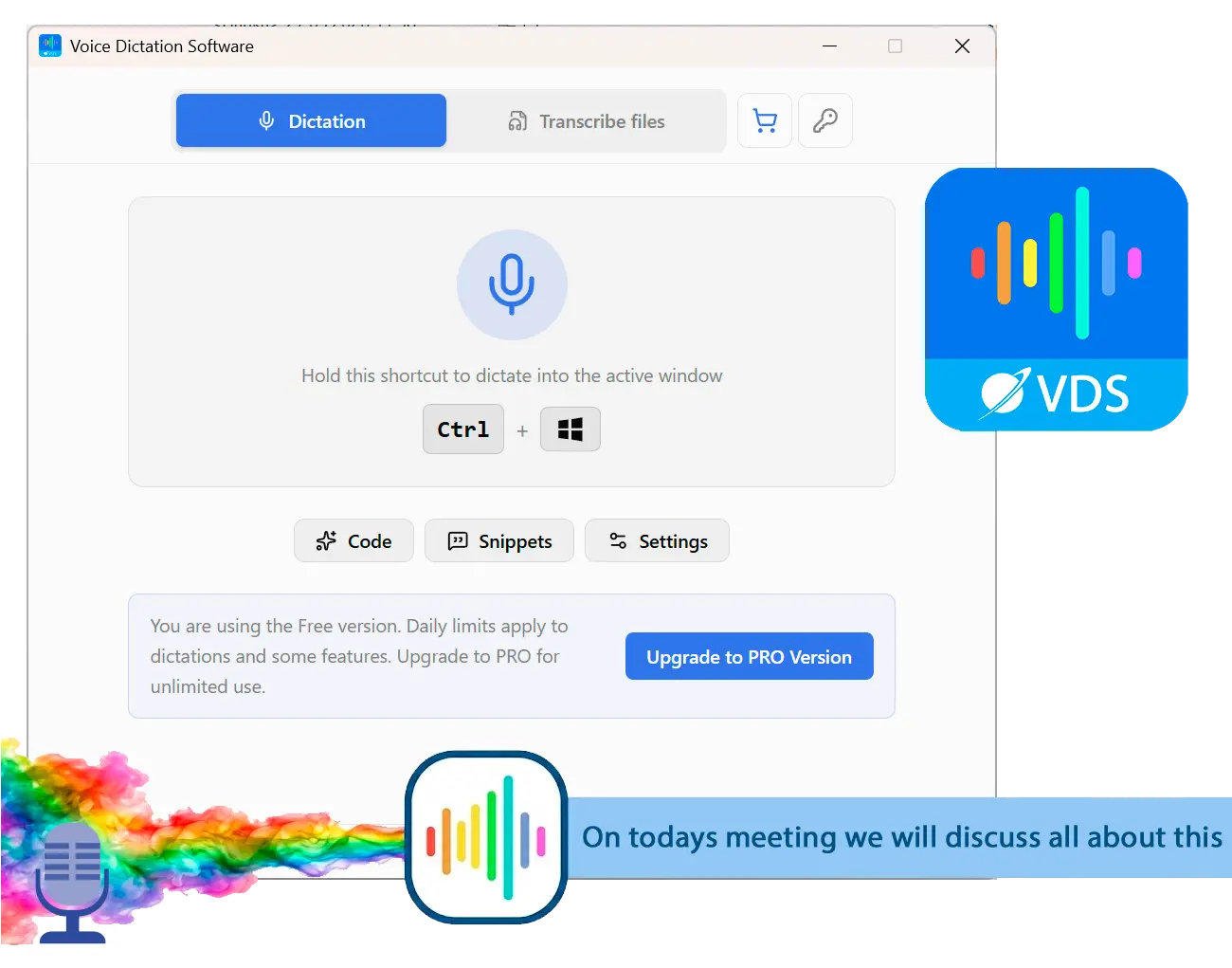
Voice to Text Dictation Software for Windows allows you to input text 4x faster. Just hold a hotkey and speak instead of typing text. Convert your audio and video files into text for quick reading.
Four structural limits sit under this tool. Browser dictation does not run offline. There is no Windows or Mac desktop app. Nothing types straight into the program you are working in. And the Chrome extension breaks on the exact sites people install it for. A better microphone fixes none of that.
Start with the Chrome extension, because the gap between promise and practice is the sharpest thing in this review. The store listing says it works on any page, including Gmail and others. The reviews on that same listing tell a different story. One user writes that it only works on the page explaining how it works, and not on Gmail or Facebook Messenger. Others report it failing in ChatGPT and similar editors. The same review pile also holds a complaint about a subscription cancelled with no reply from support, and a memorable note that the recognizer keeps hearing "call mom" instead of the spoken word "comma". The listing sits at 3.5 out of 5 from 77 ratings, across about 20,000 users. That is not a disaster score. It is the score of a tool that works beautifully in one place and nowhere else.
Docs versus practice. The Chrome extension is advertised as working on any page, Gmail included. Store reviewers repeatedly report the opposite. It types fine on the Speechnotes demo page and then fails in Gmail, in Messenger, and in editors like ChatGPT. Test it on your own sites before you build a habit around it.
Then there is the tab problem. Speechnotes is a website, so you dictate in one Chrome tab and paste the result into Word, Outlook or Slack. HowToGeek put it plainly after testing seven voice typing tools on Windows, noting that this design forces a copy-and-paste step every time and that the tool stops working if your network connection drops. Speech therapists say the same thing in their own forums: the documentation already takes longer than the sessions. For a clinician writing up notes between appointments, the copy step is not a minor annoyance. It is the workflow, all day long.
The platform gap follows from the same architecture. There is no standalone desktop app for Windows or macOS, and the tool depends on Chrome plus a stable internet connection. The Android app runs offline. The browser, the place most people use Speechnotes, does not.
Is Speechnotes safe to use?
TL;DR
Speechnotes is safe in the ordinary sense. There is nothing to install, no malware and no account behind the free notepad, and your dictated text stays in browser storage. The real question is where your voice goes, and the answer is a cloud speech engine, every time.
Nothing about Speechnotes looks shady. There is no .exe to run and no permissions grab, and the free notepad never pushes you to sign up. Dictated text autosaves into browser storage; no copy of it sits on a server. For uploaded recordings, the privacy docs at speechnotes.co/docs/guides/privacy/ state that the file is deleted from the servers as soon as the transcription is done. Privacy is a separate question from safety, and this is where the answer gets uncomfortable for some of users. Browser dictation is delegated to the browser's own cloud engine, Google in Chrome and Microsoft in Edge, so your audio leaves the machine to be recognized, even though the privacy docs state that Speechnotes never gets the recording itself. Send a recording to the transcription service and it takes the same kind of trip, only to the vendor's own servers. A grocery list does not care. Client notes, patient details, and unreleased contracts do. On an r/kde thread about dictation tools, people describe cloud speech recognition as a privacy issue for work data, and complain that the alternatives are either cloud services or heavy Electron apps that eat RAM. That is the gap a local STT tool fills.
Does Windows 11 have built-in dictation?
TL;DR
Yes. Win+H voice typing and Voice Access ship with Windows 11 at no cost, and they type into any app. They are also the source of a steady stream of complaints about accuracy, crashes on long dictation, and language settings tied to the system interface.
Before you pay anyone, try what you already have. Press Win+H in any text field and Windows 11 starts listening. Voice Access goes further, with full voice control of the desktop, and both cost $0.
The complaints are consistent enough to matter. In a Microsoft Q&A thread, a user describes built-in dictation as terrible at recognizing words correctly, stopping mid-sentence on long text, and forcing frequent restarts. The dictation language is also tied to the Windows display language, which blocks bilingual users outright. Built-in voice typing is free, system-wide, and streaked with the same cloud dependency as Speechnotes. If that is where you are stuck, we went through every Windows voice typing alternative worth the switch in a separate guide.
Best alternative: SayOnce for offline Windows dictation
TL;DR
SayOnce inverts the two things Speechnotes cannot change. Recognition runs locally on your PC, and the text lands at your cursor in any Windows app instead of a browser tab. It is Windows-only and it costs money, which we will not pretend otherwise.
SayOnce is a desktop app rather than a website. You hold a global hotkey, Ctrl+Win by default, speak, and the words appear wherever your cursor already is. Word, Outlook, a chat box, a code editor, a form in a browser. Nothing to open and nothing to copy across.
Recognition happens on the machine through a local NVIDIA Parakeet V3 model. It is CPU-first and needs no GPU, which matters on ordinary office laptop. That local design is the whole point of an offline dictation software for Windows pick. The network can drop or the plane can take off, and dictation carries on. Output goes through three rules-based presets rather than a cloud model. Prose cleans up punctuation, capitals, and filler words. Code leaves your identifiers alone. Email keeps paragraphs short. There is a personal dictionary for the terms you actually use, and snippets that expand a trigger phrase into a block of text.
The Files tab answers the $0.1-a-minute side of Speechnotes. Drop in a queue of recordings and SayOnce turns them into text with the same local engine, with no per-minute meter running. Free use covers 3 files a day, and a license lifts that ceiling. Output is plain .txt. If what you need is a subtitle file rather than a transcript, that job belongs to a different SoftOrbits tool, our audio and video to text transcriber, which exports .srt offline. SayOnce does not.
Speechnotes in a browser tab
Open the site, dictate into the notepad, select the text, copy it, switch to the app you needed, paste. Then do it again for the next paragraph.
VS
SayOnce, system-wide on Windows
Leave the cursor in the document, hold Ctrl+Win, dictate. The sentence lands in place, offline, with no browser anywhere in the loop.
Now the other half. SayOnce runs on Windows 10 and 11 only. A Mac build does not exist, neither does a mobile app, and there is nothing to open in a browser, so a Chromebook user gets nothing out of it. Recognition covers 25 languages, well short from the reach a browser engine gets from Google. Free use stops at 21 dictations a day, after which the app needs a paid license, and the first run pulls down a speech model of roughly 478 MB. Batch output is plain .txt, so if you want speaker labels out of a recording, Speechnotes does that job and SayOnce does not.
Pros:
Recognizes speech on the machine, so nothing is uploaded and nothing breaks when the network does
Types into any Windows app at the cursor, with no copy-paste step
Personal dictionary and snippets, so your own jargon and boilerplate come out right
Runs on a license you buy once, with no subscription and no per-minute billing for files
Cleans up punctuation and filler through presets as you dictate
Cons:
Windows 10 and 11 only, with no Mac build and no browser version
Covers 25 recognition languages, fewer than a browser engine offers
Free use stops after 21 daily dictations, then it is a paid license
Downloads a roughly 478 MB model on first run
File transcription returns plain text, without speaker labels or captions
Verdict: pick SayOnce if you dictate on Windows 10 or 11 most days and want the words to appear offline in the app you already have open. Stay with Speechnotes if you are on another platform or on a zero budget, or if a recording has to come back split by speaker.
Speechnotes wins on price, reach, and speaker labels. SayOnce wins on offline recognition, privacy, and typing into the app you are already in. The split is clean enough that most people know which side they are on after one row of this table.
The facts below come from each vendor: Speechnotes pricing and tiers from its official pages, SayOnce specifications from our own product data.
Feature
Speechnotes
SayOnce
Where the text lands
Its own browser notepad, then you copy it out
Any Windows app, at the cursor
Offline dictation
No in the browser, yes in the Android app
Yes, local recognition on the PC
Platform
Any OS with Chrome or Edge, plus Android
Windows 10 and 11 only
Where audio is processed
Google and Microsoft cloud engines
On your machine
Price
Free with ads, $1.9 / mo ad-free, $0.1 / min for files
Free up to 21 dictations a day, then a paid license (current price on the product page)
Ads
Yes, in the free tier
None
Speech languages
Broad, through the browser engine
25
File transcription
Yes, paid per minute
Yes, included, plain text output
Speaker labels and .srt captions
Yes, on the paid tier
No
Two jobs, two tools, and the table reads that way. Speechnotes is a browser utility that anyone can open on any machine for nothing. SayOnce is a desktop tool for people who dictate enough that the copy-paste tax starts to hurt. If you dictate twice a month, the free tab is the sane answer. And let us say the unflattering part out loud, because most review sites skip it: nobody should buy SayOnce to save money on Speechnotes Premium. At $1.9 a month, Premium is the cheap option and it stays the cheap option. You buy a license because the copy step stops on day one and the words land where you are already typing.
When is Speechnotes still the better pick?
TL;DR
On a Mac, a Chromebook, or a phone, Speechnotes wins by default, because SayOnce does not exist there. It also wins on a zero budget, on rare use, and whenever an uploaded file has to come back with the voices told apart.
We are not going to pretend our tool is the answer on every question. Four cases where Speechnotes is the better choice, and we would give the same advice to a friend. You are not on Windows. SayOnce is Windows-only, so on a Mac or a Chromebook the browser tool is simply the tool that runs.
Your budget is zero and it is staying zero. Free and functional beats better and paid, every time, and on a shared campus or library machine no .exe will install anyway. You dictate rarely. If voice typing is a monthly event, opening a tab is less friction than to install an app and download a 478 MB speech model. You need speaker labels out of a recording. Pay-as-you-go transcription returns timecoded text with English speaker labels for $0.1 a minute. SayOnce hands back plain text and no labels at all, so for an interview with three voices in it Speechnotes is the right tool and SayOnce is the wrong one.
Other Speechnotes alternatives we also considered
TL;DR
The closest free siblings are still browser-based and cloud-only, so they inherit the same limits. Dragon is the offline heavyweight with a price to match, Otter solves meetings rather than dictation, and the Windows built-ins are free but shaky.
Speechnotes is not the only option in this space, and it is worth to know who else is on the field before you settle. Six names came up, and here is where each one landed.
SpeechTexter is the closest twin. Free browser dictation on the same Google engine, Chrome-only and cloud-only. It fixes none of the structural gaps, and we broke it down in our SpeechTexter review.
Google Docs Voice Typing is free and built into a tool many people already have open, but it works only inside Docs, on the same Google engine, and still sends your voice away to be recognized.
Windows Voice Access and Win+H are free and system-wide, which is more than Speechnotes offers, and they carry the accuracy and stability complaints covered above.
Dragon Professional remains the offline power-user standard with deep vocabulary training, at a price that puts it in a different conversation for most home users.
Otter.ai is excellent at meeting transcription with speaker labels and summaries, and it is the wrong category for dictation into your own documents.
superWhisper runs its speech model locally, which is the right idea, but its centre of gravity sits firmly on the Mac side of the fence.
If you want the field laid out side by side instead of one competitor at a time, our roundup of the best voice to text software for Windows compares offline and browser tools in one place.
SayOnce - Voice Dictation Software
Speechnotes review 2026: the free browser dictation notepad tested - real pricing, ads, cloud-only limits, and the best offline Windows alternative.
Yes, in the malware sense. There is nothing to install, no account is required for the free notepad, and your dictated text autosaves to your own browser rather than a server. The privacy question is different: recognition runs on a cloud speech engine, so your audio does leave your machine every time you talk.
The dictation notepad is free with on-page ads. Premium removes the ads for $1.9 a month, and file transcription is billed pay-as-you-go at $0.1 a minute, with no subscription. Those figures come from the vendor's own pricing docs, checked in July 2026. Third-party directories often quote outdated numbers, so verify before you budget.
Not on its servers for browser dictation. Text autosaves into your browser's local storage, which also means it disappears if you clear your cache. Uploaded transcription files are a different path: they are processed on Speechnotes servers and, per the company's privacy documentation, deleted once the transcription is finished.
The dictation side is genuinely free, with no signup and no time limit, funded by banner ads that independent reviews of the tool describe as distracting. What costs money is the ad-free Premium tier and anything involving an uploaded file, speaker labels and caption exports included.
On clear English in a quiet room, yes, and the vendor claims around 95%. That number is self-reported, not an independent benchmark. The underlying Google Web Speech API was independently measured at roughly a 65.7% success rate with Japanese learners of English, well under the native-speaker score in the same study, so a strong accent will cost you accuracy no matter which browser tool wraps that engine.
Yes. Win+H starts voice typing in any text field, and Voice Access adds full voice control of the system, both at no cost. They also draw steady complaints about misrecognition, dropping out during long dictation, and tying the dictation language to your Windows display language.
Some do, and it depends entirely on where recognition happens. Browser tools like Speechnotes send audio to a cloud engine, so they stop at the edge of your Wi-Fi. Desktop apps that run a local speech model, such as SayOnce with Parakeet V3 on Windows, keep working with the network unplugged.
Windows itself gives you Win+H and Voice Access for free, and that is the first answer anyone should hear. Among third-party desktop tools, SayOnce gives you 21 free dictations every day with no expiry date, which is enough to find out whether offline dictation changes how you work before you pay for a license.

 SayOnce - Voice Dictation Software
 SayOnce - Voice Dictation Software