

After reading, you will be able to:

  1. 1️⃣ Crop a single GIF in your browser in under a minute.
  2. 2️⃣ Crop GIFs on your own PC with the animation and every frame intact.
  3. 3️⃣ Crop a whole folder of GIFs in one pass, no upload needed.
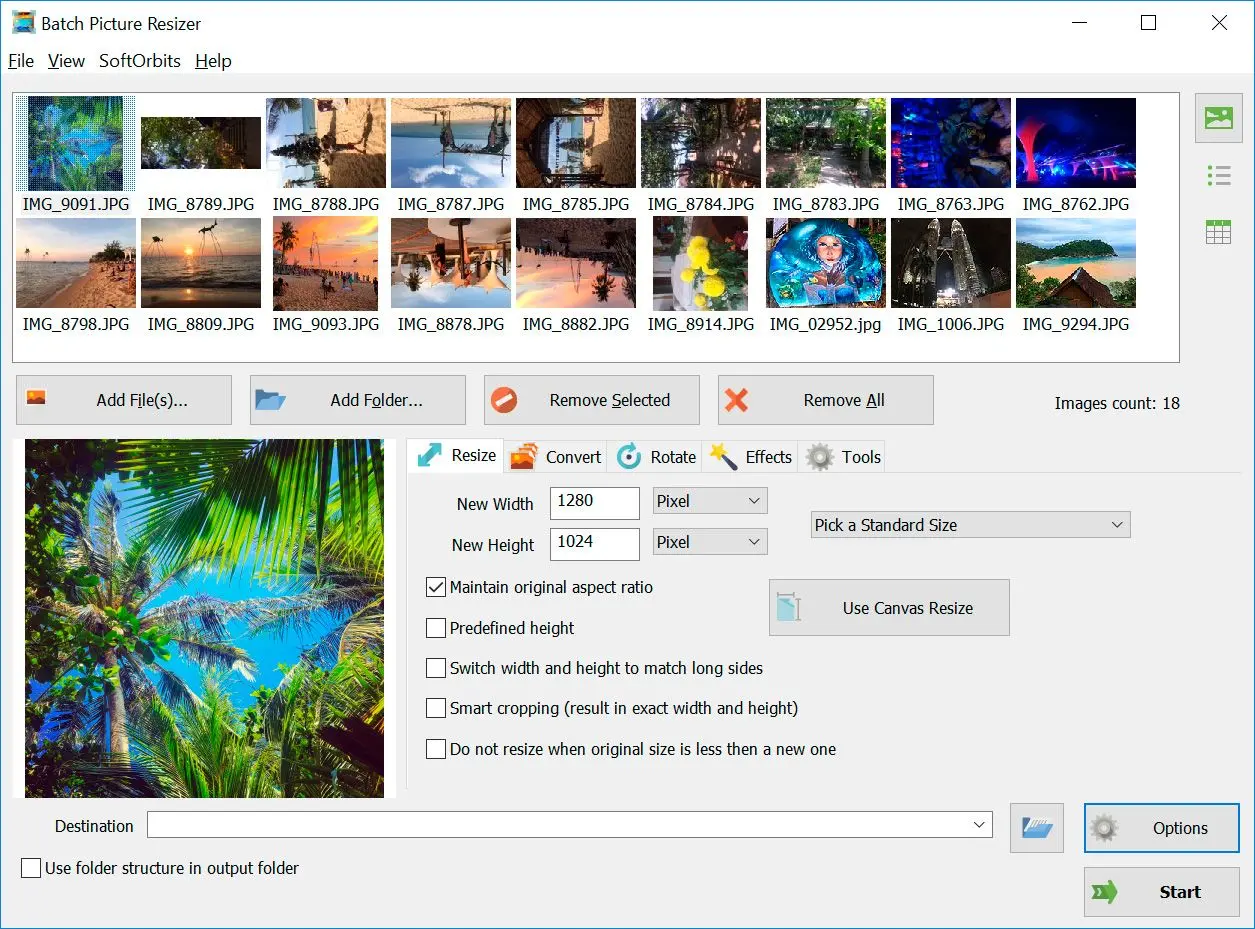
Batch Picture Resizer Screenshot.
Eugene - CEO at SoftOrbits, Candidate of Technical Sciences, has more than 16 years of expertise in software development, photo and multimedia applications, enhancing and transforming digital images and videos.
📅 Last updated on:  2026-06-05

Cropping a GIF sounds simple until the animation stops moving, a watermark lands in the corner, or the file doubles in size. This guide shows how to crop a GIF the right way on Windows, whether you have one reaction GIF or a folder of fifty. We cover the quick browser route, an offline desktop method with Batch Picture Resizer, batch cropping, and the gotchas that quietly ruin a good animation. Every method here keeps the frames intact, and nothing has to leave your PC unless you choose to upload it.

What you will learn
Apply in 5 min Saves 1 hEasy

Crop a GIF online in a few clicks

TL;DR

Online croppers like ezgif and Kapwing crop one GIF in seconds, straight in the browser. The trade-offs are upload size limits, the odd watermark, and occasional animation glitches.

For a single GIF, the fastest route is a browser-based GIF cropper. Upload the file, drag the crop box over the part you want to keep, and download the result. The ezgif crop tool lets you set predefined aspect ratios or drag freely, and it processes animated GIFs frame by frame.

The catch is what online tools do not tell you up front. Free plans cap the upload size, some add a watermark on export, and a busy work GIF full of dashboards or email threads gets sent to a server you do not control. For one harmless meme, that is fine. For anything private, or for more than a couple of files, the browser stops being the easy option.

  • Pick a tool that states it keeps the animation, not just the first frame
  • Check the export for a watermark before you post it anywhere
  • Skip the upload for confidential screen captures

Crop GIFs on Windows with Batch Picture Resizer

Open Batch Picture Resizer and add your GIFs

Drag your GIF files into the window or click Add Files. To crop a whole folder, use Add Folder instead.

 Adding GIF files to Batch Picture Resizer..

Open the crop options and set the area or aspect ratio

Switch to the crop settings, then choose a fixed ratio like 1:1 or enter exact pixels. The tool applies the same crop to every frame of an animated GIF.

 Crop settings with aspect ratio in Batch Picture Resizer..

Pick an output folder and click Start

Choose where the cropped files land, keep the format as GIF, and click Start. Nothing is uploaded; the work happens on your PC.

 Output folder and Start button..

Batch Picture Resizer Batch Picture Resizer

Batch Image Resizer is an easy, user-friendly tool that helps you resize multiple photos, convert, flip, mirror, or rotate them in batch mode.

Because Batch Picture Resizer runs offline, the GIF never leaves your machine, and you can crop dozens of files in the same run. That is the main reason to reach for a desktop tool over a browser tab once you have more than one file or anything you would rather not upload.

Will your GIF stay animated after cropping?

TL;DR

A GIF stays animated only if the tool crops every frame. Tools that flatten the image to a single frame, or apps that crop a GIF as a static shape, kill the motion.

This is the fear behind most "help, my GIF stopped moving" threads, and it is a real one. The animation survives when the cropper rewrites all frames with the new dimensions. It dies when a tool keeps only the first frame, or when you crop the GIF inside an app that treats it as a still image.
Designers hit this on export all the time. A Photoshop community thread describes an animated GIF coming out cropped and altered after a save, with the wrong dimensions. The fix is to crop with a tool built for GIFs, then play the result back before you use it. If it moves, you are done; if it sits still, the tool flattened it.

Crop a GIF to a specific size or aspect ratio

TL;DR

Set a fixed aspect ratio such as 1:1 or 16:9, or type exact pixel dimensions, so the GIF fits the spot you are posting it to.

Most platforms expect a shape, not a random rectangle. A profile avatar wants a square; a banner wants a wide strip. Cropping to a set ratio avoids the stretched or letterboxed look you get when the proportions are off. Both online tools and desktop apps let you lock a ratio or enter pixels before you crop.

Here are common targets people crop GIFs to:

UseAspect ratioTypical shape
Avatar / profile1:1Square
Feed post4:5 or 1:1Square or portrait
Banner / cover16:9Wide
Story / reel9:16Tall
Lock the ratio first, then nudge the crop box so the action stays in frame. If you only know the target in pixels, type the numbers instead of eyeballing it.

How to crop a GIF to a circle

TL;DR

A "circle crop" is really a square crop plus a round mask. A true round GIF needs transparency, which not every tool or platform supports.

Round GIFs look great as avatars, but GIFs are rectangles under the hood. Tools that offer a circle or ellipse crop, like the shapes in onlinegiftools, cut a square and lay a circular mask over it. Where the corners are clear, the GIF needs transparency to avoid an ugly box, the same way a transparent PNG keeps a clean edge on a static icon. Many platforms apply their own round mask anyway, so a clean square crop is often all you actually need.

How to crop multiple GIFs at once (batch)

TL;DR

To crop many GIFs at once, use a desktop batch tool. Online croppers work one file at a time, so a folder of GIFs means a folder of manual uploads.

This is where the browser route falls apart. Free online tools crop a single GIF per session, and forum users have run into desktop tools that quietly output only one frame when fed a batch of animated GIFs. If you regularly process reaction packs, product clips, or a backlog of captures, repeating the upload-crop-download dance fifty times is its own small punishment.

A batch tool fixes this. Add a folder, set one crop, and let it run across every file. Batch Picture Resizer applies the same crop and output settings to the whole list at once, on all CPU cores, and you can pair cropping with a resize if you also need to change the image dimensions in the same pass.

Batch Picture Resizer Batch Picture Resizer

Batch Image Resizer is an easy, user-friendly tool that helps you resize multiple photos, convert, flip, mirror, or rotate them in batch mode.

Crop a GIF without a watermark

TL;DR

Free online exports sometimes carry a watermark. Desktop tools export clean, and so do some free online croppers, so check before you commit.

A watermark on a cropped GIF is almost always a billing nudge, not a technical limit. Kapwing, for example, states in its watermark policy that free-plan exports can carry its mark, removed by upgrading. If a clean export matters, use a desktop tool, which has no reason to brand your file, or pick a free online cropper that exports without a mark. Either way, preview the result before you post it.

Why a cropped GIF flickers or shows ghost frames

TL;DR

Flicker and leftover "ghost" pixels come from frame disposal and optimization, not from the crop itself. Coalescing or unoptimizing the GIF before you crop usually clears it.

Animated GIFs save space by storing only the pixels that change between frames, plus a rule for how each frame is disposed of before the next one draws. Crop across that and you can get flickering or faint remnants of old frames. The ezgif crop page warns that animated GIFs can show missing frames or artifacts and points to its coalesce option, which redraws every frame in full before editing. The honest trade-off: coalescing fixes the glitch but undoes the size optimization, so the file can grow. If your crop looks haunted, unoptimize first, crop, then re-optimize at the end.

Crop vs. resize vs. trim: what is the difference

TL;DR

Crop removes pixels from the edges, resize scales the whole frame up or down, and trim cuts time by dropping frames. They are three separate jobs.

People mix these up, then wonder why the result is wrong. Cropping changes the framing by cutting away edges; the pixels you keep stay the same size. Resizing keeps the whole picture but scales it, which is what you want when you need a smaller GIF rather than a tighter shot; that is a job for a JPEG resizer, not a cropper. Trimming is about time, not space, and drops frames from the start or end. Decide which problem you have before you open a tool, or you will fix the wrong one.

Does cropping shrink a GIF file size?

TL;DR

Usually yes, because each frame has fewer pixels to store. But re-encoding the GIF can offset part of that saving.

Crop away a chunk of every frame and there is simply less to store, so most cropped GIFs come out smaller. The gain is not guaranteed, though. Saving a GIF re-encodes it, and the 256-color palette gets re-quantized each time, which can add weight back. If you need a hard size target rather than just "smaller," crop first and then run the file through an image optimizer to squeeze it down without another round of quality loss.

Pitfalls when cropping a GIF

TL;DR

Most cropping problems are not about the crop itself. They come from a tool flattening the animation, a free export sneaking in a watermark, the file size blowing up after a flicker fix, or a private GIF ending up on a server you do not control.

✔️ Flattening the animation to one frame.

The single most common complaint is a GIF that stops moving after a crop. A Microsoft Q&A thread confirms an animated GIF used as a shape fill loses its motion entirely. It happens whenever the tool treats the GIF as a still image. Always play the cropped file back before you use it.

✔️ Cropping inside an Office app instead of a GIF tool.

Another Microsoft Q&A thread points out that PowerPoint will not crop an animated GIF and steers people to a dedicated GIF editor instead. Crop the GIF first, then drop the finished file into your slide or document.

✔️ Forcing a batch through a one-at-a-time tool.

People asking how to batch-crop animated GIFs usually find online croppers only take one file per session. Use a desktop batch tool for a folder instead of repeating the upload by hand.

✔️ Letting an export carry a watermark.

Free online plans can stamp the corner, as Kapwing notes in its watermark policy. Check the download, not just the preview, since some tools only add the mark on export.

✔️ File size ballooning after a coalesce fix.

Coalescing fixes flicker but, as ezgif warns, it undoes the GIF's frame optimization and the file can grow. Re-optimize after cropping so you do not trade a glitch for a 10 MB monster.

✔️ Uploading something private.

A reaction GIF is harmless; a screen capture of an internal dashboard is not. If the content is sensitive, crop it offline on your own PC instead of sending it to a web service.

Batch Picture Resizer Batch Picture Resizer
Crop a GIF on Windows the right way - single files or whole batches, animated frames kept intact, nothing uploaded. Step-by-step with a free desktop tool.
Batch Picture Resizer Screenshot.


🙋Frequently Asked Questions

Yes. Use a tool built for GIFs that crops every frame, then play the result back to confirm it still moves. Apps that treat a GIF as a still image will freeze it on one frame.

A desktop batch tool. Add a folder, set one crop, and run it across every file. Online croppers only do one GIF per session, so a batch means repeating the upload by hand.

Open the GIF so its frames load in the Timeline, use the Crop tool on the canvas, then export with Save for Web as a GIF. Crop on the canvas, not on a single layer, so all frames follow.

GIMP can, and it costs nothing. It opens each GIF frame as a layer, lets you set the canvas and flatten the crop across layers, then exports back to GIF. Expect some fiddling for a quick one-off crop.

Most mobile GIF editors and some keyboard apps include a crop tool. They are fine for one file, but they upload to a server and rarely handle a batch, so a PC is better for volume or privacy.

The kept pixels stay the same; cropping itself does not blur them. Quality drops only from re-encoding, since each save re-quantizes the 256-color palette. Crop once and avoid repeated re-saves.

Sources