What Does HEIF Image Extensions Pricing and Performance Look Like?
The HEIF extension itself is free. The catch is that most real iPhone photos also need HEVC Video Extensions, a separate package that costs $0.99 as a one-time purchase for most users, with a free OEM-licensed version available only on some PCs. Performance is fine when it works, but reliability complaints are common.
On paper the price is zero, and that is true for the HEIF part. The trap is the second package. To decode the HEVC-compressed pixels inside a normal iPhone .HEIC, Windows needs HEVC Video Extensions as well, and for most people that is a paid Store item. HowToGeek's install walkthrough confirms the two-package reality directly. After the free HEIF extension you also need the separate HEVC Video Extensions package, priced at $0.99, and the old free workaround no longer works. Here is how the three packages line up.
| Package | Price | What it does |
|---|---|---|
| HEIF Image Extension | Free | Decodes the HEIF container so Windows can read the file |
| HEVC Video Extensions | $0.99, one-time | Decodes the HEVC-compressed pixels inside most .HEIC photos |
| HEVC Video Extensions from Device Manufacturer | Free, OEM-gated | Same decoder, but intended for PCs whose maker pre-licensed it |
Why does one of these cost money at all? HEVC is a patent-encumbered codec, so Microsoft pays licensing fees into patent pools and passes the cost on as a small charge instead of absorbing it. Windows Central reported the $0.99 change back in 2018. It is a one-time purchase, not a subscription. A Microsoft Q&A advisor confirms the HEVC extension does not expire once you buy it. There is also a free OEM edition, the one bundled by some PC makers, but it was meant for hardware whose maker already paid the license, so it is not a dependable free path on an arbitrary machine (Windows Latest covers this in the Sources below).
On performance, when both packages are in place, rendering is quick and looks native. The problem is that the pair often is not complete or does not register cleanly. Microsoft's own community forums are full of the same pattern. In one Community Hub thread, a user's HEIC viewing suddenly stopped after transferring iPhone photos, with Windows showing "we can't open this file," and reinstalling the extension did not help. The root cause was the missing HEVC piece. Other threads describe the Store reporting "Installed" while the codec never actually registers, and managed work PCs where Store policy blocks the install entirely with no offline installer to fall back on.
There is a security angle too, and it deserves a calm, factual note rather than alarm.
The Windows Codecs Library behind these Store codecs carried remote-code-execution flaws in 2020. Two of them, CVE-2020-1425 and CVE-2020-1457, were patched together, and a third, CVE-2020-17022, followed in October that year. They were fixed through automatic Store updates, and only PCs with the optional codec installed were exposed. Keeping Windows and your Store codecs current lowers this to a minor concern for most home users. We found no newer HEIF or HEVC extension flaws from 2023 to 2026, though that means not found rather than a clean bill.
Free for the HEIF part, with a fast install and no account
Adds real HEIC thumbnails and preview across WIC-based apps
One-time $0.99 HEVC purchase, not a recurring fee
Official Microsoft package, updated through the Store
Most iPhone photos also need the separate, usually paid HEVC package
Views files only; there is no way to save a JPG
Breaks in confusing ways and can be blocked on managed PCs
Store-only, so no offline installer for restricted environments
Double-click a .HEIC photo in File Explorer, or right-click it and choose Open with then Photos. Windows tells you the HEIF Image Extension is required.
Follow the prompt to the Store listing, or go straight to it, and click Get. The package is free and installs in a couple of minutes with no account.
Open the HEVC Video Extensions listing in the Store and install it. For most PCs this is the $0.99 one-time purchase, and it is the piece that decodes the pixels inside a normal iPhone .HEIC.
Open the .HEIC file again. If Windows asks whether you meant to switch apps, confirm Yes so Photos handles HEIC going forward.
Browse the folder and check that HEIC files now show real thumbnails instead of a blank icon. If they do, the setup is working and no further steps are needed.
There is no step here that produces a JPG or PNG on disk. Photos can show the image, but it has no batch "save as JPG" tied to this codec. Producing a converted file on disk is a separate job for a different tool.

Get a HEIC to JPG converter software free download for Windows 10 and 11. Convert HEIC to JPG locally on your PC in batch with full color profile support.
Where HEIF Image Extensions Falls Short
The extension views files and nothing more. It cannot save a JPG, and it has neither batch processing nor a command line. It depends on a second paid package, it can break after updates, and it is blocked entirely on Store-restricted PCs. For anyone who needs a real file out the other end, that is a hard limit.
The biggest limit is baked into what the tool is. It renders HEIC in place and stops there. Photos itself offers no batch action to export a folder of HEIC as JPG through this codec, so the moment you need a file you can send to someone, print at a kiosk, or open in older software, the extension has nothing for you. As the same HowToGeek guide notes, viewing and converting are different problems, and Microsoft's extensions solve only the first.
Batch work is not supported here. Nothing handles more than one file's display at a time, and it offers no folder export or command-line switch. If you have a phone dump of a few hundred HEIC photos, this codec does not shorten that job at all. It also cannot crop or resize, because it is a decoder rather than an image editor.
Then there is fragility. The dependency on a second, usually paid HEVC package means the primary use case, seeing your iPhone photos, often fails until you realize a whole other install is missing. On top of that, the codec can stop working after a Windows or Store update, and on managed or enterprise machines where Store access is restricted by policy, you may not be able to install it at all. If you just want a JPG you can keep and share, an offline converter sidesteps every one of these problems at once, which is what the next section is about.
Best Alternative: SoftOrbits HEIC to JPG Converter
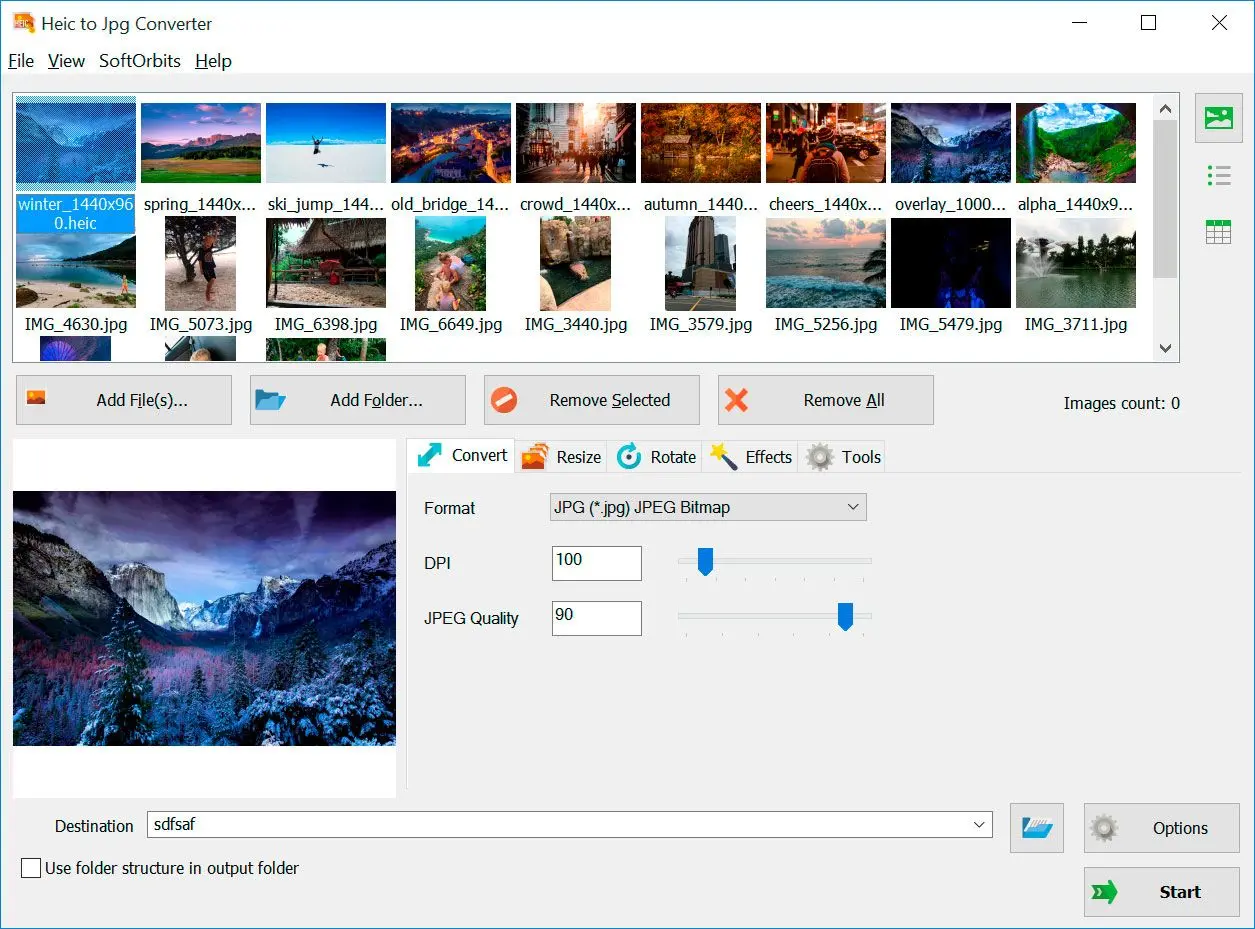
SoftOrbits HEIC Converter is a local Windows app that turns HEIC into real JPG or PNG files, in batches, with no paid codec dependency. It closes the exact gap the Microsoft extension leaves open. It is Windows-only and a paid tool past the trial, which we spell out below.
Where the Microsoft extension views, SoftOrbits HEIC Converter converts. You point it at one file or a whole folder, pick an output format such as JPG or PNG, and it writes new files to a destination you choose while leaving the originals untouched. The job runs on your PC, so nothing is uploaded anywhere, and it does not care whether you ever installed the Store codecs, because it decodes HEIC itself. That single difference, a real file on disk instead of an on-screen preview, is what sends most people looking past the built-in viewer in the first place.
Because it is a converter and not a codec, it also picks up the jobs the extension cannot touch. It processes hundreds of files in one pass, reads HEIC and HEIF on the way in, and can resize or crop while it converts. It runs from the command line for scripts and scheduled tasks, so a folder of new phone photos can be converted automatically. It recognizes and keeps HDR and wide-gamut color rather than flattening it. And it doubles as a viewer, so it covers both the "let me see it" and "give me a JPG" needs in one place. If you specifically want PNG output with transparency handling instead of JPG, the same silo has a dedicated HEIC to PNG converter page.
Install two Store packages, pay for one, then open each HEIC in Photos to look at it. To share it, you still have no JPG, so the recipient needs the same codecs too.
Drop the folder in, pick JPG, and click Start. You get real files you can email or print, and open on any PC, while the work happens on your own machine.
We will be straight about the tradeoffs, because no tool is free of them. SoftOrbits HEIC Converter runs on Windows 10 and 11 only, so there is no Mac, Linux, or mobile build. It is a paid product once you pass the trial, while the Microsoft extension is free or a one-time $0.99. If all you ever do is glance at one or two HEIC photos in Photos, installing a dedicated converter is more than you need, and we would rather you knew that up front.
Converts HEIC to real JPG, PNG, or TIFF files you can keep and share
Batch-processes whole folders in a single pass
Works fully offline, with no cloud upload and no paid codec dependency
Runs from the command line for scripts and scheduled jobs
Windows 10 and 11 only; no Mac, Linux, or mobile build
A paid tool once the trial ends, unlike the free extension
Overkill if you only ever view one or two photos in Photos
HEIF Image Extensions vs SoftOrbits HEIC Converter
Here is the side-by-side on the points people actually weigh. The split is not "good versus bad," it is "viewer versus converter," and which one you want depends entirely on whether you need a file at the end.| Feature | HEIF Image Extensions | SoftOrbits HEIC Converter |
|---|---|---|
| Core function | Views HEIC in place | Converts HEIC to a new file |
| Saves JPG / PNG / TIFF | No | Yes |
| Batch folders | No | Yes |
| Command line | No | Yes |
| Works offline | Yes, local codec | Yes, local processing |
| Paid HEVC dependency | Usually yes, $0.99 | No |
| Price | Free plus one-time $0.99 | Paid past the trial |
| Platform | Windows 10 and 11 | Windows 10 and 11 |
The table makes the divide clear. HEIF Image Extensions wins on price and on being the official, built-in way to see a photo. SoftOrbits HEIC Converter wins on everything that involves producing and reusing a file. It handles batch export and multiple output formats, adds command-line automation, and needs no paid codec. If your need is "show me this picture," the free extension is the right call. If it is "give me JPGs I can use anywhere," the converter is the honest answer.
Get a HEIC to JPG converter software free download for Windows 10 and 11. Convert HEIC to JPG locally on your PC in batch with full color profile support.
When HEIF Image Extensions Is Still the Better Pick
For light, occasional viewing, the built-in extension is genuinely the smarter choice. If you just want to open a few HEIC photos in Photos on a home PC, it is free and official, and already most of the way there. Installing a separate converter for that would be more work than the job deserves.
We would not push everyone toward a converter, because for a real slice of people the Microsoft extension is the correct answer. If you occasionally receive a HEIC photo and only want to look at it, the extension plus the one-time HEVC package gets you there for a dollar, and it is the official route Microsoft supports. There is no separate app to learn and nothing new to trust.
It also fits people who never leave the Microsoft ecosystem for these files. If you view photos in Photos, keep them in HEIC, and never need to send them to someone on older software, converting them serves no purpose. And on a personal PC with full Store access, the install is quick and low-friction. The extension earns its place for casual viewing. It only stops being enough when you need a file, a batch, or automation, which is a different job than the one it was built for.
What Other HEIC Alternatives Are There?
Beyond the Microsoft extension and our converter, a few tools cover the middle ground. CopyTrans HEIC adds a right-click convert action, iMazing HEIC Converter does free batch conversion, online converters trade privacy for zero install, and Windows Photos can save one file at a time once the codecs are in.
HEIF Image Extensions is not the only way to deal with HEIC, and it is worth knowing the field before you settle on one. We also considered each of these tools for the top spot and set them aside for concrete reasons. CopyTrans HEIC converts only through the right click, with no batch queue. iMazing needs a separate app rather than a native Windows workflow. Online converters lose points for the privacy trade-off of uploading personal photos, and Windows Photos export handles just one file at a time. Here is where each one still fits.
a free Windows utility that adds a right-click "Convert to JPEG" action straight in Explorer and enables HEIC thumbnails without extra software. It works offline and needs no paid HEVC package, though its output is JPG only. See the CopyTrans HEIC page for details.
a small free desktop app for Windows and Mac that batch-converts HEIC folders to JPG or PNG while keeping EXIF data. Our iMazing HEIC Converter review covers where it fits.
tools like CloudConvert or Convertio skip the install step. The catch is that you upload personal photos to someone else's server. Free tiers also cap how many files you get per day, which rules them out for private or bulk work.
with both Store codecs installed, Photos can Save As a single HEIC to JPG one file at a time. That works for one photo but not for a folder.
For batch conversion into more output formats, our own HEIC to JPG converter is the most full-featured option here, while iMazing or CopyTrans cover the lighter, free end.
Sources