
HEIC to JPG Converter HEIC to JPG Converter
HEIC to JPG Converter Download for Windows

Get a HEIC to JPG converter software free download for Windows 10 and 11. Convert HEIC to JPG locally on your PC in batch with full color profile support.

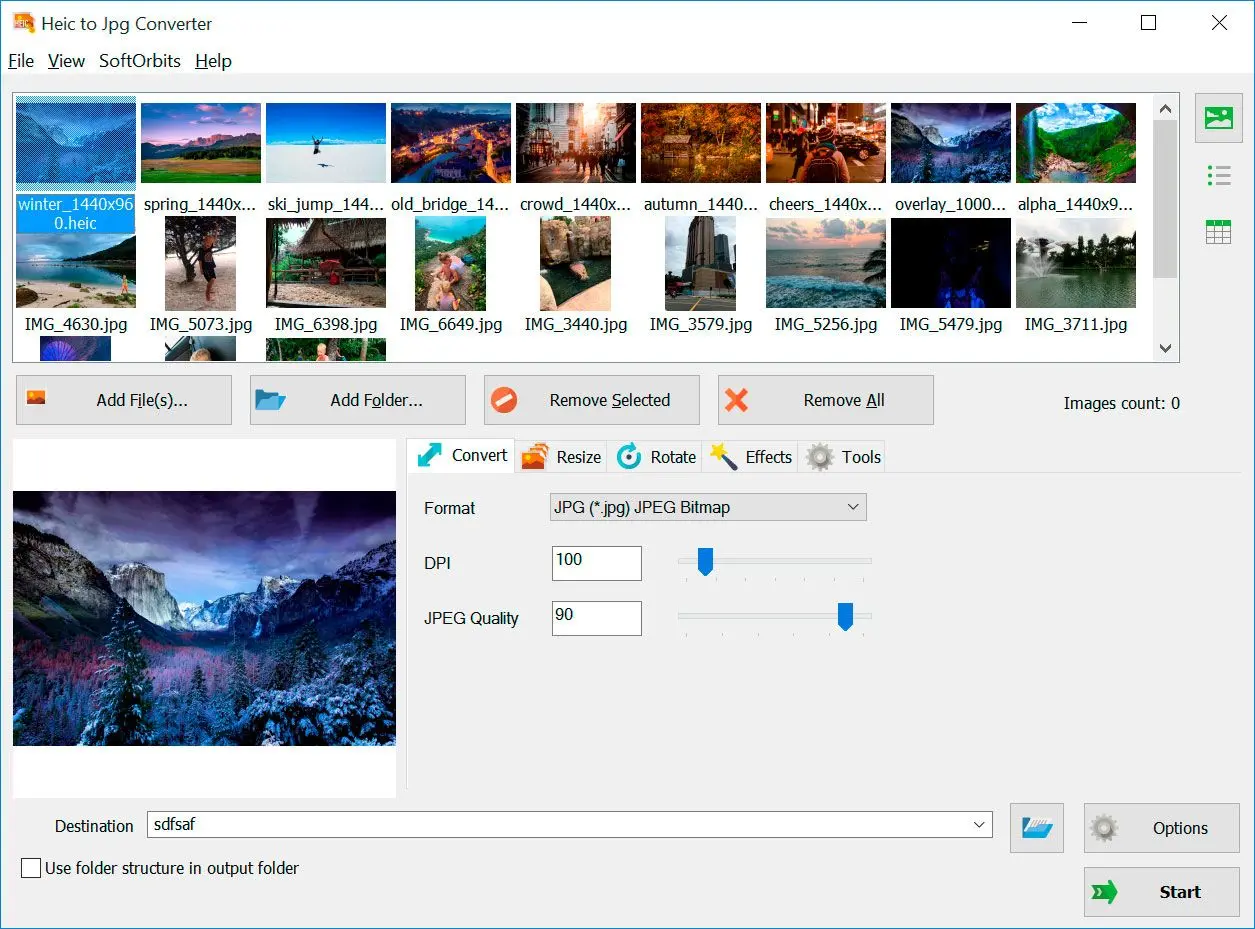
HEIC to JPG Converter Screenshot.
Eugene - CEO at SoftOrbits, Candidate of Technical Sciences, has more than 16 years of expertise in software development, photo and multimedia applications, enhancing and transforming digital images and videos.
📅 Last updated on:  2026-07-09

CopyTrans HEIC review: an honest hands-on test of the free Windows plugin, its 100-image and iPhone-only limits, plus the best HEIC to JPG alternative.

HEIC to JPG Converter Screenshot.

If you moved iPhone photos to a Windows PC and got a folder full of blank icons or "can't open this file" errors, you have met the HEIC problem. Since iOS 11, iPhones save photos as HEIC by default, and Windows Explorer still does not preview or open those files reliably without extra software. CopyTrans HEIC is one of the oldest free fixes for this, and it is the tool most people land on first when they search for a way to see and convert iPhone photos on Windows.
This CopyTrans HEIC review comes from hands-on testing on Windows 10 and 11, plus the vendor's own documentation and a stack of independent reviews. We cover what the tool does and whether it is free and safe, how the conversion works, and the real limits that appear once you push past casual use. The batch tops out at 100 images. It only converts iPhone HEIC, and it gives you no control over output quality. We also show where a paid tool like the SoftOrbits HEIC to JPG Converter makes more sense, and we name that tool's own trade-offs too.

Disclosure: SoftOrbits makes the HEIC to JPG Converter recommended later in this review. We held CopyTrans HEIC to the same standard as our own product, cons included.

What you will learn
Apply in 2 min Saves 1 hBeginner

What Is CopyTrans HEIC?

TL;DR

CopyTrans HEIC is a small, free Windows plugin from CopyTrans, a company running since 2004, that lets Explorer show HEIC thumbnails and convert iPhone HEIC photos to JPEG with a right-click. It is aimed at everyday iPhone-to-PC users rather than photo editors.

 CopyTrans HEIC converting..

CopyTrans HEIC for Windows is a lightweight shell extension (a codec plus a right-click menu item) rather than a full application window you open and stare at. Once installed, it registers itself with Windows so File Explorer can render HEIC thumbnails and the built-in Windows Photo Viewer or Photos app can open the files. According to the vendor's official CopyTrans HEIC page, the whole point is to read and convert the HEIC/HEIF format that iPhones save by default since iOS 11, without installing Apple software or paying for the Microsoft Store HEIF extension.

The maker, CopyTrans, has published a family of iPhone-management utilities since 2004, from CopyTrans Contacts and CopyTrans Photo up through the current CopyTrans Studio. Download portals list the standalone HEIC build as version 2.0.0.0, around 7.5 MB, with the installer publisher shown as Ursa Minor Ltd on FileHorse. Notably, FileHorse's own listing now states "This program is now CopyTrans Studio," a signal that the free standalone plugin is being folded into the broader paid product. More on that below.

Who is it for? Family users and students, plus photographers, who occasionally need to view or convert iPhone photos on a Windows machine and sometimes print them. It also suits Microsoft Office users who want to paste HEIC images into Word or PowerPoint. CopyTrans advertises a strong user base and a top rating, with its own site currently showing 5 out of 5 from 3,735 votes, though those are vendor figures we could not verify independently.
The reason HEIC exists at all, and the reason converting is sometimes a trade-off, comes down to size. Apple's format squeezes photos down hard.

2x
CopyTrans says a HEIC photo is almost twice smaller than a JPEG of the same quality
Source

That size advantage is exactly why iPhones default to HEIC, and it is why you should keep the originals when you convert. A converted JPEG of the same photo will usually take up roughly double the disk space.

What Are the Main Features of CopyTrans HEIC?

TL;DR

The main features are HEIC thumbnails in Explorer and double-click viewing through the native Windows viewer. You also get right-click conversion to JPEG and batch conversion of up to 100 images. The tool preserves EXIF data, prints HEIC files, and works inside Microsoft Office. It does one job, viewing and converting iPhone HEIC, and does it with almost no interface.

Here is the real feature set. Each item is cross-checked against the official page and independent reviews rather than pulled from marketing copy alone.

  • HEIC thumbnails directly in Windows Explorer. The plugin generates real previews, and your photo folders stop showing blank icons. The WidsMob review confirms this behaviour.
  • Full-size viewing through Windows Photo Viewer or the Photos app. Double-click a HEIC file and it opens like any native image once the plugin is installed.
  • Right-click "Convert to JPEG with CopyTrans." This is the core action. You select the photos, then right-click and convert. The MobiKin review confirms the same two-click flow.
  • Batch conversion, capped at 100 images per operation. You can select a group and convert them together, but not more than 100 at a time.
  • EXIF metadata preserved. Date taken and geolocation carry over to the converted JPEG, per the Apeaksoft review.
  • Microsoft Office integration. CopyTrans says you can insert HEIC photos directly into Office apps like Word, PowerPoint and Outlook (Office 2010 and later).
  • Direct printing of HEIC images without converting first.
  • Offline, local conversion with no cloud upload, according to CopyTrans.
  • Integration with third-party image viewers, plus Citrix and Terminal Server support for enterprise setups.

One inconsistency worth flagging. FileHorse's listing text claims CopyTrans HEIC can output "JPEG or PNG," but the official how-to and every other review we checked say output is JPEG only. We treat the PNG claim as a listing error, not a feature.

Pricing and Performance Review

TL;DR

CopyTrans HEIC is free for private, non-commercial home use. Commercial use needs a paid Business License, quoted by email. Performance is fine for a handful of photos but stalls at scale. The batch caps at 100 images. There is no quality control, and output stays JPEG only.

This CopyTrans HEIC review found the core plugin genuinely free for personal, non-commercial home use, and that is a big part of its appeal. But the freemium wedge shows up fast. Per CopyTrans' own Terms and Conditions, any commercial or corporate deployment of the free version violates the license. Businesses must buy a CopyTrans HEIC Business License, priced by number of PCs or server users, including one year of use with email support and updates. There is a stated 20% discount for non-profits and schools, and a broader "CopyTrans 7 Pack" bundle license. Crucially, there is no public price list, so you email [email protected] for a quote.

The batch limit is the headline performance constraint.

100
maximum HEIC images CopyTrans HEIC converts per batch on the free tier
Source

CopyTrans' own support article confirms the 100-image cap and states that the free build "will no longer be updated." For users who need more, the vendor points to a paid CopyTrans HEIC Pro tier with "limitless conversion," and for personal users it recommends the separate CopyTrans Studio product that converts "HEIC to JPEG, PNG and PDF with no limit." Both are quote-only or paid, so the moment you have a big library the free tool stops being the answer.

On raw performance, the tool is quick for a dozen photos. The problems appear with volume and control. There is no way to set JPEG quality or compression, so you take whatever the tool decides, and output stays JPEG only. Large libraries are painful. As one review puts it, if you want to adjust photo quality or convert over 100 images together, the tool "cannot help or is time-consuming," per the Coolmuster review.

Pros:

Genuinely free for home use

Two-click, no-learning-curve conversion

Real Explorer thumbnails and native viewing

EXIF (date, location) preserved

Local and offline

Cons:

Hard 100-image batch cap on the free tier

No image quality or compression control

JPEG-only output

Commercial deployment needs a paid, quote-only license

Free build is frozen (no more updates)

How to Use CopyTrans HEIC

TL;DR

Download and install CopyTrans HEIC, open your iPhone photo folder in Explorer, select the HEIC files, then right-click and choose "Convert to JPEG with CopyTrans." The converted JPEGs appear next to the originals. It takes two clicks once the plugin is installed.

Download CopyTrans HEIC from the official site

Go to the official CopyTrans HEIC page and download the free installer for Windows. It is a small file, around 7.5 MB.

Install the plugin with admin rights

Run the installer and complete setup. Administrative rights are required because the tool registers a shell extension with Windows. There is no separate app to launch afterward. It works from inside Explorer.

Open your iPhone photo folder in Explorer

Browse to the folder holding your HEIC photos. Thumbnails now render natively, so the folder shows real previews at a glance.

Select the photos and right-click Convert

Select one or more HEIC files (up to 100), then use the right-click menu and pick Convert to JPEG with CopyTrans.

Find the JPEGs next to the originals

The converted JPEG files appear in the same folder, right beside the original HEIC files. CopyTrans calls this "literally two clicks to convert HEIC to JPEG."

HEIC to JPG Converter HEIC to JPG Converter

Get a HEIC to JPG converter software free download for Windows 10 and 11. Convert HEIC to JPG locally on your PC in batch with full color profile support.

For step-by-step visuals, CopyTrans links a video on its official how-to guide. Note that the same support page now nudges readers toward CopyTrans Studio as the recommended tool going forward, another sign the standalone plugin is on its way out.

Where CopyTrans HEIC Falls Short

TL;DR

The big limitation is simple. CopyTrans HEIC converts iPhone HEIC only, and HEIC from any other camera fails. Add the 100-image cap and the lack of quality or resize control, then JPEG-only output with no command line and no Mac version, and it stops being enough for anything beyond casual iPhone use.

The single biggest gap surprises people. CopyTrans HEIC only converts HEIC files that came from an iOS device, so if your HEIC came from a digital camera it will not convert. The WidsMob review confirms the tool "only works for HEIC images taken by iOS devices." Apeaksoft notes it "does not support Canon HEIC files," and Softonic's own cons list repeats "Doesn't support Canon HEIC file types." The "HEIC converter" label is really "iPhone HEIC converter."

Before you convert, check where your HEIC files came from. CopyTrans HEIC ignores any HEIC that did not originate on an iPhone, and camera HEIC from a brand like Canon or Nokia will silently fail to convert rather than throw a clear error. If your folder mixes phone and camera shots, use a converter that accepts any HEIC source, and always keep the originals until you have confirmed the output.

The other limits stack quickly.

  • 100-image batch cap. Fine for a phone dump of a few dozen shots, but a wall the moment you have a real library. If you routinely need to batch-convert hundreds of HEIC files, this tool cannot do it in one pass.
  • No quality or resize control. It is a converter, not an editor, with no quality slider and no way to resize or crop before saving. WidsMob's comparison specifically credits rival tools with image rotation and resizing, capabilities CopyTrans lacks.
  • JPEG-only output. No PNG or PDF, and no TIFF, from the free plugin.
  • No command line at all. No source mentions a CLI or scripting hook, whether official or third-party. It is a manual, right-click GUI tool only.
  • No macOS version. Confirmed across the Hitpaw and Coolmuster reviews. This is expected, since Mac handles HEIC natively, but it is worth stating.
  • Antivirus false positives. The Coolmuster review reports some AV engines flag the installer, sometimes forcing users to temporarily disable protection, even though download portals like Softonic report a clean scan. MobiKin separately reports occasional stability issues and a 90-degree rotation bug during batch conversion, a single-source claim to treat as anecdotal.

Add the product-line confusion, where FileHorse flatly states "This program is now CopyTrans Studio," and you have a free tool that works for its narrow job but is visibly being retired.

Best Alternative: SoftOrbits HEIC to JPG Converter

TL;DR

The SoftOrbits HEIC to JPG Converter is a paid Windows 10/11 app that fixes what CopyTrans HEIC cannot. There is no 100-image cap, it converts any HEIC including camera files, and it adds quality and resize control. HDR, extra output formats and a command line come with it. The honest trade-off is that it is paid, not freeware.

If you hit any of the walls above, a dedicated converter is the fix. The workflow difference on a large library shows it clearly.

With CopyTrans HEIC you convert in manual chunks of 100 and right-click each batch, with no quality setting and iPhone HEIC only
With SoftOrbits you run one job across every CPU core for any number of files from any HEIC source, plus quality and resize control

The SoftOrbits HEIC to JPG Converter is built for the exact cases where CopyTrans stalls.

  • No 100-image limit. It runs batches across all your CPU cores, so hundreds or thousands of photos convert in one job. A 4,000-photo library finishes in a single pass instead of 40 manual chunks.
  • Converts any HEIC, not just iPhone. Camera HEIC that CopyTrans refuses converts fine here.
  • Real quality and size control. Set JPEG quality, then resize or crop with an optional smart crop. These are the editing controls CopyTrans has none of.
  • HDR and wide-gamut handling, plus a built-in HEIC viewer. You are not stuck with the Windows Photos app.
  • Command line and watch-folder automation. Point it at a folder and it converts new HEIC files automatically, which is genuinely useful for a repeatable workflow.
  • Explorer integration and 100% local processing. Nothing leaves your PC.
  • Output beyond JPEG. You are not locked to a single format.

To be fair, the SoftOrbits HEIC to JPG Converter is paid software. There is a free trial, though it is not permanently free like CopyTrans. If you only ever open a handful of iPhone photos on your PC, paying for a converter is overkill, and CopyTrans' free plugin is the sensible choice. The paid tool earns its price only when scale and source variety matter, or when you need quality control and automation. You can see the full feature list on the HEIC to JPG Converter landing page.

CopyTrans HEIC vs SoftOrbits HEIC to JPG Converter

TL;DR

CopyTrans HEIC wins on price and zero-friction Explorer preview. SoftOrbits wins on batch scale and any-source HEIC. It also adds quality and format control, plus HDR and automation. Pick by whether your job is "occasionally view an iPhone photo" or "convert real volume with control."


CapabilityCopyTrans HEICSoftOrbits HEIC to JPG Converter
PriceFree (home only); Business License by quotePaid, free trial
Batch limit100 images per runNo fixed cap, all CPU cores
Camera / non-iOS HEICNo (iPhone HEIC only)Yes (any HEIC)
Quality / resize / cropNoYes (quality, resize, crop, smart crop)
HDR / wide-gamutNoYes
Output formatsJPEG onlyJPEG and others
Command line / automationNoYes (CLI, watch-folder)
PlatformWindows onlyWindows 10 / 11

This CopyTrans HEIC review's verdict is not that one tool is bad. CopyTrans HEIC is a fine free preview-and-convert plugin for casual iPhone users. But if any row above matters to you, especially the batch cap and camera HEIC, or the lack of quality control and automation, then the SoftOrbits HEIC to JPG Converter covers exactly the gaps CopyTrans leaves open. That is why it is the stronger pick for anyone converting HEIC at real volume.

When CopyTrans HEIC Is Still the Better Pick

TL;DR

If you just need free, zero-cost preview of iPhone HEIC photos in Explorer and the occasional two-click conversion, CopyTrans HEIC is enough. You do not need to pay for anything.

This review is not going to pretend CopyTrans HEIC is useless. That is what thin affiliate pages do, and it is dishonest. For a large share of people, CopyTrans HEIC is genuinely the right tool. If the situation is "a few iPhone photos copied to a PC, just to see the thumbnails and once in a while turn one into a JPEG," this free plugin does that in seconds with no money spent and no app to open. The Explorer thumbnail integration in particular is clean and low-friction.
Stay with CopyTrans HEIC if your HEIC always comes from an iPhone and you never convert more than about 100 photos at once. You should also not care about setting JPEG quality or output format, and you should not need a Mac version or automation. In that lane it is hard to argue with free. The one caveat is longevity. With the vendor steering users toward the paid CopyTrans Studio and the plugin frozen, do not count on new features.

Other HEIC Alternatives Also Considered

TL;DR

This review also weighed three other options and dismissed each for serious volume work. Those were Windows' own HEIF extension, browser-based online converters and iMazing HEIC Converter. Each does one thing acceptably but loses on cost or privacy.

Here is what each does and where it falls behind.

  • Windows Photos with the HEIF Image Extensions add-on opens HEIC natively in Windows 11 once installed. The extension is a paid add-on for many users, and Photos still offers no batch conversion and no quality control, so it is viewing rather than a workflow.
  • Online HEIC converters run instantly in a browser for free with nothing to install. They also upload your photos to a third-party server, a real privacy problem for personal images, and usually cap file count and size, which makes them fine for one throwaway image and wrong for a private library.
  • iMazing HEIC Converter is a free desktop drag-and-drop tool for Windows and Mac that handles any HEIC source with basic quality control. It has no automation and none of the resize or crop depth of a paid tool, so it is a decent free middle ground rather than a scale tool. Our iMazing HEIC Converter review has the full breakdown.

If your target format is PNG rather than JPEG, for transparency or lossless quality, see our HEIC to PNG Converter, since CopyTrans HEIC cannot output PNG at all.

Sources

HEIC to JPG Converter HEIC to JPG Converter
CopyTrans HEIC review: an honest hands-on test of the free Windows plugin, its 100-image and iPhone-only limits, plus the best HEIC to JPG alternative.
HEIC to JPG Converter Screenshot.


🙋Frequently Asked Questions

Yes, for private, non-commercial home use the core CopyTrans HEIC plugin is free. Commercial or office use requires a paid Business License, priced by number of PCs or users and available only by email quote from CopyTrans. The vendor also marks the free build as frozen going forward.

CopyTrans is an established vendor operating since 2004, and download portals like Softonic report clean security scans. That said, a few reviewers note that some antivirus engines mistakenly flag the installer, occasionally requiring users to temporarily allow it. It installs a shell extension that hooks into Explorer, so download it only from the official copytrans.net site to be safe.

No. This is CopyTrans HEIC's biggest limitation. It only converts HEIC files created by iOS devices, so HEIC shot on a digital camera such as Canon or Nokia will not convert. For camera or non-iPhone HEIC, you need a converter like the SoftOrbits HEIC to JPG Converter that handles any HEIC source.

Not with the free CopyTrans HEIC plugin. It caps batches at 100 images per operation. For larger libraries, CopyTrans steers you to the paid CopyTrans Studio, or you can use a tool with no batch cap. Our guide on how to batch-convert HEIC in bulk covers the options for hundreds of files at once.

With CopyTrans HEIC installed, open the folder in Explorer, select your HEIC photos, and pick "Convert to JPEG with CopyTrans" from the right-click menu. The JPEGs appear next to the originals. Without any plugin, Windows 11 can open HEIC after you install Microsoft's HEIF extension, but that route does not batch-convert.

It depends on your needs. For free, occasional viewing of iPhone photos, CopyTrans HEIC is enough. For converting at volume, handling camera HEIC, or automating the job at a controlled quality, a dedicated paid tool like the SoftOrbits HEIC to JPG Converter is the stronger choice. It removes the 100-image cap, converts any HEIC, and adds the HDR and command-line support that CopyTrans lacks.

HEIC to JPG Converter HEIC to JPG Converter

Get a HEIC to JPG converter software free download for Windows 10 and 11. Convert HEIC to JPG locally on your PC in batch with full color profile support.