Eugene - CEO at SoftOrbits, Candidate of Technical Sciences, has more than 16 years of expertise in software development, photo and multimedia applications, enhancing and transforming digital images and videos.
📅 Last updated on:  2026-05-31

Can't record in Teams because you're not the host? Here's how to record a Teams meeting as a participant on Windows, capture system audio, and stay legal.

SoftOrbits Screen Recorder for Windows 11 Screenshot.
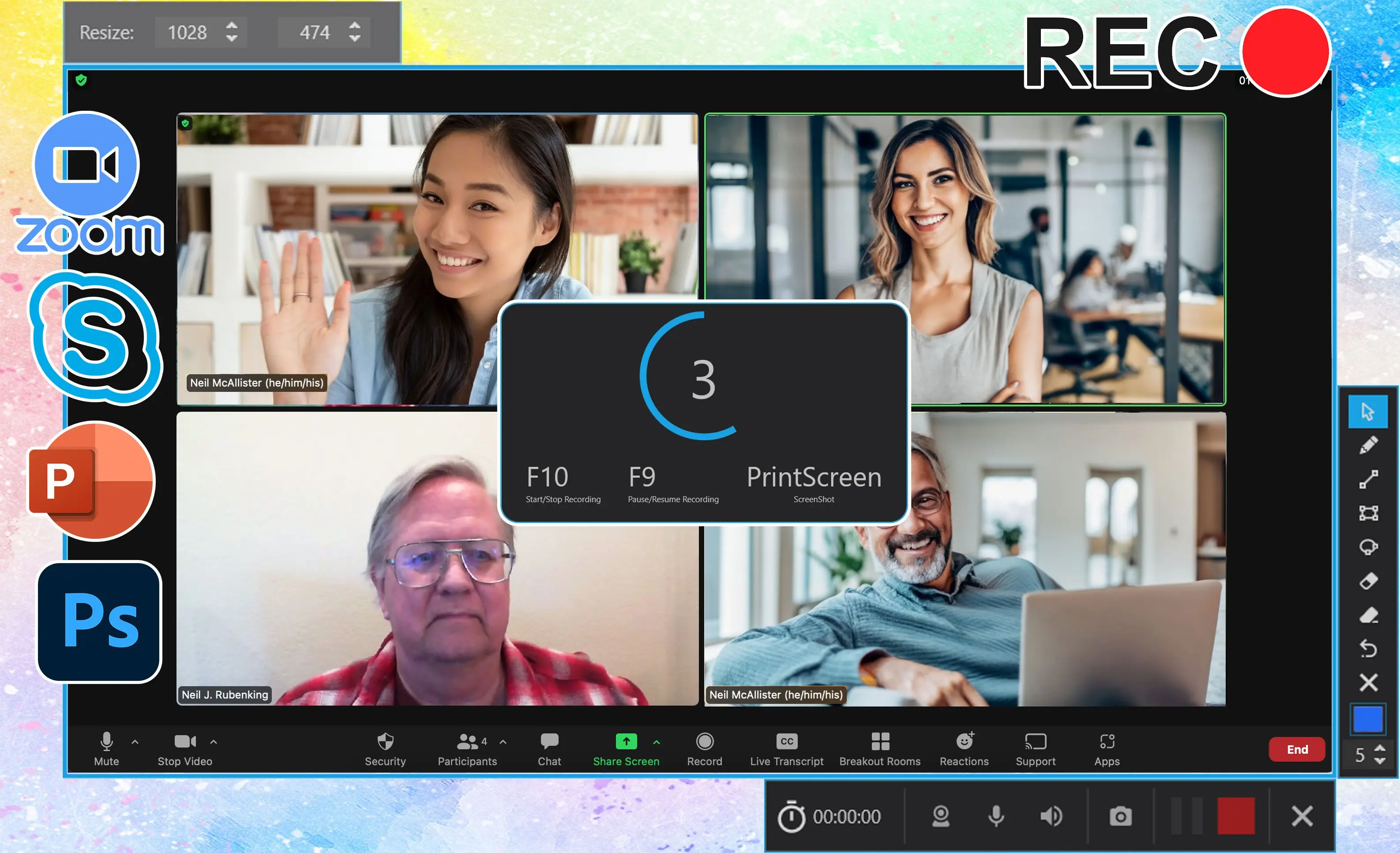
You joined the call, the discussion mattered, and now you want a copy - but the Record button is greyed out because you are not the host. This guide shows how to record a Teams meeting as a participant on Windows, even when native recording is blocked for your role. We tested the approach on Windows 11 with SoftOrbits Screen Recorder, and the same idea works with the free tools built into Windows.

After reading, you will be able to:

  • Tell within seconds why your Record button is disabled
  • Capture the meeting and the other people's audio with a local recorder
  • Do it without breaking recording laws or your company policy

What you will learn
Apply in 10 min Saves 1 hEasy

Can a participant record a Teams meeting?

TL;DR

Sometimes yes, often no. Native recording depends on your role, your license, and your IT admin's policy - none of which you control as a plain attendee. When any of those blocks you, a local screen recorder is the reliable path.

Whether you can use the built-in Record button is not really up to you. Teams ties recording to three things at once: your role in the meeting, the license on your account, and the recording policy your IT admin assigned. Microsoft is explicit that both the organizer and the person starting the recording need recording permissions, as the Teams recording policy documentation spells out. If you are an everyday attendee in another company's meeting, you usually fail at least one of those checks.

That is why so many people search for a way to record as a participant rather than as a host. The good news: capturing what plays on your own screen does not depend on your Teams role at all. A screen recorder such as SoftOrbits Screen Recorder treats the meeting like any other window.

Why the Record button is greyed out

TL;DR

The greyed-out Record button comes from one of four causes: you are a guest or external user, the organizer limited recording to organizers and co-organizers, your admin policy blocks it, or your plan does not include cloud recording.

When you hover over the disabled button, Teams tells you the reason in a tooltip. According to Microsoft's official troubleshooting page, the messages map to specific causes:

Quick checklist for a greyed-out Record button:

  • "Only people in this org can start recording" you joined as a guest or anonymous user from outside the organizer's tenant.
  • "Only meeting organizer and co-organizer can start recording for this meeting" the organizer narrowed who can record.
  • "Unavailable for this meeting due to organization policy" your IT admin has not enabled recording for your account.
  • Recording needs a qualifying plan such as Office 365 E1, E3, E5, F3, A1, A3, A5, or Microsoft 365 Business the consumer Family plan has no cloud recording.

None of these are settings an attendee can flip during the call. You either get the organizer to change them in advance, or you record locally. The independent fix guide at WinTips walks an admin through the cloud-recording toggle, but that is help for the host, not the participant on the call.

Record the meeting with Screen Recorder

Open Screen Recorder and choose Screen plus system audio

Launch the app, set the capture area to the screen or the Teams window, and turn on system audio so remote voices are captured. Click the camera icon or press F12.

 SoftOrbits Screen Recorder with capture area and system audio selected.

Select the Teams meeting window and set the save folder

Pick the Teams window as the source and choose a local folder you control for the output MP4. Add your microphone if you want your own voice in the file.

 Choosing the Teams window and a save folder.

Click REC, then announce you are recording

Press REC before the discussion starts. Say out loud that you are recording so everyone is aware.

 Recording controls during a Teams call.

Click Stop and save the file

Press Stop when the meeting ends. The clip saves as MP4 to the folder you chose, ready to replay or share.

 Saved MP4 file after the meeting.

SoftOrbits Screen Recorder for Windows 11 SoftOrbits Screen Recorder for Windows 11

Record your screen with a feature-packed, hardware-accelerated Windows 11 screen capture tool - built for gaming, tutorials, and everyday work.

Capture system audio so remote voices are recorded

TL;DR

A microphone-only capture records your voice but not the other participants, because their audio comes out of your speakers. Always enable system audio, then test a 30-second clip before the real call.

This is the single mistake that ruins most participant recordings. The remote speakers' voices reach you through your sound card and out of your speakers or headset. If your recorder only listens to the microphone, you end up with a half-silent file - your questions are there, the answers are gone. SoftOrbits Screen Recorder can capture the sound card output, the microphone, or both at once, and save the audio inside the video or as a separate MP3.

Run a short test before any meeting that matters: record 30 seconds of a YouTube clip with system audio on and play it back. If you hear the clip, your settings are right. If you need to record on-camera demos too, our walkthrough for blurring a face in video covers the same capture-then-edit flow.

Free fallback: Xbox Game Bar

TL;DR

Windows 11 ships with the Xbox Game Bar, which can record the active window with system audio for free. It is fine for a quick capture but limits you on multi-window recording and longer sessions.

If you cannot install anything, press Windows + G to open the Xbox Game Bar, then use the capture widget to record the active window. It grabs system audio by default, which is exactly what you need for a meeting. The catch: Game Bar is built for games, so it records one app window at a time, does not always cope with switching between the Teams window and a shared screen, and offers no trimming or annotation. For a one-off it is enough; for regular meeting capture a dedicated recorder is steadier.

Ask the organizer to record (and its limits)

TL;DR

Asking the host to record is the most "official" route, but you depend on them remembering, on their license, and on them sharing a file that lands in their OneDrive, not yours.

The polite, low-friction option is to ask the organizer to start the native recording and send it to you afterward. It is worth a try, especially for internal meetings. Just know the limits before you rely on it. The host needs recording rights themselves, they have to remember to press Record at the start, and - as we cover below - the file ends up in their storage, not yours. If you need a dependable copy of a meeting you are attending, do not make the host your only plan.

Recording as a guest or external participant

TL;DR

Guests and users from another organization cannot start native Teams recording at all. A local screen recorder is the only option, and you carry the full duty to disclose it.

If you join from a different tenant or as an anonymous guest, Teams will not let you record, full stop. Microsoft Learn states it directly: external participants cannot record meetings except through a separate compliance-recording arrangement set up by an organization. There is no participant toggle that turns it on. Vendor guides like the Bandicam write-up on recording as a guest reach the same conclusion: a screen recorder on your own machine is the workaround. Because no in-meeting banner appears, the responsibility to tell the room sits entirely with you.

Where Teams recordings are stored (and why you may never see them)

TL;DR

Native recordings upload to the organizer's OneDrive (private meetings) or the channel's SharePoint (channel meetings). The organizer owns the file; guests see it only if it is explicitly shared.

Even when a meeting is recorded the official way, the file is not yours. Microsoft's Support article on recording a meeting confirms the recording is saved to the organizer's OneDrive for private meetings, the organizer automatically owns it, and external attendees can view it only if someone shares it with them. For a participant who needs the content for notes, accessibility, or a record of decisions, that is a real gap. Recording locally puts the MP4 in a folder you control from the start, with no waiting on someone else's sharing settings. If your goal is a clean clip you can edit later, the same export logic applies as in our guide to the MKV to MP4 converter.

Pitfalls when recording a teams meeting as a participant

TL;DR

Most failed participant recordings come from one of these: waiting on the host, capturing the wrong audio, starting late, ignoring consent, or trusting that "anyone can record" by default.

These are the mistakes people report most often in Microsoft's Q&A forums and Windows help threads. Each one is avoidable with a minute of setup.

✔️ Assuming the host already recorded and will share it.

In this Microsoft Q&A thread, attendees describe waiting for a link that never arrives because the file sits in the organizer's OneDrive. Record your own copy instead of depending on someone else's memory.

✔️ Recording with the microphone only.

Remote voices play through your speakers, so a mic-only capture keeps your side of the call and loses everyone else. Turn on system audio and test a 30-second clip first.

✔️ Believing any participant can record by default.

One admin in a Microsoft Q&A discussion found the opposite problem - that the default depends on roles and policy. As an attendee you may find the button greyed out with no warning, so set up a recorder in advance.

✔️ Starting the recorder after the meeting began.

People in the greyed-out Record button thread often realize too late that recording is blocked. Arm your recorder and hit record before you join, not five minutes in.

✔️ Saving to a folder you do not control.

A temp folder or a synced drive that purges old files can lose your capture. Pick a known local folder before you start, and confirm the MP4 landed there when you stop.

Is it legal? Get consent before you record

TL;DR

A screen recorder shows no Teams banner to the room, so disclosure is on you. Many regions require consent from everyone on the call - announce that you are recording and get agreement.

Native Teams recording shows an in-meeting notice and can even require explicit consent, which an admin enables with the ExplicitRecordingConsent policy. A third-party recorder shows no such banner, so the legal and courtesy duty to disclose falls entirely on you. Recording laws vary: some places allow one-party consent, others require every participant to agree before you capture them. The safe habit is simple - say at the start that you are recording, state why, and get a clear yes. Do not record private meetings you were not invited to, and do not distribute a recording for commercial use without permission.

SoftOrbits Screen Recorder for Windows 11 SoftOrbits Screen Recorder for Windows 11
Can't record in Teams because you're not the host? Here's how to record a Teams meeting as a participant on Windows, capture system audio, and stay legal.
SoftOrbits Screen Recorder for Windows 11 Screenshot.


🙋Frequently Asked Questions

Yes, with a local screen recorder. Native recording may be blocked by your role, license, or admin policy, but a recorder captures the Teams window and system audio regardless.

Usually because you are a guest, the organizer limited recording to organizers and co-organizers, your admin policy disables it, or your plan has no cloud recording.

No, third-party tools show no Teams notification. That is exactly why you must tell the room yourself - recording laws still apply.

Enable system audio in your recorder, not just the microphone. Remote voices come through your speakers, so system audio is what captures them.

To the organizer's OneDrive for private meetings or the channel's SharePoint for channel meetings. The organizer owns it and must share it for you to get a copy.

Sources