๏ธ Eugene - CEO at SoftOrbits, Candidate of Technical Sciences, has more than 16 years of expertise in software development, photo and multimedia applications, enhancing and transforming digital images and videos.
๐Ÿ“… Last updated on:  2026-06-01

Turn off Windows tracking the right way. Stop telemetry, the advertising ID, location, and activity history in Settings - and keep it off after updates.

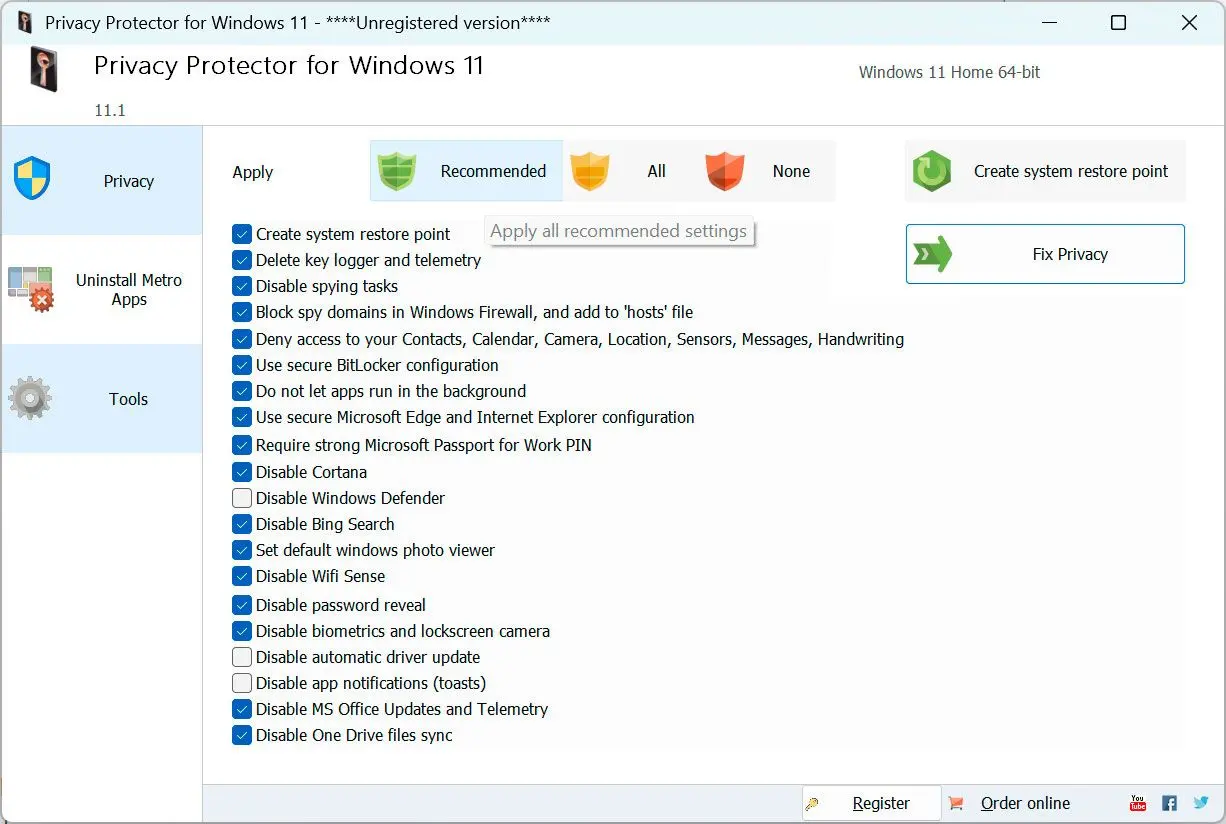
Privacy Protector for Windows 11 Screenshot.

Windows ships with tracking turned on. Out of the box it sends diagnostic data to Microsoft, hands apps an advertising ID, logs your activity history, and keeps location available by default. This guide shows you how to turn off Windows tracking the practical way: which toggles matter, how to shut down the telemetry service, and how to lock it with Group Policy or the registry. It is written for one personal PC, not a managed fleet, and it is honest about what you can fully stop and what you can only reduce.

After this guide you will:

  • Know exactly which Windows tracking settings to turn off and where they live.
  • Stop diagnostic data, the advertising ID, location, and activity history in minutes.
  • Keep tracking off after feature updates instead of redoing it every time.

What you will learn
Apply in 20 min Saves Recurring privacyEasy to Medium

What Windows actually tracks - and what "off" can really do

TL;DR

Windows tracks you through several separate channels - diagnostic data, advertising ID, activity history, and location. Turning one off does nothing for the others, and on Home and Pro you reduce telemetry rather than zero it.

The word "tracking" hides at least four independent systems, which is why people flip one switch and feel like nothing changed. Diagnostic data (telemetry) reports how your PC and apps behave. The advertising ID lets apps build an ad profile. Activity history records the apps and files you open. Location is its own permission stack. They are wired to different menus and different services, so you have to handle each one.

There is also a limit worth knowing before you start. The fully "off" state for diagnostic data is only honored on Enterprise and Education editions; on Home and Pro the floor is "required" data, as guides like PDQ spell out. So the honest goal here is to remove what you can and shrink the rest - not to pretend a consumer PC goes silent. We cover the same ground in plainer terms in our explainer on common Windows privacy issues.

Turn off the core Windows tracking toggles in Settings

Open Settings and go to Privacy and security

Press Win + I, then select Privacy & security from the left menu.

Turn off the advertising ID

Open General and switch off "Let apps show me personalized ads by using my advertising ID."

Turn off activity history

Open Activity history, uncheck store and send, then click Clear to delete what is already saved.

Lock down location

Open Location and turn the master toggle off, or disable it per app if you still want maps.

Switch off suggested content and app launch tracking

Back in General, turn off the remaining toggles for suggested content and letting Windows track app launches.

Privacy Protector for Windows 11 Privacy Protector for Windows 11
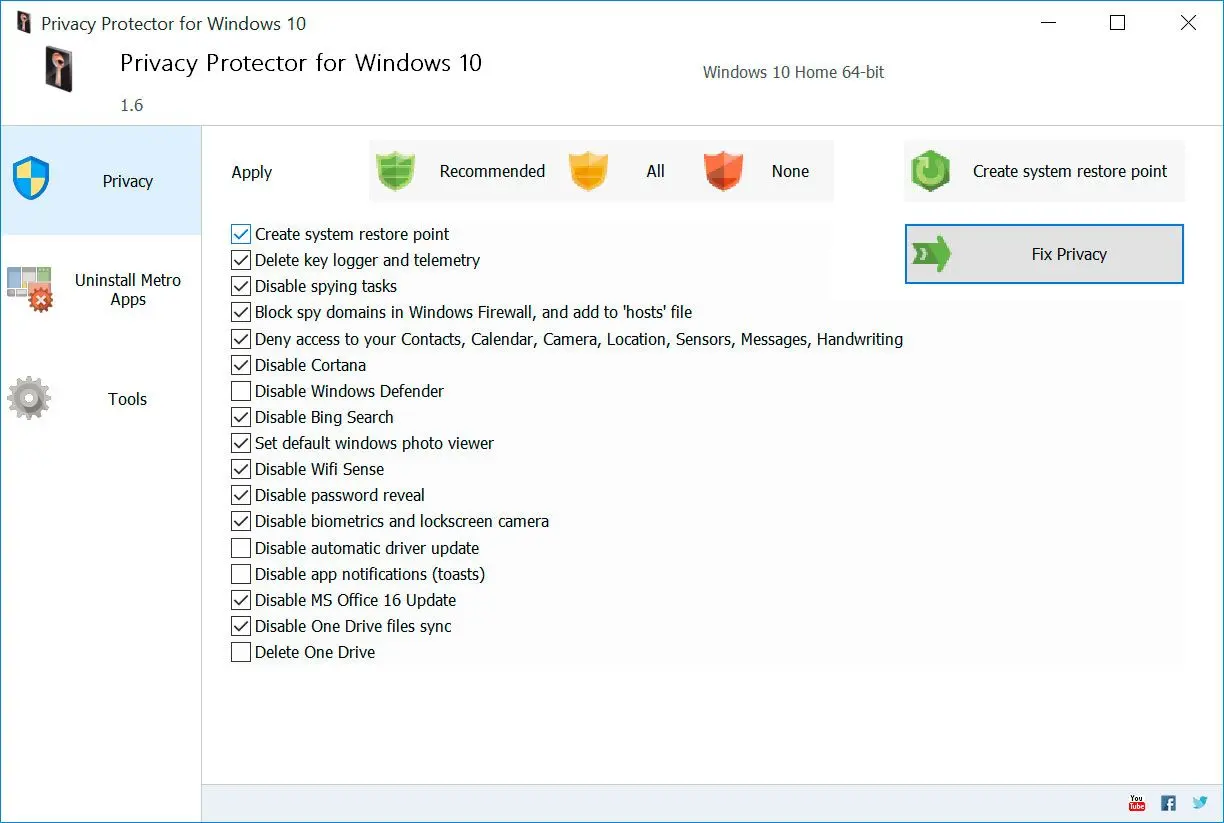
Privacy Protector for Windows 11 / 10 helps you gain full control over what Windows 11, 10, 8.1, 8 and Windows 7 are allowed to know about you, restricting the amount of collected information, blocking the system from tracking your activities and sending tracking and keylogger data to Microsoft.

Stop diagnostic data and tailored experiences

TL;DR

Set diagnostic data to "required only" and turn off tailored experiences - this pair is the single biggest stream of behavioral data leaving your PC.

If you only have time for one fix, make it this one. Go to Settings > Privacy & security > Diagnostics & feedback, then turn off Send optional diagnostic data. In the same screen, turn off Tailored experiences, which is what lets Windows mine your diagnostic signals to personalize tips, ads, and suggestions. MakeUseOf calls turning off optional diagnostic data "step one," noting it already cuts down a large amount of tracking before you touch anything more advanced.

Set diagnostic data to required only:

On Home and Pro, "required" is as low as the toggle goes. That still sends a baseline of reliability data, but it drops the optional usage telemetry that powers profiling. This is also the setting most likely to revert after a big update, so note it - you will come back to it later in this guide. If you are on Windows 10, the same toggle sits under Diagnostics & feedback as well; our older walkthrough on disabling Windows 10 tracking covers the slightly different menu names.

Disable the telemetry service (DiagTrack)

TL;DR

The Connected User Experiences and Telemetry service (DiagTrack) is the engine behind telemetry. Stopping it gets you closer to fully off than any toggle, but leftover tasks and a second service still need attention.

Toggles change what Windows wants to send; the service decides whether it can. To remove Windows tracking at the service level, open the Services console and stop the telemetry service itself.

Stop DiagTrack and dmwappushservice:

Press Win + R, type services.msc, and press Enter. Find Connected User Experiences and Telemetry (service name DiagTrack). Right-click it, choose Properties, click Stop, then set Startup type to Disabled and click OK. PDQ recommends disabling dmwappushservice the same way. If you prefer the command line, an elevated prompt with sc config DiagTrack start= disabled does the same job, a method NinjaOne documents. Stopping only DiagTrack is a classic half-fix, though - leftover scheduled tasks can keep collecting, as the next section explains.

Lock telemetry down with Group Policy or the registry

TL;DR

Group Policy (Pro and up) or a registry value (any edition) enforces the lowest telemetry level so casual toggling cannot bump it back up. Back up first.

Settings toggles are easy to flip by accident or by an update. A policy is sticky. Pick the path that matches your edition.

Group Policy (Windows 11 Pro and up):

Press Win + R, type gpedit.msc. Go to Computer Configuration > Administrative Templates > Windows Components > Data Collection and Preview Builds and open Allow Diagnostic Data. Enable it and choose the lowest level your edition allows, as described by NinjaOne. Run gpupdate /force in a command prompt to apply it immediately. One tell worth knowing: if the diagnostic data toggle in Settings is greyed out and shows "managed by your organization," a policy is already forcing the level - which is exactly what you want here, even on a home PC.

Registry (Windows Home):

Home has no Group Policy editor, so use the registry. Open regedit, browse to HKEY_LOCAL_MACHINE\SOFTWARE\Policies\Microsoft\Windows\DataCollection, and set (or create) a DWORD named AllowTelemetry to 0. On Home and Pro the system treats 0 as "required" rather than truly off, but it still caps the level. Export the key before you touch it - a backup costs ten seconds and saves an evening.

Why Windows tracking comes back after updates

TL;DR

Feature updates can re-enable DiagTrack and reset privacy toggles, and Home and Pro never let you reach a true zero. Plan to re-check after major updates.

Here is the part most guides skip. You do all of the above, feel good about it, and then a feature update quietly switches DiagTrack back on and resets a toggle or two. This is well documented. In one Microsoft Q&A thread, a user found Compatibility Telemetry still running after a cumulative update, and the fix turned out to be a scheduled task - the Microsoft Compatibility Appraiser - not the service at all. Updates lay down a fresh system layer, so tasks and services you disabled get treated as unconfigured and reset to their defaults.

If telemetry keeps coming back specifically through that scheduled task, open Task Scheduler, go to Task Scheduler Library\Microsoft\Windows\Application Experience, and disable Microsoft Compatibility Appraiser. That is the piece a stopped service does not cover.
On a managed work PC, Group Policy holds the line. On a personal machine there is no policy enforcement, so you are left with two choices: re-audit every setting after each update, or use a tool that remembers your chosen state and re-applies it. Honestly, the manual route loses over time - it depends on you remembering to re-check after an update you did not even notice installed. If you want the deeper background on what Microsoft collects and why it persists, our piece on stopping Windows from spying on you goes further. The short version: treat privacy on Windows as a setting you maintain, not one you set and forget.

Keep Windows tracking off in one place

TL;DR

A dedicated privacy tool applies these tweaks from one screen and re-applies them after updates, so you stop redoing the manual checklist by hand.

Doing this by hand once is fine. Doing it after every feature update, across Settings, services, and the registry, gets old fast. This is where windows tracking protection in a single app earns its place. Privacy Protector for Windows 11 collects the privacy tweaks Windows scatters across menus - diagnostic data, activity tracking, and the channels that send data to Microsoft - and lets you set them once, then re-apply after an update without hunting through every dialog again.

We are not going to claim it zeroes out a Home PC; nothing can, and the product itself talks about restricting and blocking, not erasing. What it does is turn a 20-minute manual audit into a couple of clicks you can repeat after each upgrade. It runs locally on your PC, alongside housekeeping tools like our system cleaner if you also want to clear the data already collected.

 Privacy Protector for Windows showing privacy tweaks grouped in one window.

Pitfalls when you turn off Windows tracking

TL;DR

Most "it didn't work" reports come from editing the registry without a backup, expecting settings to stick through updates, or disabling one service and assuming the job is done.

โœ”๏ธ Editing the registry without a backup.

The registry runs Windows. Before you change AllowTelemetry, export the key or set a restore point. People who skip this and mistype a value end up troubleshooting a boot problem instead of a privacy setting.

โœ”๏ธ Assuming the settings stick.

They often do not. In one Microsoft Q&A thread, a user found Send optional diagnostic data flipped itself off again after a reboot, and feature updates can likewise re-enable DiagTrack and reset toggles. Re-check after every major update, or let a tool re-apply your state.

โœ”๏ธ Blaming a broken Windows Update on telemetry.

DiagTrack can act up on its own - a Microsoft Q&A thread documents repeated DiagTrack errors that users cleared by stopping and restarting the service. If Windows Update misbehaves after you disable it, re-enable the service temporarily, run the Update Troubleshooter, then disable it again.

โœ”๏ธ Stopping one service and calling it done.

DiagTrack is not the only piece. The Microsoft Q&A thread shows compatibility telemetry tasks survive a DiagTrack stop. Handle dmwappushservice and the Settings toggles too.

โœ”๏ธ Expecting the advertising ID to remove ads.

It will not. Microsoft Support states turning it off only makes ads less personalized, not fewer. Turn it off for privacy, not for a quieter desktop.

Privacy Protector for Windows 11 Privacy Protector for Windows 11
Turn off Windows tracking the right way. Stop telemetry, the advertising ID, location, and activity history in Settings - and keep it off after updates.
Privacy Protector for Windows 11 Screenshot.


๐Ÿ™‹Frequently Asked Questions

Not on Home or Pro. You can set diagnostic data to required, disable DiagTrack, and lock the registry, but the floor is "required" data. Only Enterprise and Education honor a true off state.

Usually no. If Windows Update misbehaves after you disable DiagTrack, re-enable the service temporarily, run the Update Troubleshooter, then disable it again. Apps that need location will prompt you.

Feature updates can reset privacy toggles and re-enable DiagTrack. Re-check your settings after each major update, or use a tool that re-applies your chosen privacy state automatically.

No. It makes ads less personalized, but the number of ads stays the same. Removing the ad ID is about limiting your profile, not clearing your screen.

Yes. The menu names differ slightly, but diagnostic data, advertising ID, activity history, location, and the DiagTrack service all exist on Windows 10. The same registry and Group Policy paths apply.

Sources