Desktop line drawing program, online tool, or mobile app?
TL;DR
Use desktop software for privacy, batches, and fine control; an online tool for a quick one-off when the photo is not sensitive; a phone app for casual, social results. The job decides, not the hype.
For a single classroom worksheet, a free browser converter is a quick choice. If you sell crafts and need outlines for a cutting machine, use offline batch software. For a sketch of your dog to post on Instagram, a phone is enough.
Beyond a handful of conversions, repeated uploads and downloads add up. A batch run takes one click.
Is there a free option without a watermark?
TL;DR
Yes. FotoSketcher is free on Windows with no watermark, and several online tools are free but cap quality or stamp the result. For watermark-free output without uploading, a desktop tool is the safer bet.
A parent on r/Parents wrote, "I do not want to pay for fancy software," after online converters gave results that were "too messy or too detailed." Many free tiers, especially mobile apps, watermark your output until you pay.
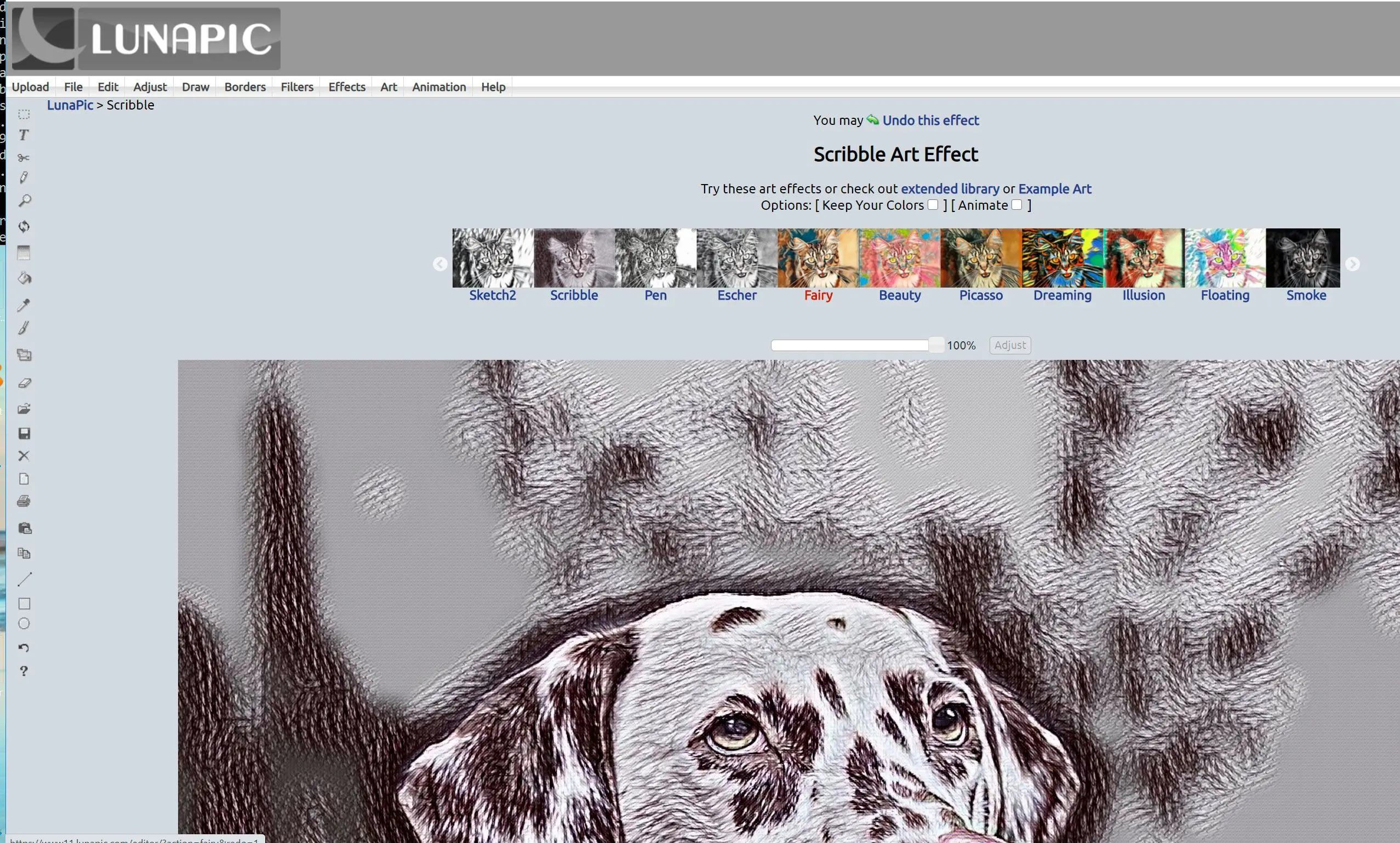
Free browser editors such as LunaPic also offer sketch effects at no cost for a quick test.
Will your photos stay private?
TL;DR
Online and AI tools upload your image to their servers; desktop software like Sketch Drawer or FotoSketcher processes it locally, so the photo never leaves your computer. For portraits, kids, or client work, that difference matters.
Most online converters send your photo to a server, apply the effect there, and return the result. That is little concern for a stock landscape. Keep family photos, client products, and confidential images offline if you cannot confirm where a site stores uploads. With local processing, your photos are not uploaded, stored on a server, or used to train anything.
How to convert many photos at once
TL;DR
Batch conversion is where desktop software pulls ahead. Point Sketch Drawer or a paid AKVIS tier at a folder, apply one preset, and process the whole set in a single pass. Online tools almost always make you go one image at a time.
Online conversion means repeating upload, wait, and download for every image. For fifty photos, that gets tedious. In Sketch Drawer, you can set the look once and run a folder of 200 photos as one batch. You can also script it as part of a larger production process. For more than a handful of images, put batch support near the top of your requirements.
Controlling line thickness and contour for Cricut, laser, and stencils
TL;DR
For cutting machines, laser engraving, and stencils you need control over edge strength and line thickness, not a fixed browser filter. Desktop tools with contour and stroke settings give cleaner, more cuttable lines; auto-traced results often come out rough at the junctions.
A Cricut or laser cutter needs connected lines. On r/cricut, one maker called the usual advice "convoluted" and described a manual Inkscape trace to get a single clean line. Another found auto centerline traces "pretty rough at junctures." The Adobe Illustrator community reached the same conclusion: automated photo-to-vector output needs manual cleanup.
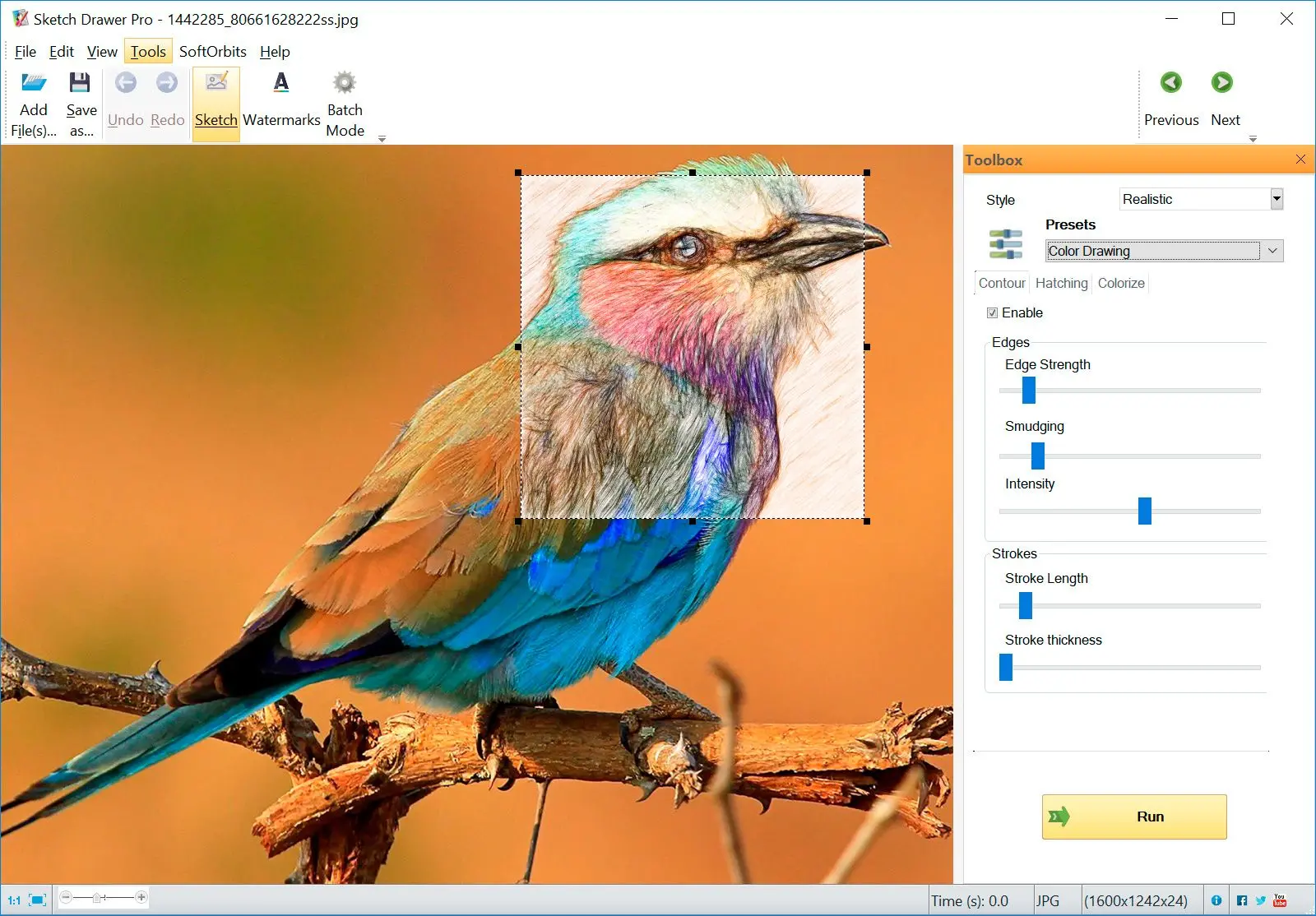
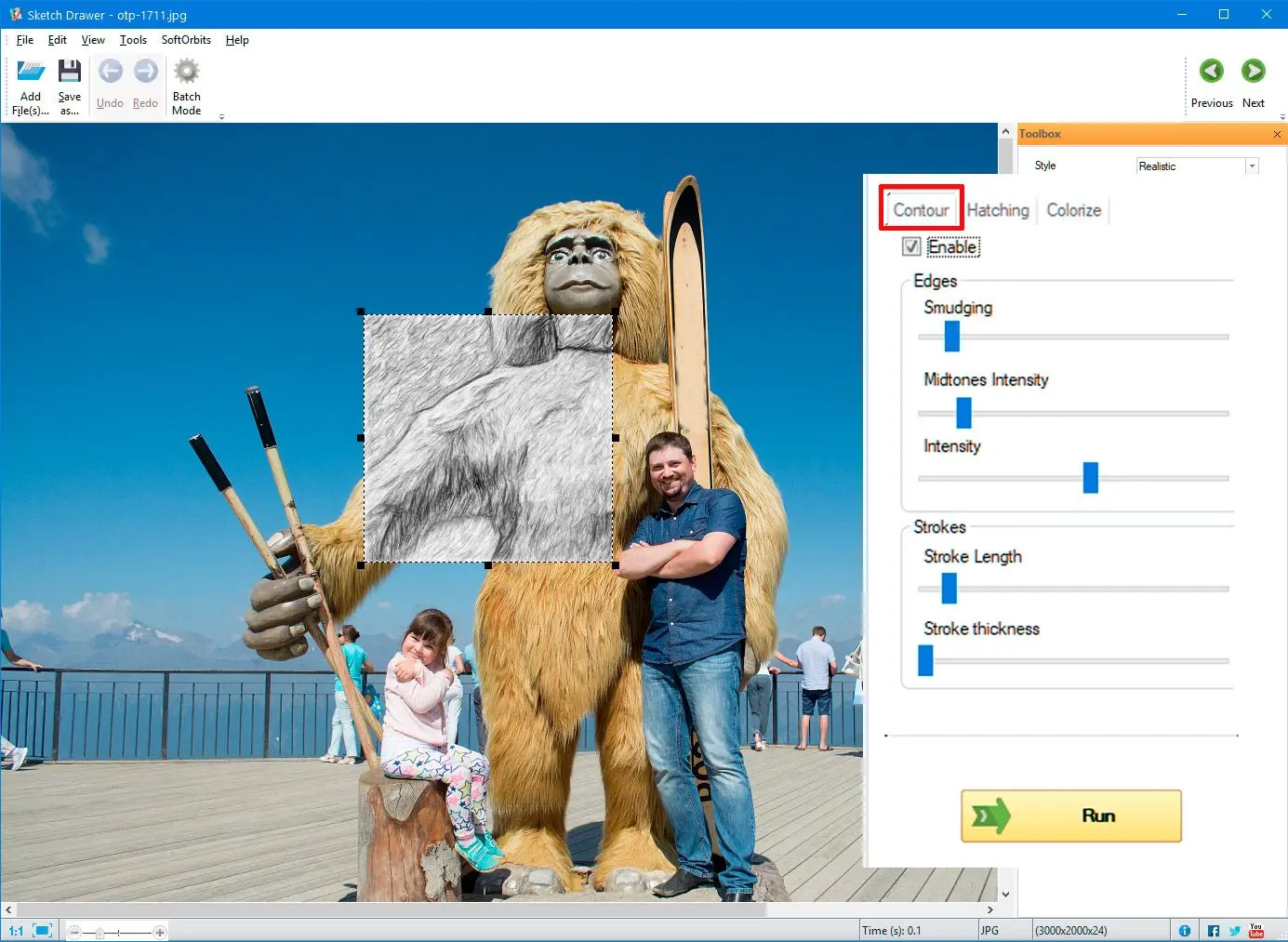
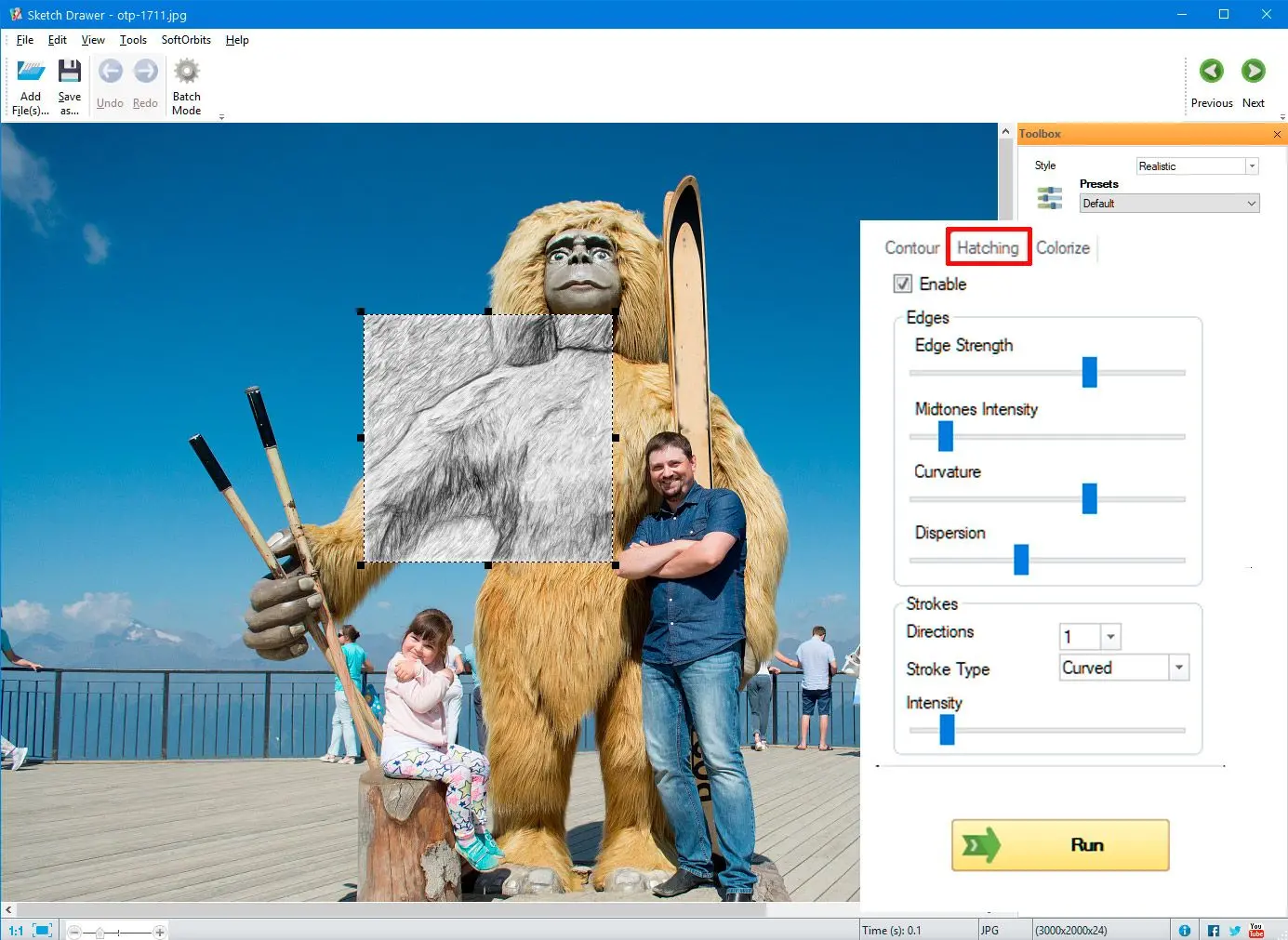
Use contour and stroke controls before tracing, including when you make a stencil from a photo. In Sketch Drawer, adjust Contour and Hatching to get a near-pure outline. Trace that result to vector if your cutter needs SVG.
Why online tools look messy, and how to get clean lines
TL;DR
Automatic tools struggle with hair and busy backgrounds, turning fine detail into noise. Clean results come from controllable edge detection plus a simpler subject and good lighting, or a quick manual cleanup afterward.
Automatic edge detection draws edges without knowing which ones matter to you. Hair becomes a scribble, faces pick up stray lines, and cluttered backgrounds turn noisy. Start with a clear subject, decent contrast, and a plain background. Lower the detail or edge strength to reduce noise.
Even adjustable software cannot handle every difficult photo perfectly. When you convert a photo straight to line art, a minute of manual cleanup can beat twenty spent fighting the converter.
Making coloring pages from your own photos
TL;DR
A coloring page is just a clean black-and-white outline with no shading. Use a Classic or outline preset, turn hatching off, and keep lines bold so a child can color inside them. Desktop tools give the most consistent, printable result.
A pet, grandparent, or favorite toy can become a personalized coloring page. Use bold, closed outlines without gray shading: choose a Classic or schematic-style preset, turn hatching off, and increase contrast. Online generators can leave lines too faint or too detailed. Save and reuse a desktop preset to keep every coloring page from a photo consistent and printable, as with a dedicated picture outline maker.
Sketch Drawer
Looking for a line drawing program? We compare 10 photo to line drawing software tools for Windows: clean line art, batch conversion and cutter-ready outlines.
Want to see your photos as realistic pencil sketches? We trained an AI to do it.
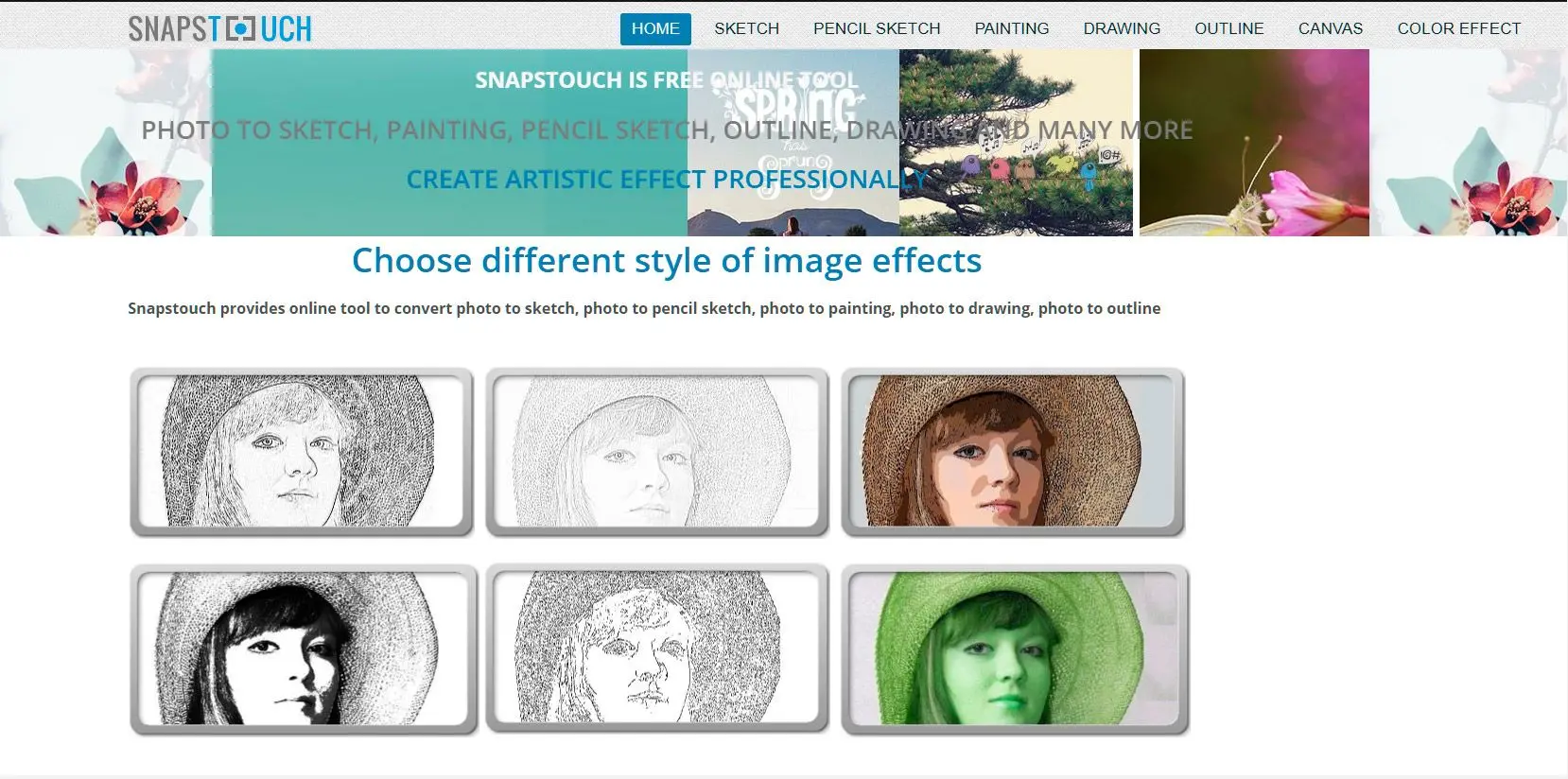
SoftOrbits Sketch Drawer is our Windows pick for offline work, fine control, and batch processing. FotoSketcher gives you a free desktop option without a watermark; Snapstouch is the quickest free browser choice for a one-off.
Use FotoSketcher on Windows for free, watermark-free output, or Snapstouch or LunaPic online for a quick single image. Free online converters upload your photo and limit file size. Keep sensitive images offline.
Sketch Drawer, FotoSketcher, and AKVIS process photos on your computer without uploads. VansPortrait, Snapstouch, BeFunky, and Firefly send your image to their servers.
Sketch Drawer processes a folder in one pass and supports the command line. Higher AKVIS tiers also support batches. Online converters almost always handle one image at a time.
Choose desktop software with contour and line-thickness controls. Trace the clean result to vector if your machine needs SVG. Instant browser auto-traces tend to leave rough junctions.
No. Sketch Drawer or FotoSketcher converts photos directly. Photoshop and Illustrator can do it with Image Trace, but that takes more steps and usually manual cleanup.
Automatic edge detection includes hair and background clutter. Choose a clearer subject with good contrast, lower detail or edge strength, and clean up stray lines if needed.
Clip2Comic on iOS and Prisma on iOS and Android offer free sketch styles. Many mobile apps watermark free output or require a subscription for HD export.
Sources
FotoSketcher: official site, free desktop conversion without watermarks
AKVIS Draw: vendor page, standalone conversion and Photoshop plugin
 Sketch Drawer